How Do I Accept Mcdonalds Wi Fi Terms And Conditions
Accepting McDonald’s Wi-Fi terms and conditions is simple once you know the steps. You need to connect to the McDonald’s network, open a browser, and agree to the portal page. This guide covers iPhone, Android, and laptop methods with troubleshooting tips.
You walk into McDonald’s, grab a coffee, and sit down. You open your phone. You look for Wi-Fi. And then you see it — the McDonald’s network. But how do you actually connect? More importantly, how do you accept McDonald’s Wi-Fi terms and conditions? If you have ever stood in a McDonald’s staring at your screen wondering why nothing works, you are not alone. This guide walks you through every step. It covers phones, laptops, and common problems. By the end, you will connect like a pro.
McDonald’s offers free Wi-Fi at most locations. It is a great perk. You can browse the web, stream videos, or check emails while enjoying your meal. But before you get online, you must accept the terms and conditions. This is standard for most public Wi-Fi networks. The process is quick. But it can be confusing if you do not know where to look. Let us fix that right now.
Key Takeaways
- Step-by-step process: Connecting to McDonald’s Wi-Fi and accepting terms takes under 2 minutes on any device.
- Works on all devices: Whether you use an iPhone, Android, or laptop, the process is similar and straightforward.
- Troubleshooting tips included: Common issues like pages not loading can be fixed with simple steps.
- Time limits apply: McDonald’s Wi-Fi sessions typically last 2 hours before you need to re-accept terms.
- Safety matters: Always use a VPN when connecting to public Wi-Fi networks like McDonald’s.
📑 Table of Contents
- Why McDonald’s Wi-Fi Requires Terms Acceptance
- How to Accept McDonald’s Wi-Fi Terms on iPhone
- How to Accept McDonald’s Wi-Fi Terms on Android
- How to Accept McDonald’s Wi-Fi Terms on a Laptop
- Common Problems and How to Fix Them
- Tips for a Better McDonald’s Wi-Fi Experience
- How McDonald’s Wi-Fi Compares to Other Public Networks
- What to Do If McDonald’s Wi-Fi Is Not Working
- Frequently Asked Questions
- Conclusion
Why McDonald’s Wi-Fi Requires Terms Acceptance
Every public Wi-Fi network has rules. McDonald’s is no different. When you connect to their network, you are using their internet infrastructure. This means they need you to agree to their terms. These terms protect both you and the restaurant. They outline what is allowed and what is not. They also set time limits and usage rules.
The terms and conditions page is called a captive portal. This is a fancy term for a web page that appears before you can access the internet. It acts as a gateway. You must interact with it before anything else works. Think of it like a digital handshake. You agree to the rules, and they let you online. Understanding this helps you troubleshoot if something goes wrong.
Public Wi-Fi networks like McDonald’s, Xfinity hotspots, and AT&T Wi-Fi all use similar portals. If you have ever connected to Xfinity Wi-Fi away from home, you have seen the same type of page. The process is nearly identical across networks. Once you do it once, you will recognize the pattern.
What the Terms Usually Include
The McDonald’s Wi-Fi terms cover a few key points. First, they outline acceptable use. This means no illegal activity. No hacking. No downloading harmful content. Second, they set time limits. Most McDonald’s Wi-Fi sessions last about 2 hours. After that, you may need to re-accept the terms. Third, they explain data collection. McDonald’s may collect some usage data. This is common for free public networks.
Reading the full terms is a good idea. But most people just want to get online fast. The good news is you do not need to read every word. Just scroll to the bottom and accept. You can always review the terms later if you want.
How to Accept McDonald’s Wi-Fi Terms on iPhone
Connecting on an iPhone is very straightforward. Apple makes the process simple. But sometimes things do not go as planned. Here is exactly what to do.
First, make sure Wi-Fi is turned on. Go to Settings. Tap Wi-Fi. Look for the McDonald’s network. It is usually called “McDonald’s Wi-Fi” or something similar. Tap on it to connect. You may need to enter a password. Ask a staff member if you do not see one posted.
Once connected, open Safari or any browser. The terms page should appear automatically. If it does not, try typing any website into the address bar. This forces the captive portal to load. You will see the McDonald’s Wi-Fi terms and conditions. Scroll down and tap Accept or Agree. That is it. You are now online.
Sometimes the page does not load. This is common. If that happens, try turning Wi-Fi off and back on. You can also try forgetting the network and reconnecting. Another trick is to open a non-HTTPS website. The portal often blocks secure sites from loading properly.
If you have trouble with your Wi-Fi connection settings, you might want to check whether your phone is set to use a specific frequency band. For example, forcing your phone to use 2.4 GHz Wi-Fi can sometimes resolve connection issues with public networks. The 2.4 GHz band has a longer range and better compatibility with public hotspots.
How to Accept McDonald’s Wi-Fi Terms on Android
Android phones work similarly but with a few differences. The process is just as easy. Here is how to do it.
Open your Settings app. Tap Wi-Fi or Connections. Find the McDonald’s network. Tap it to connect. If a password is required, ask a staff member. Once connected, open your browser. Chrome is the default on most Android phones. The terms page should pop up.
If the page does not appear, type any website into the address bar. This triggers the captive portal. You should now see the McDonald’s Wi-Fi terms and conditions. Read through them if you want. Then tap Accept or Agree. Your internet should work immediately.
Android phones sometimes have a feature called “Auto-connect.” This automatically connects you to known networks. McDonald’s Wi-Fi may appear in your saved networks list after the first visit. This makes future visits faster. You just walk in and you are already connected.
Some Android devices also let you manage Wi-Fi settings more granularly. You can set proxy settings or static IPs if needed. But for most people, the default settings work perfectly fine. Keep it simple.
How to Accept McDonald’s Wi-Fi Terms on a Laptop
Using McDonald’s Wi-Fi on a laptop follows the same basic steps. Whether you have a Windows laptop or a Mac, the process is nearly identical.
First, click the Wi-Fi icon in your taskbar or menu bar. Find the McDonald’s network. Click to connect. Enter the password if needed. Once connected, open your web browser. Any browser will work. Chrome, Safari, Firefox, Edge — they all work the same way.
The captive portal should load automatically. If it does not, visit any website. The portal will intercept the request and show you the terms page. Read the terms. Scroll to the bottom. Click Accept or Agree. You are now browsing McDonald’s Wi-Fi on your laptop.
Laptops sometimes behave differently than phones. They may not auto-detect the captive portal. This is because laptops often cache DNS differently. If the page does not load, try typing 1.1.1.1 into your browser. This Cloudflare DNS address often triggers the portal. It is a handy trick for any public Wi-Fi network.
For AT&T Wi-Fi hotspots, the process is very similar. If you have ever connected to AT&T Wi-Fi anywhere, you already know how public Wi-Fi portals work. McDonald’s follows the same general pattern.
Common Problems and How to Fix Them
Not everything always goes smoothly. Public Wi-Fi can be tricky. Here are the most common problems and how to solve them.
The Terms Page Will Not Load
This is the number one issue people face. The portal page simply does not appear. Why does this happen? Several reasons. Your browser might be caching old data. The network might be overloaded. Or your device settings might be blocking the page.
Here is what to do. Clear your browser cache. Open an incognito or private window. Try a different browser. Switch from HTTPS to HTTP websites. These steps force the portal to load. If nothing works, toggle Wi-Fi off and back on. Restarting your connection often fixes the issue.
Connected But No Internet
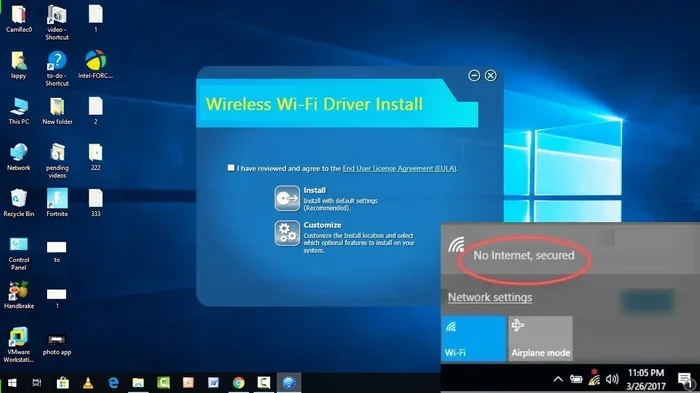
You see the Wi-Fi icon. You are connected. But nothing loads. This means the captive portal did not trigger. Try opening a non-secure website. Type something like http://example.com into your browser. This should force the terms page to appear.
Another fix is to forget the network and reconnect. Go to your Wi-Fi settings. Find McDonald’s. Tap Forget or Remove. Then reconnect from scratch. This resets the connection and often fixes the portal issue.
Accepted Terms But Still Blocked
You accepted the terms. But you still cannot access the internet. This is frustrating. But it usually has a simple fix. Wait a few minutes. Sometimes the portal takes time to fully process your acceptance. Refresh the page. Try loading a different website. If the problem persists, restart your device.
In rare cases, the McDonald’s network itself might be down. This happens. Ask a staff member if the Wi-Fi is working. They often know if there is a temporary outage. They might even have a workaround for you.
Tips for a Better McDonald’s Wi-Fi Experience
Getting online at McDonald’s is easy once you know a few tips. These small tricks make a big difference. Here are the best ones.
- Arrive early: Popular locations get crowded. The Wi-Fi can slow down during peak hours. An earlier visit means a faster connection.
- Bring a power outlet adapter: You might be there for a while. Keeping your device charged is important. Some McDonald’s locations have limited outlets.
- Use a VPN: Public Wi-Fi is convenient but not always safe. A VPN encrypts your data. This protects your privacy. It is especially important on open networks like McDonald’s.
- Check the time limit: McDonald’s Wi-Fi sessions usually last 2 hours. Plan your work or browsing accordingly. You may need to re-accept terms after the session ends.
- Download offline content first: If you know you will be at McDonald’s, download music or videos beforehand. This saves data and keeps you entertained even if the Wi-Fi is slow.
Is McDonald’s Wi-Fi Safe to Use?
This is a great question. Free public Wi-Fi is convenient. But it comes with risks. Open networks are not encrypted. This means others on the same network can potentially see your activity. Hackers can set up fake hotspots with similar names. This is called a man-in-the-middle attack.
You can protect yourself. Use a VPN. It encrypts your traffic. Avoid logging into sensitive accounts. If you must check banking or email, use your mobile data instead. Turn off file sharing on your device. These steps keep you safe while enjoying free McDonald’s Wi-Fi.
McDonald’s takes network security seriously. They use firewalls and content filters. But no public network is 100% safe. Being cautious is always a smart move. Think of it like locking your car in a parking lot. It is a simple habit that goes a long way.
How McDonald’s Wi-Fi Compares to Other Public Networks
McDonald’s Wi-Fi is similar to other free public networks. But there are some differences worth noting. Here is a quick comparison.
| Feature | McDonald’s Wi-Fi | Xfinity Hotspot | AT&T Wi-Fi |
|---|---|---|---|
| Cost | Free | Free for Xfinity subscribers | Free for AT&T customers |
| Session Length | 2 hours | Varies | Varies |
| Terms Page | Yes, captive portal | Yes, captive portal | Yes, captive portal |
| Password Required | Sometimes | Usually not | Usually not |
| Speed | Moderate | Fast | Moderate |
| Availability | Most locations | Many public places | Many public places |
As you can see, the acceptance process is similar across all these networks. Whether you are connecting to AT&T Wi-Fi anywhere or McDonald’s, you will encounter a captive portal. The steps are the same: connect, open a browser, accept the terms, and browse.
What to Do If McDonald’s Wi-Fi Is Not Working
Sometimes the Wi-Fi just does not work. The network might be down. The portal might be glitching. Or there could be a problem with your device. Here is what to do when nothing seems to work.
First, ask the staff. They deal with Wi-Fi issues all the time. They might know if the network is temporarily down. They might even have a workaround. This is often the fastest solution.
Second, restart your device. This clears temporary glitches. It resets your network connections. Sometimes a simple reboot fixes everything. Third, try connecting with a different device. If your phone works but your laptop does not, the problem is with the laptop. If neither works, the problem is with the network.
Finally, use your mobile data as a backup. If you have a good data plan, you can tether your laptop to your phone. This gives you internet without relying on McDonald’s Wi-Fi. Just be mindful of your data usage. Streaming and large downloads eat up data fast.
Frequently Asked Questions
Do I need a McDonald’s account to accept the Wi-Fi terms?
No, you do not need a McDonald’s account. The Wi-Fi terms and conditions are open to anyone. You just need to connect to the network and accept the portal page. No login or personal information is required for basic access.
How long does a McDonald’s Wi-Fi session last?
Most McDonald’s Wi-Fi sessions last about 2 hours. After that, you may need to reconnect and re-accept the terms. Some locations may have different time limits. Check with staff if you are unsure.
Can I use McDonald’s Wi-Fi without buying anything?
Yes, you can. McDonald’s free Wi-Fi is available to everyone. You do not need to make a purchase. However, being a respectful guest is always appreciated. Buying a drink or snack is a nice gesture.
Why does the Wi-Fi terms page keep redirecting me?
This usually happens when the captive portal does not detect your acceptance properly. Try clearing your browser cache or switching to a private browsing window. Restarting your Wi-Fi connection often fixes this issue too.
Is McDonald’s Wi-Fi available at all locations?
Most McDonald’s locations offer free Wi-Fi. However, some smaller or older locations may not have it. You can check with the staff before ordering. They will know if Wi-Fi is available at that specific restaurant.
Can I use McDonald’s Wi-Fi on multiple devices at once?
Yes, you can connect multiple devices to McDonald’s Wi-Fi. Each device will need to accept the terms separately. The 2-hour session limit applies per device, not per account. So each device gets its own 2-hour window.
Conclusion
Accepting McDonald’s Wi-Fi terms and conditions is easy once you know the steps. Connect to the network. Open a browser. Accept the portal page. You are online. It really is that simple. Whether you are on an iPhone, Android, or laptop, the process works the same way.
Do not let technical issues stop you. The tips in this guide help you troubleshoot common problems. Use a VPN for safety. Be mindful of time limits. And remember that McDonald’s Wi-Fi is a free perk. It is there for you to enjoy.
Next time you visit McDonald’s, you will connect in seconds. No confusion. No frustration. Just fast, easy internet. Enjoy your meal and your browsing. You are now a McDonald’s Wi-Fi pro.