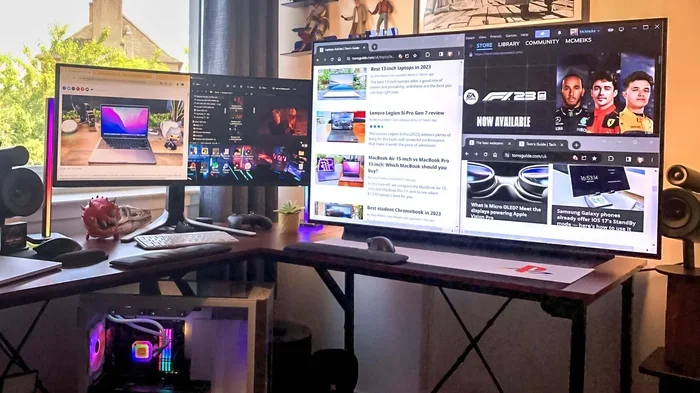
Can I Use My TV As A Monitor Without HDMI Connection
Can I Use My TV As A Monitor Without HDMI? Yes, you absolutely can, and there are several simple ways to do it. Whether you prefer a wireless connection, a VGA cable, or a USB-C adapter, turning your TV into a second screen is easier than you think. This guide walks you through every method, so you can pick the best one for your setup. You will learn the pros, the cons, and the step-by-step process for each option.
So you want a bigger screen. Maybe your laptop monitor feels too small, or your desk setup needs an upgrade. The first thing you think about is using your TV as a monitor. But then you look at the back of your TV and realize there is no HDMI port available, or your cable is missing. The question hits you: Can I Use My TV As A Monitor Without HDMI? The short answer is yes. You have more options than you probably think, and most of them are simple and affordable. This guide covers every method you can use to turn your TV into a working monitor without relying on an HDMI cable.
People ask this question all the time, and for good reason. TVs have become larger, sharper, and more affordable than ever. A 50-inch or 65-inch screen feels amazing compared to a 15-inch laptop display. But the connection part trips people up. HDMI is the most common way to link devices, and when it is not an option, panic sets in. Do not worry. We are going to walk through every alternative, explain how each one works, and help you choose the best path for your situation.
Key Takeaways
- Multiple Connection Options: You can use VGA, USB-C, wireless casting, or streaming devices to connect your TV as a monitor without HDMI.
- Wireless Is the Easiest: Screen mirroring and wireless display tech let you go cable-free and still get a great big-screen experience.
- Check Your Ports First: Knowing what inputs your TV and laptop support saves time and frustration during setup.
- Picture Quality Matters: Different connection types affect resolution, refresh rate, and text clarity on your TV screen.
- Input Lag Can Be an Issue: Wireless methods may add slight delays, which matters for gaming or fast-paced tasks.
- Streaming Devices Work Great: A Roku, Fire Stick, or Chromecast can bridge the gap when other methods fall short.
📑 Table of Contents
- Why Would You Want to Use a TV as a Monitor Without HDMI?
- Alternative Connection Methods to Connect Your TV
- Setting Up Your TV as a Monitor Wirelessly
- Things to Consider Before You Connect
- Step-by-Step Setup Guide
- Quick Tips for the Best Experience
- Common Problems and How to Fix Them
- Expert Insights on Using a TV as a Monitor
- Conclusion
Why Would You Want to Use a TV as a Monitor Without HDMI?
Before we dive into the how, let us talk about the why. Understanding your reasons helps you pick the right method. Not every connection type works the same for every person.
Bigger Screen, Better Experience
A TV screen gives you more space to work. Whether you are editing photos, watching videos, or multitasking with multiple windows, a larger display makes everything easier on the eyes. When you use your TV as a monitor without HDMI, you get this benefit without being locked into one specific cable type.
You Might Not Have an HDMI Port
Some older TVs lack HDMI ports entirely. Others might have HDMI ports that are already in use by other devices like a game console or a streaming stick. In these cases, you need an HDMI alternative to get your TV working as a second screen.
Wireless Freedom Appeals to You
Cables can be messy. They trip you up, limit your seating position, and clutter your desk. A wireless connection removes all of that. If you want a clean setup, going cable-free is a huge win.
Cost Savings
Buying a new monitor can be expensive. Using your existing TV saves money. You already own the screen. You just need the right cable or adapter to make it work.
Alternative Connection Methods to Connect Your TV
Now we get to the heart of the matter. Here are the main ways to connect your TV as a monitor when HDMI is not an option. Each method has its own strengths and weaknesses, so read through them carefully.
VGA Connection (The Classic Option)
A VGA cable is one of the oldest display connection types. It uses a blue, 15-pin connector and carries analog video signals. Many older TVs and projectors still have VGA inputs. If your TV has a VGA port, this is an easy and direct way to get a picture on the big screen.
However, VGA only carries video. You will need a separate audio cable or your TV’s built-in speakers may not work with your laptop. The image quality is also lower than HDMI. Text may appear slightly fuzzy. Still, for basic tasks like browsing the web or writing documents, VGA works fine.
USB-C and DisplayPort Adapters
If your laptop has a USB-C port, you are in luck. Many modern USB-C ports support video output. You can buy a simple USB-C to HDMI adapter or a USB-C to VGA adapter. These small devices plug into your laptop and give you a standard display output.
Some TVs even have USB-C inputs that accept video signals directly. Check your TV’s manual to confirm. A USB-C adapter is one of the cleanest and most reliable HDMI alternatives available today.
Wireless Screen Mirroring
Wireless is where things get really convenient. Most smart TVs support screen mirroring through built-in technology like Miracast or Chromecast. Your laptop or phone can cast its display to the TV over your home Wi-Fi network.
To use this method, make sure both your TV and your computer support wireless display. On Windows, look for the “Connect” or “Project” option in your settings. On a Mac, use AirPlay if your TV supports it. Wireless mirroring is perfect for people who want a quick, cable-free setup.
Streaming Devices as a Bridge
Another clever approach is to use a streaming device like a Roku, Amazon Fire Stick, or Google Chromecast. These devices plug into your TV (usually through HDMI, but some work wirelessly) and let you mirror your screen or cast content from your phone or computer.
This method works especially well if your TV does not have many input ports. A streaming device acts as a middleman between your laptop and your TV. You get a clean connection without dealing with cables directly.
Composite and Component Cables
For really old TVs, composite cables (the yellow, red, and white RCA connectors) or component cables might be your only option. These cables carry both video and audio. The image quality is much lower than modern connections, but they still produce a usable picture.
You will likely need a special adapter on your laptop side to convert the output to composite or component. These adapters are inexpensive and easy to find online.
Comparison of Connection Methods
| Method | Video Quality | Audio Support | Ease of Setup | Best For |
|---|---|---|---|---|
| VGA | Standard (1080p max) | No (separate cable needed) | Easy | Older TVs, basic tasks |
| USB-C Adapter | High (4K possible) | Yes (via USB-C) | Very Easy | Modern laptops, clean setup |
| Wireless Mirroring | Good (depends on Wi-Fi) | Yes | Easy | Cable-free, casual use |
| Streaming Device | Good to Excellent | Yes | Easy | Smart TVs, limited ports |
| Composite Cable | Low (480p typical) | Yes | Moderate | Very old TVs |
Setting Up Your TV as a Monitor Wirelessly
Wireless setup is the method most people prefer when they ask can I use my TV as a monitor without HDMI. It feels modern, it is convenient, and it avoids cable clutter entirely. Here is how to get it working.
Check Compatibility First
Before you start, confirm that your TV supports wireless display. Most smart TVs from the last five years do. Look for labels like “Screen Mirroring,” “Miracast,” or “Wireless Display” in your TV’s settings menu. On the computer side, make sure your device supports Wi-Fi Direct or wireless display output.
Connect Both Devices to the Same Network
Your TV and your laptop or phone must be on the same Wi-Fi network. This is essential for wireless mirroring to work. If they are on different networks, the connection will fail.
Enable Screen Mirroring on Your TV
Go to your TV’s input or source menu and select the wireless display or screen mirroring option. Your TV will now search for nearby devices that can cast to it.
Connect from Your Computer
On Windows, press the Windows key and K to open the Connect panel. Select your TV from the list. On a Mac, click the AirPlay icon in the menu bar and choose your TV. The screen should appear on your TV within seconds.
Adjust Display Settings
Once connected, go to your computer’s display settings. You can choose to extend your desktop or mirror your screen. Extending the desktop gives you more workspace, while mirroring shows the same image on both screens.
Things to Consider Before You Connect
Not every setup works perfectly right out of the box. Consider these factors before you commit to a connection method.
Input Lag and Refresh Rate
TVs are designed for video playback, not computer work. This means some TVs have higher input lag than monitors. If you plan to do gaming or video editing, check the refresh rate and response time of your TV. A 60Hz refresh rate is fine for most tasks, but gamers may want 120Hz or higher.
Resolution Mismatch
Your TV might have a different resolution than your laptop. A 4K TV connected to a 1080p laptop will scale the image. This can make text appear smaller or larger than expected. Adjust the scaling settings in your computer’s display panel to get the best results.
Text Clarity
Text on a TV screen is not always as crisp as on a dedicated monitor. TVs have larger pixels because the screens are bigger. For reading documents or coding, you might notice the text is slightly less sharp. Adjusting the sharpness and clarity settings on your TV can help.
Audio Output
Some connection methods do not carry audio. If you use a VGA cable, for example, you will need a separate 3.5mm audio cable or Bluetooth speakers. Wireless methods and USB-C connections usually handle audio automatically.
Distance and Placement
Think about where you will place your TV relative to your seating area. A TV that is too far away makes text hard to read. A TV that is too close causes eye strain. Aim for a comfortable viewing distance, typically 5 to 8 feet from your seat.
Step-by-Step Setup Guide
Here is a simple walkthrough to get your TV working as a monitor without HDMI. Follow these steps in order for the smoothest experience.
- Check your TV inputs. Look at the back or side of your TV. What ports do you see? VGA, USB-C, composite, or wireless display options?
- Check your computer outputs. Does your laptop have VGA, USB-C, or wireless display capabilities? Match the output to the TV input.
- Gather your cables or adapters. Buy the right cable or adapter based on your findings. A USB-C to HDMI adapter is a great all-around choice.
- Connect the devices. Plug in the cable or enable wireless mirroring. Make sure both devices are powered on.
- Select the correct input on your TV. Use your TV remote to switch to the right source or input channel.
- Adjust display settings on your computer. Go to Settings > Display. Choose extend or mirror, and adjust resolution and scaling.
- Test the setup. Open a web browser, play a video, and type a document. Make sure everything looks and sounds right.
Quick Tips for the Best Experience
- Use a wireless keyboard and mouse when your TV is far from your desk. A Bluetooth keyboard keeps your setup clean and functional.
- Turn off your TV’s motion smoothing for computer use. This feature, often called “smooth motion” or “Trumotion,” can cause a soap opera effect that makes on-screen text look weird.
- Adjust your TV’s brightness and contrast for indoor lighting. A bright room needs a brighter screen, while a dark room benefits from lower brightness.
- Keep your Wi-Fi strong if you use wireless mirroring. A weak signal causes lag, stuttering, and dropped frames.
- Update your graphics drivers before connecting. Updated drivers ensure the best compatibility and performance with external displays.
Common Problems and How to Fix Them
Even with the best setup, things can go wrong. Here are the most common issues people face when using a TV as a monitor without HDMI and how to solve them.
No Signal on the TV Screen
This usually means the TV is on the wrong input source. Double-check that you have selected the correct input on your TV. Also make sure the cable is firmly plugged in on both ends. If you are using an adapter, try a different one to rule out a faulty adapter.
Fuzzy or Blurry Text
Go to your computer’s display settings and adjust the resolution. Match it to your TV’s native resolution for the sharpest image. Also check your TV’s sharpness setting and turn it down if text looks overly crisp or noisy.
No Sound
If your connection does not carry audio, go to your computer’s sound settings and select your TV as the audio output device. For VGA connections, use a separate 3.5mm audio cable from your laptop’s headphone jack to the TV’s audio input.
Lag or Delay When Moving the Mouse
Wireless connections are the most common cause of lag. Move closer to your Wi-Fi router or switch to a wired connection for better responsiveness. If you must go wireless, make sure you are on a 5GHz Wi-Fi band for the fastest speeds.
Screen Does Not Fill the TV
This is a resolution or aspect ratio issue. Go to your display settings and adjust the scaling. You can also change your TV’s aspect ratio setting to match your computer’s output.
Expert Insights on Using a TV as a Monitor
Technology experts agree that using a TV as a monitor is a smart move for many people. The key is choosing the right connection method for your specific situation. A wireless setup works great for casual browsing and media consumption. A wired connection through a USB-C adapter gives you the best performance for work tasks and gaming.
Experts also recommend considering your TV’s panel type. An LED or OLED TV offers better color accuracy and deeper blacks than older LCD models. This makes a noticeable difference in text clarity and overall viewing comfort during long work sessions.
Can I Use My TV As A Monitor Without HDMI is a question with a resounding yes as the answer. The technology has evolved to give you plenty of options. From old-school VGA cables to modern wireless casting, there is a solution for every setup and every budget. The important thing is to know your devices, pick the right method, and take the time to configure your display settings properly.
Conclusion
Using your TV as a monitor without HDMI is not only possible, it is straightforward. You have VGA cables, USB-C adapters, wireless mirroring, streaming devices, and even composite cables at your disposal. Each method has its place depending on your TV’s inputs, your computer’s outputs, and your personal preferences.
The wireless options are perfect for people who want a clean, cable-free desk setup. The wired options deliver better performance and reliability for demanding tasks. And streaming devices offer a flexible middle ground that works with almost any smart TV.
Take a few minutes to check your ports, gather the right cables or adapters, and follow the setup steps in this guide. You will be enjoying a bigger, better screen in no time. Can I Use My TV As A Monitor Without HDMI? Absolutely. Now you know exactly how to do it.
Start with the method that fits your situation best. Experiment if you need to. The goal is a comfortable, functional setup that makes your computing experience more enjoyable. A TV as a monitor is a simple upgrade that can transform the way you work, play, and watch content every single day.
Frequently Asked Questions
Can I Use My TV As A Monitor Without HDMI Using Just a USB Cable?
In most cases, a standard USB cable alone will not carry a video signal. However, a USB-C cable can work if your laptop supports video output over USB-C and your TV has a USB-C input. You may also need a USB-C to HDMI adapter or a USB-C docking station to make the connection work properly.
Is Wireless Screen Mirroring Good Enough for Work?
Yes, wireless screen mirroring works well for most work tasks like email, web browsing, and document editing. However, if you do video calls, gaming, or graphic design, a wired connection will give you smoother performance and less lag. Wireless is best suited for light to moderate computer use.
What Is the Cheapest Way to Use a TV as a Monitor Without HDMI?
A VGA cable is usually the cheapest option if your TV has a VGA input. These cables cost just a few dollars. If neither device has VGA, a basic USB-C to HDMI adapter is another affordable choice that costs under $15 in most cases.
Will Using My TV as a Monitor Damage the TV?
No, using your TV as a monitor will not damage it. TVs are designed to display images for long periods. Just make sure you adjust the brightness to a comfortable level for indoor use. Leaving the brightness at maximum TV settings for extended periods can cause more eye strain than damage.
Can I Use My TV As A Monitor Without HDMI for Gaming?
You can, but the experience depends on the connection method. Wireless mirroring adds input lag, which makes fast-paced gaming difficult. A wired connection through a USB-C adapter or VGA cable gives you much better responsiveness. For competitive gaming, a dedicated monitor is still the better choice.
Do I Need Special Software to Mirror My Screen to a TV?
Most modern devices have built-in screen mirroring features. Windows has the Connect or Project feature, Macs have AirPlay, and many smart TVs have Miracast built in. You usually do not need to download any special software. Just make sure both devices are on the same Wi-Fi network and follow the built-in steps to connect.