Can USB C Be Used As HDMI Input Everything You Need To Know
Yes, USB-C can function as HDMI input, but it depends on your device, USB-C port capabilities, and the right adapter or cable. This guide covers USB-C to HDMI adapter options, compatibility checks, and practical tips to help you connect any device to an HDMI display with confidence.
Have you ever looked at your laptop or tablet and wondered if you could just plug it straight into your TV or monitor using a USB-C cable? The short answer is yes, but the full story is a bit more nuanced. USB-C to HDMI connections have become incredibly popular, and for good reason. They offer a simple way to mirror your screen, extend your display, or even connect powerful devices like gaming consoles and media players to big screens.
In this guide, we will walk you through everything you need to know about using USB-C as HDMI input. We will cover how it works, which devices support it, what adapters you need, and common mistakes to avoid. Whether you are a student, a professional, or a casual user, this article has you covered.
We will also explore how USB-C connectivity has evolved over the years and why it has become the go-to port for video and data transfer. By the end, you will feel confident choosing the right USB-C HDMI adapter and setting up your display without any headaches. Let us dive in.
Key Takeaways
- USB-C can carry HDMI signals: Many modern USB-C ports support video output through DisplayPort Alt Mode and Thunderbolt protocols.
- The right adapter matters: Not all USB-C to HDMI adapters work the same way. Active adapters and passive cables have different use cases.
- Check your device compatibility first: Some USB-C ports only support data and charging, not video output.
- USB-C hubs and docking stations offer flexibility: They let you connect multiple displays and peripherals through a single port.
- Signal quality depends on cable and adapter quality: Cheap adapters can cause lag, low resolution, or no signal at all.
- USB-C to HDMI works across devices: Laptops, tablets, smartphones, and desktops can all benefit from this connection method.
📑 Table of Contents
- What Is USB-C and Why Does It Matter for HDMI?
- Can USB-C Be Used as HDMI Input? The Short Answer
- How USB-C to HDMI Adapters Work
- Devices That Support USB-C to HDMI Connections
- Common Problems and How to Fix Them
- Quick Tips for the Best USB-C to HDMI Experience
- Expert Insights on USB-C HDMI Connectivity
- Common Mistakes to Avoid
- Conclusion
What Is USB-C and Why Does It Matter for HDMI?
USB-C is a small, reversible connector that has taken the tech world by storm. Unlike older USB ports, USB-C supports fast data transfer, power delivery, and video output all in one tiny plug. This versatility makes it a game-changer for modern devices.
The Evolution of USB-C
USB-C was introduced around 2014 and quickly became standard on laptops, tablets, and smartphones. The reason is simple: one port handles everything. You can charge your device, transfer files, and connect to external displays using the same connector. USB-C video output capabilities have improved with each new version of the USB standard.
Today, most modern devices come with at least one USB-C port. This shift has made USB-C to HDMI adapter cables and dongles essential accessories for many users. The days of carrying multiple cables for different ports are slowly fading away.
How USB-C Handles Video Signals
USB-C can carry video signals through a feature called DisplayPort Alt Mode. This mode allows the USB-C port to transmit high-definition video directly to an external display. Some devices also support Thunderbolt 3 USB-C, which doubles as a video and data powerhouse.
When you use a USB-C HDMI adapter, the adapter converts the video signal from the USB-C port into an HDMI signal that your TV or monitor can read. This process happens quickly and seamlessly in most cases. The result is a clean, high-quality connection between your device and your display.
Can USB-C Be Used as HDMI Input? The Short Answer
The question can USB-C be used as HDMI input comes up often, and the answer depends on what you mean by “input.” Here is the breakdown:
- USB-C as HDMI output: Most laptops and phones use USB-C to send video TO a display. This is the most common use case.
- USB-C as HDMI input: Some devices can receive HDMI signals through their USB-C port. This is less common but does exist on certain tablets and monitors.
When people ask if USB-C can be used as HDMI input, they usually mean connecting a device to a TV or monitor. In that scenario, you are using USB-C as a video output to feed into an HDMI display. A USB-C to HDMI adapter cable makes this possible in seconds.
Understanding Input vs. Output
It helps to think of input and output like a conversation. Output sends information from your device to another screen. Input receives information from an external source into your device. Most USB-C to HDMI setups involve outputting video from a laptop or phone to a TV. True USB-C HDMI input (receiving video into a device) is rarer but still useful in specific setups.
How USB-C to HDMI Adapters Work
Understanding how USB-C HDMI adapters work helps you choose the right one. Not all adapters are created equal, and picking the wrong one can lead to frustration.
Active vs. Passive Adapters
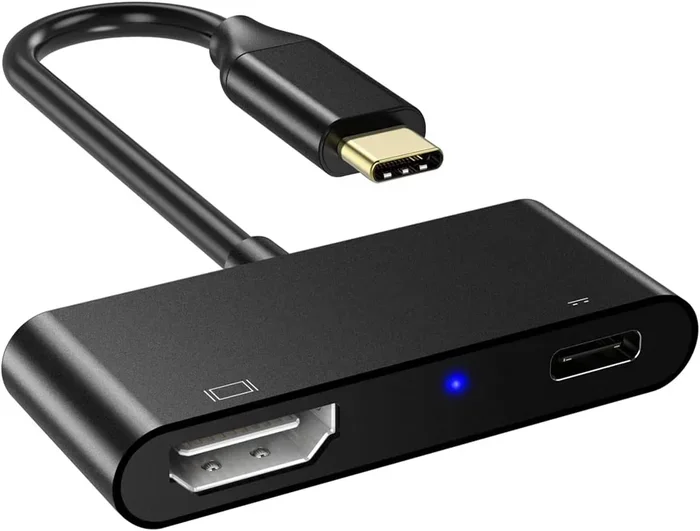
Active adapters contain a chip that converts the signal. They are necessary when your USB-C port does not fully support video output on its own. Active adapters tend to be more expensive but offer better reliability.
Passive adapters are simpler cables or dongles that rely on the USB-C port’s built-in video capabilities. They work well when your device fully supports DisplayPort Alt Mode or Thunderbolt. Passive options are usually cheaper and work great for most everyday users.
Key Features to Look For
When shopping for a USB-C HDMI adapter, keep these features in mind:
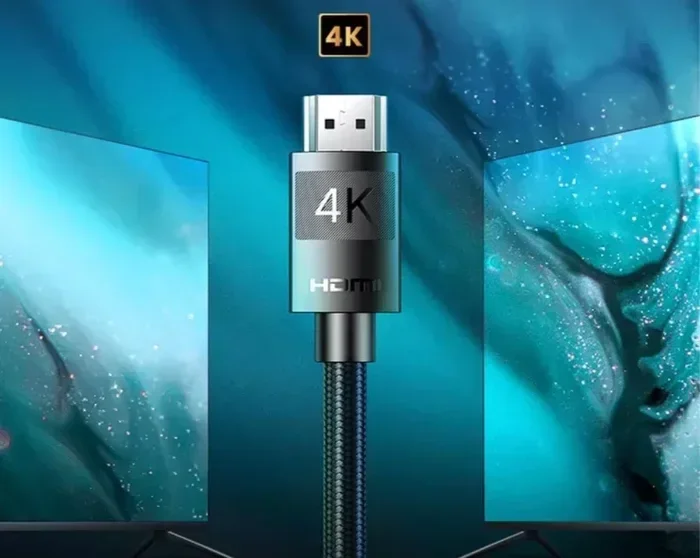
- Resolution support: Look for adapters that support 4K at 60Hz or higher for crisp visuals.
- HDR compatibility: High Dynamic Range adapters deliver richer colors and deeper blacks.
- USB-C power delivery: Some adapters also charge your device while you use the HDMI connection.
- Build quality: Metal housings and braided cables tend to last longer than plastic alternatives.
- Brand reputation: Stick with well-known brands to avoid signal issues and compatibility problems.
Devices That Support USB-C to HDMI Connections
Not every device with a USB-C port can output video through HDMI. Here is a look at common device categories and their compatibility.
Laptops and Computers
Most modern laptops from brands like Dell, HP, Lenovo, Apple, and Microsoft support USB-C video output. MacBooks with USB-C or Thunderbolt ports are especially reliable for HDMI connections. Many Windows laptops also support this feature, but you should always double-check your specific model.
If you are unsure whether your laptop supports video output through USB-C, check the manufacturer’s specifications. Look for terms like “DisplayPort Alt Mode,” “Thunderbolt,” or “video output supported.” These confirm that your USB-C port can handle HDMI connections.
Tablets and Smartphones
Many flagship tablets and smartphones now include USB-C ports that support video output. Samsung Galaxy tablets, Google Pixel phones, and iPad Pro models (with USB-C) all work with USB-C to HDMI adapters. This makes it easy to mirror your screen to a TV for presentations, gaming, or watching movies.
However, some budget devices may have USB-C ports that only support charging and data. Always verify video output support before purchasing an adapter.
USB-C Docking Stations and Hubs
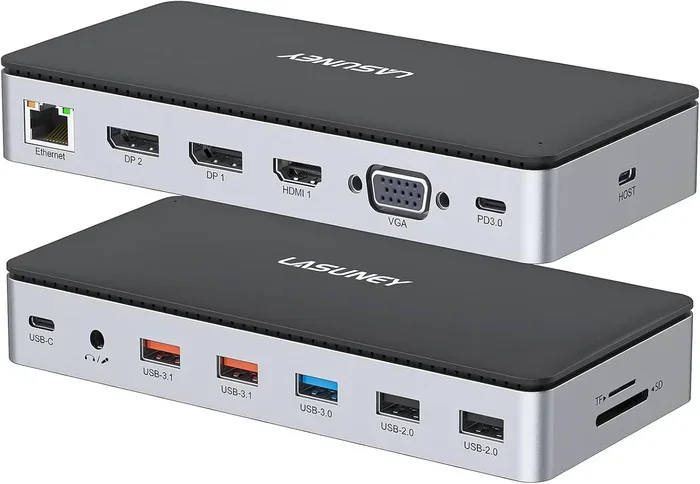
For users who need multiple connections, a USB-C docking station is a fantastic option. These hubs provide HDMI output along with USB ports, Ethernet, and SD card readers. They turn a single USB-C port into a full workstation.
USB-C hub with HDMI models are widely available and range from compact travel-friendly designs to full-featured desktop docks. They are especially useful for professionals who connect to external monitors daily.
Common Problems and How to Fix Them
Even with the right adapter, you might run into issues when setting up a USB-C to HDMI connection. Here are the most common problems and their solutions.
No Signal on the Display
If your TV or monitor shows no signal, try these steps:
- Check that the adapter is firmly connected to both the device and the HDMI cable.
- Make sure your TV or monitor is set to the correct HDMI input channel.
- Try a different HDMI cable to rule out a faulty cable.
- Restart your device and reconnect the adapter.
- Update your device’s display drivers if you are using a laptop.
Low Resolution or Flickering Screen
A blurry or flickering display often points to a low-quality adapter or cable. Cheap USB-C HDMI adapter cables may not support the resolution your device can output. Invest in a reputable adapter that matches your display’s capabilities. Also, check that your HDMI cable supports the resolution you want.
Adapter Not Recognized by the Device
Sometimes, your device simply does not recognize the adapter. This can happen if the USB-C port does not support video output. Try the adapter on a different device to confirm it works. If it does, the issue is with your original device’s USB-C port capabilities.
Quick Tips for the Best USB-C to HDMI Experience
Follow these practical tips to get the most out of your USB-C to HDMI setup:
- Always check compatibility first: Confirm your device supports video output through USB-C before buying an adapter.
- Buy quality adapters: A slightly more expensive adapter from a trusted brand will save you from headaches.
- Use short, high-quality cables: Longer cables can degrade the signal. Keep your HDMI cable as short as possible for the best quality.
- Update your drivers: On laptops, outdated display drivers can cause connection issues. Keep them up to date.
- Test with multiple displays: If you can, test your adapter with different TVs and monitors to ensure it works across setups.
- Consider a USB-C hub for versatility: A USB-C hub with HDMI gives you extra ports for peripherals alongside your display connection.
Expert Insights on USB-C HDMI Connectivity
Technology experts agree that USB-C connectivity is the future of device connections. The universal nature of the USB-C port means fewer cables, fewer adapters, and less clutter. As more devices adopt USB-C as their primary port, the ecosystem around adapters and hubs continues to grow.
Professionals in the tech industry often recommend looking for adapters that support the latest USB-C standards. USB-C power delivery combined with video output is a huge convenience, allowing you to charge your device and connect to a display with a single cable setup. This is especially useful for USB-C compatible devices like modern laptops and tablets.
One thing experts consistently highlight is the importance of understanding your device’s specific USB-C capabilities. Not all USB-C ports are created equal. Some support only data and charging, while others handle video, audio, and data simultaneously. Knowing the difference saves time and money.
In the world of USB-C audio and video transmission, the standards continue to improve. Newer adapters support higher refresh rates, better color accuracy, and wider compatibility with different display types. Staying informed about these developments helps you make smarter purchasing decisions.
Common Mistakes to Avoid
Avoid these common pitfalls when setting up your USB-C to HDMI connection:
- Assuming all USB-C ports support video: Some USB-C ports are data-only. Always verify video output support.
- Buying the cheapest adapter available: Budget adapters often lack the chips needed for reliable video conversion.
- Ignoring cable length: Very long HDMI cables can weaken the signal and reduce image quality.
- Not checking resolution support: An adapter that only supports 1080p will not deliver 4K video to your display.
- Forgetting about audio: Some USB-C to HDMI setups also carry audio, but not all adapters do. Check if you need audio alongside video.
USB-C to HDMI connections have become essential for anyone who wants a simple, reliable way to connect their devices to larger screens. Whether you are presenting in a boardroom, streaming movies on your TV, or extending your workspace with an external monitor, the right adapter makes all the difference.
The key to success is understanding your device’s capabilities and choosing the right USB-C HDMI adapter for your needs. Always verify compatibility, invest in quality gear, and do not be afraid to experiment with different setups until you find what works best.
Remember that USB-C video output technology continues to evolve. New standards bring better performance, higher resolutions, and wider compatibility. Staying informed ensures you always get the best experience from your devices.
With the right knowledge and tools, connecting your USB-C device to an HDMI display is quick, easy, and incredibly rewarding. You will wonder how you ever managed without it.
Conclusion
Can USB-C be used as HDMI input? Yes, with the right adapter and a compatible device, you can seamlessly connect your laptop, tablet, or phone to any HDMI display. The USB-C to HDMI connection has become one of the most versatile and convenient ways to share your screen with the world.
We have covered how USB-C handles video signals, which devices support it, how to choose the right adapter, and common problems to watch out for. The USB-C connectivity ecosystem is growing, and investing in quality adapters and hubs now future-proofs your setup.
Take the time to understand your device’s USB-C capabilities, pick a reliable adapter, and enjoy the freedom of connecting to any HDMI display with confidence. Your setup will be cleaner, simpler, and more versatile than ever before.
For more insights on how computers and technology shape our daily lives, check out this guide on 10 ways computers are used in medicine to see how technology continues to transform industries.
Start exploring the world of USB-C HDMI connections today, and unlock the full potential of your devices.
Frequently Asked Questions
Can any USB-C port be used for HDMI output?
No, not all USB-C ports support video output. You need to check if your device’s USB-C port supports DisplayPort Alt Mode or Thunderbolt. Look for these terms in your device specifications to confirm compatibility before buying an adapter.
Do I need an active or passive USB-C to HDMI adapter?
It depends on your device. If your USB-C port fully supports video output, a passive adapter works fine. If your port has limited video capabilities, you may need an active adapter with a built-in chip for signal conversion.
Can I use a USB-C to HDMI adapter with a 4K TV?
Yes, but only if your adapter and device both support 4K resolution. Look for adapters that specifically advertise 4K at 60Hz support. Cheaper adapters may only support 1080p or 4K at 30Hz.
Does a USB-C to HDMI adapter carry audio too?
Most quality adapters do carry audio alongside video. However, some budget adapters may only transmit video. Check the product specifications if you need audio output through your HDMI connection.
Can I charge my device while using a USB-C to HDMI adapter?
Yes, many modern adapters support USB-C power delivery alongside HDMI output. This lets you charge your device and connect to a display using the same adapter. Look for adapters that explicitly mention power delivery support.
What is the difference between USB-C and Thunderbolt for HDMI connections?
Thunderbolt 3 and Thunderbolt 4 use the USB-C connector but offer faster data transfer and more reliable video output. While standard USB-C can handle HDMI output, Thunderbolt provides a more robust and versatile connection for demanding tasks like video editing and multi-monitor setups.