Can You Plug A Usb Into An Ipad And What Happens Next
Yes, you can plug a USB into an iPad, but it depends on your iPad model and the right adapter. Newer iPads with USB-C ports offer direct plug-and-play support, while older Lightning iPads need a camera connection kit or USB adapter. This guide covers everything you need to know about connecting USB devices, transferring files, and using external storage with your iPad.
Key Takeaways
- USB-C iPads support direct USB connections without extra adapters in most cases.
- Lightning iPads require a specific adapter like Apple’s Camera Connection Kit to use USB devices.
- You can connect flash drives, keyboards, and external hard drives to an iPad with the right cable.
- File transfer is straightforward using the Files app once the USB device is connected.
- Not all USB devices work with iPads due to software and power limitations.
- Charging while using USB accessories is possible with powered USB hubs.
📑 Table of Contents
Can You Plug A USB Into An iPad And What Happens Next
Have you ever tried to plug a USB drive into your iPad and wondered if it would work? You are not alone. Many iPad users want to connect USB devices but are unsure about compatibility. The good news is that you can plug a USB into an iPad in most cases. But what happens next depends on your iPad model, the type of USB device, and the right adapter.
This guide walks you through every step. You will learn which iPads support USB connections, what adapters you need, and what to expect when you plug something in. Whether you want to transfer photos, use a keyboard, or connect an external hard drive, we have you covered. Let us dive right in.
The world of iPad accessories has changed a lot over the years. Apple has shifted from the Lightning connector to USB-C on most newer models. This shift opened up a whole new world of connectivity options. You can now do things with an iPad that used to require a laptop. But understanding how USB works on an iPad is still important. Otherwise, you might end up frustrated with a cable that does nothing.
Understanding iPad USB Ports
Not all iPads are the same when it comes to USB support. The port on your iPad determines what you can connect. Let us break down the two main types of ports you will find on iPads today.
USB-C iPads
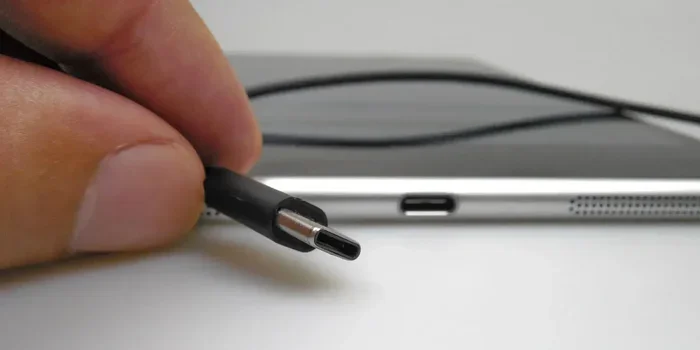
Most iPads released from 2018 onward use a USB-C port. This includes the iPad Pro models, iPad Air (4th generation and later), and iPad (10th generation). USB-C is a universal connector. It supports data transfer, video output, and charging all in one cable.
With a USB-C iPad, plugging in a USB device is usually simple. You can connect a flash drive directly. You can plug in a keyboard or mouse. Some iPads even support USB hubs, which let you connect multiple devices at once. The iPadOS operating system handles most USB devices with minimal setup.
Apple designed iPadOS to be friendly with external peripherals. This is a big advantage for people who want a lightweight setup for work or school. You can carry just your iPad and a few USB accessories. It makes the iPad feel more like a computer without the bulk.
Lightning iPads
Older iPad models use the Lightning connector. These include iPad Air 2, iPad mini 4, and earlier iPad Pro models. Lightning is Apple’s proprietary connector. It is smaller than USB-C and has more limited capabilities.
You cannot plug a standard USB device directly into a Lightning iPad. You need an adapter. Apple sells the Camera Connection Kit, which is the most popular solution. It comes with two adapters: one for USB and one for SD cards. This kit lets you connect keyboards, flash drives, and other USB devices to older iPads.
The Lightning port has some limitations. It does not support the same speed as USB-C. It also has stricter power delivery rules. This means some USB devices that work fine on a computer might not work on a Lightning iPad. Keep this in mind when shopping for iPad-compatible accessories.
What Happens When You Plug In a USB Device
So you have your adapter ready and you plug in a USB device. What happens next? The experience depends on the type of device and your iPad model.
Connecting a Flash Drive
Plugging a flash drive into an iPad is one of the most common use cases. On a USB-C iPad, just insert the flash drive directly into the port. On a Lightning iPad, use the Camera Connection Kit adapter.
After a moment, the Files app on your iPad should recognize the drive. You will see it appear under the “Locations” section. From there, you can browse files, copy them, and move them around. You can also save new files directly to the flash drive.
Here are some quick tips for using flash drives with an iPad:
- Use drives formatted as exFAT or FAT32 for the best compatibility.
- Avoid drives that require more power than the iPad can provide through the port.
- Safely eject the drive before unplugging it to prevent data loss.
- Large files transfer fine, but the speed depends on the drive and iPad model.
Using a Keyboard or Mouse
Connecting an external keyboard or mouse to an iPad works great. This is especially helpful for people who use their iPad for work or typing long documents. A Bluetooth keyboard is the easiest option since it does not need a cable at all.
But if you prefer a wired setup, you can plug a USB keyboard directly into a USB-C iPad. On a Lightning iPad, you need the Camera Connection Kit. Once connected, the iPad recognizes the keyboard immediately. You can start typing right away.
For mice, the experience is similar. iPadOS supports both Bluetooth and wired mice. You get cursor control, right-click support, and scroll functionality. It makes navigating the iPad interface much faster and more precise.
Connecting External Hard Drives
Want to expand your iPad storage? An external hard drive is a great option. USB-C iPads can connect to most external drives without any extra hardware. Just plug the drive into the iPad port and open the Files app.
Keep in mind that some external hard drives need more power than an iPad can supply. If your drive has its own power cable, plug it in. This ensures the drive gets enough electricity to work properly. For portable drives that do not need external power, the iPad should handle them just fine.
One thing to watch out for is file system compatibility. iPadOS works best with drives formatted as APFS, exFAT, or FAT32. If your drive is formatted for Windows (NTFS), the iPad can read it but might not write to it without extra software.
Adapters and Cables You Will Need
Not every USB device will plug straight into an iPad. You often need the right adapter or cable to make it work. Here is a simple breakdown of what you might need.
| Device Type | Adapter Needed | Works on USB-C iPad | Works on Lightning iPad |
|---|---|---|---|
| Standard USB Flash Drive | Direct plug (USB-C) or Camera Connection Kit | Yes | Yes (with adapter) |
| USB Keyboard/Mouse | Direct plug (USB-C) or Camera Connection Kit | Yes | Yes (with adapter) |
| External Hard Drive | Direct plug or powered USB hub | Yes | Limited (with adapter) |
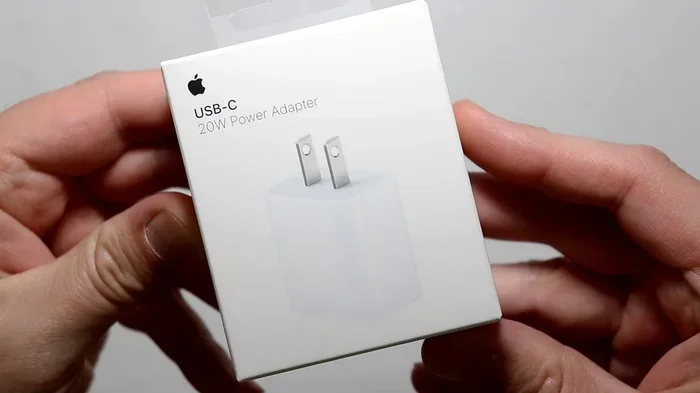
| USB-C Charger | Direct plug | Yes | No (needs Lightning cable) |
| USB Hub | Direct plug (USB-C) | Yes | No (needs powered USB-C hub) |
| SD Card Reader | Direct plug (USB-C) or Camera Connection Kit | Yes | Yes (with adapter) |
Buying the right adapter saves you a lot of headaches. Make sure you check your iPad model before purchasing any USB accessories. Apple’s official adapters tend to be the most reliable, but there are also good third-party options available.
File Transfer Between USB Devices and iPad
Transferring files is one of the main reasons people connect USB devices to their iPads. The process is simple once you know how it works.
Using the Files App
The Files app is your central hub for managing files on an iPad. When you connect a USB device, it appears in the Locations sidebar. You can tap on it to see all the files stored on the drive.
To copy a file, simply tap and hold it. Then select “Copy” and navigate to where you want to save it. You can move files to your iPad storage, iCloud Drive, or another connected device. The process feels very similar to using a file manager on a computer.
You can also create new folders directly on a USB drive from the Files app. This makes organizing your files much easier. Just navigate to the drive, tap the “New Folder” button, and start sorting your content.
Importing Photos and Videos
The Camera Connection Kit was originally designed for one main purpose: importing photos. If you have a camera with an SD card, you can plug it directly into the kit and transfer all your images to the iPad.
This is incredibly useful for photographers and content creators. You can quickly review your shots on a big iPad screen. You can also import video files the same way. The transfer speed is fast enough for most everyday use.
Some users also use this method to transfer files from a computer to iPad without needing iTunes or a cloud service. Just plug in a USB drive with your files and copy them over. It is a quick and private way to move data.
Limitations and Things to Watch Out For
While USB connectivity on an iPad is impressive, it is not perfect. There are some limitations you should know about before you start buying adapters and devices.
Power Limitations
iPads are not designed to power every USB device. Some external hard drives and hubs need more electricity than an iPad port can provide. If a drive does not show up or keeps disconnecting, it might be a power issue.
Using a powered USB hub solves this problem. The hub gets its own power source and then supplies power to your connected devices. This is especially helpful when you connect multiple devices at once or use power-hungry accessories.
Software Limitations
iPadOS is designed to be simple and secure. This means it does not support every type of USB device. Some specialized equipment, like certain audio interfaces or scientific instruments, might not work with an iPad.
Also, the proprietary operating system on the iPad has its own set of rules. Unlike a desktop computer, you cannot install just any software to make a USB device work. You are limited to what iPadOS supports natively or through approved apps. This is one of the advantages and disadvantages of a proprietary operating system — it keeps things simple but can be restrictive.
Speed Limitations
USB-C on newer iPads supports fast data transfer speeds. But not every USB device takes full advantage of this. A cheap flash drive might be slow regardless of the port you plug it into.
If speed matters to you, invest in a quality USB 3.0 or USB 3.1 drive. These drives can take advantage of the faster transfer speeds that USB-C iPads offer. You will notice the difference when copying large video files or lots of photos.
Expert Tips for Best Results
After helping many people set up USB connections on their iPads, here are some tips that really make a difference.
- Always eject USB devices properly before unplugging them. This protects your data from corruption.
- Keep your iPadOS updated to get the best USB compatibility and bug fixes.
- Label your adapters so you always know which one goes with which device.
- Test new USB devices before relying on them for important work or school projects.
- Use cloud storage as a backup even when you use USB drives for file management.
These small habits save a lot of trouble down the road. They help you get the most out of your iPad USB setup without any surprises.
Conclusion
Plugging a USB into an iPad is absolutely possible and very useful once you know how. Whether you have a new USB-C iPad or an older Lightning model, the right adapter opens up a world of possibilities. You can transfer files, use external drives, connect keyboards, and much more.
The key is understanding your iPad’s port type and getting the right accessories. With the tips in this guide, you are ready to make the most of USB connectivity on your iPad. Start experimenting with different devices and see what works best for your workflow. The flexibility of connecting USB devices to an iPad is one of the features that makes it such a powerful tool for both work and play.
Remember to keep your files organized, eject devices safely, and stay updated with the latest iPadOS releases. These simple steps will keep your USB iPad experience smooth and hassle-free every single time.
Frequently Asked Questions
Can I plug any USB flash drive into my iPad?
Most USB flash drives work fine on an iPad. For USB-C iPads, you can plug the drive in directly. For Lightning iPads, you need the Camera Connection Kit. Make sure the drive is formatted as exFAT or FAT32 for the best compatibility with iPadOS.
Do I need an adapter to connect USB to an iPad?
It depends on your iPad model. USB-C iPads accept most USB devices directly. Lightning iPads need Apple’s Camera Connection Kit or a compatible USB adapter. Always check your iPad model before buying an adapter to make sure it works.
Can I use a USB hub with my iPad?
Yes, USB-C iPads support USB hubs in most cases. You can connect multiple devices like keyboards, drives, and hubs at once. Lightning iPads have more limited hub support and may need a powered hub for some devices to work properly.
Why does my USB device not show up on my iPad?
This can happen for a few reasons. The device might need more power than the iPad provides. The file format might not be compatible with iPadOS. Or the adapter might not be fully compatible. Try a different adapter or check if the device works with a powered hub.
Can I charge my iPad while using a USB device?
Yes, on most USB-C iPads you can charge and use a USB device at the same time. If you are using a USB hub, a powered hub makes this easier. On Lightning iPads, charging while using the Camera Connection Kit can sometimes be tricky depending on the adapter you use.
Is it safe to unplug a USB device from my iPad without ejecting it first?
It is always best to eject the device first. On iPadOS, you can swipe into the Files app and tap the eject icon next to the device name. Unplugging without ejecting can sometimes cause file corruption or data loss, especially when writing large files to the drive.
=== INTERNAL LINKS ===
When you connect external devices to your iPad, it is worth understanding how proprietary systems shape the overall experience. Check out the advantages and disadvantages of a proprietary operating system to learn more about what makes iPadOS both simple and limited.
For professionals who rely on secure electronic communication and file sharing across networks, the way your devices connect matters. You can explore the advantages and disadvantages of using a value added network for electronic commerce communication to understand how connectivity choices impact data flow.