Can You Upgrade A Wi Fi Chip To Improve Your Internet
Upgrading your Wi-Fi chip can significantly improve your wireless speed and signal strength. Many people struggle with slow internet and don’t realize their wireless card might be the bottleneck. Whether you have a desktop or laptop, there are real options to upgrade your Wi-Fi chip and get better performance. This guide walks you through every step, from checking compatibility to installing a new card. You will learn what to look for, what mistakes to avoid, and how to get the most out of your wireless connection.
Slow internet is frustrating. You sit down to watch a video, and it keeps buffering. Your video call keeps freezing. You wonder if there is something you can do about it. One question that comes up a lot is whether you can upgrade a Wi-Fi chip to fix these problems. The short answer is yes, in many cases you can. But the full answer depends on your device, your needs, and your budget.
Your Wi-Fi chip is the small piece of hardware inside your computer that connects you to your wireless network. It handles all the work of sending and receiving data through the air. If that chip is old or slow, your internet will feel slow no matter how fast your internet plan is. Upgrading it can make a real difference. But not everyone can do it easily. So let us walk through everything you need to know.
Key Takeaways
- Yes, you can upgrade a Wi-Fi chip in most desktop computers with relative ease.
- Laptops are trickier because the Wi-Fi card is often soldered onto the motherboard.
- USB Wi-Fi adapters offer a simple and affordable alternative for most users.
- Wi-Fi 6 and Wi-Fi 6E cards provide the best speeds and performance gains available today.
- Driver updates alone can sometimes solve slow Wi-Fi without any hardware changes.
- Compatibility matters — check your motherboard slots and BIOS support before buying a new card.
- Antenna quality and placement play a big role in your overall wireless signal strength.
📑 Table of Contents
- What Is a Wi-Fi Chip and Why Does It Matter?
- Can You Upgrade a Wi-Fi Chip in a Desktop Computer?
- Can You Upgrade a Wi-Fi Chip in a Laptop?
- USB Wi-Fi Adapters: The Easy Upgrade Option
- What to Look for When Buying a New Wi-Fi Card
- Can a Driver Update Fix Slow Wi-Fi Instead of a Hardware Upgrade?
- Common Mistakes People Make When Upgrading Wi-Fi Hardware
- Expert Insights on Wi-Fi Chip Upgrades
- Key Takeaways
- Conclusion
What Is a Wi-Fi Chip and Why Does It Matter?
A Wi-Fi chip is also called a wireless card or network adapter. It is the hardware component that lets your computer talk to your router without any cables. Every device that connects to Wi-Fi has one, whether it is a laptop, desktop, or even a smart TV.
The chip determines several important things about your wireless experience:
- Maximum speed — How fast data can travel between your device and router.
- Signal range — How far you can move from the router and still stay connected.
- Frequency bands — Whether your card supports 2.4 GHz, 5 GHz, or 6 GHz bands.
- Wireless standard — Whether your card supports Wi-Fi 5, Wi-Fi 6, or the newest Wi-Fi 6E.
- Number of antennas — More antennas usually mean better signal strength and stability.
Think of your Wi-Fi chip like a doorway. If the doorway is narrow, only a small amount of data can pass through at a time. Upgrading to a better chip widens that doorway and lets more data flow through faster. This is why upgrading your wireless card can improve your internet experience so much.
Can You Upgrade a Wi-Fi Chip in a Desktop Computer?
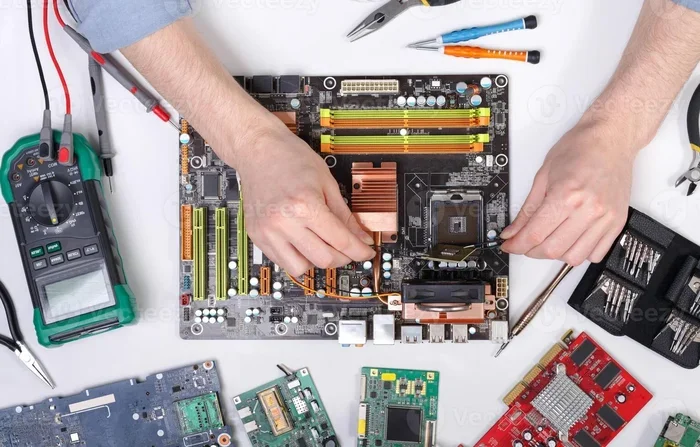
Desktops are the easiest devices to upgrade. Most desktop computers have a slot where you can swap out the old wireless card for a new one. This gives you a lot of flexibility and room to improve your wireless performance.
Types of Slots for Wi-Fi Cards
Before you buy a new card, you need to know what kind of slot your computer has. Here are the most common types:
- PCIe slots — These are the most common. They look like long, thin slots on your motherboard. Most Wi-Fi cards plug directly into a PCIe slot.
- M.2 slots — Some newer motherboards have M.2 slots that can also hold Wi-Fi cards. These are smaller and more compact.
- USB headers — Not a direct slot, but some cards connect through internal USB headers on the motherboard.
To check what slots you have, open your computer case and look at the motherboard. You can also check your computer’s manual or the manufacturer’s website for specs. If you have a free PCIe slot, you are in good shape.
Steps to Install a New Wi-Fi Card in a Desktop
Installing a new wireless card in a desktop is straightforward. Here is what you need to do:
- Turn off your computer and unplug it from the wall.
- Open the computer case by removing the side panel.
- Locate the old Wi-Fi card. It is usually a small card plugged into a PCIe slot with a wire or two connected to the antennas.
- Unscrew or unclip the old card from the case.
- Disconnect the antenna wires carefully. They usually have small connectors.
- Remove the old card by pulling it straight out of the slot.
- Insert the new Wi-Fi card into the same or a compatible PCIe slot.
- Reconnect the antenna wires to the new card.
- Secure the card with a screw and close the case.
- Plug in your computer and turn it on.
- Install the drivers that come with the new card or download them from the manufacturer’s website.
That is it. In about 15 to 20 minutes, you can have a brand-new wireless card working inside your desktop. The performance improvement can be dramatic, especially if you are moving from an older Wi-Fi 4 or Wi-Fi 5 card to a newer Wi-Fi 6 or Wi-Fi 6E model.
Can You Upgrade a Wi-Fi Chip in a Laptop?
Laptops are a different story. Most modern laptops have their Wi-Fi chip soldered directly onto the motherboard. This means you cannot simply pull it out and swap it for a better one. In many cases, upgrading the Wi-Fi chip in a laptop is not practical or even possible.
When Laptop Upgrades Are Possible
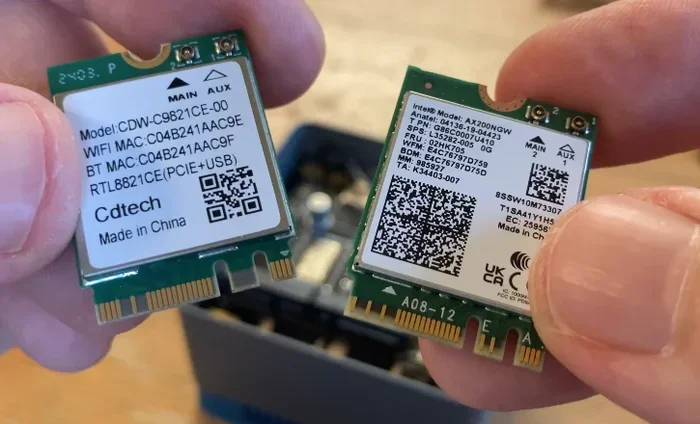
Some laptops do have a removable wireless card. This is more common in business laptops and gaming laptops. For example, many Lenovo ThinkPad and Dell Latitude models use standard M.2 Wi-Fi cards that you can replace. If your laptop has a removable card, you can follow similar steps to the desktop installation process.
Here is how to check if your laptop Wi-Fi card is replaceable:
- Check your laptop’s service manual from the manufacturer’s website.
- Look for a small access panel on the bottom of the laptop near the Wi-Fi antenna area.
- Search online for your specific laptop model and see if others have successfully swapped the card.
If your laptop does have a replaceable card, you are in luck. You can upgrade to a newer wireless standard and enjoy better speeds and signal strength.
When Laptop Upgrades Are Not Possible
If your Wi-Fi chip is soldered onto the motherboard, you have a few options:
- Use a USB Wi-Fi adapter. This is the most popular workaround. You plug a small adapter into a USB port, and it gives you a new wireless card without opening your laptop.
- Use a docking station. Some docking stations have built-in better Wi-Fi chips that connect to your laptop through USB-C or Thunderbolt.
- Accept the limitation. Sometimes the best option is to optimize your current setup with better positioning and software tweaks.
Each of these options has trade-offs. A USB adapter is easy but may not be as fast as an internal card. A docking station works well but adds cost and bulk. And sometimes the best thing you can do is make the most of what you already have.
USB Wi-Fi Adapters: The Easy Upgrade Option
If you cannot open your computer or laptop, a USB Wi-Fi adapter is your best friend. These small devices plug right into a USB port and give you a brand-new wireless connection. They are also called Wi-Fi dongles or wireless adapters.
USB Wi-Fi adapters come in many shapes and sizes. Some are tiny and barely noticeable when plugged in. Others are larger and have external antennas for better signal strength. Here is what you should know before buying one:
Benefits of USB Wi-Fi Adapters
- Easy to set up. Most adapters plug and play with modern operating systems.
- Portable. You can unplug it and take it with you to another computer.
- Affordable. Good adapters are available for $20 to $60.
- No opening required. You do not need to open your computer case at all.
- Good for desktops and laptops. They work with almost any device that has a USB port.
Things to Watch Out For
- USB port speed. A USB 2.0 port will limit your adapter’s performance. Use a USB 3.0 or USB-C port for the best speeds.
- Antenna quality. Adapters with external antennas usually perform better than those with internal antennas.
- Driver support. Make sure the adapter has drivers available for your operating system before you buy it.
- Wi-Fi standard. Look for adapters that support Wi-Fi 6 or Wi-Fi 6E for the best performance gains.
A USB Wi-Fi adapter is not quite as good as a full internal card replacement. But for most people, it is a simple and effective way to upgrade your wireless performance without any hassle.
What to Look for When Buying a New Wi-Fi Card
If you decide to buy a new Wi-Fi card or USB adapter, you need to know what to look for. Not all cards are created equal. Some are much better than others. Here is what matters most:
Wireless Standard
The wireless standard tells you how fast the card can go and what features it supports. Here is a quick breakdown:
- Wi-Fi 4 (802.11n) — Older standard. Max speed around 600 Mbps. Still works but is outdated.
- Wi-Fi 5 (802.11ac) — Good standard. Max speed around 3.5 Gbps. Found in many computers built between 2014 and 2019.
- Wi-Fi 6 (802.11ax) — Current standard. Max speed around 9.6 Gbps. Much better performance in crowded areas.
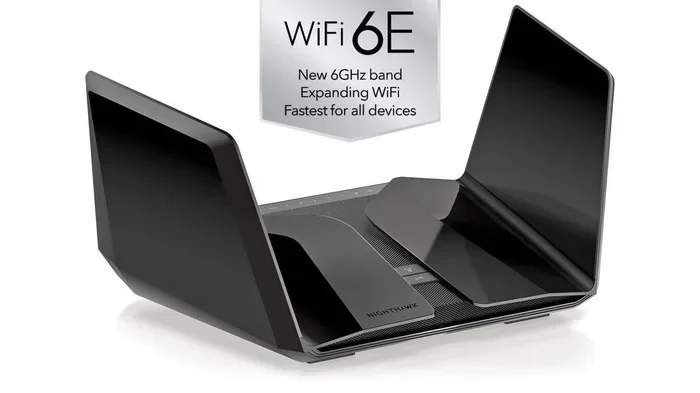
- Wi-Fi 6E — The newest standard. Adds support for the 6 GHz band. Less interference and faster speeds.
If you are buying a new card today, Wi-Fi 6 is the sweet spot. It offers excellent speeds and is widely supported by modern routers. Wi-Fi 6E is even better if your router also supports it.
Frequency Bands
Most Wi-Fi cards support 2.4 GHz and 5 GHz bands. The 2.4 GHz band has a longer range but slower speeds. The 5 GHz band has shorter range but much faster speeds. Some cards also support the 6 GHz band, which is the fastest and least crowded of all three.
Antenna Design
Cards with two or more antennas generally perform better than single-antenna cards. External antennas can be positioned for the best signal. If you are buying a USB adapter, look for one with adjustable antennas.
Brand and Driver Support
Stick with well-known brands like Intel, Qualcomm (Killer), TP-Link, and ASUS. These companies provide regular driver updates and good customer support. Always check that drivers are available for your operating system before you buy.
Can a Driver Update Fix Slow Wi-Fi Instead of a Hardware Upgrade?
Before you spend money on a new Wi-Fi card, try updating your drivers first. Sometimes slow Wi-Fi is not a hardware problem at all. It is a software problem caused by outdated or corrupted drivers.
Here is how to update your Wi-Fi drivers:
- Open Device Manager on Windows (right-click the Start button and select Device Manager).
- Expand the Network adapters section.
- Right-click your Wi-Fi adapter and select Update driver.
- Choose Search automatically for updated driver software.
- Restart your computer after the update is complete.
You can also visit the manufacturer’s website and download the latest driver manually. This is often better than relying on Windows Update because manufacturers release updates more frequently.
In many cases, a simple driver update can fix slow speeds, dropped connections, and other Wi-Fi problems. It costs nothing and takes just a few minutes. Always try this before buying new hardware.
Other Software Fixes to Try
- Reset your network settings. This clears out any misconfigurations that might be slowing you down.
- Change your DNS server. Switching to Google DNS or Cloudflare DNS can improve browsing speed.
- Update your router firmware. A newer router firmware can improve compatibility and performance.
- Disable power saving for the Wi-Fi adapter. This prevents your computer from throttling the Wi-Fi chip to save energy.
These steps can make a noticeable difference. They are free and easy to do. Give them a try before you consider any hardware changes.
Common Mistakes People Make When Upgrading Wi-Fi Hardware
Upgrading your Wi-Fi chip or adapter is usually simple. But people make mistakes that cause problems. Here are some common ones to avoid:
Buying a Card Without Checking Compatibility
This is the number one mistake. Not every Wi-Fi card works with every computer. Some cards need specific PCIe slot versions. Some require certain BIOS settings. Before you buy, check your motherboard manual and the card’s specifications to make sure they are compatible.
Forgetting to Install Drivers
A new Wi-Fi card will not work properly without the right drivers. Always install the latest drivers from the manufacturer’s website. Do not rely on Windows to find the right driver automatically. It often does not pick the best one.
Ignoring Antenna Connections
If your new card comes with antennas, make sure you connect them properly. Missing or loose antenna connections lead to weak signal and poor performance. Take a photo of how the old antennas were connected before you remove them.
Expecting Miraculous Speed Gains
A better Wi-Fi card will not make your internet faster than what your internet plan provides. If you have a 50 Mbps internet plan, a new card will not give you 500 Mbps. The card improves your wireless connection, not your internet speed from your provider. Understand what the upgrade can and cannot do.
Choosing the Wrong Band or Standard
Buying a Wi-Fi 6 card but using a Wi-Fi 4 router will not give you Wi-Fi 6 speeds. Both your device and your router need to support the same standard for you to get the full benefits. Make sure your router matches or exceeds the capability of your new card.
Expert Insights on Wi-Fi Chip Upgrades
Networking professionals often recommend upgrading your Wi-Fi hardware when you notice consistent slowdowns. A Wi-Fi chip that is several generations old may not be able to take advantage of modern router features like beamforming, MU-MIMO, or OFDMA. These technologies help your router manage multiple devices efficiently and deliver better speeds to each one.
One thing experts emphasize is the importance of the entire ecosystem. Your Wi-Fi chip is only one piece of the puzzle. Your router, your internet plan, your home layout, and even the placement of your devices all matter. Upgrading the chip alone will not fix everything, but it can be a significant step in the right direction.
Another tip from experts is to consider your future needs. Wi-Fi 6 is widely supported now, and Wi-Fi 6E is gaining traction. If you buy a Wi-Fi 6 card today, it will serve you well for years. If you want to future-proof your setup, Wi-Fi 6E is the way to go — but make sure your router supports it too.
Key Takeaways
- Upgrading a Wi-Fi chip can improve your internet speed and signal strength significantly in most desktop computers.
- Laptops often have soldered Wi-Fi chips, making internal upgrades difficult or impossible.
- USB Wi-Fi adapters are an easy and affordable alternative for both desktops and laptops.
- Wi-Fi 6 is the current sweet spot for wireless performance and router compatibility.
- Always try driver updates first before spending money on new hardware.
- Check compatibility carefully before buying any new Wi-Fi card or adapter.
- Your router must support the same standard as your new card to get the full benefit.
Conclusion
So, can you upgrade a Wi-Fi chip? Yes, you can — and it might be one of the best upgrades you ever make for your computer. A new wireless card or USB adapter can transform your internet experience. Faster speeds. Better signal. Fewer dropped connections. It all starts with your Wi-Fi chip.
For desktop users, the process is simple and affordable. You open the case, swap the card, install the drivers, and you are done. For laptop users, a USB adapter is the most practical path. It is easy, portable, and effective.
Before you upgrade, make sure you have tried the simpler fixes. Update your drivers. Check your router. Reposition your device. These steps cost nothing and can sometimes solve the problem entirely. But if you still need better performance, upgrading your Wi-Fi chip is a smart move.
The wireless world is always evolving. Wi-Fi 6 and Wi-Fi 6E are changing what is possible. By upgrading your chip today, you are investing in better connectivity for years to come. Take the time to research your options, pick the right card or adapter for your needs, and enjoy a faster, more reliable wireless experience.
Frequently Asked Questions
Can I upgrade the Wi-Fi chip in my laptop?
It depends on your laptop model. Some laptops have a removable Wi-Fi card that you can swap out. Most modern laptops have the chip soldered to the motherboard, which makes internal upgrades impossible. In those cases, a USB Wi-Fi adapter is the best alternative.
How much does it cost to upgrade a Wi-Fi card?
Internal Wi-Fi cards typically cost between $30 and $150. USB Wi-Fi adapters range from $15 to $80. The price depends on the wireless standard and features. Wi-Fi 6 cards are usually in the $40 to $100 range.
Will upgrading my Wi-Fi chip make my internet faster?
It will make your wireless connection faster and more stable. But it cannot make your internet plan faster than what your ISP provides. If you have a 100 Mbps plan, a better Wi-Fi chip will help you get closer to that speed wirelessly, but it will not turn it into a 500 Mbps connection.
Do I need to be a tech expert to upgrade a Wi-Fi chip?
No. Upgrading a Wi-Fi card in a desktop is a straightforward process that most people can do in under 30 minutes. You just need a screwdriver, the new card, and the right drivers. USB adapters are even easier — just plug and play.
What is the difference between Wi-Fi 5 and Wi-Fi 6?
Wi-Fi 6 is faster, more efficient, and handles multiple devices better than Wi-Fi 5. It uses newer technologies like OFDMA and MU-MIMO to reduce congestion and improve speeds. If your router supports Wi-Fi 6, a Wi-Fi 6 card will give you much better performance.
Can I use a Wi-Fi 6 card with an older router?
Yes, you can. A Wi-Fi 6 card is backward compatible with older routers. However, you will only get the speeds and features that your router supports. To get the full benefit of a Wi-Fi 6 card, you need a Wi-Fi 6 router on the other end.