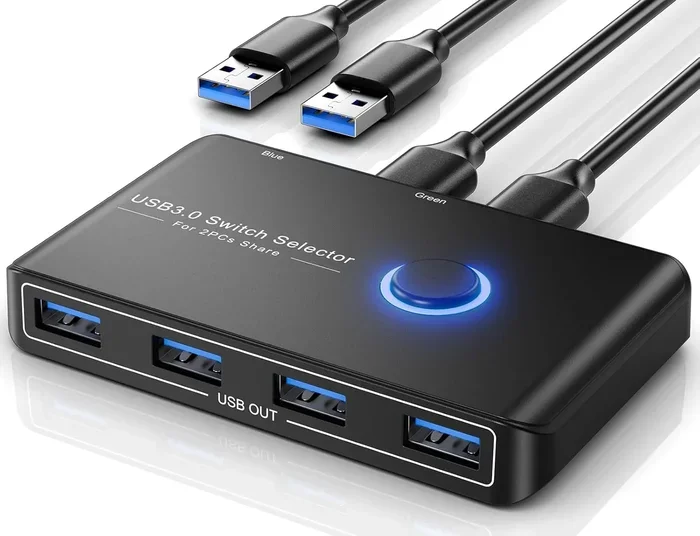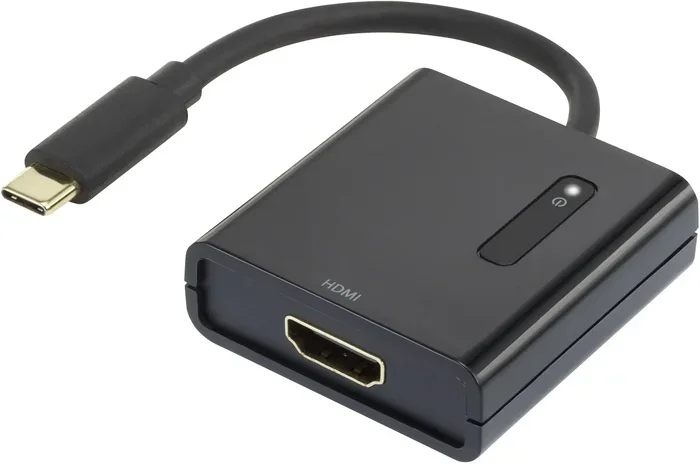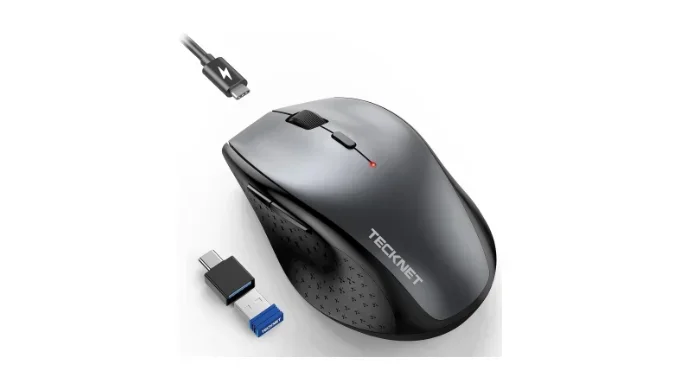
Can You Use A USB 3 0 Cable For A 2 0 Device Here Is The Answer
Yes, you can use a USB 3.0 cable with a USB 2.0 device. The cable will work just fine, but your device will only run at USB 2.0 speeds. This is because USB is designed to be backward compatible, so older devices work with newer cables without any problems. Keep reading to learn about speed limits, charging differences, and when it actually matters which cable you pick.
This is a comprehensive guide about Can You Use A Usb 3 0 Cable For A 2 0 Device.
Key Takeaways
- Full Compatibility: A USB 3.0 cable works perfectly with USB 2.0 devices. USB standards are built to be backward compatible.
- Speed Drops to USB 2.0 Levels: Your data transfer speed will cap at USB 2.0 rates, no matter how fast the cable is.
- Charging Works Fine: USB 3.0 cables can charge USB 2.0 devices without any issues.
- No Damage Risk: Using a newer cable with an older device will not harm your equipment.
- Use USB 3.0 Cables When Possible: They offer better build quality and future-proof your setup.
- Check Your Ports: The speed depends on the port, not just the cable. A USB 3.0 cable in a USB 2.0 port runs at USB 2.0 speeds.
[FEATURED_IMAGE_PLACEHOLDER]
Can You Use a USB 3.0 Cable for a USB 2.0 Device? Here Is the Answer
The short answer is yes. You can absolutely use a USB 3.0 cable with a USB 2.0 device. The connection will work without any problems. But the full story is a bit more interesting than that. Your device will operate at USB 2.0 speeds, even if the cable supports much faster transfer rates. Let us walk through everything you need to know about this common tech question.
Many people wonder about backward compatibility when it comes to USB cables. The good news is that USB standards are designed to work together across different versions. Whether you have a USB 1.1 device or a USB 3.0 device, the connectors are built to fit and function properly. This means you do not need to hunt down the exact matching cable for every device you own.
In this guide, we will cover how USB 3.0 and USB 2.0 differ, what happens when you mix cables and ports, and whether it is worth using a USB 3.0 cable for an older device. By the end, you will have a clear picture of what to expect and how to make the best choice for your setup.
Understanding USB 3.0 and USB 2.0 Differences
Before we dive deeper, let us look at what makes USB 3.0 and USB 2.0 different. Understanding these basics helps you see why the cable works but the speed changes.
What Is USB 2.0?
USB 2.0 was released in the year 2000. It became the standard for most devices for many years. The maximum data transfer speed for USB 2.0 is 480 megabits per second, also known as High Speed. Most people still use USB 2.0 devices today. They include older flash drives, printers, keyboards, and mice. These devices work reliably and get the job done for everyday tasks.
What Is USB 3.0?
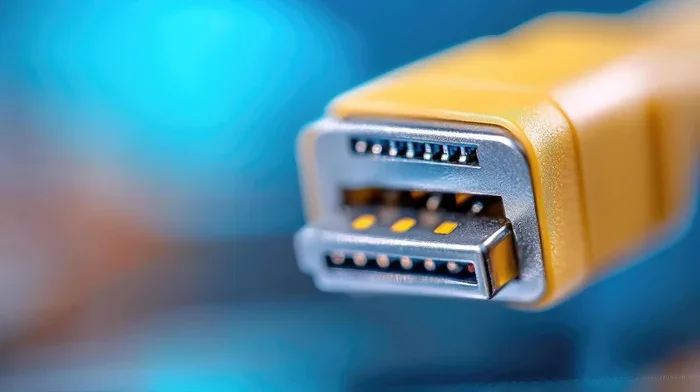
USB 3.0 came out in 2008 and brought a big speed upgrade. It is often called SuperSpeed USB. The maximum transfer rate jumps to 5 gigabits per second. That is more than ten times faster than USB 2.0. USB 3.0 cables have extra pins inside the connector. These extra pins handle the faster data transfer. The outside of the connector looks similar, which is why the cables are physically compatible.
Key Differences at a Glance
- USB 2.0 Speed: Up to 480 Mbps
- USB 3.0 Speed: Up to 5 Gbps
- Connector Color: USB 2.0 is usually black inside, USB 3.0 is usually blue inside
- Extra Pins: USB 3.0 has 9 pins, USB 2.0 has 4 pins
- Power Delivery: USB 3.0 can deliver more power to connected devices
Can You Physically Connect a USB 3.0 Cable to a USB 2.0 Port?
Yes, you can. The physical design of USB connectors ensures that a USB 3.0 cable fits into a USB 2.0 port. The connector shape and size are the same for both versions when they use the same connector type, like USB-A or USB-B. This is one of the best things about the USB standard. It keeps things simple for users.
When you plug a USB 3.0 cable into a USB 2.0 port, the device and the port communicate automatically. They agree on the highest speed both sides support. Since the port is USB 2.0, the connection will run at USB 2.0 speeds. The cable does not force the port to go faster. It simply cannot. The device compatibility works both ways, and that is by design.
Some people worry that using a newer cable with an older port might cause problems. Rest easy. There is no risk of damage. The connection is safe. The extra pins in a USB 3.0 cable simply do not make contact with the USB 2.0 port. The four pins that both share handle the connection just fine.
Does the Cable Type Matter?
The type of connector matters more than the USB version in some cases. For example, a USB 3.0 Type-A to Type-B cable works with a USB 2.0 Type-B port. The same goes for USB-C connectors. USB-C is a newer connector shape that can support different USB standards. A USB-C cable can carry USB 2.0, USB 3.0, or even USB 4.0 signals, depending on what the device and port support.
Always check what connector types your devices use. A USB 3.0 cable with the right connector shape will physically fit and work with your USB 2.0 device. Just remember that the speed will be limited by the older port.
What Happens to Data Transfer Speed?
This is the question most people care about. When you use a USB 3.0 cable with a USB 2.0 device, the speed drops to USB 2.0 levels. Your transfer rate will max out at 480 Mbps. The USB 3.0 cable cannot make your USB 2.0 device faster. The bottleneck is the port, not the cable.
Think of it like a highway. A USB 3.0 cable is like a ten-lane highway. A USB 2.0 port is like a two-lane road. Even if you have a wide-open highway, the traffic can only flow as fast as the road allows. The data moves at the speed of the slowest link in the chain.
Real-World Speed Examples
In practice, you will notice the difference when transferring large files. A USB 2.0 connection might take several minutes to copy a gigabyte of data. A USB 3.0 connection on a compatible port would do it in seconds. But if your device only has a USB 2.0 port, you will get the slower speed no matter what cable you use.
Here are some quick comparisons for common tasks:
- Copying a 1 GB file: USB 2.0 takes about 20 to 30 seconds. USB 3.0 takes about 2 to 3 seconds.
- Backing up a phone: USB 2.0 might take 10 minutes for a full backup. USB 3.0 could take 1 to 2 minutes.
- Printing a document: The speed difference is barely noticeable for small files.
If your daily tasks involve small files like documents or photos, you may not even notice the speed difference. But for large media files or backups, the speed gap matters a lot.
Will Your Device Charge Properly with a USB 3.0 Cable?
Yes, charging works just fine. A USB 3.0 cable can deliver power to a USB 2.0 device without any issues. In fact, USB 3.0 cables are sometimes better at delivering power. They can handle more current, which means faster charging in some cases.
The charging speed depends on the device and the power source, not just the cable. A USB 2.0 port typically delivers up to 2.5 watts of power. A USB 3.0 port can deliver up to 4.5 watts. So if you plug a USB 2.0 device into a USB 3.0 port using a USB 3.0 cable, you might actually get slightly faster charging.
Here are some tips for charging:
- Use the wall adapter that came with your device for the best charging speed.
- Avoid very long cables if you need fast charging. Longer cables can lose power.
- Check that your cable is not damaged. Frayed cables can slow down or stop charging.
When Should You Use a USB 3.0 Cable with a USB 2.0 Device?
There are several good reasons to use a USB 3.0 cable even with an older device. Let us look at when it makes sense and when it does not matter much.
Reasons to Use a USB 3.0 Cable
- Better Build Quality: USB 3.0 cables are often made with higher quality materials. They tend to be more durable and last longer.
- Future-Proofing: If you upgrade your device later, the USB 3.0 cable will be ready to go. You will not need to buy a new cable.
- Better Power Delivery: As mentioned, USB 3.0 cables can deliver more power. This helps with charging.
- Easier to Find: USB 3.0 cables are now the standard in most stores. They are often cheaper and more available than USB 2.0 cables.
When It Does Not Matter
If you are using a simple device like a keyboard or mouse, the speed difference does not matter at all. These devices transfer very small amounts of data. A USB 2.0 cable and a USB 3.0 cable will perform the same way for these devices. The connection will be instant and responsive either way.
Similarly, if you only plug in your device occasionally to charge it, the cable version is not important. Focus on getting a cable that is durable and the right length for your needs.
Common Mistakes People Make with USB Cables
There are a few common mistakes that people make when choosing and using USB cables. Avoiding these can save you time and frustration.
Assuming All USB-C Cables Are the Same
Not all USB-C cables support the same speeds. Some USB-C cables only support USB 2.0 speeds, even if they look modern and sleek. Always check the specs before buying a USB-C cable if you need fast data transfer.
Using Damaged or Cheap Cables
Cheap cables from unknown brands can be unreliable. They may not charge properly or transfer data at the expected speed. A damaged cable can also harm your device. Stick with reputable brands or cables that have clear speed ratings printed on them.
Ignoring Cable Length
Longer cables can cause signal loss, especially at higher speeds. If you need a USB 3.0 cable for fast transfers, keep it under 3 meters (about 10 feet) for the best results. For USB 2.0 devices, cable length matters less because the speeds are already lower.
Not Checking the Port Version
People often assume their port is USB 3.0 because they have a blue insert inside. But some manufacturers use different colors. Always check your device specifications to confirm the USB version of your port. This helps you set the right expectations for speed.
Expert Insights on USB Cable Compatibility
Tech experts agree that USB backward compatibility is one of the best features of the USB standard. It means you do not have to worry about matching exact versions. A USB 3.0 cable works with a USB 2.0 device and vice versa. The connection is automatic and seamless.
Some experts also point out that the underlying data communication infrastructure in electronic commerce systems can sometimes involve value-added networks that handle data transfer between devices and servers. While this is more relevant to enterprise setups, it shows how different layers of technology work together to keep devices connected and data flowing smoothly.
When it comes to everyday use, the main thing to remember is this: the slowest component in the connection determines the overall speed. If your device has a USB 2.0 port, the connection will be USB 2.0 speed, no matter what cable you use. The cable alone cannot upgrade the port.
Experts also recommend keeping a few USB 3.0 cables on hand. They are versatile, durable, and work with both old and new devices. Having the right cable ready saves you from scrambling when you need to transfer files or charge a device quickly.
How to Tell If Your Cable Is USB 3.0 or USB 2.0
It is easy to tell the difference between USB 3.0 and USB 2.0 cables. Look at the inside of the USB-A connector. USB 3.0 connectors usually have a blue plastic insert. USB 2.0 connectors are typically black or white. Some USB 3.0 cables also have the SuperSpeed logo printed on them, which looks like a trident or three pointed arrows.
For USB-C cables, the color of the connector does not always tell you the speed. You may need to check the packaging or product description. Many USB-C cables list their supported USB standard on the cable itself or on the box.
Here is a quick checklist to identify your cable type:
- Look for a blue insert inside the USB-A connector
- Check for the SuperSpeed USB logo
- Read the markings or text printed on the cable
- Check the product packaging or specifications online
- Test the transfer speed with a large file if you are unsure
Frequently Asked Questions
Will using a USB 3.0 cable damage my USB 2.0 device?
No, it will not. USB standards are designed to be safe across versions. The connection is fully protected, and there is no risk of damage to your device. The extra pins in a USB 3.0 cable simply do not interact with the USB 2.0 port in a way that could cause harm.
Can a USB 3.0 cable make my USB 2.0 device faster?
No, it cannot. The speed is limited by the USB 2.0 port on your device. A USB 3.0 cable can only transfer data as fast as the slowest part of the connection allows. To get USB 3.0 speeds, you need both a USB 3.0 cable and a USB 3.0 port.
Is there a difference in charging speed between USB 2.0 and USB 3.0 cables?
The cable itself does not make a big difference in charging speed. The power output depends on the port and the charger. However, USB 3.0 ports can deliver slightly more power than USB 2.0 ports, which may result in a small charging speed improvement.
Do I need a special driver to use a USB 3.0 cable with a USB 2.0 device?
No, you do not need any special drivers. USB is designed to be plug and play. Your operating system will recognize the device automatically and install the necessary drivers without any extra steps from you.
Can I use a USB 3.0 cable to connect two USB 2.0 devices together?
Yes, you can. Both devices will communicate at USB 2.0 speeds. The cable works fine, but neither device will benefit from the faster USB 3.0 speeds because neither has a USB 3.0 port.
What is the best cable to buy if I am not sure about my device version?
A USB 3.0 cable is the safest choice. It works with both USB 2.0 and USB 3.0 devices. You get better build quality, and you are ready if you upgrade your device later. Just remember that the speed will match the oldest component in the connection.
Conclusion
So, can you use a USB 3.0 cable for a USB 2.0 device? The answer is a clear yes. The cable will work perfectly, your device will charge normally, and there is no risk of damage. The only trade-off is speed. Your connection will run at USB 2.0 levels because the port limits the performance, not the cable.
Using a USB 3.0 cable with an older device is still a smart move. You get better cable quality, future-proofing, and the convenience of having one cable that works with everything. It is a simple upgrade that costs very little and makes your tech life easier.
Next time you reach for a cable, grab a USB 3.0 one if you have it. It will work with your older devices just fine, and it will be ready when you upgrade. That is the kind of small change that makes a big difference in your daily tech routine.
Frequently Asked Questions
What is Can You Use A Usb 3 0 Cable For A 2 0 Device?
Can You Use A Usb 3 0 Cable For A 2 0 Device is an important topic with many practical applications.