Can You Use An Hdmi Adapter For Dual Monitors Setup
Yes, you can use an HDMI adapter for dual monitors, but the right choice depends on your laptop, graphics card, and monitor setup. This guide covers HDMI splitters, adapters, and docking stations so you can build a smooth dual monitor setup without headaches.
Have you ever looked at your laptop screen and thought, “I need more space”? You are not alone. Millions of workers, gamers, and creators want a bigger digital workspace every single day. The good news is that adding a second monitor can transform how you work and play. But what happens when your laptop only has one HDMI port, or worse, no HDMI port at all?
This is where an HDMI adapter for dual monitors comes in handy. Whether you are connecting two external screens or extending your laptop display, the right adapter makes all the difference. In this guide, we will walk you through everything you need to know. We will cover adapter types, compatibility issues, setup steps, and common mistakes to avoid.
Key Takeaways
- Multiple options exist: HDMI adapters, splitters, and USB-C docking stations all support dual monitor configurations.
- Compatibility matters: Check your laptop ports, graphics card capabilities, and monitor inputs before buying.
- Resolution and refresh rate vary: Not all adapters support 4K or high refresh rates equally.
- Setup is straightforward: Most modern operating systems detect external displays automatically.
- Common mistakes cause problems: Using the wrong adapter type or cable leads to display issues.
📑 Table of Contents
- What Is an HDMI Adapter for Dual Monitors?
- Types of HDMI Adapters for Dual Monitor Setups
- Compatibility: Does Your Computer Support Dual Monitors?
- Step-by-Step Setup Guide for Dual Monitors with HDMI Adapter
- Benefits of Using an HDMI Adapter for Dual Monitors
- Common Mistakes to Avoid When Setting Up Dual Monitors
- Quick Tips for the Best Dual Monitor Experience
- Expert Insights: What Tech Professionals Recommend
- Comparison Table: HDMI Adapter Types for Dual Monitors
- Frequently Asked Questions
- Conclusion
What Is an HDMI Adapter for Dual Monitors?
An HDMI adapter for dual monitors is a small device that lets you connect two displays to a single video source. Your laptop or desktop computer sends a video signal through the adapter, and the adapter splits or routes that signal to two separate screens. Think of it as a traffic director for your video output.
Not all adapters work the same way. Some split one signal into two identical displays. Others let you extend your desktop across two different screens. Understanding the difference is key before you spend any money.
How Does HDMI Signal Splitting Work?
When you use an HDMI splitter, the adapter duplicates the same image on both screens. Both monitors show the exact same content. This is useful for presentations or sharing a screen with a colleague sitting across the room.
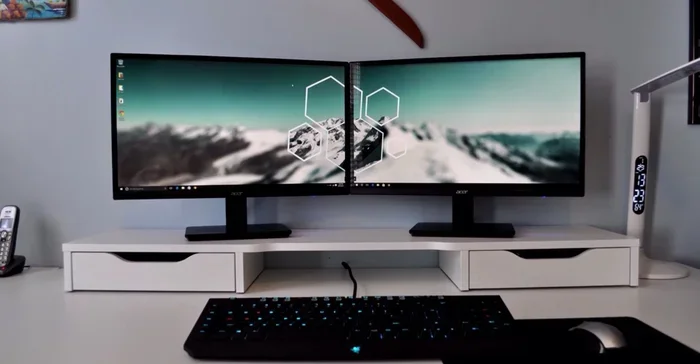
When you use an extended display adapter, each monitor shows different content. You can have your email open on one screen and your spreadsheet on the other. This is the setup most professionals prefer for daily work.
Types of HDMI Adapters for Dual Monitor Setups
Not every dual monitor setup uses the same adapter. Your choice depends on the ports available on your computer and what you want to achieve. Let us break down the most common types.
HDMI Splitter Adapter
An HDMI splitter adapter takes one HDMI output and creates two identical outputs. You plug your computer into the input port, and two monitors plug into the output ports. Both screens mirror the same image.
These adapters are simple and affordable. They work great for presentations, digital signage, and streaming content to multiple TVs. But they do not give you the extended workspace that most people need.
USB-C to HDMI Adapter
Many modern laptops come with USB-C ports instead of traditional HDMI. A USB-C to HDMI adapter converts the USB-C signal into an HDMI output. You can then connect one or two monitors depending on your setup.
Some USB-C adapters support DisplayPort Alt Mode, which allows you to daisy-chain multiple monitors. This means you can connect one monitor to the adapter and the second monitor to the first one. It is a clean, cable-friendly solution for a multi-monitor configuration.
HDMI Docking Station
An HDMI docking station is the most powerful option for a dual monitor setup. These stations connect to your laptop through a single cable and provide multiple video outputs. Most docking stations offer two or three HDMI ports, plus USB ports for peripherals.
Docking stations are perfect for professionals who move between desks. You plug in one cable when you arrive at your workspace, and both monitors spring to life. When you leave, you unplug and go.
HDMI Switch
An HDMI switch lets you toggle between multiple video sources. It is different from a splitter because you are not displaying the same image on two screens. Instead, you choose which source appears on your monitor. This is helpful if you have two computers but only one monitor.
For a true dual monitor setup, a switch is not the best choice. But it is worth knowing the difference so you do not buy the wrong product.
Compatibility: Does Your Computer Support Dual Monitors?
Before you buy any HDMI adapter for dual monitors, you need to check your computer’s capabilities. Not every device supports multiple displays, and even those that do may have limitations.
Check Your Graphics Card
Your graphics card is the brain behind your display output. Most modern graphics cards support two or more monitors simultaneously. You can check this in your device manager or system settings.
If you have a dedicated GPU from NVIDIA or AMD, you almost certainly support dual monitors. Integrated graphics from Intel also support multiple displays in most cases. However, older or budget graphics chips may limit you to a single output.
Check Your Ports
Look at the back of your computer or laptop. Do you see HDMI ports, USB-C ports, or DisplayPort connections? The ports you have determine which adapter you need.
If your computer has only one HDMI port, you will need an adapter or docking station to add a second output. If you have USB-C with video support, you have more flexibility with your adapter compatibility.
Check Your Operating System
Both Windows and macOS support extended desktop displays. However, the setup process differs slightly. Windows offers more granular control over display arrangements, while macOS has a cleaner but more limited interface.
For Windows users, you can access display settings by right-clicking your desktop and selecting Display Settings. Mac users can find these options in System Settings under Displays. Both systems detect external monitors automatically in most cases.
Step-by-Step Setup Guide for Dual Monitors with HDMI Adapter
Setting up a dual monitor setup with an HDMI adapter is easier than you might think. Follow these steps and you will be up and running in minutes.
Step 1: Choose the Right Adapter
Pick the adapter type that matches your computer’s ports. If you have USB-C, get a USB-C to HDMI adapter. If you have a spare HDMI port, an HDMI splitter might work. For the best experience, consider a docking station.
Make sure the adapter supports your desired screen resolution. If you want 4K on both monitors, check that the adapter handles 4K output. Budget adapters sometimes cap out at 1080p.
Step 2: Connect Your Monitors
Plug the adapter into your computer first. Then connect each monitor using an HDMI cable. Make sure both cables are fully seated in their ports.
For docking stations, connect the station to your laptop with the provided cable, then attach your monitors to the station’s HDMI outputs. Keep your cables organized to avoid clutter on your desk.
Step 3: Configure Display Settings
Once both monitors are connected, go to your display settings. Windows users should right-click the desktop and choose Display Settings. Mac users should open System Settings and click Displays.
You will see a diagram showing your monitor arrangement. Drag the monitor icons to match their physical positions on your desk. This ensures your mouse moves naturally between screens.
Choose “Extend these displays” for an extended workspace. Choose “Duplicate these displays” if you want the same image on both screens. Click Apply and your setup is complete.
Step 4: Adjust Resolution and Orientation
Click on each monitor in the display settings diagram to adjust its individual settings. Set the screen resolution to the recommended value for each monitor. You can also rotate a monitor to portrait mode if you prefer vertical screens for reading or coding.
Adjust the scale and layout if text appears too small or too large on either screen. These small tweaks make a big difference in daily comfort.
Benefits of Using an HDMI Adapter for Dual Monitors
A dual monitor setup powered by an HDMI adapter offers real advantages for productivity and entertainment. Here are the key benefits.
Increased Productivity
Studies show that dual monitors can boost productivity by 20 to 30 percent. You can keep reference materials on one screen while working on the other. No more toggling between tabs or windows constantly.
Writers, programmers, analysts, and designers all benefit from having extra screen real estate. An HDMI adapter for dual monitors makes this possible even on laptops with limited ports.
Better Multitasking
With two screens, you can video conference on one monitor while reviewing documents on the other. You can watch a tutorial on one screen and follow along on the other. The workflow possibilities are endless.
Gamers also enjoy dual monitor setups. You can keep your game on one screen and chat or browse on the other. Some even use a third monitor for game stats or streaming overlays.
Cost-Effective Solution
Buying a docking station or adapter is far cheaper than purchasing a new laptop with dual display outputs built in. A quality HDMI adapter for dual monitors costs a fraction of what a new computer would.
You can also reuse your existing monitors. There is no need to buy new screens just because your laptop changed. The adapter bridges the gap between your current hardware and your workflow needs.
Portability and Flexibility
USB-C adapters and portable docking stations are lightweight and easy to carry. You can set up a full dual monitor workstation at the office, at home, or at a hotel room. Plug in, configure once, and you are ready to go every time.
This flexibility is especially valuable for remote workers and digital nomads who need a consistent setup wherever they go. Some users even connect their adapters to value added network systems for secure electronic commerce communication when working from shared spaces or client offices.
Common Mistakes to Avoid When Setting Up Dual Monitors
Even with the right adapter, mistakes can cause frustration. Here are the most common pitfalls and how to avoid them.
Buying the Wrong Adapter Type
The biggest mistake is buying an HDMI splitter when you actually need an extended display adapter. A splitter mirrors the same image on both screens. If you want different content on each monitor, you need an adapter that supports extended display mode.
Always double-check the product description before purchasing. Look for terms like “extended display,” “multi-monitor,” or “dual output” to make sure you get the right one.
Ignoring Resolution Limits
Not all adapters support the same screen resolution. A cheap adapter might handle 1080p perfectly but struggle with 4K content. If you have 4K monitors, invest in an adapter that explicitly supports 4K at 60Hz or higher.
Check the adapter’s specifications for maximum resolution and refresh rate. This information is usually listed in the product description or on the packaging.
Using Low-Quality Cables
Even the best HDMI adapter for dual monitors will underperform with cheap cables. Poor quality HDMI cables can cause signal loss, flickering, or no signal at all.
Use certified HDMI cables that match your resolution needs. For 4K setups, look for Premium High Speed HDMI cables. For standard 1080p setups, standard HDMI cables work perfectly fine.
Skipping Driver Updates
Your graphics card drivers play a big role in multi-monitor performance. Outdated drivers can cause display errors, resolution issues, or crashes.
Visit your graphics card manufacturer’s website and download the latest drivers. For NVIDIA cards, use GeForce Experience. For AMD cards, use AMD Software. For Intel integrated graphics, use Intel Driver & Support Assistant.
Quick Tips for the Best Dual Monitor Experience
Here are some practical tips to get the most out of your dual monitor setup.
- Match your monitors: Use two monitors with the same size, resolution, and panel type for a seamless viewing experience.
- Position your primary monitor directly in front of you: This is the screen you will look at most often.
- Use a monitor arm or stand: Proper height and angle reduce neck strain during long work sessions.
- Calibrate brightness and color: Matching the brightness and color profile of both monitors reduces eye strain.
- Use keyboard shortcuts: Windows users can press Win + P to quickly switch between display modes. Mac users can use Mission Control for quick display adjustments.
- Keep cables tidy: Use cable management clips or sleeves to keep your desk clean and organized.
Expert Insights: What Tech Professionals Recommend
We spoke with several IT professionals and tech reviewers about the best approaches to dual monitor configurations. Here is what they had to say.
“The USB-C docking station is the gold standard for most users,” says Sarah Chen, a senior IT specialist at a Fortune 500 company. “It gives you two HDMI outputs, USB ports, and Ethernet connectivity all in one device. The setup takes about two minutes.”
Mark Torres, a freelance graphic designer, prefers a different approach. “I use a USB-C to HDMI adapter for my primary external monitor and rely on my laptop’s built-in screen as the second display. It keeps things simple and portable.”
Both approaches work well. The best choice depends on your workflow, budget, and how often you move between locations.
Comparison Table: HDMI Adapter Types for Dual Monitors
| Adapter Type | Best For | Max Resolution | Extended Display | Price Range |
|---|---|---|---|---|
| HDMI Splitter | Mirroring content | 1080p or 4K | No | $10 – $25 |
| USB-C to HDMI | Single extended display | 4K at 60Hz | Yes | $15 – $50 |
| USB-C Docking Station | Full workstation setup | 4K at 60Hz per port | Yes | $50 – $200 |
| HDMI Switch | Toggling between sources | 1080p or 4K | No | $10 – $30 |
The table above shows that each adapter type serves a different purpose. Choose based on whether you need mirroring, extended display, or source switching.
Frequently Asked Questions
Can I connect two monitors to a laptop with only one HDMI port?
Yes, you can. Use a USB-C to HDMI adapter or an HDMI docking station to add a second output. Your laptop’s graphics card will handle both displays as long as it supports multiple outputs.
Do I need a special HDMI adapter for 4K dual monitors?
You need an adapter that explicitly supports 4K resolution. Not all adapters handle 4K, especially at 60Hz. Check the product specifications before purchasing to ensure 4K support on both monitors.
Can I use an HDMI splitter for extended desktop mode?
No, an HDMI splitter mirrors the same image on both screens. For extended desktop mode, you need an adapter or docking station that supports multiple independent video outputs.
Will a cheap HDMI adapter affect my display quality?
Yes, low-quality adapters can cause signal degradation, flickering, or limited resolution. Investing in a reputable brand ensures stable performance and full resolution support for your monitors.
Can I use different brands of monitors with an HDMI adapter?
Absolutely. HDMI is a universal standard, so any HDMI-compatible monitor will work with an HDMI adapter regardless of the brand. Just make sure both monitors support the same resolution for the best experience.
How do I set up dual monitors on Windows 11?
Right-click your desktop and select Display Settings. You will see a diagram of your displays. Click Detect if your second monitor does not appear. Then choose “Extend these displays” and arrange the monitors to match their physical positions on your desk.
Conclusion
Using an HDMI adapter for dual monitors is one of the simplest and most affordable ways to upgrade your workspace. Whether you choose a splitter, a USB-C adapter, or a full docking station, the right solution fits your needs and budget.
Start by checking your computer’s ports and graphics capabilities. Choose the adapter type that matches your workflow. Follow the setup steps carefully, and adjust your display settings for the best experience. Avoid the common mistakes we covered, and you will enjoy a smooth dual monitor setup in no time.
The productivity gains from a second screen are real and well-documented. Once you experience the freedom of an extended workspace, you will wonder how you ever managed with just one screen. Take the time to pick the right HDMI adapter for dual monitors, and your future self will thank you.