Can You Use HDMI As Audio Output Here Is Everything You Need
Yes, you can absolutely use HDMI as an audio output. HDMI carries both high-quality video and digital audio signals through a single cable, making it one of the most convenient connections for home entertainment. Whether you are connecting a PC to a TV, a laptop to a soundbar, or a gaming console to a surround sound system, HDMI simplifies your setup and delivers excellent audio quality.
If you have ever plugged in an HDMI cable and wondered why there is no sound coming from your TV or monitor, you are not alone. The question “can you use HDMI as audio output” comes up all the time. The short answer is yes. HDMI cables carry both video and audio signals at the same time. But the full story is a bit more interesting, and there are a few things you should know to get the best results.
Whether you are setting up a home theater, connecting a laptop to an external display, or hooking up a gaming console, understanding how HDMI audio works can save you a lot of frustration. In this guide, I will walk you through everything you need to know. From basic setup to advanced features like HDMI ARC, I will cover it all in simple terms you can follow right away.
Key Takeaways
- HDMI carries both video and audio: A single HDMI cable transmits high-quality digital video and audio signals to your display and sound devices.
- HDMI ARC and eARC are game changers: These features let you send audio from your TV to external speakers using just one HDMI cable.
- Setting it up is simple: Most devices automatically detect HDMI audio output, but you may need to adjust settings in your operating system or TV menu.
- Troubleshooting is straightforward: Common issues like no sound or wrong audio format can usually be fixed with a few clicks.
- HDMI supports multiple audio formats: You can enjoy stereo, Dolby Digital, DTS, and even uncompressed multichannel audio through HDMI.
- HDMI splitters and switches work great for audio: These accessories let you route HDMI audio to multiple devices or switch between sources easily.
📑 Table of Contents
- What Is HDMI and How Does It Handle Audio
- Can You Use HDMI As Audio Output on Different Devices
- HDMI ARC and eARC: The Best Way to Get Audio from Your TV
- Common HDMI Audio Output Problems and How to Fix Them
- HDMI Audio Output vs. Other Audio Connections
- How to Choose the Right HDMI Cable for Audio
- Expert Tips for Getting the Best HDMI Audio Output
- Frequently Asked Questions
- Final Thoughts
What Is HDMI and How Does It Handle Audio
HDMI stands for High-Definition Multimedia Interface. It is a standard cable that connects audio and video devices. Unlike older cables that carried analog signals, HDMI uses digital transmission. This means the audio and video signals stay clean and strong from source to display.
One HDMI cable replaces multiple older cables. You no longer need separate red and white audio cables or an optical audio cable for sound. The HDMI standard supports a wide range of audio formats, from basic stereo to advanced surround sound formats like Dolby Atmos and DTS:X.
How HDMI Carries Audio Signals
Inside every HDMI cable, there are multiple data channels. One channel handles video, and another handles audio. The audio channel can carry several channels of sound at once. This is why HDMI is so popular for home theater setups. You get theater-quality sound through a single thin cable.
The HDMI specification has evolved over the years. Each new version added more bandwidth and support for better audio formats. HDMI 1.4 introduced ARC, which changed how people connect their TVs to sound systems. HDMI 2.1, the latest version, supports even higher audio bandwidth for next-generation formats.
Common Devices That Use HDMI Audio Output
You will find HDMI audio output on many devices in your home:
- Laptops and desktop computers with HDMI ports
- Gaming consoles like PlayStation and Xbox
- Streaming devices such as Roku, Apple TV, and Chromecast
- Blu-ray players and media streamers
- Camcorders and cameras with HDMI output
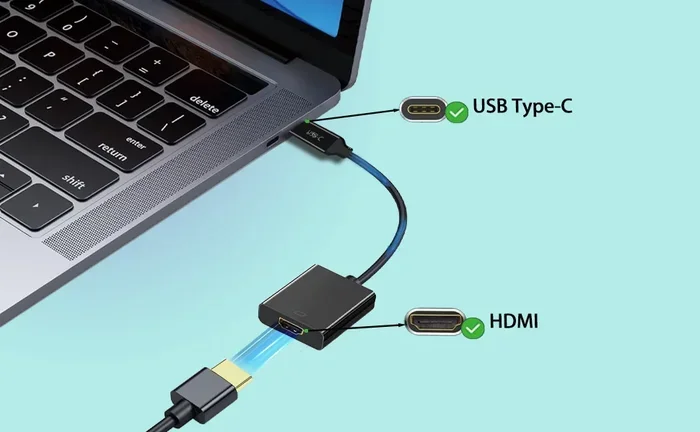
- Smartphones and tablets with USB-C to HDMI adapters
All of these devices can send audio through an HDMI cable to a compatible display or audio receiver. The key is making sure your settings are correct on both the sending and receiving device.
Can You Use HDMI As Audio Output on Different Devices
The answer depends on the device you are using and the device you are connecting to. Let me break this down by device type so you can find your specific situation quickly.
Using HDMI Audio Output on a PC or Laptop
Most modern computers come with HDMI ports. When you plug in an HDMI cable, your PC can send both video and audio to your TV or monitor. But sometimes Windows or macOS does not automatically switch the audio output. You may need to change a setting.
On Windows, right-click the speaker icon in your taskbar. Select “Sound settings” and look for your HDMI device under output options. On macOS, go to System Settings, then Sound, and choose the HDMI output from the list. Once you make this change, all your computer audio will play through the HDMI-connected display.
Using HDMI Audio Output on a Gaming Console
Gaming consoles like the PlayStation 5 and Xbox Series X use HDMI as their primary connection. By default, they send audio through HDMI to your TV or soundbar. You can usually adjust audio settings in the console’s menu. Options include stereo, surround sound, and bitstream formats for your AV receiver.
If you are using a soundbar or home theater system, check your console’s audio output settings. Some consoles let you choose between PCM and bitstream audio. PCM is decoded by the TV, while bitstream sends the raw audio signal to your external speaker system for decoding.
Using HDMI Audio Output on a Streaming Device
Streaming sticks and boxes like Apple TV, Roku, and Amazon Fire Stick all output audio through HDMI. These devices are designed to work seamlessly with most TVs and sound systems. The audio format is usually set automatically based on your TV’s capabilities.
If you have a soundbar connected through HDMI ARC, your streaming device audio will route through the TV and then to the soundbar. This is one of the easiest and cleanest setups for modern living rooms. You get great sound without running extra cables across the room.
HDMI ARC and eARC: The Best Way to Get Audio from Your TV
If you want to use your TV as a hub and send audio to an external speaker system, HDMI ARC is the way to go. ARC stands for Audio Return Channel. It lets your TV send audio back through the same HDMI cable to a soundbar, AV receiver, or home theater system.
eARC stands for Enhanced Audio Return Channel. It is available on HDMI 2.1 ports and supports higher-quality audio formats. With eARC, you can send uncompressed Dolby Atmos and DTS:X signals from your TV to your sound system. This is a big upgrade over standard ARC.
How to Set Up HDMI ARC
Setting up HDMI ARC is straightforward. First, make sure your TV and sound system both support ARC. Connect them with an HDMI cable to the ARC-labeled port on your TV. Then, enable ARC in your TV settings. On most TVs, you will find this under Settings, then Sound, then HDMI Control or ARC.
Once ARC is enabled, your TV can send audio from built-in apps like Netflix or YouTube to your external speakers. You no longer need to use your TV’s small built-in speakers for a better listening experience. The sound comes through your soundbar or receiver instead.
ARC vs. eARC: What Is the Difference
Standard ARC works well for stereo and basic surround sound formats like Dolby Digital and DTS. But it has limitations. eARC supports much higher bandwidth and can handle uncompressed audio and advanced formats. If you have a newer TV and a sound system that supports Dolby Atmos, eARC is the better choice.
Here is a quick comparison:
- Standard ARC: Supports Dolby Digital, DTS, stereo. Max bandwidth around 1 Mbps. Works on HDMI 1.4 and later.
- eARC: Supports Dolby Atmos, DTS:X, uncompressed 7.1, object-based audio. Max bandwidth up to 37 Mbps. Requires HDMI 2.1.
For most people, standard ARC is enough. But if you are an audiophile or want the best home theater experience, eARC is worth the upgrade.
Common HDMI Audio Output Problems and How to Fix Them
Even though HDMI audio works well most of the time, you might run into issues. Here are the most common problems and how to solve them.
No Sound Through HDMI
If you have no sound after connecting via HDMI, the first thing to check is your audio output settings. On your PC or laptop, make sure the HDMI output is selected as the default audio device. On your TV, check that the correct HDMI input is selected and that the audio output setting is not set to “optical” or “analog” when it should be HDMI.
Also, try unplugging the HDMI cable and plugging it back in. Sometimes the handshake between devices needs a fresh connection to detect audio properly. Restarting both devices can also help.
Audio and Video Are Out of Sync
Audio lag or lip-sync issues can happen with HDMI connections. This is often caused by audio processing delays in your TV or sound system. Many TVs have an audio delay setting that you can adjust. Look for “Lip Sync” or “Audio Delay” in your TV’s audio or sound settings.
If you are using an HDMI splitter or switch, these devices can sometimes introduce latency. Try connecting directly without the extra hardware to see if that fixes the sync issue.
HDMI Audio Only Plays in Stereo
If you expected surround sound but only get stereo audio, your audio format settings might be the culprit. Check the audio output settings on your source device. Make sure it is set to output surround sound or bitstream instead of stereo PCM.
Also, confirm that your HDMI cable supports the bandwidth needed for multichannel audio. Standard HDMI cables handle stereo fine, but for uncompressed surround or Dolby Atmos, you need a high-speed HDMI cable or an Ultra High Speed HDMI cable.
HDMI Audio Cuts Out Intermittently
Intermittent audio cutouts are often caused by a loose connection or a damaged cable. Check that the HDMI cable is firmly seated in both ports. Try a different HDMI cable to rule out a faulty connection. Also, make sure your cable is not too long, as signal degradation can occur over very long runs.
If you are using an HDMI extender or adapter, these can sometimes cause audio dropouts. Use high-quality adapters and keep cable runs as short as possible for the best results.
HDMI Audio Output vs. Other Audio Connections
HDMI is not the only way to get audio from your devices. Let me compare HDMI audio output with other common connections so you can decide what works best for your setup.
HDMI vs. Optical Audio
Optical audio, also called TOSLINK, uses a fiber optic cable to carry digital audio. It supports surround sound formats like Dolby Digital and DTS. But it cannot carry uncompressed audio or newer formats like Dolby Atmos. HDMI can do all of that and more.
On the plus side, optical audio is not affected by electromagnetic interference. If you have a lot of electronic devices near your cables, optical might give you a cleaner signal. But for most users, HDMI is the better choice because of its versatility and higher audio quality.
HDMI vs. Analog Audio (3.5mm or RCA)
Analog audio connections use traditional cables with 3.5mm or RCA connectors. These carry analog audio signals, which are more prone to interference and signal loss. HDMI carries digital audio, which stays pristine from source to speaker.
Analog connections also do not support surround sound formats. You get stereo sound at best. HDMI gives you much more in terms of audio quality and channel support. For these reasons, HDMI is the preferred connection for most modern setups.
HDMI vs. Bluetooth Audio
Bluetooth is convenient for wireless audio, but it compresses the audio signal. This can reduce quality, especially for complex audio like movie soundtracks. HDMI sends uncompressed or lightly compressed audio for the best possible sound.
Bluetooth also has higher latency than HDMI. This means there can be a noticeable delay between video and audio. For movies, gaming, and music watching, HDMI is the clear winner. Bluetooth works well for casual listening with headphones or portable speakers.
How to Choose the Right HDMI Cable for Audio
Not all HDMI cables are the same. The cable you choose can affect the audio quality you get. Here is what you need to know when picking an HDMI cable for audio output.
Standard HDMI Cable
A Standard HDMI cable supports stereo and basic surround sound formats. It works fine for most everyday uses like watching TV shows or listening to music. If you only need stereo or Dolby Digital surround, a Standard HDMI cable will do the job.
High-Speed HDMI Cable
A High-Speed HDMI cable supports higher bandwidth and can carry advanced audio formats. This includes lossless audio and higher resolution surround sound. If you have a 4K TV or a sound system that supports Dolby Atmos, go with a High-Speed HDMI cable.
Ultra High-Speed HDMI Cable
Ultra High-Speed HDMI cables are designed for HDMI 2.1. They support the highest bandwidth and can carry uncompressed audio formats and the latest surround sound technologies. If you have the latest gaming console, 4K Blu-ray player, or AV receiver, this is the cable to choose.
When shopping, look for cables that are certified “Premium High Speed” or “Ultra High Speed” by HDMI Licensing. These cables have been tested to meet the official standards for the bandwidth and audio formats they claim to support.
Expert Tips for Getting the Best HDMI Audio Output
I have been helping people set up their audio and video gear for years. Here are some tips that will help you get the most out of your HDMI audio connections.
Always Check Your Default Audio Output
The most common reason for no HDMI audio is that the wrong output device is selected. Make it a habit to check your audio output settings whenever you connect a new HDMI device. It takes just a few seconds and can save you a lot of headaches.
Use HDMI-CEC for Seamless Control
HDMI-CEC, also called Consumer Electronics Control, lets you control multiple devices with one remote. When enabled, you can use your TV remote to adjust the volume of your soundbar or receiver connected via HDMI. The names vary by brand, but the feature works the same way across devices.
Update Your Audio Drivers
If you are using a PC, outdated audio drivers can cause HDMI audio issues. Check your sound card or motherboard manufacturer’s website for the latest drivers. A simple driver update often fixes no-sound problems with HDMI output.
Consider an HDMI Audio Extractor
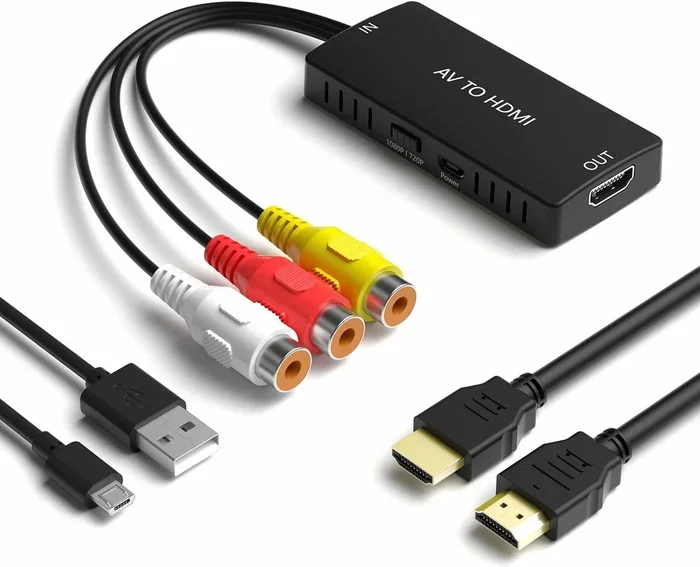
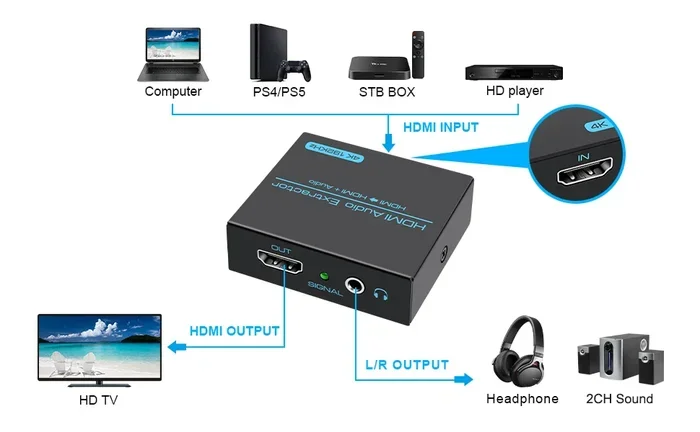
If you need to send HDMI video to one display but audio to a separate speaker system, an HDMI audio extractor is a great tool. This small device splits the HDMI signal into video (often via HDMI or DisplayPort) and audio (via 3.5mm, optical, or RCA). It is handy for older setups or specific routing needs.
Frequently Asked Questions
Can you use HDMI as audio output on a monitor without speakers?
Yes, you can. A monitor without built-in speakers will still receive the audio signal through HDMI. But you need to connect the monitor to external speakers or a headset. Some monitors have a 3.5mm headphone jack you can use for this purpose. The HDMI connection carries the audio, and you route it to your speakers through the monitor’s output jack.
Do I need a special HDMI cable for audio output?
No, you do not need a special cable for basic audio. Any standard HDMI cable will carry stereo and surround sound audio. However, if you want advanced audio formats like Dolby Atmos or lossless audio, you need a High-Speed or Ultra High-Speed HDMI cable. Check the cable specifications to make sure it supports the audio format you want.
Can I use an HDMI splitter for audio output?
Yes, an HDMI splitter can duplicate both video and audio to multiple displays. Most HDMI splitters pass the audio signal along with the video to all output ports. However, some budget splitters may not handle audio properly. Look for splitters that explicitly support audio extraction or pass-through for the best results.
Why is there no sound when I connect via HDMI?
The most common reason is incorrect audio output settings. Make sure your device is set to output audio through HDMI, not through built-in speakers or another output. Also check that the HDMI cable is fully seated in both ports. Restarting both devices can help them re-establish the audio handshake.
Does HDMI support Dolby Atmos audio output?
Yes, HDMI supports Dolby Atmos, but only through HDMI ARC or eARC connections on compatible devices. Standard HDMI connections can pass Dolby Atmos as a bitstream to an AV receiver or soundbar that decodes it. For the best Dolby Atmos experience, use eARC with an Ultra High-Speed HDMI cable.
Can I get audio from HDMI on a Mac computer?
Yes, Mac computers with HDMI ports can output audio through HDMI. Go to System Settings, then Sound, and select your HDMI display as the output device. Some Mac models with USB-C or Thunderbolt ports can also output HDMI audio using the appropriate adapter or cable.
Final Thoughts
The answer to “can you use HDMI as audio output” is a clear yes. HDMI is one of the most versatile and convenient ways to carry high-quality audio from your devices to your speakers, soundbar, or home theater system. Whether you are setting up a simple TV and soundbar combo or a full-blown home theater, HDMI handles both video and audio with ease.
By understanding features like HDMI ARC and eARC, choosing the right cable, and knowing how to troubleshoot common issues, you can get the best possible audio experience from every HDMI connection in your home. Take a few minutes to check your settings, use quality cables, and enjoy the rich, immersive sound that HDMI delivers.
Now that you know how HDMI audio output works, go ahead and set up your system with confidence. You have all the knowledge you need to get great sound through a single cable. Happy listening.