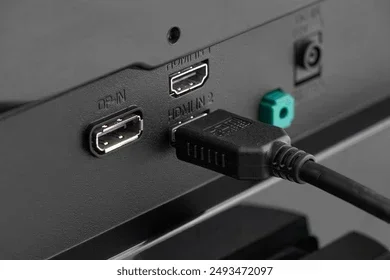
Do All HDMI Cables Have CEC And What You Should Know
Not all HDMI cables have CEC, even though the feature is built into the HDMI standard. HDMI CEC lets you control multiple devices with one remote, but support depends on the cable version and device compatibility. This guide covers everything you need to know about HDMI CEC, from how it works to troubleshooting common issues.
Have you ever plugged in an HDMI cable and expected your TV remote to control your soundbar, Blu-ray player, or gaming console? If that didn’t work, you might be wondering, do all HDMI cables have CEC? The short answer is no. But the full story is more interesting than you might think.
HDMI CEC stands for Consumer Electronics Control. It is a feature that allows devices connected through HDMI to talk to each other. This means one remote can control multiple gadgets. Sounds convenient, right? But here is the catch. Not every HDMI cable delivers CEC the same way. And not every device fully supports it either.
In this article, we will break down everything you need to know. We will cover what CEC is, which cables support it, and how to get it working in your home setup. By the end, you will know exactly what to look for when buying cables and how to fix common CEC problems.
Key Takeaways
- HDMI CEC is a standard feature: It is built into the HDMI specification, but not all cables or devices fully support it.
- Cable version matters: Older HDMI cables may not carry CEC signals properly, even if they look identical to newer ones.
- CEC has many brand names: Samsung calls it Anynet+, LG calls it SimpLink, and Sony calls it BRAVIA Sync, but they all do the same thing.
- You can enable or disable CEC: Most devices let you toggle CEC on or off in the settings menu.
- Troubleshooting is usually simple: Updating firmware or adjusting settings fixes most CEC issues.
- CEC works alongside other HDMI features: It complements HDMI ARC and other technologies for a smoother entertainment experience.
📑 Table of Contents
- What Is HDMI CEC and Why Does It Matter?
- Do All HDMI Cables Have CEC?
- How HDMI CEC Works in Real Life
- Common HDMI CEC Problems and How to Fix Them
- HDMI Cable Types and CEC Compatibility
- How to Enable or Disable CEC on Your Devices
- Should You Care About CEC When Buying an HDMI Cable?
- Key Takeaways
- Conclusion
What Is HDMI CEC and Why Does It Matter?
HDMI CEC is a communication protocol built into the HDMI standard. It allows connected devices to send basic commands to each other through the HDMI cable. Think of it as a quiet conversation happening behind the scenes every time you power on your TV or adjust the volume.
The idea behind CEC is simple. You should not need five different remotes to watch a movie. With CEC, your TV remote can turn on your soundbar, switch your Blu-ray player to the right input, and adjust the volume. All of this happens automatically.
What Can HDMI CEC Do?
CEC supports several useful functions across connected devices. Here are some of the most common features:
- One Touch Play: Turning on your TV automatically powers on connected devices and switches to the right input.
- Device Control: Using your TV remote to control a soundbar, set-top box, or streaming stick.
- Remote Pass-Through: Sending remote commands from the TV to another device down the HDMI chain.
- System Standby: Turning off all connected devices with one button press.
- Audio Return Channel (ARC): Sending audio from your TV back to your soundbar or receiver through the same cable.
These features make your home entertainment setup feel seamless. But they only work when both the cable and the devices support HDMI CEC properly.
Do All HDMI Cables Have CEC?
This is the question most people ask, and the answer is not a simple yes or no. HDMI CEC is part of the HDMI specification, which means it should be present in all HDMI cables. In theory, any HDMI cable can carry CEC signals. In practice, things are a bit more complicated.
Older HDMI cables, especially those made before HDMI version 1.4, may not support CEC reliably. Even if the cable physically fits into your ports, the CEC feature might not work correctly. This is because CEC requires certain wiring and signal capabilities that were not fully standardized in earlier cable versions.
Cable Version and CEC Support
Here is a quick look at how different HDMI versions handle CEC:
- HDMI 1.0 to 1.3: CEC was introduced but support was inconsistent across devices and cables.
- HDMI 1.4: CEC became more standardized. Most cables from this era support basic CEC functions.
- HDMI 2.0 and 2.1: Full CEC support with better reliability and broader device compatibility.
When you buy a new HDMI cable today, it almost certainly supports CEC. But if you are using an older cable from a previous setup, there is a chance CEC might not work as expected. This becomes especially important when you are setting up a new home theater or upgrading your entertainment system.
For more on how different cables and connectors vary, check out our guide on Are All WiFi Antennas The Same, which explores how not all connectivity hardware works identically even when they look the same.
How HDMI CEC Works in Real Life
Understanding HDMI CEC in theory is one thing. Seeing how it works in your living room is another. Let us walk through a real-world example.
Imagine you have a smart TV, a soundbar, and a streaming stick connected with HDMI cables. When you turn on the TV using your remote, CEC sends a signal to the soundbar and streaming stick. The soundbar powers on. The streaming stick wakes up and opens your last app. You grab the remote and adjust the volume. Everything works together without you touching a single other button.
That is the magic of HDMI CEC. It creates a unified experience across devices that would otherwise feel fragmented.
Brand-Specific Names for CEC
One thing that confuses many people is that CEC goes by different names depending on the brand. Here is a quick list:
- Samsung: Anynet+
- LG: SimpLink
- Sony: BRAVIA Sync
- Panasonic: HDAVI Control
- Philips: EasyLink
- Roku: 1-Touch Play
Despite the different names, they all use the same underlying CEC protocol. The feature works the same way regardless of what your TV brand calls it. Just know that when you are searching for settings, you might need to look under a brand-specific name rather than “CEC.”
Common HDMI CEC Problems and How to Fix Them
Even when you have the right cables and devices, HDMI CEC can sometimes act up. These issues are frustrating but usually easy to fix. Let us look at the most common problems.
CEC Not Responding to Remote Commands
This is the most frequent complaint. You press a button on your TV remote, and nothing happens on the connected device. Often, this is a simple settings issue. Check if CEC is enabled on both the sending and receiving devices. Sometimes one device has it turned off by default.
Devices Turning On and Off Randomly
CEC can sometimes cause a chain reaction. Turning on the TV might power on the soundbar, which then triggers the streaming stick. This can feel annoying, especially at night. The fix is usually to adjust the CEC settings and disable auto-power features on specific devices.
Audio Sync Issues
When CEC controls audio routing, you might experience delays or sync problems. This often happens when using HDMI ARC alongside CEC. Updating your device firmware or switching to a higher-quality HDMI cable can resolve this.
Partial CEC Functionality
Sometimes CEC works for some features but not others. For example, volume control might work but input switching does not. This usually happens when different devices have different levels of CEC support. Not all manufacturers implement every CEC command.
Quick Tip: If CEC is acting up, try unplugging all devices for 30 seconds and plugging them back in. This simple reset often clears up communication errors between devices.
HDMI Cable Types and CEC Compatibility
Not all HDMI cables are created equal. While CEC is a standard feature, the cable quality and version can affect how well it performs. Let us break down the main cable types you will encounter.
Standard HDMI Cable
This is the basic cable most people use for everyday setups. It supports 1080p resolution and basic CEC functions. If you are connecting a cable box or a basic streaming device, a standard cable works fine for CEC.
High Speed HDMI Cable
High speed cables support 4K resolution and higher refresh rates. They also carry CEC signals more reliably due to better shielding and wiring. If you want a dependable CEC experience with 4K content, this is the cable to choose.
Premium High Speed HDMI Cable
These cables are designed for the most demanding setups. They support 4K at 120Hz, HDR, and full CEC functionality. Premium cables also tend to have better build quality, which means fewer signal issues that could interfere with CEC communication.
Ultra High Speed HDMI Cable
The newest standard supports 8K and advanced features. CEC works flawlessly with these cables. If you are building a cutting-edge home theater, this is the cable to go with.
For a deeper dive into how cable quality affects your setup, you might also want to explore our article on Are All WiFi Antennas The Same, which explains why assuming all connectivity hardware is the same can lead to disappointing results.
How to Enable or Disable CEC on Your Devices
Getting HDMI CEC to work is usually straightforward. But you need to know where to look in your device settings. Every brand puts the setting in a different place. Here is a quick guide for the most popular brands.
Samsung TVs
Go to Settings > General > External Device Manager > Anynet+ (HDMI-CEC). Toggle it on to enable device control through HDMI.
LG TVs
Navigate to Settings > General > SIMPLINK (HDMI-CEC). Turn it on to allow connected devices to communicate.
Sony TVs
Go to Settings > Network > BRAVIA Sync Settings. Enable BRAVIA Sync to activate CEC functions.
Soundbars and Receivers
Most soundbars have a CEC or HDMI-CEC setting in their companion app or on-device menu. Check the user manual for your specific model.
Streaming Devices
Devices like Roku, Apple TV, and Chromecast have their own CEC-like features. Roku calls it 1-Touch Play, while Apple TV uses HDMI-CEC for basic control. Check the settings under Display and Video or General settings.
Expert Insight: When setting up a new home entertainment system, always check CEC settings on every device before troubleshooting other issues. Many people spend hours trying to fix connectivity problems that are simply caused by CEC being disabled on one device.
Should You Care About CEC When Buying an HDMI Cable?
The short answer is yes, but not in the way you might think. When you buy a modern HDMI cable, CEC support is essentially guaranteed. You do not need to pay extra for it. What you should care about is the overall cable quality and version.
A premium HDMI cable with good shielding and proper wiring will deliver CEC signals more reliably than a cheap, poorly made cable. This is especially true for longer cable runs, where signal degradation can interfere with CEC communication.
Here are a few tips for buying the right cable:
- Check the HDMI version: Look for cables rated at HDMI 2.0 or higher for the best CEC support.
- Buy from reputable brands: Well-known cable manufacturers tend to follow the HDMI specification more closely.
- Consider cable length: Longer cables may need better shielding to maintain reliable CEC signals.
- Look for certification: Certified cables have been tested to meet HDMI standards, including CEC functionality.
Remember, the cable itself does not create CEC. CEC is a feature of the HDMI protocol that lives in the chips inside your devices. But the cable is the pathway that carries those signals. A poor-quality cable can block or weaken those signals, causing CEC to malfunction.
Similarly to how not all connectivity solutions work the same way, not all HDMI cables perform equally even when they carry the same label. For more on why this happens across different tech categories, our piece on Are All WiFi Antennas The Same offers a broader perspective on connectivity assumptions.
Key Takeaways
- HDMI CEC is a standard feature: It is built into the HDMI specification, but not all cables or devices fully support it.
- Cable version matters: Older HDMI cables may not carry CEC signals properly, even if they look identical to newer ones.
- CEC has many brand names: Samsung calls it Anynet+, LG calls it SimpLink, and Sony calls it BRAVIA Sync, but they all do the same thing.
- You can enable or disable CEC: Most devices let you toggle CEC on or off in the settings menu.
- Troubleshooting is usually simple: Updating firmware or adjusting settings fixes most CEC issues.
- CEC works alongside other HDMI features: It complements HDMI ARC and other technologies for a smoother entertainment experience.
Conclusion
So, do all HDMI cables have CEC? The answer is nuanced. CEC is part of the HDMI standard, which means it should be present in every HDMI cable. But real-world performance depends on the cable version, quality, and the devices you are connecting. A modern, high-quality HDMI cable will give you reliable CEC support, while older or cheaper cables might let you down.
The good news is that setting up and troubleshooting HDMI CEC is not difficult. A few minutes in your device settings can save you hours of frustration. Once CEC is working, you will wonder how you ever managed without it. One remote to rule them all is a genuinely convenient experience.
Take a few minutes today to check your CEC settings. Update your cables if needed. And enjoy the seamless, connected experience that HDMI CEC was designed to deliver. Your entertainment setup will feel faster, smarter, and much more enjoyable.
Frequently Asked Questions
What does HDMI CEC stand for?
HDMI CEC stands for Consumer Electronics Control. It is a feature built into the HDMI standard that allows connected devices to communicate and be controlled with a single remote. Different brands use different names for the same feature, such as Anynet+ or BRAVIA Sync.
Can I use CEC with any HDMI cable?
Most modern HDMI cables support CEC because it is part of the HDMI specification. However, older cables from before HDMI 1.4 may not carry CEC signals reliably. For the best experience, use an HDMI 2.0 or higher cable.
Why is my HDMI CEC not working?
CEC issues are usually caused by the feature being disabled on one of your devices. Check the CEC or HDMI-CEC settings on your TV, soundbar, and any other connected devices. A simple power cycle or firmware update often fixes the problem too.
Does CEC work with all brands of devices?
CEC is designed to work across all HDMI devices regardless of brand. However, some manufacturers implement CEC differently, which can cause partial compatibility. Most modern devices from major brands work well together with CEC.
Is HDMI CEC the same as HDMI ARC?
No, they are related but different. HDMI ARC (Audio Return Channel) sends audio from your TV to a soundbar or receiver. HDMI CEC allows devices to control each other. Many devices support both features on the same HDMI port, and they often work together.
Do I need a special HDMI cable for CEC?
You do not need a special cable for CEC. Any standard HDMI cable from the last decade should support it. What matters more is the cable quality and the HDMI version. A certified High Speed or Premium High Speed cable will give you the most reliable CEC performance.