Does It Matter What Wifi Adapter I Use For Better Speed
Yes, the wifi adapter you choose genuinely impacts your speed, range, and overall connection quality. Not all adapters are created equal, and picking the wrong one can bottleneck your entire network. This guide breaks down exactly what matters and how to choose the best wifi adapter for your needs.
Have you ever wondered whether the little piece of hardware inside your laptop—or the dongle plugged into your desktop—actually affects how fast your internet feels? The short answer is yes, it really does. Does it matter what wifi adapter I use? Absolutely. The adapter you choose can mean the difference between buffering videos and streaming in crystal-clear 4K.
Your wifi adapter is the bridge between your device and your wireless network. It takes the digital data your computer produces and turns it into radio signals. It also catches those signals coming back from your router. A cheap or outdated adapter will limit your speed no matter how expensive your internet plan is. Think of it like a garden hose—no matter how much water the city supplies, a tiny hose can only deliver so much.
In this guide, we’ll walk through everything you need to know about wifi adapters and speed. You’ll learn how different types work, what specs to look for, and how to avoid common mistakes when shopping. By the end, you’ll know exactly which adapter fits your setup and budget.
Key Takeaways
- Adapter standards matter: Newer standards like Wi-Fi 6 and Wi-Fi 6E deliver significantly faster speeds than older models.
- USB vs. PCIe adapters serve different needs: PCIe adapters offer better performance, while USB adapters provide convenience and portability.
- Band support is critical: Dual-band and tri-band adapters give you flexibility to switch between 2.4GHz and 5GHz frequencies.
- Antenna quality affects range: Better antennas mean stronger signals and fewer dead zones in your home.
- Your router must match: A top-tier adapter won’t help if your wifi router doesn’t support the same standards.
📑 Table of Contents
What Does a Wifi Adapter Do?
A wifi adapter is a hardware component that lets your device connect to a wireless network. Every device that connects to Wi-Fi has some form of adapter built in. But not all adapters are the same. The quality and type of adapter directly shape your wireless speed and connection stability.
Built-In vs. External Adapters
Most modern laptops come with a built-in wifi adapter soldered onto the motherboard. These are convenient, but they’re often limited in power and range. Desktops usually lack any built-in wireless capability, which means you need an external option.
External adapters come in two main forms:
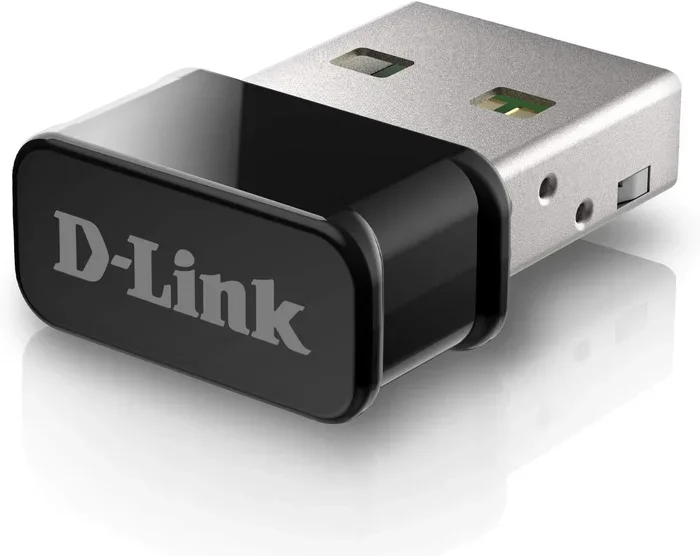
- USB wifi adapters — Small dongles you plug into a USB port. They’re easy to set up and portable.
- PCIe wifi cards — Internal cards that slide into a motherboard slot. They offer stronger performance and better antennas.
Each option has its place. USB adapters are great for quick fixes and laptops without internal wireless hardware. PCIe cards are better for desktops and users who want the fastest possible wireless network speeds.
How Adapter Standards Affect Speed
Wifi adapters follow specific standards set by the IEEE. These standards determine the maximum speed and frequency bands the adapter supports. Here’s a quick look at the most common ones:
- Wi-Fi 4 (802.11n) — Max speed around 600 Mbps. Works on both 2.4GHz and 5GHz bands. This is an older standard but still functional for basic tasks.
- Wi-Fi 5 (802.11ac) — Max speed around 1.3 Gbps. Primarily uses the 5GHz band. This standard has been around for a while and offers solid performance.
- Wi-Fi 6 (802.11ax) — Max speed around 9.6 Gbps. Much more efficient with multiple devices. This is the current sweet spot for most users.
- Wi-Fi 6E — Adds the 6GHz band on top of Wi-Fi 6 capabilities. Offers the fastest and least congested wireless experience available today.
Your adapter standard matters a lot. If you have a Wi-Fi 6 router but an older Wi-Fi 4 adapter, your speeds will be capped at what the adapter can handle. It’s like having a superhighway but driving a slow car.
Does the Adapter Type Affect Speed?
Yes, the type of wifi adapter you use has a real impact on your connection speed. Let’s break down the differences between the main types so you can make an informed choice.
USB Wifi Adapters
USB wifi adapters are the most popular choice for people who need a quick and easy wireless upgrade. They plug right into a USB port and start working within minutes. Most come with a small disc or auto-install through your operating system.
These adapters are perfect for:
- Laptops with broken internal wireless cards
- Desktop PCs that need wireless connectivity
- Users who travel and need a portable solution
- Anyone on a tight budget
However, USB adapters do have limitations. They share the USB bus with other connected devices, which can create a slight bottleneck. The USB port version also matters—USB 3.0 adapters perform much better than USB 2.0 ones. If you buy a fast Wi-Fi 6 adapter but plug it into a USB 2.0 port, you’ll never see its full potential.
One thing to keep in mind: if you’re dealing with range issues, you might want to extend my Wi-Fi to 200 feet away using a high-gain USB adapter with external antennas. These can make a noticeable difference in larger homes.
PCIe Wifi Cards
PCIe wifi cards are the go-to choice for desktop users who want top-tier performance. They install directly into your motherboard and typically come with high-quality antennas that deliver stronger signals and faster speeds.
Here’s why PCIe cards often win on speed:
- They have a direct connection to the motherboard, so there’s no USB bottleneck.
- They usually include larger, better-designed antennas.
- They support the latest Wi-Fi standards more reliably.
- They handle heavy network traffic better, making them ideal for gaming and streaming.
The downside is that they require opening your computer case and installing hardware. If you’re not comfortable doing that, a USB adapter is a better fit.
M.2 Wifi Cards
M.2 wifi cards are a newer option that sits in the same slot as your SSD. They’re compact, fast, and increasingly common in modern laptops and mini PCs. If your device has an M.2 slot, this is often the best upgrade path for wireless performance.
What Specs Should You Look For?
Shopping for a wifi adapter can feel overwhelming with all the numbers and labels on the box. Here are the key specs that actually matter for speed and performance.
Check the Wi-Fi Standard
Always look for the latest standard your budget allows. Wi-Fi 6 is the current mainstream standard and offers excellent speed and efficiency. Wi-Fi 6E is newer and better but costs more. Avoid anything below Wi-Fi 5 unless you only need basic web browsing.
Look at Band Support
Dual-band adapters support both 2.4GHz and 5GHz frequencies. Tri-band adapters add the 6GHz band. The 5GHz band is generally faster and less crowded than 2.4GHz. If your current setup struggles with interference, switching bands can help a lot. You can also learn more about how band choice affects your connection by checking Can I Change My Wi-Fi From 5GHz To 2.4GHz for practical tips on switching between bands.
Consider Antenna Design
Adapters with external antennas almost always outperform those with internal antennas. More antennas also mean better MIMO (Multiple Input Multiple Output) support, which allows your adapter to send and receive more data simultaneously.
Check USB Port Version (For USB Adapters)
If you’re buying a USB wifi adapter, make sure it matches your USB port version. USB 3.0 is the minimum for any modern adapter. USB 2.0 will severely limit your speeds regardless of how good the adapter is.
Driver and OS Compatibility
Before you buy, check that the adapter has drivers for your operating system. Some adapters work great on Windows but lack Mac or Linux support. This is a common mistake that leads to frustration after purchase.
Common Mistakes People Make When Choosing a Wifi Adapter
Even smart shoppers sometimes pick the wrong wifi adapter. Here are the most common mistakes and how to avoid them.
Buying Based on Price Alone
The cheapest adapter might seem like a great deal, but it often uses outdated technology and poor-quality components. You’ll end up with slow speeds and dropped connections. Spending a little more on a reputable brand pays off in the long run.
Ignoring Your Router’s Capabilities
This is a big one. If you buy a top-of-the-line Wi-Fi 6 adapter but your router only supports Wi-Fi 5, you’ll never get Wi-Fi 6 speeds. Your adapter will automatically downgrade to match your router’s standard. Make sure your router and adapter support the same standard for the best results.
Overlooking Range Requirements
Not all adapters have the same range. If you work in a room far from your router, a basic adapter with weak antennas won’t cut it. Consider adapters with high-gain antennas or even look into adding an antenna to your wifi router to boost coverage throughout your home.
Forgetting About Interference
The 2.4GHz band is crowded because many devices use it—microwaves, baby monitors, Bluetooth devices, and more. If you live in an apartment or dense neighborhood, interference can tank your speeds. A dual-band or tri-band adapter lets you avoid this by switching to the less congested 5GHz or 6GHz bands.
Not Updating Drivers After Purchase
A new adapter with outdated drivers won’t perform well. Always check the manufacturer’s website for the latest driver updates after you install your adapter. This simple step can dramatically improve speed and stability.
How to Test Your Current Wifi Adapter Speed
Before you buy a new adapter, it’s smart to test your current one. This tells you exactly what you’re working with and helps you decide if an upgrade is worth it.
Here’s how to do it:
- Connect your device to your wifi network.
- Go to a speed test website like Speedtest.net.
- Run the test and note your download and upload speeds.
- Move closer to your router and test again.
- Compare the results to see how much distance affects your speed.
If your speeds are well below what your internet plan promises, your adapter might be the bottleneck. You can also check your adapter’s specs in your device manager (on Windows) or system information (on Mac) to see what standard it supports.
Another great way to improve your overall wireless experience is to make sure your device connects to the right frequency band. For instance, you can learn more about optimizing your connection by reading Can I Connect To Xfinity Wi-Fi Away From Home, which covers practical tips for getting the best signal when you’re away from your main router.
When Should You Upgrade Your Wifi Adapter?
Not everyone needs a new adapter right now. But there are clear signs that an upgrade will improve your experience. Here’s when you should consider making the switch.
- Your current adapter is more than 4 years old: Wi-Fi standards have improved a lot in recent years. Older adapters simply can’t keep up with modern speeds.
- You’ve upgraded your router recently: If you bought a new Wi-Fi 6 or Wi-Fi 7 router, your old adapter will hold you back.
- You experience frequent disconnections: A new adapter with better antennas and modern standards can solve many connection stability issues.
- You need faster speeds for work or gaming: Video conferencing, online gaming, and large file transfers all benefit from a faster adapter.
- You’ve added more devices to your network: Modern adapters handle multiple connected devices much better thanks to technologies like OFDMA and MU-MIMO.
Upgrading doesn’t always mean spending a lot of money. A mid-range Wi-Fi 6 USB adapter can cost under $40 and still deliver a huge speed boost over older models.
Final Thoughts
So, does it matter what wifi adapter you use? The answer is a clear yes. Your adapter is the link between your device and the internet, and a weak link means slow speeds, dropped connections, and frustration. Whether you choose a USB adapter or a PCIe card, make sure it supports the latest Wi-Fi standard your router can handle.
Pay attention to band support, antenna quality, and your USB port version if you go the USB route. Avoid the common mistakes we covered, and always update your drivers after installation. With the right wifi adapter, you’ll unlock faster speeds, better range, and a more reliable connection every single day.
Take a look at your current setup today. If your adapter is holding you back, a small investment in a new one can make a big difference. Your internet experience will thank you.
Frequently Asked Questions
Can a bad wifi adapter slow down my internet?
Yes, absolutely. If your adapter can’t handle the speeds your internet plan offers, it becomes a bottleneck. Even with a fast internet connection, an outdated adapter will cap your speeds at what it can process.
Is a USB wifi adapter as fast as a built-in one?
It can be. High-quality USB Wi-Fi 6 adapters with USB 3.0 connections come very close to built-in adapters in speed. The main difference is that PCIe cards still have a slight edge due to their direct motherboard connection.
Do I need a wifi adapter if I have a laptop?
Most laptops have a built-in adapter already. You only need an external adapter if your built-in one is broken, outdated, or if you want to upgrade to a newer standard for better speeds.
What’s the difference between 2.4GHz and 5GHz wifi adapters?
The 2.4GHz band offers longer range but slower speeds and more interference. The 5GHz band provides faster speeds with less interference but a shorter range. Dual-band adapters support both, giving you the flexibility to choose the best option for your situation.
How much should I spend on a wifi adapter?
A good Wi-Fi 6 USB adapter costs between $25 and $50. PCIe cards range from $40 to $150 depending on features and antenna quality. You don’t need to spend a fortune—just make sure the adapter supports the latest standard your router uses.
Can I use a wifi adapter with any router?
Yes, but the speeds you get depend on the lowest standard supported by either device. If your adapter supports Wi-Fi 6 but your router only supports Wi-Fi 5, your connection will run at Wi-Fi 5 speeds. Always match your adapter and router standards for the best performance.