Hisense LCD TV Problems And Easy Solutions You Can Try
Hisense LCD TV problems are frustrating but usually fixable with simple steps. This guide covers the most common issues — from screen flickering and no sound to WiFi drops and remote failures — and gives you clear, actionable solutions. You will learn how to troubleshoot, reset, and optimize your Hisense TV without calling a technician.
Hisense LCD TVs deliver great picture quality at a price that appeals to budget-conscious buyers. But like any electronic device, they are not immune to problems. Whether your screen flickers, the sound cuts out, or the TV freezes mid-show, these issues can ruin your viewing experience fast.
The good news is that most Hisense LCD TV problems have simple solutions you can try at home. You do not need to be a tech expert. A few basic troubleshooting steps can bring your TV back to life. This guide walks you through the most common issues and gives you clear, step-by-step fixes.
We will cover everything from power and screen problems to sound, connectivity, and remote control issues. By the end, you will know exactly what to do when your Hisense TV acts up. Let us dive in.
Key Takeaways
- Flickering and dimming screens are often caused by backlight or power settings — and a quick reset usually fixes them.
- No sound or audio sync issues can stem from wrong output settings, loose cables, or software glitches.
- Hisense TV freezing or lagging is commonly resolved by clearing cache, updating software, or performing a factory reset.
- WiFi and connectivity problems are among the top complaints — and adjusting router settings or using a wired connection helps.
- Remote control failures are usually fixed by resetting the remote or replacing the batteries with fresh ones.
- HDMI and input issues often go away when you check cable connections or switch to the correct input source.
- Knowing when to call a professional saves time and money, especially for hardware or warranty-covered problems.
📑 Table of Contents
- Common Hisense LCD TV Problems And What Causes Them
- Hisense TV No Sound — Easy Fixes
- Hisense TV Freezing And Software Issues
- WiFi And Connectivity Problems On Hisense TVs
- Hisense Remote Control Not Working
- HDMI And Input Port Problems
- When To Call A Professional For Hisense TV Repairs
- Preventing Future Hisense LCD TV Problems
- Final Thoughts
Common Hisense LCD TV Problems And What Causes Them
Before jumping into fixes, it helps to understand what is actually going wrong. Hisense LCD TVs use a backlight panel to produce images. When something interrupts that process — whether it is a software glitch, a loose connection, or a hardware fault — you get noticeable problems.
Most issues fall into a few broad categories. These include display and screen problems, audio issues, connectivity troubles, and remote control failures. Each category has a handful of root causes. Identifying the right one is the first step toward a solution.
Here are the most frequently reported Hisense LCD TV problems users face:
- Screen flickering or flashing — the image strobes or dims randomly.
- No sound or distorted audio — dialogue is muffled or completely absent.
- TV freezes or crashes — the smart interface becomes unresponsive.
- WiFi keeps disconnecting — the TV drops its internet connection frequently.
- Remote control stops working — buttons do not respond or work intermittently.
- HDMI ports not detected — external devices are not recognized.
- Backlight bleeding or dim spots — uneven lighting appears on the screen.
Each of these problems has a specific trigger. The next sections break down the fixes in detail.
Why Does Hisense TV Screen Flicker?
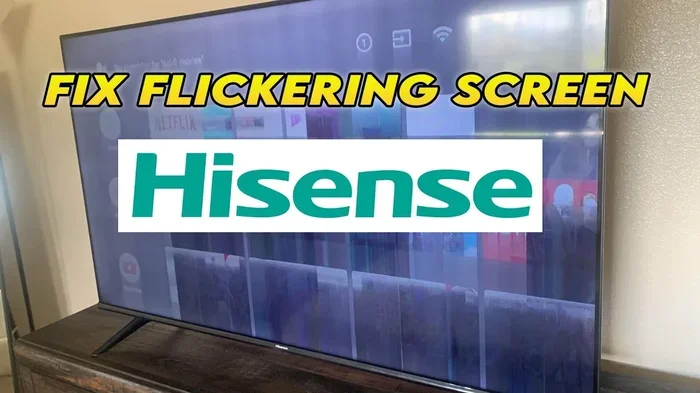
Screen flickering is the number one complaint among Hisense LCD TV owners. It can happen for several reasons. A loose power cable, incorrect refresh rate settings, or a failing backlight are the most common culprits.
Sometimes the flickering only appears when you open a specific app. Other times it happens across the entire interface. If the flickering started right after a software update, a simple reset often solves it. If the screen flashes when the TV is on a low brightness setting, try increasing the backlight level in the picture settings menu.
Another frequent cause is electromagnetic interference from nearby devices. Keep your TV away from routers, microwaves, and other electronics that emit strong signals. If the flickering persists, it could point to a failing capacitor on the power board — which may need professional repair.
Hisense TV No Sound — Easy Fixes
Dealing with no sound on your Hisense TV is incredibly frustrating, especially when you are trying to watch your favorite show. The good news is that audio problems are usually easy to trace and fix.
Start by checking the basics. Is the TV muted? Is the volume turned up? It sounds simple, but these are the most common oversights. Next, check the audio output settings. Your TV might be set to output sound through a different channel than you expect.
If you are using external speakers or a soundbar, make sure the cables are firmly plugged in. A loose HDMI cable or optical cable can cause complete audio loss. Try unplugging and replugging the cable to reseat the connection.
Audio Sync Issues On Hisense LCD TVs
One specific audio problem is when the sound and video are out of sync. This lip-sync issue is common on smart TVs, including Hisense models. It usually happens when the TV is processing the video signal faster than the audio signal.
To fix audio sync, go to the Settings menu, then look for the Audio or Sound section. Find the audio delay or sync setting and adjust it. Most Hisense TVs let you manually offset the audio by a few milliseconds. Start with small adjustments and test until the sound matches the picture.
Another trick is to check if your TV is set to pass through Dolby Digital or other surround sound formats. Switching to a simpler format like PCM can resolve sync problems. If you are experiencing Bluetooth audio delays, you can also check how to make your TV Bluetooth work better with an adapter.
Hisense TV Freezing And Software Issues
Hisense smart TVs run on Android-based operating systems. Like any smart device, they can slow down, freeze, or crash when too much data builds up. If your TV locks up in the middle of a show or takes forever to load the home screen, a software issue is likely at play.
The first fix is always a soft reset. Unplug the TV from the wall outlet, wait 30 seconds, and plug it back in. This clears the temporary memory and often resolves minor freezes instantly.
If a soft reset does not work, you may need to clear the cache of individual apps. Go to Settings, then Apps, find the problematic app, and select Clear Cache. This removes temporary files without deleting your data or settings.
When To Perform A Factory Reset
A factory reset is the nuclear option for software problems. It wipes all your settings, installed apps, and logged-in accounts, and returns the TV to its original state. Use this only when other fixes fail.
To factory reset a Hisense TV, go to Settings, then System, then Factory Reset. You will need to confirm the action and enter a PIN if one is set. The default PIN is usually 0000 or 1234. After the reset completes, you will need to set up the TV again from scratch.
Before performing a factory reset, make a note of your WiFi password and any app login details. This saves you time and frustration afterward. If the TV keeps freezing even after a reset, the problem may be hardware-related, and you should consider professional help.
WiFi And Connectivity Problems On Hisense TVs
WiFi connectivity issues are among the most annoying Hisense LCD TV problems. You sit down to watch something, and the TV shows a weak signal or no connection at all. Several factors can cause this.
First, check your router. Is it too far from the TV? Walls and furniture can weaken the WiFi signal. Try moving the router closer to the TV or removing physical obstacles between them. If your router supports the 5GHz band, switch your TV to that band for a stronger, faster connection.
If the WiFi problem started after a software update, the update may have changed network settings. Go to Settings, then Network, and re-enter your WiFi password. Sometimes simply reconnecting solves the issue.
Use A Wired Connection For Stability
For the most reliable connection, use an Ethernet cable instead of WiFi. Plug one end into your router and the other into the LAN port on your Hisense TV. A wired connection eliminates signal drops and provides faster speeds for streaming.
If running a cable is not practical, consider a WiFi range extender. Place the extender between your router and the TV to boost the signal. This simple device can make a huge difference in streaming quality and reduce buffering.
For users who also want to connect mobile devices, you may find it helpful to learn how to connect your phone to an HDMI TV. This is a great alternative when WiFi streaming is unreliable.
Hisense Remote Control Not Working
A non-responsive remote is one of the most common Hisense TV problems. The TV itself works fine, but you cannot navigate the menus or change channels. This issue is almost always simple to fix.
Start with the basics. Check the batteries. Are they fresh? Old or weak batteries are the leading cause of remote failures. Replace them with brand-new batteries and test the remote again.
Next, point the remote at the TV and press any button. Look closely at the remote’s infrared sensor — it should emit a faint purple light visible through a phone camera. If you do not see the light, the remote is not sending signals, and you may need to replace it entirely.
Resetting The Hisense Remote
To reset the remote, remove the batteries, press and hold the power button for 10 seconds, then reinsert the batteries. This clears any temporary glitches in the remote’s circuitry.
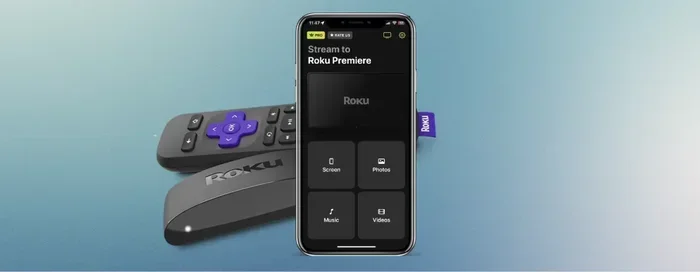
If you have a Hisense Roku TV, the remote may need to be re-paired. Go to Settings, then Remote & Accessories, and follow the on-screen pairing instructions. For users who prefer a backup, you can also use the Hisense TV app on your smartphone as a remote control.
Some users also experience issues with Bluetooth connectivity on their Hisense TV. If your remote uses Bluetooth and keeps disconnecting, learning how to use a Bluetooth adapter on your TV can be a helpful workaround.
HDMI And Input Port Problems
HDMI ports are essential for connecting external devices like streaming sticks, game consoles, and Blu-ray players. When an HDMI port stops working, it can feel like your TV is broken. But the fix is often simpler than you think.
Start by checking the cable itself. Try using a different HDMI cable. Cables can wear out or become damaged over time, especially if they are bent or pulled frequently. A new cable often solves the problem instantly.
Next, try plugging the device into a different HDMI port on your TV. Some Hisense models have multiple ports, and one may be faulty while others work fine. After switching ports, go to the Input or Source menu and select the correct port.
HDMI Handshake Issues
Sometimes the TV and the connected device cannot communicate properly. This is called an HDMI handshake problem. It usually shows up as a black screen or no signal message.
To fix this, turn off both the TV and the external device. Unplug the HDMI cable from both ends. Wait 30 seconds, then reconnect everything and power on the devices in order — external device first, then the TV. This re-establishes the handshake and usually resolves the issue.
If you are having trouble connecting a phone or tablet to your TV via HDMI, you might find useful guidance in our article on how to connect your phone to an HDMI TV.
When To Call A Professional For Hisense TV Repairs
Most Hisense LCD TV problems can be solved with the troubleshooting steps above. But some issues require professional attention. Knowing when to call a technician can save you time, money, and frustration.
Call a professional if you notice any of the following signs:
- Physical damage to the screen — cracks, deep scratches, or visible panel damage.
- Persistent backlight failure — the screen is completely dark but you can still see a faint image when shining a flashlight on it.
- Burning smell or unusual sounds — these indicate an electrical problem that could be dangerous.
- Multiple hardware failures — if several components stop working at the same time.
- Warranty-covered issues — contact Hisense support first to arrange a free or low-cost repair.
Hisense offers warranty coverage on most of its TVs. Check your purchase receipt and warranty terms before scheduling any paid repairs. If your TV is still under warranty, the manufacturer will often cover the cost of parts and labor.
You can contact Hisense customer support through their official website or by calling their helpline. Have your model number and purchase date ready when you reach out. This speeds up the process and helps the support team diagnose your issue faster.
Preventing Future Hisense LCD TV Problems
Prevention is always better than cure. A few simple habits can keep your Hisense TV running smoothly for years to come.
- Keep your TV software updated — updates fix bugs and improve performance.
- Use a surge protector — power surges can damage internal components.
- Keep the TV well-ventilated — overheating shortens the lifespan of electronics.
- Clean the vents regularly — dust buildup blocks airflow and causes overheating.
- Avoid static electricity buildup — unplug the TV during thunderstorms.
- Use quality HDMI cables — cheap cables can cause signal drops and audio issues.
Taking care of your TV with these simple habits reduces the chances of running into the common Hisense LCD TV problems discussed in this guide. A little prevention goes a long way toward a smooth, enjoyable viewing experience.
Final Thoughts
Hisense LCD TV problems can be annoying, but they are rarely permanent. Most issues — from flickering screens and no sound to WiFi drops and remote failures — can be fixed with basic troubleshooting steps you can do at home. The key is to stay calm, work through the list systematically, and rule out the simple causes first.
Remember to keep your TV software updated, use quality cables, and maintain good ventilation. These habits prevent many problems before they start. And if a hardware issue does arise, Hisense warranty coverage may save you from costly repairs.
We hope this guide has given you the confidence to tackle the most common Hisense LCD TV problems on your own. Try the fixes that apply to your situation, and enjoy your TV watching experience without the frustration.
Frequently Asked Questions
Why does my Hisense LCD TV keep flickering?
Flickering is usually caused by backlight issues, loose power connections, or incorrect brightness settings. Try adjusting the backlight level in the picture settings and make sure all cables are firmly plugged in. If the flickering persists after a soft reset, it could indicate a hardware problem that needs professional inspection.
How do I fix no sound on my Hisense TV?
Start by checking the volume and mute settings, then verify the audio output is set to the correct channel. Try reseating your HDMI or optical cables, and switch the audio format to PCM if you are experiencing sync issues. If none of these work, go to Settings and select Sound Reset to restore default audio settings.
Can I use a Bluetooth adapter to fix audio problems on my Hisense TV?
Yes, a Bluetooth adapter can help if your Hisense TV has limited or no built-in Bluetooth. It allows you to connect wireless headphones and speakers easily. Make sure the adapter is compatible with Hisense models and follow the pairing instructions in your TV’s Bluetooth settings menu for the best results.
How often should I update my Hisense TV software?
You should check for software updates at least once a month. Updates fix bugs, improve performance, and add new features. Go to Settings, then System, then System Update, and select Check for Updates. Keeping your TV up to date prevents many common problems like freezing and app crashes.
What should I do if my Hisense TV won’t turn on?
First, check that the power cable is securely plugged in and the outlet is working. Try a soft reset by unplugging the TV for 30 seconds and plugging it back in. If the TV still does not turn on, look for a blinking red light on the front panel, which can indicate a specific error code you can look up on the Hisense support website.
Is it safe to factory reset my Hisense TV?
Yes, a factory reset is safe and will not damage your TV. It simply restores all settings to their original defaults. Make sure you have your WiFi password and any app login details handy before resetting, as you will need to set everything up again from scratch after the process completes.
=== CONCLUSION ===
Hisense LCD TV problems do not have to ruin your entertainment experience. With the right knowledge, most issues are quick and easy to fix. From screen flickering and audio problems to WiFi drops and remote failures, the solutions in this guide cover the most common complaints Hisense TV owners face.
Start with the simplest fixes and work your way up. A soft reset, cable check, or settings adjustment solves the majority of problems. And when all else fails, Hisense warranty support is there to help. Keep your TV well-maintained, stay on top of software updates, and you will enjoy reliable performance for years to come.