How Can I Connect My Wi Fi Camera With My Phone Now
Connecting your WiFi camera to your phone is easier than you think. You need a stable wireless network, the right camera app, and a few minutes of your time. This guide walks you through every step from device pairing to remote viewing like a pro.
This is a comprehensive guide about How Can I Connect Wi Fi Camera With My Phone.
Key Takeaways
- Simple Setup: Most WiFi cameras connect to your phone through a dedicated mobile app in under 10 minutes.
- Two Main Methods: You can connect via your home WiFi network or use a portable hotspot for on-the-go access.
- Troubleshooting Is Common: Issues like signal strength, frequency band mismatch, and app glitches are easy to fix.
- Security Matters: Always use strong passwords and keep your firmware updated to protect your wireless camera feed.
- Multiple Cameras: You can connect several WiFi cameras to one phone for full home or office monitoring.
- 2.4 GHz vs 5 GHz: Most WiFi cameras work best on the 2.4 GHz band, so check your phone settings accordingly.
[FEATURED_IMAGE_PLACEHOLDER]
How Can I Connect My WiFi Camera With My Phone Now
So you just bought a WiFi camera and want to see what it sees right on your phone. Maybe you are setting up home security or keeping an eye on pets while you are at work. Whatever the reason, the good news is that connecting a wireless camera to your phone is not as hard as it sounds. Most people get it done in under 15 minutes.
This guide will show you exactly how to do it. We will cover everything from picking the right wireless network to fixing common problems. You will learn about camera pairing, mobile app setup, and how to get remote viewing working smoothly. Let us dive in and get your smart camera connected.
What You Need Before You Start
Before you try to pair your camera with your phone, make sure you have everything ready. Skipping this step causes most connection headaches. Here is a quick checklist to save you time.
Checklist of Required Items
- A WiFi camera that supports wireless connection
- A smartphone (iPhone or Android)
- The camera manufacturer mobile app (download it beforehand)
- A working WiFi network with your password handy
- A strong wireless signal near where you plan to place the camera
- Power source for the camera (battery or plugged in)
Why Your WiFi Network Matters
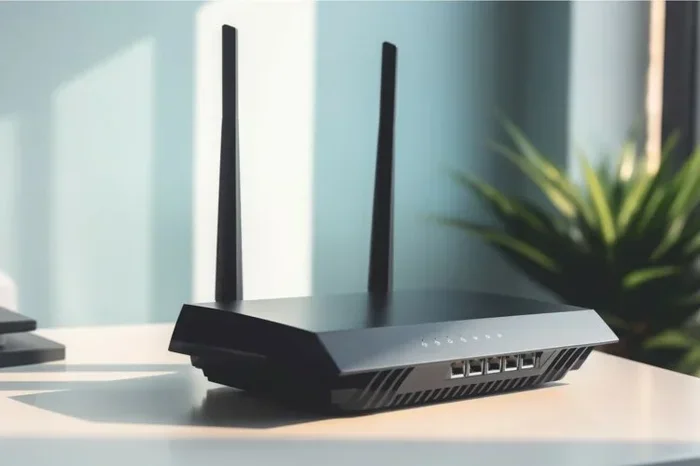
Your wireless connection is the backbone of everything. If your signal is weak where the camera sits, you will get laggy video or drops in the feed. Most WiFi cameras use the 2.4 GHz band because it reaches farther than 5 GHz. If you are unsure about your network setup, you might want to check whether you need a router at all or if you can get WiFi without a router using alternative methods.
Step by Step: Connecting Your WiFi Camera to Your Phone
Now let us get into the actual setup process. Follow these steps carefully and you will be watching live footage in no time.
Step 1: Download the Camera App
Every WiFi camera brand has its own app. Think of brands like Ring, Blink, Wyze, or Reolink. Go to the App Store or Google Play Store and search for your camera model. Download the official app and create an account if needed. This app is your control center for device pairing and remote viewing.
Step 2: Power On Your Camera
Connect your camera to power and wait for it to start up. Most cameras will flash a light or play a sound when they are ready to pair. Some cameras have a specific button you need to press to enter WiFi setup mode. Check the manual for your model.
Step 3: Add the Camera in the App
Open the app and tap the plus sign or “Add Device” button. The app will search for nearby cameras. Select your camera when it appears. You will be asked to enter your WiFi password so the camera can join your network. Make sure you type it correctly — passwords are case sensitive.
Step 4: Connect Your Phone to the Camera
Once the camera joins your network, your phone can communicate with it. Open the app and you should see a live feed from your camera. If you see a clear image, you are all set. If not, do not worry. We will cover troubleshooting below.
Step 5: Test Remote Viewing
Now try stepping away from your home WiFi and check if you can still see the camera feed using your mobile data. This confirms that remote viewing works. If it does not, you may need to adjust your router settings or check your upload speed. A slow upload speed can block remote access completely.
Common Connection Problems and How to Fix Them
Even with a perfect setup, things can go wrong. Here are the most common issues people face when connecting a wireless camera to a phone, and simple fixes for each.
Camera Not Showing Up in the App
This usually happens because the camera and your phone are on different networks. Make sure both are connected to the same WiFi network. Also, some cameras only work on the 2.4 GHz band, not 5 GHz. If your phone is on 5 GHz, try switching to 2.4 GHz. You can force your phone to use 2.4 GHz WiFi through your network settings, which solves this problem for most users.
Weak or Intermittent Signal
If your camera keeps disconnecting, the wireless signal at the camera location may be too weak. Try moving your router closer to the camera or adding a range extender. Another option is to set up a portable WiFi hotspot dedicated to your camera, which gives it a strong and stable connection without competing with other devices on your network.
Slow Video Streaming
Slow video usually means your upload speed is not fast enough. Most home internet plans have much slower upload speeds than download speeds. If you want smooth live streaming, consider boosting your upload speed through your ISP plan or by using a wired backhaul connection for your camera.
App Crashes During Setup
Sometimes the app simply freezes during pairing. Close the app completely, restart your phone, and try again. Make sure your phone software is up to date. Older phones may not support the latest app versions, which can cause compatibility issues with newer smart cameras.
Wrong WiFi Password
This sounds obvious but it is one of the top reasons setup fails. Double check your WiFi password before entering it. If you recently changed your router password, the camera will not connect until you update it with the new one.
Types of WiFi Cameras and How They Connect
Not all wireless cameras work the same way. Understanding the type you own helps you troubleshoot faster.
Indoor WiFi Cameras
These are small cameras you place inside your home. They plug into a wall outlet or run on batteries. Indoor cameras usually connect directly to your home WiFi network and stream video to your phone through the manufacturer app. They are great for monitoring pets, babies, or rooms in your house.
Outdoor WiFi Cameras
Outdoor cameras are built to handle weather and temperature changes. They need a strong wireless signal because they are farther from your router. Some outdoor models come with their own WiFi range extenders or use solar panels for power. These cameras are ideal for porch, driveway, or yard monitoring.
Battery Powered WiFi Cameras
These cameras do not need a wall outlet, which makes placement easy. However, they use more battery power when streaming video constantly. For best results, set them to motion-activated mode. This saves battery and still gives you alerts on your phone whenever something happens.
PoE WiFi Cameras
Power over Ethernet cameras get power through a cable, but they also connect to WiFi for phone access. These are more stable than pure wireless cameras because the cable provides consistent power. They are a great middle ground for people who want reliability and remote viewing on their phone.
Pro Tips for a Better WiFi Camera Phone Connection
Want your setup to work flawlessly every time? These expert tips make a big difference.
- Place your router centrally: The closer your router is to the camera, the stronger the signal will be.
- Use a WiFi analyzer app: These free apps show you which channels are least crowded, helping you reduce interference.
- Keep firmware updated: Camera manufacturers release updates that fix connection bugs and improve performance.
- Limit the number of devices: Too many devices on one network can slow down your camera stream. Consider a separate network for security cameras.
- Use a strong password: A complex WiFi password keeps unauthorized users out of your camera feed.
- Restart your router regularly: A simple reboot can fix slow speeds and connection drops that build up over time.
How to Connect Multiple Cameras to One Phone
Most camera apps let you add several cameras to a single account. This is perfect if you want to monitor different rooms or areas of your property from one screen. Simply repeat the pairing process for each camera and add them all in the same app.
You can switch between camera feeds by tapping the camera name in the app. Some apps offer a grid view that shows all cameras at once. This is incredibly useful for home security setups where you want to watch multiple angles simultaneously.
If you find that adding too many cameras slows down your connection, consider using a mesh router or a dedicated network for your cameras. This keeps the traffic separate from your regular internet use and ensures smooth streaming on your phone.
Security Tips for Your Wireless Camera Setup
Connecting a camera to your phone means your video feed travels over the internet. You want to make sure it stays private and secure.
- Always change the default camera password during setup
- Enable two factor authentication in the camera app
- Keep your phone and camera firmware updated
- Avoid using public WiFi when viewing your camera feed remotely
- Use a strong, unique WiFi password for your home network
- Disable remote access if you do not need it
Taking these simple steps protects your privacy and keeps hackers from accessing your camera. A secure setup gives you peace of mind every time you check your phone for a live feed.
Conclusion
Connecting your WiFi camera with your phone is a straightforward process once you know the steps. Start with a strong wireless network, use the right app, and follow the pairing instructions carefully. If you run into problems, check your WiFi frequency, signal strength, and upload speed first. Most issues have simple fixes that take just a few minutes.
With your camera up and running, you can monitor your home, watch your pets, or keep an eye on your property from anywhere in the world. The remote viewing capability is what makes these cameras so valuable. Take your time with the setup, follow the tips in this guide, and you will have a reliable wireless connection between your camera and phone in no time.
Frequently Asked Questions
Can I connect a WiFi camera to my phone without a home internet connection?
Yes, you can use a portable hotspot or a mobile data connection to connect your camera to your phone. Some cameras support hotspot mode where the camera creates its own WiFi network that your phone connects to directly. This works great for on-the-go setups or locations without home internet.
Why does my WiFi camera keep disconnecting from my phone?
Disconnections usually happen due to weak signal strength, frequency band mismatch, or router issues. Make sure your camera is within range of your router and that both are on the same network band, preferably 2.4 GHz. Restarting your router and the camera often fixes temporary disconnection problems.
Do I need a special app to connect my WiFi camera to my phone?
Yes, almost all WiFi cameras require a dedicated mobile app for setup and remote viewing. The app is usually free and available on both the App Store and Google Play. You can find the correct app by searching for your camera brand and model number online.
Can I connect multiple WiFi cameras to the same phone?
Absolutely. Most camera apps allow you to add multiple cameras to a single account. You can view all feeds from one phone, switch between cameras, and even set up alerts for each camera individually. This is perfect for monitoring an entire home or office.
Is it safe to connect my WiFi camera to my phone over the internet?
It is safe as long as you follow basic security practices. Use strong passwords, enable two factor authentication, and keep your firmware updated. Avoid viewing your camera on public WiFi without a VPN. A secure setup keeps your video feed private and protected from unauthorized access.
What is the best WiFi frequency for connecting a camera to my phone?
Most WiFi cameras work best on the 2.4 GHz band because it has a longer range and better wall penetration than 5 GHz. If your phone is connected to a 5 GHz network, the camera may not show up during setup. You can force your phone to use 2.4 GHz to ensure compatibility during the pairing process.