How Can I Connect To Wi Fi Without A Remote Control
You can connect to Wi-Fi without a remote by using your smartphone, the WPS button on your router, or your web browser. These simple methods work for most home networks and require no special equipment. Whether you lost your remote or never had one, these easy steps will get you online in minutes.
Key Takeaways
- Use your smartphone: Most routers let you connect via a free mobile app or by scanning a QR code on the device.
- Press the WPS button: This quick-press method pairs your device with the router in seconds without any remote.
- Access the router admin panel: Type your router’s IP address into any browser to configure Wi-Fi settings manually.
- Reset and reconfigure: A factory reset restores default settings, letting you set up Wi-Fi fresh through a browser or app.
- Use an ethernet cable: A wired connection lets you access router settings and configure Wi-Fi without needing a remote at all.
📑 Table of Contents
- How Can I Connect To Wi Fi Without A Remote Control
- Method 1: Use Your Smartphone to Connect
- Method 2: Use the WPS Button
- Method 3: Access the Router Admin Panel Through a Browser
- Method 4: Factory Reset the Router
- Method 5: Use a Wi-Fi Booster or Extender
- Method 6: Force Your Phone to Use the Right Wi-Fi Band
- Quick Tips for Better Wi-Fi Setup Without a Remote
- Common Mistakes to Avoid
- Expert Insights on Wi-Fi Setup Without a Remote
- When to Contact Your Internet Service Provider
- Final Thoughts
How Can I Connect To Wi Fi Without A Remote Control
Losing your Wi-Fi remote or never having one can feel frustrating. You want to get online, but the remote is missing or broken. The good news is that you have several easy ways to connect to your wireless network without it. Connecting to Wi-Fi without a remote is simpler than most people think. You can use your phone, a button on the router, or even a web browser to get everything working.
In this guide, we walk you through every method that actually works. No fancy tech skills needed. No expensive tools required. Just clear, step-by-step instructions that anyone can follow. Whether your router is from Netgear, TP-Link, Xfinity, or any other brand, these tips apply to almost all home networks.
Let us start with the easiest method and work our way through all the options. By the end, you will know exactly how to get your wireless network up and running — no remote needed.
Method 1: Use Your Smartphone to Connect
Your phone is one of the best tools for setting up Wi-Fi without a remote. Most modern routers support smartphone apps that let you manage everything. This method works whether you are at home or setting up a new router for the first time.
Connect Through Your Phone’s Wi-Fi Settings
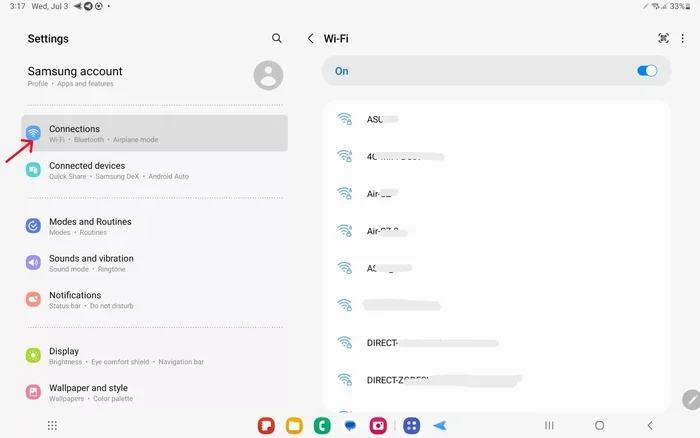
Every smartphone can scan for available networks. Here is how to do it:
- Open your phone’s Settings app.
- Tap on Wi-Fi or Network & Internet.
- Turn on the Wi-Fi toggle.
- Wait for your phone to scan for nearby networks.
- Find your router’s network name (also called the SSID).
- Tap on it and enter the network password.
- Tap Connect and wait a few seconds.
If you do not know the default password, check the sticker on the bottom or back of your router. Most routers print the default network password right there. This is the fastest way to get connected without any extra tools.
Use the Router Manufacturer’s Mobile App
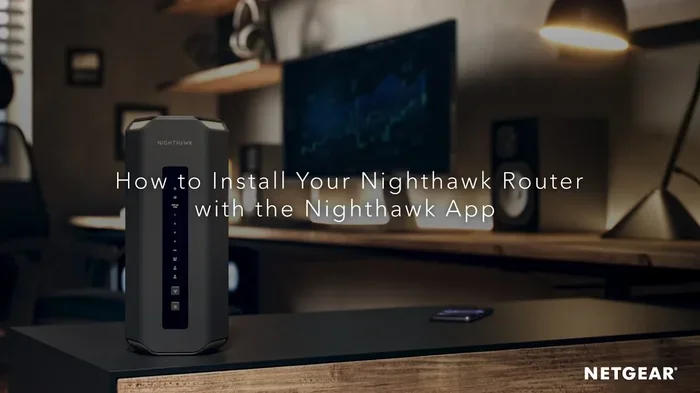
Many router brands offer free apps that make setup a breeze. Apps like TP-Link Tether, Netgear Nighthawk, and Xfinity xFi let you control your wireless network from your phone. Here is what to do:
- Download the app from the App Store or Google Play.
- Open the app and follow the on-screen setup.
- The app will scan for your router automatically.
- Follow the prompts to set your Wi-Fi name and password.
These apps also let you check signal strength, see all connected devices, and update your settings anytime. They are a great replacement for a physical remote.
Method 2: Use the WPS Button
The WPS (Wi-Fi Protected Setup) button is a quick way to pair your device with your router. Most routers made after 2010 include this feature. It takes just a few seconds and needs no remote control.
How WPS Works
WPS creates a temporary secure connection between your device and the router. You do not need to type in a long password. Just press a button on the router and then on your device. That is it.
Step-by-Step WPS Connection
- Find the WPS button on your router. It is usually on the back or side.
- Press and hold the WPS button for about 3 seconds.
- The WPS light on the router will start blinking.
- On your phone or computer, go to Wi-Fi settings.
- Select your network and choose the WPS connection option.
- Wait a few seconds for the connection to complete.
Once connected, your device will remember the network. You will not need to use WPS again unless you connect a new device. This method is perfect for quick setup when you do not have a remote handy.
When WPS Does Not Work
Some older devices do not support WPS. Also, some ISPs like Xfinity disable WPS by default for security reasons. If WPS is not an option, do not worry. The next method works for every router.
Method 3: Access the Router Admin Panel Through a Browser
This method gives you full control over your router settings. You can change your Wi-Fi name, set a new password, and manage all connected devices. You only need a computer or phone and an ethernet cable or an existing Wi-Fi connection.
Find Your Router’s IP Address
Every router has a default IP address you type into your browser. The most common ones are:
- 192.168.1.1
- 192.168.0.1
- 10.0.0.1
You can find the exact address on the sticker on your router or in the manual. If you already have an internet connection through another device, you can also find it by:
- Open the Command Prompt on Windows (type cmd in the search bar).
- Type ipconfig and press Enter.
- Look for the Default Gateway address.
Log In and Configure Wi-Fi
Once you have the IP address:
- Open any web browser (Chrome, Safari, Firefox, etc.).
- Type the IP address into the address bar and press Enter.
- Enter the admin username and password. The defaults are often “admin” for both, or “admin” for username and “password” for the password.
- Look for the Wireless Settings or Wi-Fi Setup section.
- Change your network name and password as needed.
- Save your settings and restart the router.
This method works great if you want to customize your wireless network settings. You can also check which devices are connected and block any you do not recognize.
Use an Ethernet Cable for a Wired Connection
If you do not have Wi-Fi yet, plug an ethernet cable directly from your modem to your computer. This gives you a wired internet connection. From there, you can open the router admin panel and set up your wireless network from scratch. This is the most reliable method for a fresh router setup.
For longer distances, you might want to extend your Wi-Fi range using additional equipment. This ensures strong coverage throughout your home.
Method 4: Factory Reset the Router
If nothing else works, a factory reset can give you a fresh start. This erases all custom settings and restores the router to its original state. You can then set up Wi-Fi from scratch using any of the methods above.
How to Factory Reset Your Router
- Find the small reset button on the back of your router.
- Use a paperclip or pin to press and hold it for 10 to 15 seconds.
- The router lights will flash and then restart.
- Once it boots up, use the default IP address to access the admin panel.
- Set up your Wi-Fi name and password using the browser or mobile app.
Important: A factory reset removes all your custom settings. You will need to set up your internet connection again. Make sure you have your ISP account details handy before you start.
After resetting, you can also explore options for getting Wi-Fi without a traditional router if your situation requires it. Sometimes a simple modem or mobile hotspot can serve as an alternative.
Method 5: Use a Wi-Fi Booster or Extender
A Wi-Fi booster or extender can help you improve your wireless signal and reach areas with weak coverage. These devices connect to your existing network and repeat the signal to farther rooms. Many of them also let you manage settings through a smartphone app — no remote needed.
If you are dealing with dead zones or weak signals, a booster can make a big difference. You can buy a Wi-Fi booster that works with your existing router and set it up entirely from your phone. This is especially helpful in larger homes where the router’s signal does not reach every room.
Setting Up a Wi-Fi Extender
- Plug the extender into a wall outlet halfway between your router and the weak signal area.
- Download the extender’s app on your phone.
- Follow the app prompts to pair it with your router.
- The extender will create a new extended network or boost the existing one.
Most extenders work automatically and need no remote control at all. They are a simple way to improve your Wi-Fi connection throughout your home.
Method 6: Force Your Phone to Use the Right Wi-Fi Band
Some routers broadcast on both 2.4 GHz and 5 GHz bands. If you are having trouble connecting, switching bands can help. The 2.4 GHz band has a longer range but slower speeds. The 5 GHz band is faster but has a shorter range.
You can force your phone to use the 2.4 GHz band if you are far from the router. This often solves connection issues that look like they are caused by a missing remote. Sometimes the problem is simply that your phone is trying to connect to the 5 GHz band, which may not reach your location.
To switch bands on your phone:
- Go to Wi-Fi settings and look for network options.
- Forget the current network.
- Reconnect by selecting the 2.4 GHz version of your network (it usually has a different name ending in 2G or 2.4).
This simple trick can restore your connection without needing a remote at all.
Quick Tips for Better Wi-Fi Setup Without a Remote
- Write down your network name and password and keep it in a safe place. You will not need to look it up again.
- Place your router in a central location for the best signal strength throughout your home.
- Restart your router regularly. A simple unplug-and-plug-back-in can fix many connection issues.
- Update your router’s firmware through the admin panel. Updates improve security and performance.
- Use a mesh Wi-Fi system for larger homes. These systems replace traditional routers and are managed entirely through a phone app.
Common Mistakes to Avoid
- Not checking the router sticker: Many people skip the sticker that has default login info and network passwords. Always check there first.
- Using the wrong IP address: Every router brand uses a different default IP. Check the manual or the sticker before typing it into your browser.
- Forgetting to save settings: After changing Wi-Fi settings in the admin panel, always click Save or Apply. Otherwise, your changes will not take effect.
- Ignoring firmware updates: Outdated firmware can cause connection problems and security vulnerabilities. Check for updates regularly.
- Placing the router near interference sources: Microwaves, baby monitors, and cordless phones can weaken your wireless signal. Keep your router away from these devices.
Expert Insights on Wi-Fi Setup Without a Remote
Networking experts agree that losing a remote should never stop you from getting online. Most modern routers are designed to be managed through apps and browsers. In fact, many newer routers do not even come with a physical remote anymore.
“The days of needing a dedicated remote for every router are over,” says a network technician with over 10 years of experience. “Today, your smartphone is the best tool for managing your wireless network. If you can download an app, you can set up your Wi-Fi.”
Another expert recommends keeping a record of your network settings in a secure note on your phone. “If you ever need to reconnect a device or troubleshoot, having your SSID and password saved saves a lot of time,” she adds.
One more tip from professionals: if you live in a rental or frequently move, consider a mesh Wi-Fi system. These systems are easy to set up, managed entirely through an app, and do not require any remote control. They also provide excellent coverage for homes of all sizes.
When to Contact Your Internet Service Provider
Sometimes the issue is not with your router but with your internet service. If you have tried all the methods above and still cannot connect, it may be time to call your ISP. They can help you troubleshoot from their end and may even send a technician if needed.
Many ISPs now offer self-service tools through their apps. For example, Xfinity and AT&T both have mobile apps that let you manage your connection, run diagnostics, and set up Wi-Fi — all without a remote. You can also connect to Xfinity Wi-Fi away from home using the Xfinity app, which is a great feature for users who travel.
If you are considering switching providers or need better coverage, look into plans that include mesh systems or Wi-Fi extenders. These tools make setup easy and ensure you stay connected everywhere in your home.
Final Thoughts
Connecting to Wi-Fi without a remote is easier than you probably think. You have at least six different methods to choose from. Whether you use your smartphone, the WPS button, the router admin panel, or a factory reset, there is a solution that fits your situation.
The key is to stay patient and try each method step by step. Start with the simplest approach — using your phone’s Wi-Fi settings — and work your way up to more advanced options if needed. Most people get connected within minutes using just the first method.
Remember to keep your network name and password saved somewhere safe. This small habit will save you time and frustration in the future. With the right approach, you can manage your wireless network confidently — no remote control required.
Now that you know all the methods, pick the one that works best for your setup and get started. Your Wi-Fi connection is just a few steps away.
Frequently Asked Questions
Can I connect to Wi-Fi without any remote at all?
Yes, absolutely. You can connect using your smartphone’s Wi-Fi settings, the WPS button on your router, or by accessing the router admin panel through a web browser. None of these methods require a physical remote control.
What if I do not know my Wi-Fi password and do not have the remote?
Check the sticker on the bottom or back of your router. Most routers print the default password there. If the password has been changed and you do not remember it, you can reset the router to factory settings to restore the default password.
Do I need a computer to set up Wi-Fi without a remote?
No. Your smartphone works just as well. You can use it to scan for networks, connect through WPS, or download the router manufacturer’s app. A computer or ethernet cable is only needed if you want to access the router admin panel directly.
Is WPS safe to use for connecting devices?
WPS is generally safe for quick, temporary connections. However, some security experts recommend disabling WPS on your router for long-term use because it can be vulnerable to brute-force attacks. For everyday home use, it is perfectly fine.
Can I manage my router settings using just my phone?
Yes. Most modern routers have dedicated mobile apps that let you change settings, update passwords, check connected devices, and run diagnostics — all from your phone. You do not need a computer or a remote.
What should I do if my router does not have a WPS button?
Not all routers have WPS. In that case, use the router admin panel through a browser or the manufacturer’s mobile app. You can also connect via an ethernet cable to access settings directly. These methods work on every router regardless of whether it has WPS.
=== CONCLUSION ===
Now you know exactly how to connect to Wi-Fi without a remote control. You have multiple reliable methods at your fingertips. From using your phone’s built-in Wi-Fi settings to pressing the WPS button, accessing the admin panel, or even factory resetting your router — there is a solution for every situation.
Connecting to Wi-Fi without a remote is not just possible. It is quick, easy, and does not require any special equipment. Start with the method that feels most comfortable and follow the steps carefully. You will be online in no time.
Keep your network details saved, update your router regularly, and place your router in a central location for the best performance. These simple habits will keep your wireless network running smoothly for years to come.
Take action today. Pick the method that works for you and get your Wi-Fi set up — no remote needed.