How Can I Extend My Wi Fi Really Far With These Tips
Wondering how to extend my Wi Fi really far across your home or property? This guide covers everything from router placement and mesh networks to signal boosters and antenna upgrades. You will learn simple, actionable steps that dramatically improve your wireless range and eliminate dead zones for good.
Have you ever walked to the far corner of your house and watched your Wi-Fi signal drop to nothing? You are not alone. Almost everyone deals with weak wireless coverage at some point. The good news is that extending your Wi-Fi range does not require expensive equipment or a degree in engineering. With the right approach, you can get strong, reliable wireless connectivity in every room and even outside.
In this guide, I will walk you through proven methods to extend my Wi Fi really far. We will cover router placement, mesh systems, boosters, antenna upgrades, and plenty of practical tips. By the end, you will know exactly what to do to kill those annoying Wi-Fi dead zones for good.
Key Takeaways
- Router Placement Matters: Moving your router to a central, elevated spot can boost signal strength significantly.
- Mesh Networks Are Game-Changers: A mesh system blankets your entire home in seamless wireless coverage.
- Wi-Fi Boosters and Extenders Work: A signal booster or extender can reach areas your router cannot.
- Switch to 2.4 GHz: The lower frequency band travels farther through walls and obstacles than 5 GHz.
- DIY Antenna Upgrades Help: Adding or upgrading antennas can give your router a serious range boost.
- Avoid Common Mistakes: Interference from appliances and poor positioning are the top killers of wireless range.
📑 Table of Contents
- Why Does Your Wi-Fi Signal Lose Strength Over Distance?
- Step 1: Optimize Your Router Placement
- Step 2: Upgrade to a Mesh Wi-Fi System
- Step 3: Use a Wi-Fi Range Extender or Booster
- Step 4: Upgrade or Add Antennas to Your Router
- Step 5: Switch to the 2.4 GHz Band for Better Range
- Step 6: Reduce Wireless Interference
- Step 7: Use Powerline Adapters for Hard-to-Reach Areas
- Step 8: Keep Your Router Firmware Updated
- Quick Tips to Maximize Your Wi-Fi Range
- Common Mistakes That Kill Your Wi-Fi Range
- Expert Insight: What Professionals Recommend
- Final Thoughts
Why Does Your Wi-Fi Signal Lose Strength Over Distance?
Before diving into solutions, it helps to understand why your wireless signal weakens in the first place. Wi-Fi uses radio waves to send data between your router and your devices. These waves lose power as they travel through the air. They also lose even more power when they pass through walls, floors, furniture, and other objects.
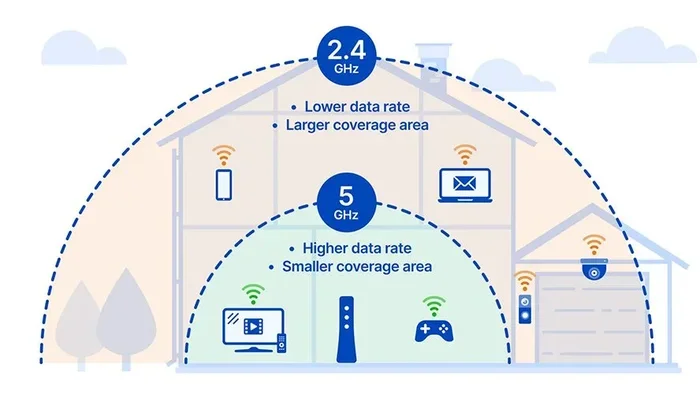
The 2.4 GHz frequency band travels farther than the 5 GHz band. However, 2.4 GHz is slower and more prone to interference from microwaves, baby monitors, and other electronics. The 5 GHz band offers faster speeds but has a shorter range. Understanding this trade-off is key to making smart decisions about your network range.
Another factor is your router’s hardware. Older routers have weaker transmitters and less advanced antennas. Newer routers support the latest Wi-Fi standards like Wi-Fi 6, which deliver better range and efficiency. But even the best router will struggle if it is placed poorly.
Step 1: Optimize Your Router Placement
The single easiest way to extend your Wi-Fi range is to move your router. Most people hide their router in a closet, behind a TV, or in a corner cabinet. This kills the signal before it even has a chance to spread through your home.
Place Your Router in a Central Location
Your router should sit in the middle of your home, not on the far edge. Think of it like a light bulb in a room. The further you move it to one side, the darker the opposite side becomes. A central placement ensures the wireless signal reaches every room more evenly.
Elevate Your Router
Keep your router on a shelf or table, not on the floor. Radio waves spread outward and downward. Placing the router high up lets the signal travel down and across rooms more effectively. Even a small change in height can make a noticeable difference in Wi-Fi coverage.
Keep It Away from Obstacles and Interference
Stay away from thick walls, metal objects, mirrors, and large appliances. These block or reflect wireless signals. Microwaves and cordless phones are especially bad because they operate on the same 2.4 GHz frequency. Give your router breathing room, and you will see an immediate improvement.
Step 2: Upgrade to a Mesh Wi-Fi System
If you have a large home or a multi-story layout, a single router simply cannot cover everything. This is where a mesh Wi-Fi system shines. A mesh network uses multiple nodes or satellites placed around your home to create one seamless wireless network.
How Mesh Systems Work
Each mesh node acts like a mini router. It receives the signal from your main router and rebroadcasts it. The nodes communicate with each other to route your data along the fastest path. This means you can walk from your living room to your backyard without losing connection. Your phone automatically switches to the strongest node without you even noticing.
Best Mesh Systems for Long Range
Popular mesh systems like Google Nest Wifi, Eero, and TP-Link Deco are easy to set up and manage. Most come with companion apps that help you place nodes in the best spots. You can add more nodes as needed to cover even larger areas. For homes over 2,000 square feet, a mesh network is often the best solution.
Some mesh systems also support band steering, which automatically moves your devices to the best frequency band. This takes the guesswork out of optimizing your wireless connectivity.
Step 3: Use a Wi-Fi Range Extender or Booster
A Wi-Fi range extender or signal booster is one of the simplest ways to extend your Wi-Fi range. These devices pick up your existing signal and rebroadcast it to areas your router cannot reach. They are affordable and require minimal setup.
How Range Extenders Work
A range extender connects to your router’s signal and creates a new broadcast zone. Think of it like a relay runner passing a baton. The extender receives the signal and passes it further into your home. However, extenders do cut your bandwidth in half because they use the same radio to both receive and transmit data.
When to Use an Extender
Range extenders work best for extending coverage to a single room or a small area. They are great for fixing a specific Wi-Fi dead zone in your garage, basement, or backyard. For whole-home coverage, a mesh system is usually a better choice.
If you are considering one, check out our guide on Can I Buy A Wi Fi Booster for more details on choosing the right one.
Step 4: Upgrade or Add Antennas to Your Router
Many routers come with basic omnidirectional antennas that broadcast signal in all directions equally. But what if you need more range in a specific direction? Upgrading or adding antennas can give your router a serious range boost.
Understand Antenna Types
Omnidirectional antennas spread the signal in a wide circle. Directional antennas focus the signal in one direction, like a flashlight beam. If you need to reach a specific faraway area, a directional antenna can be very effective.
Check If Your Router Supports External Antennas
Not all routers allow antenna upgrades. Look for routers with detachable antennas marked as RP-SMA connectors. These let you swap in higher-gain antennas for better wireless coverage. For more details on adding antennas, see our article on Can I Add An Antenna To My Wifi Router.
DIY Antenna Hacks
Some tech enthusiasts build DIY antennas using household materials like aluminum cans or wire hangers. While these hacks can work in a pinch, they are not as reliable as commercial upgrades. A store-bought high-gain antenna is always the safer bet for consistent network range improvements.
Step 5: Switch to the 2.4 GHz Band for Better Range
If your router broadcasts both 2.4 GHz and 5 GHz bands, you can choose which one your devices use. The 2.4 GHz band has a longer range and penetrates walls better than 5 GHz. It is the better choice for devices that are far from the router.
When to Use 2.4 GHz
Use the 2.4 GHz band for devices that need range over speed. Smart home devices, email apps, and basic browsing work perfectly fine on 2.4 GHz. If your phone or laptop is in a room far from the router, switching to 2.4 GHz can restore your connection.
When to Use 5 GHz
Use the 5 GHz band for speed-heavy tasks like streaming 4K video or online gaming. This band is faster but has a shorter range. Keep your devices close to the router when using 5 GHz for the best experience.
For more help with this, check out our article on Can I Change My Wi Fi From 5Ghz To 2 4 Ghz.
Step 6: Reduce Wireless Interference
Interference is one of the biggest enemies of a strong Wi-Fi signal. Many household devices compete for the same radio frequencies and can weaken your connection without you realizing it.
Common Sources of Interference
- Microwaves: They operate on 2.4 GHz and can disrupt your signal while cooking.
- Baby monitors and cordless phones: These also use the 2.4 GHz band.
- Bluetooth devices: Speakers, keyboards, and headphones can cause minor interference.
- Neighboring networks: If you live in an apartment building, nearby routers on the same channel can slow you down.
How to Minimize Interference
Move your router away from interfering devices. Use your router’s settings to switch to a less crowded channel. Many modern routers have an “auto” channel selection feature that picks the best channel for you. Changing the SSID name and router settings can also help reduce conflicts with neighboring networks.
Step 7: Use Powerline Adapters for Hard-to-Reach Areas
Sometimes, even the best wireless signal cannot reach certain areas. Basements, detached garages, and outdoor sheds are common trouble spots. Powerline adapters solve this problem by using your home’s existing electrical wiring to carry the internet signal.
How Powerline Adapters Work
You plug one adapter near your router and connect it with an Ethernet cable. Then you plug a second adapter in the room where you need coverage. The second adapter creates a new Wi-Fi access point in that location. This method bypasses walls and obstacles entirely. It delivers a strong, stable connection to areas where wireless signals simply cannot reach.
When to Choose Powerline Over Extenders
Powerline adapters generally provide faster and more stable connections than wireless extenders. They are ideal for home offices, smart TVs, and gaming consoles that need a reliable wired or wireless connection. The only requirement is that both adapters must be on the same electrical circuit.
Step 8: Keep Your Router Firmware Updated
Router manufacturers regularly release firmware updates that improve signal strength, fix bugs, and add new features. Keeping your router updated is one of the easiest ways to maintain optimal wireless performance.
Most modern routers have an auto-update feature. If yours does not, check the manufacturer’s app or web interface for updates. A simple firmware update can sometimes solve range problems you did not even know you had.
Quick Tips to Maximize Your Wi-Fi Range
- Restart your router regularly. A quick reboot clears cached data and refreshes your wireless connection.
- Use a Wi-Fi analyzer app. These apps show you which channels are least crowded and help you pick the best one.
- Update your device drivers. Old wireless adapters on your phone or laptop may not support the latest Wi-Fi standards.
- Avoid daisy-chaining extenders. Connecting one extender to another cuts your speed dramatically.
- Secure your network. A neighbor using your Wi-Fi steals bandwidth and slows down your connection.
Common Mistakes That Kill Your Wi-Fi Range
Many people unknowingly sabotage their own wireless coverage. Here are the most common mistakes to avoid:
- Hiding the router in a cabinet. Enclosures block radio signals and weaken your coverage.
- Placing the router near the window. Signal leaks outside where it does no good. Center the router inside your home.
- Using an outdated router. Old hardware limits your network range no matter what you do.
- Ignoring interference. Not checking for competing devices means you leave free performance on the table.
- Buying the wrong extender. Cheap extenders often create more problems than they solve. Choose a reputable brand.
Expert Insight: What Professionals Recommend
Network professionals agree that router placement and mesh systems are the two most impactful upgrades for home wireless coverage. Rather than stacking multiple extenders, they recommend investing in a quality mesh system from the start. This provides a single, unified network with seamless handoffs between nodes.
For larger properties, professionals sometimes combine a mesh system with powerline adapters. This hybrid approach covers every corner of the property without sacrificing speed. The key is to test your signal strength in different areas before and after making changes. Apps like NetSpot or WiFi Analyzer make this easy.
If you are dealing with outdoor coverage, consider whether a weatherproof access point or outdoor mesh node makes sense. Some systems are designed specifically for indoor-outdoor use and can cover a yard or patio effectively. For more on extending outdoor connectivity, check out our guide on Can I Extend My Wi Fi To 200 Feet Away.
Final Thoughts
Extending your Wi-Fi range is easier than most people think. You do not need to be a tech expert to make meaningful improvements. Start with the basics: move your router to a central, elevated spot, reduce interference, and switch to the right frequency band. If those steps are not enough, consider a mesh system, a range extender, or powerline adapters.
Every home is different, and the best solution depends on your layout, budget, and usage needs. The tips in this guide give you a solid foundation to build on. Try them one at a time and test your wireless signal after each change. You will be surprised at how much stronger and more reliable your Wi-Fi connection can become.
Take action today. Pick one or two tips from this guide and try them right now. Your future self, standing in the far corner of your house with a full Wi-Fi signal, will thank you.
Frequently Asked Questions
How far can a standard Wi-Fi router reach?
A typical indoor router can reach about 150 feet in open space. However, walls, floors, and furniture can cut that distance in half. The 2.4 GHz band travels farther than 5 GHz, so devices on 2.4 GHz may maintain a connection at greater distances.
Does a Wi-Fi extender reduce internet speed?
Yes, most extenders cut your bandwidth by about half. This happens because the extender uses the same radio to receive and rebroadcast the signal. For the least speed loss, choose an extender that supports dual-band or tri-band technology.
Is a mesh Wi-Fi system better than a range extender?
For most homes, a mesh system is the better choice. Mesh networks create a single seamless network with multiple nodes, while extenders create separate network names that cause connection drops. Mesh systems also handle band steering and network range more intelligently.
Can I extend my Wi-Fi to my backyard?
Yes, you can extend your wireless coverage outdoors with a weatherproof access point, an outdoor mesh node, or a powerline adapter paired with an outdoor extender. Placing a mesh node near a window that faces your yard is a simple and effective approach.
What is the best frequency band for long-range Wi-Fi?
The 2.4 GHz band provides better range and wall penetration than the 5 GHz band. However, it is slower and more prone to interference. Use 2.4 GHz for range and 5 GHz for speed when your device is close to the router.
How do I know if my router is too old to extend coverage?
If your router only supports Wi-Fi 4 (802.11n) or older, it likely lacks the range and features of modern standards like Wi-Fi 6. Upgrading to a newer router or mesh system can dramatically improve your wireless connectivity and signal strength throughout your home.