How Can I Get Free Wi Fi At Home Without A Router
You can get free Wi Fi at home without a router by using your smartphone as a hotspot, sharing a neighbor’s network, or connecting via USB tethering. These methods let you skip expensive equipment and monthly router fees. This guide covers the easiest, most reliable ways to stay connected without spending a dime on a router.
Do you want free Wi Fi at home without a router? You are not alone. Many people look for ways to skip the router bill and still stay online. The good news is that you have several real options. You can use your phone, share a network, or even connect devices directly. Let us walk through each method step by step.
Getting online without a router sounds hard, but it is actually quite simple. Whether you are between providers, saving money, or just trying a temporary setup, these methods work well. You do not need to be a tech expert either. Most of these solutions take less than five minutes to set up.
In this guide, we will cover every practical way to get free Wi Fi at home without a router. We will share tips, warnings, and real examples so you can pick the best option for your situation. Let us dive in.
Key Takeaways
- Phone Tethering: Use your phone’s mobile data to create a Wi Fi hotspot for all your home devices.
- USB Connection: Share your phone’s internet through a USB cable for a stable, free connection.
- Neighbor Sharing: Connect to a neighbor’s open or shared network with their permission.
- Public Network Tips: Use free public networks safely from your home with the right tools.
- No Router Needed: All these methods work without buying or renting a router.
📑 Table of Contents
- Why You Might Want Wi Fi Without a Router
- Method 1: Use Your Phone as a Mobile Hotspot
- Method 2: USB Tethering for a Stable Connection
- Method 3: Share a Neighbor’s Wi Fi
- Method 4: Connect to Free Public Networks Safely
- Method 5: Use a Modem Directly for Internet
- Common Mistakes to Avoid
- Quick Tips for the Best Free Wi Fi Setup
- Expert Insights
- Final Thoughts
Why You Might Want Wi Fi Without a Router
There are many reasons people look for Wi Fi without a router. Some are temporary. Some are long-term. Here are the most common ones:
- Saving Money: Router rental fees can cost $10 to $15 per month. That adds up fast over a year.
- Temporary Living: You just moved or are staying somewhere short-term. Buying a router does not make sense yet.
- Travel or Remote Work: You need internet in a cabin, garage, or vacation home with no existing setup.
- Emergency Backup: Your router broke and you need a quick fix before buying a replacement.
- Minimal Setup: You want fewer devices and cables in your home.
No matter your reason, the methods below will help you get connected. Each one has pros and cons, which we will cover in detail.
Method 1: Use Your Phone as a Mobile Hotspot
The easiest way to get free Wi Fi at home without a router is by using your phone as a hotspot. This is called tethering. Your phone shares its mobile data with other devices like laptops, tablets, or smart TVs.
How to Set Up a Hotspot on Your Phone
Here is how to do it on both iPhone and Android:
- iPhone: Go to Settings > Personal Hotspot > Turn It On. Set a password.
- Android: Go to Settings > Network & Internet > Hotspot & Tethering > Turn On Wi Fi Hotspot.
That is it. Your other devices will now see your phone as a Wi Fi network. Just enter the password and connect.
Things to Watch Out For
- Data Limits: Most phone plans have a data cap. Streaming video uses a lot of data fast.
- Battery Drain: Your phone battery will drain quickly when acting as a hotspot. Keep it plugged in.
- Speed: Hotspot speeds depend on your cell signal. A strong signal means better performance.
- Heat: Your phone may get warm. Do not leave it covered while tethering.
If you want to learn more about using your phone for internet, check out our guide on Can I Get Hotspot Without Phone Service. It covers what happens when your plan changes.
When This Method Works Best
Phone tethering is great for light browsing, emails, and video calls. It works well for one or two devices at a time. If you have a large family with many devices, this method may not be enough. But for a single person or couple, it is a solid choice.
Method 2: USB Tethering for a Stable Connection
USB tethering connects your phone to your computer with a cable. This shares your phone’s internet with your laptop or desktop. Unlike a hotspot, it does not drain your battery as fast. It also gives a more stable connection.
How USB Tethering Works
You simply plug your phone into your computer using a USB cable. Then you turn on USB tethering in your phone settings. Your computer will use your phone’s data plan as its internet source.
Here is why people love USB tethering for free internet at home:
- No Battery Drain: The phone charges while connected.
- Faster Speeds: Wired connections are often faster and more stable than wireless.
- More Secure: A cable connection is harder to intercept than a Wi Fi signal.
- Low Latency: Great for video calls and online gaming.
One thing to keep in mind: USB tethering only works for one device at a time. You cannot share it with multiple laptops or tablets without extra steps.
Method 3: Share a Neighbor’s Wi Fi
Another way to get free Wi Fi at home without a router is by sharing a neighbor’s network. Many people have open or weakly protected networks. With permission, you can connect to one and use it.
How to Ask Your Neighbor
This might feel awkward, but most neighbors are happy to help. Here is a simple approach:
- Introduce yourself and mention you are looking for internet options.
- Ask if they would be willing to share their network.
- Offer something in return, like baked goods or help with a task.
- Agree on a password and network name together.
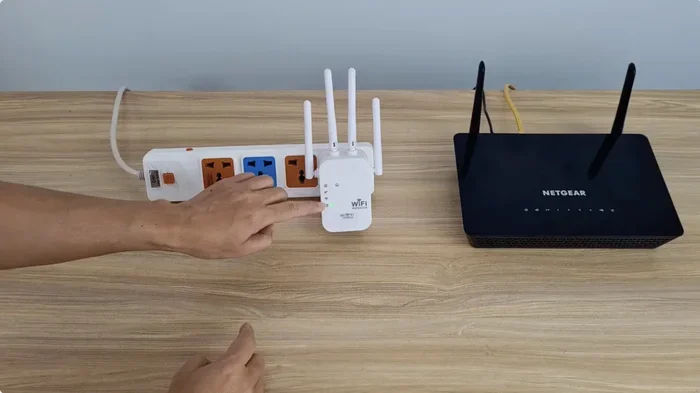
You can also look into Wi Fi extension options if the signal from your neighbor’s network is weak at your location. A simple extender can boost the signal into your home.
Things to Consider
- Speed Sharing: If your neighbor uses a lot of bandwidth, your speed may drop.
- Security: Always use a strong password on the shared network.
- Trust: Only share with people you know and trust.
- Data Usage: Check if your neighbor has a data cap you might accidentally hit.
Sharing a network is a great short-term solution. It works especially well in apartment buildings or close-knit neighborhoods where people already know each other.
Method 4: Connect to Free Public Networks Safely
Many homes are near areas with free public Wi Fi. Libraries, cafes, and community centers often offer open networks. You can sometimes pick up these signals at home with the right setup.
How to Boost a Public Signal to Your Home
If a public network is nearby, you may be able to reach it from your home. Here are some tips:
- Use a Wi Fi Extender: Place the extender near a window facing the public network source.
- Use a Directional Antenna: This focuses the signal in one direction for better reach.
- Check Signal Strength: Walk around your property to find the strongest spot first.
For more on boosting your connection, read our article Can I Increase Wi Fi Signal. It has practical tips for strengthening weak signals.
Staying Safe on Public Networks
Free public networks are convenient, but they come with risks. Here is how to stay safe:
- Use a VPN: A virtual private network encrypts your data.
- Avoid Banking: Do not log into bank accounts on public networks.
- Turn Off Sharing: Disable file sharing on your devices.
- Use HTTPS Sites: Only visit websites with a padlock icon in the browser.
Public networks work best for browsing, emails, and light tasks. They are not ideal for large downloads or streaming.
Method 5: Use a Modem Directly for Internet
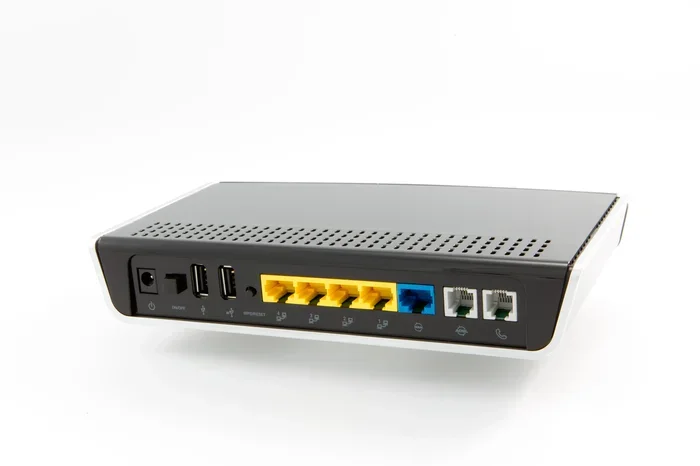
Did you know you can get internet without a router at all? If your internet provider gives you a modem, you can connect devices directly to it. Some modems have built-in Wi Fi. Others let you connect via Ethernet cable.
Check out our guide on Can I Buy A Modem And Have Internet to learn more about setting up a modem-only connection.
Pros and Cons of Using a Modem Alone
Here is a quick comparison of using a modem versus a router at home:
| Feature | Modem Only | With Router |
|---|---|---|
| Cost | Lower or free | Extra rental or purchase fee |
| Wi Fi Coverage | Limited or none | Full home coverage |
| Device Connections | Wired only | Wired and wireless |
| Setup | Very simple | More steps required |
| Best For | Single device use | Multiple devices |
If you only need internet for one laptop or desktop, a modem alone can work great. You skip the router entirely and save money every month.
Common Mistakes to Avoid
When trying to get free Wi Fi at home without a router, people often make these mistakes:
- Ignoring Data Caps: Tethering uses your phone data fast. Check your plan before you start.
- Skipping Security: Open networks without protection leave your data exposed.
- Overheating Your Phone: Running a hotspot all day can damage your phone over time.
- Not Testing Speeds: Always test your connection speed before committing to a method.
- Forgetting About Neighbors: Sharing without asking can cause conflict and legal issues.
Avoid these pitfalls and your experience will be much smoother.
Quick Tips for the Best Free Wi Fi Setup
Here are some expert tips to get the most out of your free setup:
- Keep Your Phone Cool: Place it on a hard surface, not a pillow, while tethering.
- Use an Ethernet Cable: A direct cable connection is always faster and more reliable.
- Turn Off Auto-Updates: Background updates eat up data fast on shared connections.
- Set Data Alerts: Most phones let you set a data usage warning. Use it.
- Combine Methods: Use USB tethering for work and hotspot for casual browsing.
Expert Insights
Networking experts agree that getting free Wi Fi at home without a router is totally doable for light to moderate users. The key is matching the right method to your needs. A single user who browses and emails can thrive on phone tethering. A family streaming movies will need a different approach.
Experts also recommend checking if your internet provider offers a modem-only plan. Many companies now let you skip the router and use your own equipment. This can save you $120 to $180 per year compared to renting a router from them.
Another pro tip: if you live in an area with strong cell coverage, your phone hotspot can actually rival a basic home router for speed. Modern 4G and 5G networks deliver impressive performance for everyday tasks.
Final Thoughts
Getting free Wi Fi at home without a router is easier than most people think. Whether you use phone tethering, USB sharing, or neighbor networks, you have real options that work today. No need to spend money on equipment you do not really need.
Start with the method that fits your situation best. Try it for a few days and see how it works. You might be surprised at how well free internet options perform for everyday use. The key is to stay safe, watch your data, and enjoy the savings.
Remember, technology keeps changing. New methods and tools appear all the time. Stay curious and keep exploring what works for you. Your wallet will thank you.
Frequently Asked Questions
Can I really get free Wi Fi at home without a router?
Yes, absolutely. You can use your phone as a hotspot, share a neighbor’s network, use USB tethering, or connect directly to a modem. All these methods work without buying a router. Each has its own strengths depending on your needs.
Is phone tethering safe for everyday use?
Phone tethering is safe as long as you set a strong hotspot password and monitor your data usage. It is a trusted method used by millions of people worldwide. Just avoid sharing sensitive information like banking details over long sessions.
How much data does a phone hotspot use per day?
Light browsing uses about 1 to 2 GB per day. Video streaming can use 3 to 5 GB per hour. Check your phone plan’s data limit before relying on tethering as your main internet source at home.
Can I connect multiple devices to my phone hotspot?
Yes, most phones allow 5 to 10 connected devices at once. However, adding more devices slows down the speed for everyone. Keep the number of connected devices low for the best performance.
What is the difference between USB tethering and a Wi Fi hotspot?
USB tethering uses a cable to connect your phone to one computer. It is faster and more stable. A Wi Fi hotspot broadcasts a wireless signal that multiple devices can join. Choose USB tethering for one device and a hotspot for multiple devices.
Do I need any special equipment for free home Wi Fi?
No special equipment is needed for most methods. You just need your smartphone, a USB cable, or permission from a neighbor. A Wi Fi extender can help if you are picking up a signal from a distance, but it is not required.