How Can I Tell If My TV Has Bluetooth Connectivity
Figuring out if your TV has Bluetooth is easier than you think. You can check your TV settings menu, look up your model number online, or inspect the physical ports and remote control. Whether you want to connect wireless headphones or speakers, knowing your TV’s Bluetooth status saves time and frustration. This guide walks you through every method to confirm Bluetooth connectivity on any TV.
Have you ever wanted to listen to your TV through wireless headphones or speakers but weren’t sure if your TV supports Bluetooth? You are not alone. Many people own smart TVs and assume they have Bluetooth, only to find out later that they do not. The good news is that checking for Bluetooth on your TV is simple. You do not need to be a tech expert. In this guide, I will walk you through every reliable method to find out if your TV has Bluetooth connectivity. Let us get started.
Bluetooth on a TV opens up a world of convenience. You can connect wireless headphones, speakers, soundbars, and even your phone. This means no more disturbing others when you watch TV late at night. It also means you can move freely around the room without being tied to a cable. But before you can enjoy all of that, you need to know whether your TV has Bluetooth built in. Let me show you exactly how to find out.
Key Takeaways
- Check your TV settings menu: The fastest way to find Bluetooth is by navigating to your TV’s Settings or Sound menu.
- Look up your model number: Searching your TV’s model number online quickly reveals whether it supports Bluetooth.
- Use the remote control: Many remotes have a dedicated Bluetooth or Smart Hub button that hints at wireless capability.
- Try pairing a device: The simplest test is to attempt connecting a Bluetooth headphone or speaker to your TV.
- Check the ports and manual: Physical markings and the user manual can confirm Bluetooth support.
- Use a Bluetooth adapter if needed: If your TV lacks Bluetooth, a USB Bluetooth dongle can add wireless capability.
📑 Table of Contents
- What Does It Mean When a TV Has Bluetooth?
- How to Check If Your TV Has Bluetooth Through Settings
- Look Up Your TV Model Number Online
- Check Your TV Remote Control
- Try Pairing a Bluetooth Device
- What If Your TV Does Not Have Bluetooth?
- Common Mistakes People Make When Checking for TV Bluetooth
- Does Your TV Brand Matter for Bluetooth Support?
- Can You Add Bluetooth to Any TV?
- Final Thoughts
What Does It Mean When a TV Has Bluetooth?
When we say a TV has Bluetooth, we mean it can send and receive wireless audio signals. Think of Bluetooth as a short-range wireless connection. It lets two devices talk to each other without wires. On a TV, Bluetooth usually works for audio output. This means you can send sound from your TV to a pair of headphones or a speaker. Some TVs also support Bluetooth input, which lets you connect a phone or tablet to the TV wirelessly.
Not all Bluetooth TV connections are the same. Some TVs only support Bluetooth audio output. Others support both input and output. This distinction matters if you want to do more than just listen privately. For example, if you want to cast music from your phone to your TV speakers, you need Bluetooth input capability. Knowing what kind of Bluetooth your TV has helps you set the right expectations.
How to Check If Your TV Has Bluetooth Through Settings
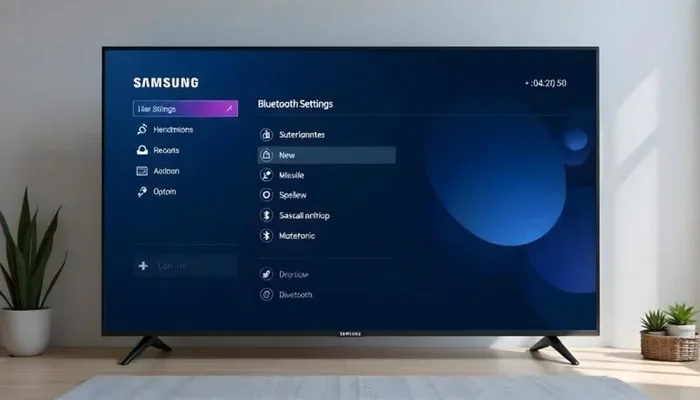
The easiest and most direct way to check for Bluetooth is through your TV’s settings menu. Every smart TV has a settings area where you can manage connections. Here is how to find it.
Step 1: Press the Home or Settings Button on Your Remote
Pick up your TV remote and press the Home button or the Settings gear icon. This opens the main menu. Use the arrow keys to scroll through the options. Look for anything that says Settings, Preferences, or System.
Step 2: Navigate to Sound or Connections
Once you are in Settings, look for a section called Sound, Audio, or Connections. On some TVs, it might be labeled Network or Bluetooth. If you see a Bluetooth option listed, your TV has Bluetooth. If you do not see it at all, your TV likely does not support Bluetooth natively.
Step 3: Look for Pairing or Device Search Options
If you find a Bluetooth section, try searching for nearby devices. Your TV should scan and show any Bluetooth devices within range. If the scan works, you have confirmed Bluetooth capability. If the TV gives you an error or says no devices found, that does not necessarily mean Bluetooth is missing. It could just mean no devices are nearby. But if the Bluetooth option is completely missing from the menu, that is a strong sign your TV does not have it.
Quick Tip: Different TV brands organize their settings differently. Samsung TVs usually have Sound Output under Settings. LG TVs put Bluetooth under Sound or All Settings. Sony TVs often list it under Network and Accessories. If you are not sure where to look, use the search function in your TV’s Settings menu and type in Bluetooth.
Look Up Your TV Model Number Online
If the settings menu does not give you a clear answer, your TV model number is your next best friend. Every TV has a model number printed on a sticker on the back or side of the unit. You can also find it in your TV’s settings under System or About.
Why the Model Number Matters
The model number tells you exactly what features your TV has. Manufacturers list all the technical specifications for each model on their website. You can search for your model number online and find the full spec sheet. Look for the word Bluetooth in the connectivity section. If it is listed there, your TV supports Bluetooth. If it is not, it does not.
Where to Find Your Model Number
- On the TV itself: Look at the back panel or the bottom edge. There is usually a white sticker with the model number.
- In the TV settings: Go to Settings, then System, then About. The model number should be listed there.
- On the original box: If you kept the box, the model number is on the label.
- In the user manual: The manual always lists the model number on the first few pages.
Once you have the model number, type it into your favorite search engine followed by the word specifications. You will find the official product page with all the details. This method works for every TV brand, including Samsung, LG, Sony, TCL, Vizio, and others.
Check Your TV Remote Control
Your TV remote can give you clues about Bluetooth capability. Many modern remotes have a dedicated button for Bluetooth or a Smart Hub button. If your remote has a button labeled Bluetooth, that is a strong indicator your TV supports it. Some remotes have a button with a Bluetooth symbol, which looks like a tilted B shape.
Also, check if your remote has a button for wireless speakers or headphones. Samsung remotes often have a button for SoundOut or Bluetooth Audio. LG remotes may have a button for Bluetooth speakers. If you see any of these, your TV likely has Bluetooth built in.
However, be careful. Some remotes come with universal or aftermarket Bluetooth adapters. These remotes can control Bluetooth devices even if the TV itself does not have Bluetooth. So always double check using the settings menu or model number method to be sure.
Try Pairing a Bluetooth Device
The most straightforward test is to simply try connecting a Bluetooth device to your TV. If you have a pair of Bluetooth headphones or a Bluetooth speaker, put them in pairing mode and see if your TV detects them.
How to Test This
- Turn on your Bluetooth headphones or speaker.
- Put them into pairing mode. Usually, you hold down the power button until a light flashes.
- Go to your TV Settings and look for Bluetooth.
- Select Search for Devices or Pair New Device.
- See if your headphones or speaker show up on the list.
If your TV finds the device and lets you connect, congratulations. Your TV has Bluetooth. If the TV does not find any devices or the Bluetooth option is completely absent, your TV probably does not support Bluetooth natively.
Expert Insight: Some older TVs with built-in Bluetooth may have a weak Bluetooth chip. This means the connection range is short or the audio quality is lower than expected. If you can connect but experience frequent dropouts, the Bluetooth hardware may be outdated. In these cases, a Bluetooth transmitter can help improve the connection.
What If Your TV Does Not Have Bluetooth?
Do not worry if your TV does not have Bluetooth. You still have options. You do not need to buy a new TV just to get wireless audio. There are simple and affordable solutions that add Bluetooth to any TV.
Option 1: Use a Bluetooth Transmitter
A Bluetooth transmitter is a small device that plugs into your TV’s audio output. It can be a 3.5mm headphone jack, an RCA port, or an optical audio out. The transmitter receives the audio from your TV and sends it wirelessly to your Bluetooth headphones or speakers. This is one of the most popular and cost-effective solutions.
You can find Bluetooth transmitters for under $20 online. They work with almost any TV, regardless of brand or age. Just plug it in, pair your Bluetooth device, and you are good to go. This is a great option if you want to use Bluetooth headphones with your TV but your TV does not have built-in support.
Option 2: Use a USB Bluetooth Dongle
Some smart TVs have USB ports that support Bluetooth adapters. You can plug in a USB Bluetooth dongle to add wireless capability to your TV. Not all TVs support USB Bluetooth adapters, so check your TV’s manual or specifications first. If your TV does support it, a USB dongle is a clean and simple solution.
For more details on this approach, check out our guide on using a USB Bluetooth dongle with your TV. It covers compatibility, setup, and the best dongles to buy.
Option 3: Connect Through a Soundbar or Receiver
If you have a soundbar or AV receiver that supports Bluetooth, you can connect your TV to it using an HDMI or optical cable. Then use the soundbar’s Bluetooth to connect your headphones or speakers. This way, the soundbar acts as a bridge between your TV and your wireless audio devices.
Many modern soundbars come with Bluetooth built in. This gives you the best of both worlds. You get high-quality TV audio through the soundbar and wireless freedom through Bluetooth.
Common Mistakes People Make When Checking for TV Bluetooth
There are a few mistakes that people often make when trying to figure out if their TV has Bluetooth. Avoiding these can save you a lot of time and confusion.
- Assuming all smart TVs have Bluetooth: This is not true. Many smart TVs focus on Wi-Fi connectivity and do not include Bluetooth. Always verify before assuming.
- Confusing Wi-Fi with Bluetooth: Wi-Fi and Bluetooth are different technologies. Your TV may have Wi-Fi but not Bluetooth. Check specifically for Bluetooth in the settings.
- Ignoring the audio output settings: Sometimes Bluetooth is available but hidden in a submenu. Look under Sound Output or Audio Output specifically.
- Not updating your TV firmware: Some older TVs may not show Bluetooth options until you update the software. Always check for firmware updates first.
- Using the wrong cable or port: If you are trying to use a Bluetooth transmitter, make sure you are plugging it into the right audio output port. Using the wrong port will not work.
Does Your TV Brand Matter for Bluetooth Support?
Yes, your TV brand can give you a clue about Bluetooth support. Different brands have different approaches to wireless connectivity. Here is a quick overview of how some popular brands handle Bluetooth.
| Brand | Bluetooth Support | Notes |
|---|---|---|
| Samsung | Most models | Look for SoundOut or Bluetooth Audio in settings |
| LG | Most models | Check under Sound or All Settings |
| Sony | Most models | Look under Network and Accessories |
| TCL | Select models | Not all TCL TVs have Bluetooth |
| Vizio | Limited | Many models lack Bluetooth; check specs |
| Hisense | Select models | Check model-specific specifications |
As you can see, not all brands include Bluetooth across their entire lineup. Always check the specific model you own. If you are shopping for a new TV and Bluetooth is important to you, look for it in the specs before you buy. For Samsung TV owners specifically, our guide on listening to Samsung TVs with Bluetooth headphones has detailed setup instructions that you may find helpful.
Can You Add Bluetooth to Any TV?
The short answer is yes. Almost any TV can get Bluetooth with the right accessory. A Bluetooth transmitter is the simplest and most affordable way to add wireless audio to any TV. You do not need to be a technician. The setup takes about five minutes and costs less than $20.
If you want a more permanent solution, a USB Bluetooth dongle works well for smart TVs with USB ports. Just make sure your TV supports USB Bluetooth adapters before purchasing one. You can also use a Bluetooth-enabled soundbar or home theater system as a bridge. This adds Bluetooth capability while also improving your TV’s audio quality.
For those who want to learn more about adding Bluetooth to their setup, our article on using a Bluetooth adapter with your TV covers everything you need to know. It includes product recommendations, setup tips, and troubleshooting advice.
Final Thoughts
Knowing whether your TV has Bluetooth is the first step toward enjoying wireless audio. Whether you want to watch movies with headphones late at night or connect a speaker for better sound, Bluetooth makes it possible. You have several easy ways to check: the settings menu, the model number, the remote control, or a simple pairing test.
If your TV does not have Bluetooth, do not worry. A Bluetooth transmitter or USB dongle can add this feature quickly and affordably. The options are plentiful and work with almost any TV. Now that you know how to check for Bluetooth, you can make the right decision for your setup. Enjoy your wireless audio experience and make the most of your TV.
Remember, technology should make your life easier, not harder. Take a few minutes today to check your TV for Bluetooth. You might be surprised at what you find. And if your TV does not have it, a small accessory can bridge the gap in no time.
Frequently Asked Questions
How do I know if my TV has Bluetooth built in?
The fastest way is to go to your TV’s Settings menu and look for a Bluetooth option under Sound or Connections. If you find it, your TV has Bluetooth. You can also check your TV’s model number online to confirm the specifications.
Can I add Bluetooth to a TV that does not have it?
Yes, you can. A Bluetooth transmitter is the easiest and most affordable solution. It plugs into your TV’s audio output and sends sound wirelessly to your Bluetooth headphones or speakers. A USB Bluetooth dongle is another option for smart TVs with USB ports.
Why can’t my TV find my Bluetooth headphones?
There are a few reasons this could happen. Make sure your headphones are in pairing mode. Check that your TV has Bluetooth enabled. Also, keep the devices close together. Bluetooth has a limited range, usually about 30 feet. If your TV does not have Bluetooth, it will not be able to find any Bluetooth devices at all.
Does every smart TV have Bluetooth?
No, not every smart TV has Bluetooth. Many smart TVs focus on Wi-Fi connectivity and streaming apps but do not include Bluetooth. Always check the specifications of your specific TV model to confirm whether it supports Bluetooth.
What is the difference between Bluetooth audio output and input on a TV?
Bluetooth audio output means your TV sends sound to a Bluetooth device like headphones or speakers. Bluetooth audio input means your TV receives audio from a Bluetooth device like your phone. Not all TVs support both. Check your TV’s specifications to see which type of Bluetooth it supports.
Is a Bluetooth transmitter the same as a Bluetooth adapter?
They serve a similar purpose but work differently. A Bluetooth transmitter sends audio from your TV to Bluetooth headphones or speakers. A Bluetooth adapter receives Bluetooth signals and sends them to your TV. For most users wanting wireless headphones, a transmitter is the right choice.
=== Copyright ===
Article written for TechnologyDecoding.com. All rights reserved.