How Can I Tell What Channel My Neighbors Wifi Is On
Finding out what channel your neighbor’s WiFi is on is easier than you think. You can use free apps, your router settings, or built-in phone tools to scan nearby networks. This knowledge helps you pick a less crowded channel and enjoy faster, more reliable internet.
Have you ever noticed your WiFi slows down at certain times of the day? Or maybe your internet connection drops when your neighbor is streaming movies? The problem might be WiFi channel overlap. When multiple wireless networks use the same channel, they compete for space. This causes interference and slows everyone down.
Knowing what channel your neighbor’s WiFi is on gives you a huge advantage. You can pick a cleaner channel for your own network and enjoy better WiFi speed and reliability. The good news is that checking this is free, fast, and does not require any technical skills. In this guide, we walk you through every method step by step.
Whether you use an Android phone, an iPhone, or a laptop, there is a tool for you. We also cover how to understand WiFi channels, why interference happens, and what to do about it. By the end, you will know exactly how to optimize your wireless network for the best performance.
Key Takeaways
- WiFi analyzer apps make it simple: You can see all nearby networks and their channels in seconds.
- Neighbor interference is real: Overlapping channels slow down your WiFi speed significantly.
- 2.4 GHz and 5 GHz differ: Each band has different channels and ranges you should understand.
- Router settings help you switch: You can change your channel manually or use auto-select features.
- Best practices exist: Choosing non-overlapping channels like 1, 6, or 11 gives the best results.
📑 Table of Contents
- Why Knowing Your Neighbor’s WiFi Channel Matters
- How to Check What Channel Your Neighbor’s WiFi Is On
- How to Find the Best Channel for Your Own Network
- Tips to Reduce WiFi Interference
- When to Change Your WiFi Channel
- Understanding 2.4 GHz vs 5 GHz Bands
- Common Mistakes People Make with WiFi Channels
- Final Thoughts
Why Knowing Your Neighbor’s WiFi Channel Matters
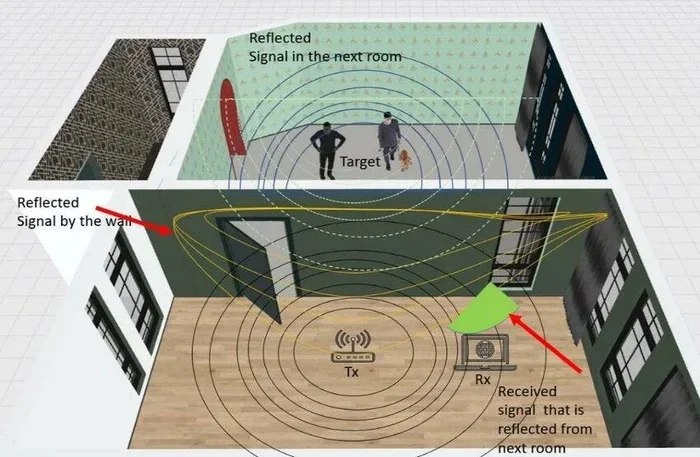
Your wireless router sends data over radio waves. These waves travel through the air and can overlap with signals from other routers nearby. When two networks use the same WiFi channel, they interfere with each other. Think of it like two people trying to talk at the same time. Nobody gets the full message.
This problem is called co-channel interference. It is one of the most common reasons for slow WiFi. Many people do not realize that their internet connection suffers because of a neighbor’s network. They blame their internet service provider instead. But the real fix is often much simpler.
When you know which channel your neighbor uses, you can avoid it. You pick a channel with less traffic. This alone can make a big difference in your daily browsing, streaming, and gaming experience.
How WiFi Channels Work
WiFi networks operate on specific frequency bands. The two most common bands are 2.4 GHz and 5 GHz. Each band is divided into smaller channels. These channels are like lanes on a highway. When too many networks use the same lane, traffic slows down.
The 2.4 GHz band has 14 channels, but only three of them do not overlap. These are channels 1, 6, and 11. If your neighbor uses channel 3 and you use channel 2, your signals will overlap. This creates network congestion and reduces your WiFi bandwidth.
The 5 GHz band has more channels available. This means less chance of overlap. However, 5 GHz has a shorter range than 2.4 GHz. So if you live in a dense apartment building, 2.4 GHz is more common. Understanding this helps you choose the right band and channel for your setup.
How to Check What Channel Your Neighbor’s WiFi Is On
There are several easy ways to find out what channel nearby networks use. You do not need expensive equipment or advanced knowledge. Let us look at the best methods.
Method 1: Use a WiFi Analyzer App
A WiFi analyzer app is the fastest way to see what is happening around you. These apps scan all nearby wireless networks and show you their channels, signal strength, and security type. You can download one on your phone or tablet for free.
For Android users, apps like WiFi Analyzer or NetSpot work great. For iPhone users, the Airport Utility app has a built-in scanner. Simply open the app and look at the channel graph. You will see bars representing each network and the channel they use.
These tools show you real-time data. You can see which channels are crowded and which ones are empty. This makes it very easy to pick the best channel for your own router.
Method 2: Check Through Your Router Settings
Most modern routers have a built-in feature to scan nearby networks. You can access this by logging into your router’s admin panel. Open a web browser and type in your router’s IP address. This is usually 192.168.1.1 or 192.168.0.1.
Once you log in, look for a section called Wireless Settings or WiFi Status. Some routers show a list of detected networks. You can see their channels and signal strengths. This gives you a clear picture of the WiFi environment in your home.
If your router does not have a scan feature, you can still check your own channel. This helps you understand if you are on a crowded channel already. From there, you can decide whether to switch.
Method 3: Use Your Smartphone’s Built-In Tools
Both Android and iPhone have hidden tools that can help you see WiFi details. On Android, go to Settings, then Network, and look for WiFi details. You can see the channel your current network uses.
On iPhone, you can enable Wi-Fi Diagnostics by holding the Option key and clicking the WiFi icon. This shows you a detailed scan of nearby networks including their channels. It is a quick and easy way to get basic information without downloading anything.
These built-in tools are not as detailed as dedicated apps. But they give you a good starting point. You can quickly see if your neighbor is on the same channel as you.
How to Find the Best Channel for Your Own Network
Once you know what channels your neighbors use, the next step is choosing the best one for yourself. The goal is to pick a channel with the least traffic. This reduces WiFi interference and improves your connection quality.
Understanding Non-Overlapping Channels
On the 2.4 GHz band, only channels 1, 6, and 11 are truly non-overlapping. This means they do not interfere with each other. If you and your neighbor both use channel 6, your signals will clash. But if you use channel 1 and your neighbor uses channel 6, you will both have a cleaner experience.
On the 5 GHz band, there are many more non-overlapping channels. This makes it easier to find a clear channel. If your devices support 5 GHz, consider switching to it. You will likely find less congestion there.
Using the Auto-Channel Feature
Many routers come with an auto-channel selection feature. When enabled, the router scans the environment and picks the least crowded channel automatically. This is a great option if you do not want to do the work manually.
However, auto-select does not always choose the best channel. Sometimes it picks a channel that looks clear but still has minor interference. For the best results, manually select your channel after scanning with a WiFi analyzer. This gives you more control and better results.
Testing Your New Channel
After you switch channels, test your connection. Run a speed test to see if your WiFi speed improved. You can also check for dropped connections or buffering during streaming. If things feel better, you have found the right channel.
Keep in mind that the best channel can change over time. New neighbors may move in and set up networks. Your neighbor might change their router settings too. It is a good idea to check your channel every few months. This keeps your network running at its best.
Tips to Reduce WiFi Interference
Choosing the right channel is just one part of the equation. There are other steps you can take to improve your wireless network. These simple tips can make a big difference.
- Place your router in a central location: This helps your WiFi signal reach all areas of your home evenly.
- Keep your router away from thick walls: Concrete and metal block radio waves. This weakens your connection.
- Avoid placing routers near microwaves: Microwaves operate on the same 2.4 GHz frequency. They can cause significant interference.
- Update your router firmware: Manufacturers release updates that improve performance and fix bugs.
- Consider upgrading to a dual-band router: These routers support both 2.4 GHz and 5 GHz. You can split your devices between them for better performance.
- Use a WiFi extender if needed: If your signal is weak in certain areas, an extender can help. Just make sure your extender is on a different channel than your main router.
You can also try to increase your WiFi signal by adjusting your router’s antenna position. Pointing antennas vertically helps spread the signal horizontally. This covers more area in your home or apartment.
When to Change Your WiFi Channel
Not everyone needs to change their WiFi channel regularly. But there are clear signs that it is time to make a switch. Watch for these warning signs.
- Slow speeds during peak hours: If your internet slows down in the evening when neighbors are online, channel overlap may be the cause.
- Frequent disconnections: If your devices keep dropping from the network, interference could be disrupting the signal.
- Poor streaming quality: Buffering and lag during video calls or streaming often point to a crowded channel.
- New neighbors moved in: A new WiFi network nearby means a new potential source of interference.
- You added new devices: More devices on the same channel means more competition for bandwidth.
If you notice any of these issues, scan your environment again. Use a WiFi analyzer to check which channels are now crowded. Then switch to a less congested channel. This simple step often solves many common WiFi problems.
You can also check if changing your SSID (network name) helps. While it does not fix channel interference, it can help you identify your network more easily in a crowded area. If you need help with this, check out our guide on how to change the SSID on your router.
Understanding 2.4 GHz vs 5 GHz Bands
Choosing between the 2.4 GHz and 5 GHz bands is an important decision. Each has its own strengths and weaknesses. Understanding these helps you make the best choice for your home.
| Feature | 2.4 GHz | 5 GHz |
|---|---|---|
| Range | Longer range | Shorter range |
| Speed | Slower speeds | Faster speeds |
| Channels | 14 channels (3 non-overlapping) | More channels available |
| Interference | More interference | Less interference |
| Best For | Large homes, IoT devices | Streaming, gaming, dense areas |
If you live in a busy area with many wireless networks, 5 GHz is usually the better choice. It has more channels and less chance of overlap. You can also learn how to force your phone to use 2.4 GHz WiFi if you need better range for certain devices.
For devices that need speed and reliability, 5 GHz is the way to go. Gaming consoles, smart TVs, and laptops benefit the most from this band. You get faster data transfer and fewer interruptions from neighboring networks.
Common Mistakes People Make with WiFi Channels
Many people make avoidable mistakes when setting up their WiFi. Here are the most common ones and how to fix them.
Mistake 1: Leaving the router on the default channel. Most routers default to channel 6. This means every router in your area might be on the same channel. Always scan and choose a better one.
Mistake 2: Ignoring the 5 GHz band. Some people only use 2.4 GHz because it has better range. But 5 GHz offers much less interference. Use both bands if your router supports them.
Mistake 3: Switching channels too often. Constantly changing channels can confuse your devices. Pick a good channel and stick with it for a while before considering another change.
Mistake 4: Not checking for firmware updates. Router manufacturers improve channel management with each update. Keeping your firmware current ensures the best performance.
If you want to learn more about boosting your connection, read our article on how to increase your WiFi signal for helpful tips.
Final Thoughts
Checking what channel your neighbor’s WiFi is on is one of the simplest things you can do to improve your internet experience. It takes just a few minutes and can make a noticeable difference. You get faster speeds, fewer disconnections, and a more reliable connection.
Use a WiFi analyzer app to scan your environment. Pick a non-overlapping channel like 1, 6, or 11 on the 2.4 GHz band. Or switch to 5 GHz for even less interference. Combine this with good router placement and regular maintenance. Your wireless network will perform at its best.
Remember, your WiFi setup is not set in stone. As your neighborhood changes, so should your channel. Check periodically and adjust as needed. A little attention goes a long way toward keeping your internet fast and dependable.
Frequently Asked Questions
Can I see my neighbor’s WiFi password?
No, you cannot see your neighbor’s WiFi password without their permission. However, you can see what channel their network is on and how strong their signal is. This information is visible to any device scanning for WiFi networks nearby.
What is the best WiFi channel to use?
On the 2.4 GHz band, channels 1, 6, and 11 are the best because they do not overlap with each other. On the 5 GHz band, there are many more options, so finding a clear channel is usually easier. Use a WiFi analyzer to find the least crowded one in your area.
Does changing my WiFi channel really help?
Yes, changing to a less crowded channel can significantly improve your WiFi speed and reduce disconnections. If many networks around you are on the same channel, interference will slow down your connection. Switching channels is one of the easiest fixes.
How often should I check my WiFi channel?
It is a good idea to check every few months. New neighbors may set up networks that cause interference. Also, your internet needs may change over time. A quick scan takes only a few minutes and can prevent slow speeds.
Can I use the same WiFi channel as my neighbor?
You can, but it is not ideal. Using the same channel as a nearby network causes interference and slows both networks down. It is better to choose a channel that is at least two channels away from your neighbor’s channel on the 2.4 GHz band.
What is the difference between channel width and channel number?
The channel number refers to the specific frequency your router uses, like channel 1 or channel 6. Channel width refers to how much of the frequency band your router uses, such as 20 MHz or 40 MHz. A wider channel width can give faster speeds but may cause more interference with neighboring networks.
=== CONCLUSION ===
Knowing how to check what channel your neighbor’s WiFi is on is a valuable skill. It empowers you to take control of your wireless network and get the best performance possible. With free tools and a few minutes of your time, you can reduce interference and enjoy a faster, more stable internet connection.
Start by downloading a WiFi analyzer app on your phone. Scan your environment and note the channels in use. Then log into your router and switch to the least crowded channel. Test your speeds and enjoy the improvement. This simple process works for any home or apartment setup.
Remember that technology keeps evolving. New devices and standards continue to improve WiFi performance. Stay curious, keep learning, and don’t be afraid to experiment with your network settings. A well-optimized WiFi network makes every online activity better, from browsing and streaming to working from home and video calls.