How Do I Add A Hotspot To My Tesla Step By Step Guide
Adding a hotspot to your Tesla is straightforward and lets you stay connected on the road. This guide walks you through every step, from checking your Tesla connectivity plan to connecting your phone, tablet, or laptop to the Tesla WiFi network. You will also learn how to troubleshoot common issues and get the most out of your Tesla mobile hotspot.
Key Takeaways
- Tesla Hotspot Setup Is Easy: You can enable the Tesla mobile hotspot directly from the touchscreen in just a few taps.
- Connectivity Plan Matters: Your Tesla needs an active premium connectivity or standard connectivity plan to use the hotspot feature.
- Multiple Devices Can Connect: The Tesla hotspot supports several devices at once, making it great for road trips with family or friends.
- Troubleshooting Is Simple: Most hotspot issues can be fixed with a quick restart or by checking your network settings.
- Data Usage Adds Up: Streaming and navigation use a lot of data, so keep an eye on your usage to avoid running out.
- Security Matters: Always use a strong password for your Tesla hotspot to keep your connection safe.
📑 Table of Contents
What Is a Tesla Hotspot and Why You Need One
A Tesla hotspot turns your car into a mobile WiFi hub. It uses the built-in cellular connection in your Tesla to broadcast a WiFi signal that your other devices can tap into. Think of it as a portable router that travels with you wherever you drive.
There are many reasons why you might want to add a hotspot to your Tesla. Maybe you are on a long road trip and the kids need to stream movies in the back seat. Perhaps you are traveling for work and need to check emails or join a video call from the parking lot. Or maybe you just want to use your phone’s data through the Tesla Tesla WiFi network to save your phone’s data plan.
The Tesla mobile hotspot feature has been available for several years now. It works with both the standard connectivity and premium connectivity plans that Tesla offers. The quality of your connection depends on the cellular network available in your area, much like how your phone gets signal. If you have ever wondered whether you can get Wi-Fi without a router, the answer is yes, and your Tesla does exactly that using its built-in modem.
Setting up the hotspot is something you can do in minutes. You do not need any special equipment or technical skills. The Tesla touchscreen makes it simple, and once it is set up, your car becomes a reliable source of internet wherever you go. Let us walk through everything you need to know.
Requirements Before You Add a Hotspot to Your Tesla
Before you start setting up the hotspot, there are a few things you need in place. Getting these right upfront saves you time and frustration later.
Active Connectivity Plan
Every Tesla comes with a built-in SIM card that connects to cellular networks. However, the hotspot feature requires an active data plan. Tesla offers two main options: standard connectivity and premium connectivity. Standard connectivity gives you basic maps and media for a limited time. Premium connectivity unlocks live traffic, satellite views, and the Tesla hotspot for a monthly or annual fee.
If you are not sure which plan you have, you can check by going to Controls > Settings > Connectivity on your touchscreen. If your plan has expired, you will need to renew it before the hotspot will work. Some Tesla owners also wonder about data limits. If you are concerned about running out of data, you might want to explore whether unlimited hotspot options exist through Tesla or third-party carriers.
Tesla Model Compatibility
Almost all modern Tesla models support the hotspot feature. This includes the Model S, Model 3, Model X, and Model Y. Older models may have limited functionality depending on the hardware version. The Tesla cellular modem is built into the car, so you do not need to install anything extra. If your Tesla was manufactured in the last several years, the hotspot should be supported.
Device Range and Signal Strength
The Tesla hotspot broadcasts a signal that typically reaches about 50 feet. This is plenty for passengers in the car and nearby. The strength of your connection depends on the cellular network in your area. If you are in a remote location with weak cell coverage, the hotspot speed will be slower. You can always check your signal bars on the touchscreen to see how strong the connection is.
Step-by-Step: Adding a Hotspot to Your Tesla
Now for the fun part. Setting up the hotspot on your Tesla is quick and easy. Follow these steps and you will be online in no time.
Step 1: Access the Controls Menu
Tap the Controls icon on the bottom left of your Tesla touchscreen. It looks like a small gear or set of sliders depending on your software version. This opens the main settings panel where you can adjust everything from climate control to Tesla WiFi settings.
Make sure your car is parked or in park before you start. While you can access settings while driving, it is safer to set up the hotspot when the car is stationary.
Step 2: Navigate to WiFi Settings
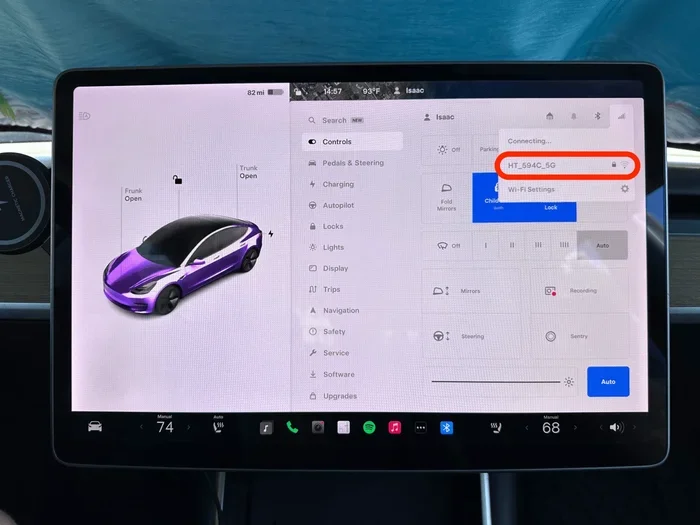
From the Controls menu, tap on Settings. Then select the WiFi tab. Here you will see a list of available networks and the option to manage your car’s connection. You should also see an option labeled Hotspot or Mobile Hotspot depending on your Tesla software version.
If you do not see the hotspot option, it could mean your connectivity plan does not support it, or your software needs an update. Tesla regularly pushes over-the-air updates that add features and fix bugs. Keeping your software up to date ensures you have access to the latest Tesla connectivity features.
Step 3: Enable the Hotspot
Tap on the Hotspot option to turn it on. You will be prompted to set a network name and password. The network name usually starts with “Tesla” followed by a few characters that identify your car. You can change this to something more personal if you want.
Choose a strong password that is easy for you to remember but hard for others to guess. A mix of letters, numbers, and symbols works best. This keeps your Tesla wireless connection secure and prevents strangers from using your data.
Step 4: Connect Your Devices
Once the hotspot is enabled, go to the WiFi settings on your phone, tablet, or laptop. Look for the Tesla network name in the list of available networks. Tap on it and enter the password you just created.
Within a few seconds, your device should connect. You can now browse the internet, stream videos, check email, or use any app that needs an internet connection. The Tesla internet connection works just like any other WiFi network, so all your apps and services should work normally.
One thing to keep in mind: connecting multiple devices at once can slow down the speed. If you notice sluggish performance, try disconnecting devices you are not actively using. The Tesla hotspot handles a few devices well, but it is not designed to replace a home broadband connection for heavy usage.
Connecting Your Devices to the Tesla Hotspot
The process of connecting devices to your Tesla hotspot is similar across all platforms. Here is a quick breakdown for the most common devices.
Smartphones (iPhone and Android): Go to your phone’s Settings > WiFi. Find the Tesla network, tap it, and enter the password. Your phone will remember the network, so you will not need to re-enter the password every time you get in the car.
Tablets (iPad): The process is the same as with phones. If you have a WiFi-only iPad, the Tesla hotspot is a great way to get it online during trips. You can even connect your WiFi-only iPad to your iPhone to share the Tesla connection further if needed.
Laptops: Laptops connect easily to the Tesla hotspot. Just open your WiFi settings and select the Tesla network. If you need to work remotely from your car, the hotspot handles basic tasks like email, document editing, and video calls quite well.
Gaming Devices: Some people even use the Tesla hotspot for portable gaming devices like the Steam Deck. If you have ever wondered whether you can connect a Steam Deck to a mobile hotspot, the answer is yes, and the Tesla hotspot works the same way.
Troubleshooting Common Tesla Hotspot Problems
Even with a straightforward setup, you might run into issues from time to time. Here are the most common problems and how to fix them.
Hotspot Not Showing Up on Devices
If your devices cannot find the Tesla WiFi network, the first thing to check is whether the hotspot is actually enabled. Go back to the touchscreen and confirm that the hotspot toggle is turned on. If it is, try toggling it off and back on again. This simple reset often solves the problem.
Another common cause is that the Tesla software is outdated. Check for available updates by going to Software > Updates on the touchscreen. Installing the latest update can resolve compatibility issues and improve the Tesla WiFi settings performance.
Slow Internet Speed
Slow speeds are usually caused by weak cellular signal in your area. Check the signal bars on the touchscreen. If you are in a rural area or underground parking, the signal may be poor. Moving to a location with better coverage often fixes the speed issue.
Bandwidth-hungry activities like streaming HD video or downloading large files can also slow things down. If multiple devices are connected, try disconnecting some to improve speed. Think of it like a Wi-Fi extension situation where distance and obstacles affect performance.
Devices Connected But No Internet
This issue can happen when the Tesla’s cellular connection is active but the data plan has expired or reached its limit. Check your connectivity status on the touchscreen. If your plan needs renewal, updating it should restore internet access for all connected devices.
Sometimes a simple restart of the Tesla’s internet connection fixes this. You can do this by turning the hotspot off, waiting 30 seconds, and turning it back on. This refreshes the connection and often resolves temporary glitches.
Forgetting the Hotspot Password
If you forget the password you set for the Tesla hotspot, you can reset it easily. Go to Controls > Settings > WiFi > Hotspot on the touchscreen. Delete the old password and create a new one. All previously connected devices will need the new password to reconnect.
Tips for Maximizing Your Tesla Hotspot Performance
Getting the hotspot set up is only half the battle. Here are some practical tips to help you get the best experience from your Tesla mobile hotspot.
Use the Hotspot for Essential Tasks: The Tesla hotspot works great for browsing, email, social media, and standard-definition streaming. For heavy tasks like downloading large files or streaming 4K video, you may want to wait until you have a stronger connection, such as AT&T Wi-Fi at a café or hotel.
Keep Your Tesla Software Updated: Tesla regularly releases updates that improve the modem performance and fix connectivity bugs. Keeping your software current ensures the best possible Tesla internet speed and stability.
Monitor Your Data Usage: The Tesla hotspot uses your cellular data plan. If you stream a lot of video or have multiple devices connected, your data can go quickly. Check your data usage in the Connectivity settings and adjust your habits accordingly.
Place Your Devices Close to the Tesla: The hotspot signal is strongest inside the car and within about 50 feet. If you are sitting outside the car, try to stay as close as possible for the best connection.
Use a Strong Password: This cannot be stressed enough. An open or weak hotspot password means anyone nearby can connect to your Tesla WiFi and use your data. A strong password protects both your data and your connection quality.
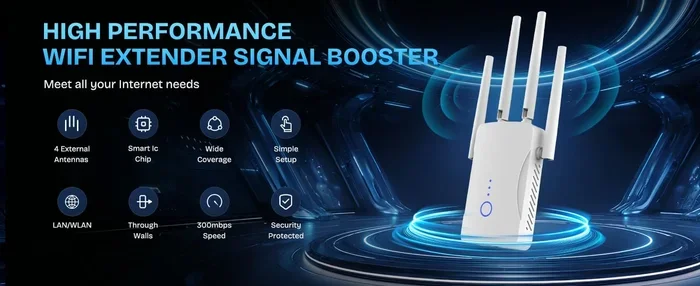
Consider a Signal Booster for Remote Areas: If you frequently travel to areas with poor cellular coverage, a signal booster can help. These devices amplify the cellular signal your Tesla receives, which in turn improves the hotspot speed and reliability.
Final Thoughts
Adding a hotspot to your Tesla is one of the most useful features the car offers. Whether you are on a cross-country road trip, camping in a remote area, or just need to get some work done while parked, the Tesla hotspot keeps you connected. The setup process is simple, and once it is running, you and your passengers can enjoy seamless internet access.
Remember to keep your connectivity plan active, monitor your data usage, and keep your software updated for the best experience. If you run into issues, the troubleshooting steps above should help you get back online quickly.
The Tesla hotspot is a great example of how connected cars have evolved. What used to require a separate device or complicated setup now works with just a few taps on the touchscreen. As Tesla continues to improve its Tesla connectivity features, the hotspot will only get better.
So go ahead, set up your hotspot, and stay connected wherever the road takes you. With the steps in this guide, you will be up and running in minutes.
Frequently Asked Questions
Can I Use the Tesla Hotspot While Driving?
Yes, the Tesla hotspot works while the car is in motion. However, for safety reasons, it is best to set up and configure the hotspot while the car is parked. Once it is running, passengers can use the connection for browsing, streaming, and other online activities during the drive.
Does the Tesla Hotspot Work Without Premium Connectivity?
The hotspot feature typically requires the premium connectivity plan. Standard connectivity may not include hotspot access. You can check your current plan by going to Controls > Settings > Connectivity on your touchscreen. If premium connectivity is not active, you can subscribe to it directly through the Tesla app or on the car’s touchscreen.
How Many Devices Can Connect to the Tesla Hotspot at Once?
The Tesla hotspot can support multiple devices simultaneously, usually around five to ten depending on the software version and signal strength. Keep in mind that connecting too many devices at once can slow down the speed for each device. For the best performance, limit connections to the devices you are actively using.
Does Using the Tesla Hotspot Drain the Car Battery?
The Tesla hotspot uses the car’s cellular modem, which draws a small amount of power. When the car is parked and the hotspot is active, the battery will drain slowly over time. If you plan to leave the hotspot on for an extended period while the car is off, keep this in mind. The car’s systems are designed to manage power efficiently, but extended use without the car running can reduce the battery charge.
Can I Change the Hotspot Password After Setting It Up?
Yes, you can change the hotspot password at any time. Go to Controls > Settings > WiFi > Hotspot on the touchscreen. Delete the current password and enter a new one. After changing the password, all previously connected devices will need to reconnect using the new password.
Is the Tesla Hotspot Secure Enough for Online Banking?
The Tesla hotspot uses a password-protected WiFi network, which provides a basic level of security. For sensitive activities like online banking, make sure you use a strong, unique password and that your device’s connection is encrypted. Avoid using the hotspot on public or shared networks for highly sensitive transactions. The connection is generally safe for everyday browsing and standard online activities.