How Do I Add Wi Fi To My Hp Computer Without Any Trouble
Adding Wi-Fi to your HP computer is simpler than you think. Whether you have an HP laptop or desktop, this guide walks you through every step to get your wireless connection up and running. From checking your hardware to installing drivers and troubleshooting common issues, you will be online in no time.
So you just got an HP computer and realized it does not connect to Wi-Fi. Maybe it is an older model, or maybe the wireless feature simply is not working right now. Either way, you are not alone. Many HP users run into this exact problem, and the good news is that fixing it is way easier than you might expect.
In this guide, I will show you exactly how to add Wi-Fi to your HP computer step by step. We will cover everything from checking what hardware you already have to picking the right wireless adapter and getting your network settings dialed in. By the end, you will know exactly what to do and why it works.
Let us get your HP computer online. No stress, no confusion, just clear steps that actually work.
Key Takeaways
- Check your HP model first: Some HP computers come with built-in wireless adapters, while others need an external or internal one.
- USB Wi-Fi adapters are the easiest fix: They plug and play and work with almost any HP desktop or laptop.
- Updating your Wi-Fi driver is critical: Outdated drivers cause the most common connectivity problems on HP machines.
- Windows settings make Wi-Fi setup a breeze: You can connect to any wireless network in just a few clicks once your hardware is ready.
- Troubleshooting is often simple: Restarting your router, refreshing network settings, and repositioning your device can solve most issues.
- Consider a Wi-Fi booster if your signal is weak: Extending your range helps your HP computer stay connected in hard-to-reach areas.
📑 Table of Contents
- Step 1: Check if Your HP Computer Already Has Wi-Fi
- Step 2: Choose the Right Wi-Fi Adapter for Your HP Computer
- Step 3: Install Your Wi-Fi Adapter and Update the Driver
- Step 4: Connect to Your Wireless Network
- Step 5: Optimize Your Wi-Fi Connection on Your HP Computer
- Step 6: Troubleshoot Common Wi-Fi Problems on HP Computers
- Expert Tips for Long-Term Wi-Fi Success on Your HP Computer
Step 1: Check if Your HP Computer Already Has Wi-Fi
Before you buy anything, let us figure out what you already have. Many modern HP laptops come with built-in wireless adapters. Your HP desktop might also have one, depending on the model and age.
How to Check for Built-In Wireless
Open the Device Manager on your HP computer. You can do this by right-clicking the Start button and selecting Device Manager. Look for a section called “Network adapters.” Expand it and look for any entry that mentions “wireless,” “Wi-Fi,” or “WLAN.”
If you see one of those, congratulations. Your HP computer already has the hardware it needs. You just might need to turn it on or update the driver.
If you do not see anything wireless-related, do not worry. That just means you need to add a wireless adapter. We will cover exactly how to do that in the next steps.
Step 2: Choose the Right Wi-Fi Adapter for Your HP Computer
Not all wireless adapters are the same. Picking the right one for your HP computer depends on a few things. Let us break it down so you do not waste money on something that will not work.
USB Wi-Fi Adapters
USB Wi-Fi adapters are the most popular choice for HP desktops and older laptops. They are small, affordable, and incredibly easy to use. You simply plug them into a USB port, and your computer recognizes the new wireless hardware right away.
Look for an adapter that supports at least Wi-Fi 5 (802.11ac) for fast speeds. If you want the best performance, go with a Wi-Fi 6 adapter. These are a bit more expensive but offer much better range and speed.
Internal PCIe Wi-Fi Cards
If you have an HP desktop with a free expansion slot, a PCIe wireless card is a great option. These cards install inside your computer and provide a stronger, more stable connection than USB adapters. They also free up a USB port for something else.
Just make sure the card is compatible with your HP model. Check your computer manual or the HP support website for a list of approved adapters.
USB Wi-Fi Dongles with Bluetooth
Some USB adapters combine Wi-Fi and Bluetooth in one small device. This is perfect if your HP computer does not have Bluetooth either. You get wireless internet and the ability to connect wireless keyboards, mice, and headphones all from one adapter.
Pro Tip: If your HP computer is an older model without any wireless capability, check out this guide on Can I Add Wi-Fi to a Non Wi-Fi Motherboard for extra helpful tips on getting wireless on machines that lack built-in support.
Step 3: Install Your Wi-Fi Adapter and Update the Driver
Once you have your adapter, it is time to install it. This part is simpler than most people think.
Installing a USB Adapter
- Plug the USB adapter into an available port on your HP computer.
- Wait a few seconds. Windows should automatically detect the new hardware.
- If Windows asks you to confirm the installation, click “Yes” or “Install.”
- Once the setup is complete, you should see a Wi-Fi icon appear in your taskbar.
If Windows does not install the driver automatically, do not panic. Go to the manufacturer’s website and download the latest driver for your specific adapter model. This is a common step, and it only takes a minute or two.
Installing a PCIe Card
- Turn off your HP computer and unplug it from the wall.
- Open the computer case and locate an available PCIe slot.
- Carefully insert the Wi-Fi card into the slot and press it down firmly.
- Close the case, plug your computer back in, and turn it on.
- Windows will install the driver automatically in most cases.
Updating Your Wi-Fi Driver
Even after installation, it is a good idea to update your wireless network driver. Outdated drivers are one of the top reasons HP computers have trouble connecting to Wi-Fi. Here is how to do it:
- Right-click the Start button and open Device Manager.
- Find your wireless adapter under Network adapters.
- Right-click it and select “Update driver.”
- Choose “Search automatically for drivers” and let Windows do the work.
You can also visit the HP Support website and enter your computer model number. They will have the latest drivers ready for download.
Step 4: Connect to Your Wireless Network
Now that your adapter is installed and working, it is time to connect to your wireless network. This is the fun part where everything comes together.
Connecting on Windows 10 or 11
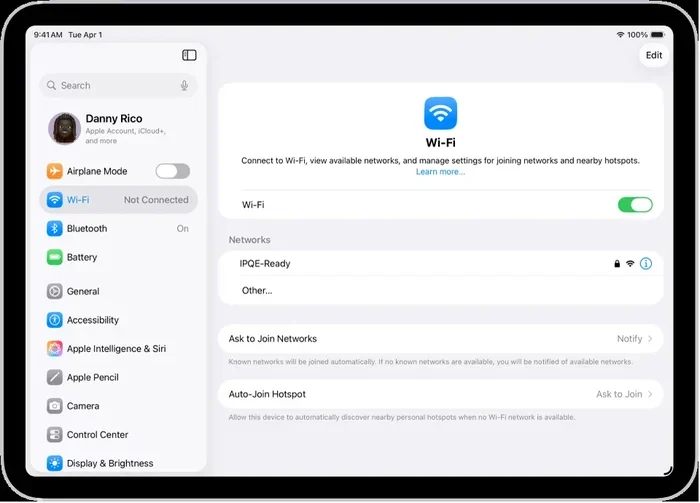
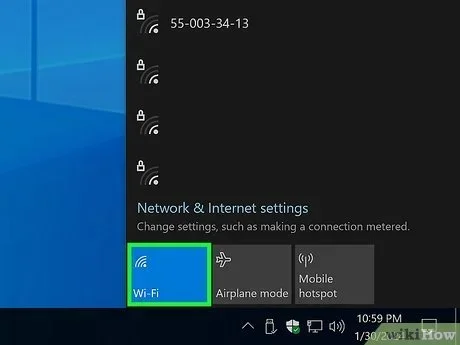
- Click the Wi-Fi icon in the bottom-right corner of your taskbar.
- You will see a list of available wireless networks.
- Click on your network name (also called the SSID).
- Click “Connect” and enter your Wi-Fi password.
- Wait a few seconds, and you are online.
If your network does not show up, try clicking the “Refresh” button or the “Hide network” option and manually entering your network name.
What if Your HP Computer Still Will Not Connect?
This is a common issue, and it is usually easy to fix. Try these quick steps:
- Restart your HP computer and your router.
- Make sure your router is broadcasting the network name (SSID).
- Check that you are entering the correct Wi-Fi password.
- Move closer to your router to rule out signal strength issues.
Sometimes a simple restart of both your HP computer and your router solves everything. It is the oldest trick in the book, but it works more often than you would think.
Step 5: Optimize Your Wi-Fi Connection on Your HP Computer
Getting connected is only half the battle. You also want a strong, stable connection. Here are some practical ways to improve your wireless experience on your HP computer.
Position Your Router Wisely
Your router matters more than you might think. Place it in a central location in your home, away from walls and metal objects. Avoid putting it on the floor or hidden behind furniture. The higher and more open the router is, the better your signal will reach your HP computer.
Switch Between 2.4 GHz and 5 GHz
Most modern routers broadcast on two frequency bands. The 2.4 GHz band has a longer range but slower speeds. The 5 GHz band is faster but has a shorter range. If your HP computer is close to the router, use the 5 GHz band for the best performance.
If you want to learn more about switching between these bands, check out this guide on Can I Change My Wi-Fi From 5Ghz To 2 4 Ghz for a detailed walkthrough.
Use a Wi-Fi Booster or Extender
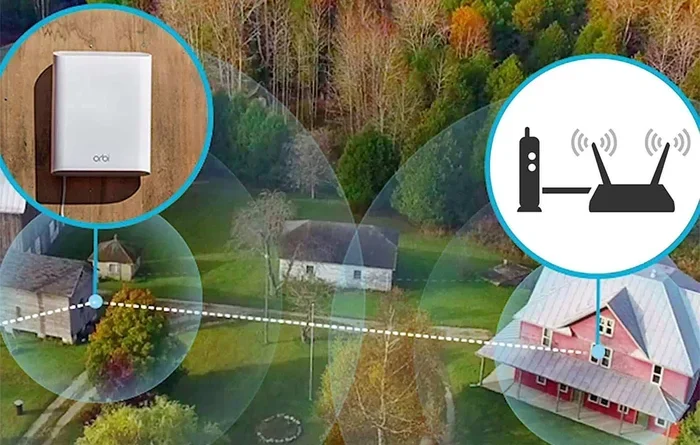
If your HP computer is far from the router, a Wi-Fi booster can make a huge difference. These devices extend your wireless signal to areas of your home that normally have weak or no coverage.
You can also check out this article on Can I Get A Extension On My Wi-Fi for more options on extending your wireless range.
Reduce Interference
Other electronic devices can interfere with your wireless signal. Microwaves, cordless phones, and even baby monitors can cause problems. Try to keep your router away from these devices for a cleaner, more reliable connection.
Step 6: Troubleshoot Common Wi-Fi Problems on HP Computers
Even after following all the steps, you might run into issues from time to time. Here are the most common problems and how to fix them.
Wi-Fi Adapter Not Showing Up in Device Manager
If your adapter does not appear in Device Manager, try plugging it into a different USB port. USB 3.0 ports work best for most adapters. You can also try uninstalling the device from Device Manager and restarting your computer. Windows should reinstall the adapter automatically.
Connected to Wi-Fi but No Internet
This is frustrating but very common. Try resetting your network settings by going to Settings > Network & Internet > Status > Network Reset on your HP computer. This clears all network configurations and sets them back to default.
Also, check if other devices can access the internet. If they cannot, the problem is with your router or internet service, not your HP computer.
Slow Wi-Fi Speeds on Your HP Computer
Slow speeds can be caused by several things. First, check if other devices are using a lot of bandwidth. Streaming videos or large downloads on another device can slow everything down.
You can also try updating your wireless adapter driver again. Sometimes a driver update alone dramatically improves speed. And if your HP computer is far from the router, consider moving closer or using a Wi-Fi booster.
For more help with speed issues, take a look at this guide on Can I Boost My Upload Speed. It covers practical tips that apply to any HP computer.
Expert Tips for Long-Term Wi-Fi Success on Your HP Computer
Once you have your wireless connection working, a few simple habits will keep it running smoothly for years to come.
- Update your drivers regularly. HP releases driver updates that improve compatibility and performance. Check the HP Support website once a month.
- Restart your router every few weeks. This clears the router’s memory and keeps it running at peak performance.
- Use a strong, unique Wi-Fi password. This keeps unauthorized users off your network and protects your data.
- Keep your HP computer’s operating system up to date. Windows updates often include fixes for networking issues.
- Consider a mesh network if you have a large home. Mesh systems replace your router and provide whole-home coverage without dead zones.
Taking these small steps can save you a lot of frustration down the road. A little maintenance goes a long way when it comes to wireless connectivity.
Adding Wi-Fi to your HP computer does not have to be a headache. With the right adapter, the right driver, and a few simple steps, you can be browsing the web, streaming videos, and staying connected in under an hour. The key is to take it one step at a time and not skip the driver update part. That is where most people run into trouble, and it is also where the fix is simplest.
Remember, if you ever get stuck, the HP support website is an excellent resource. They have model-specific guides, driver downloads, and troubleshooting tools that can help you solve almost any issue. And if your HP computer simply cannot connect to Wi-Fi no matter what you try, you can always use a wired Ethernet connection as a backup. It is not as convenient, but it gets the job done.
Now you have everything you need to get your HP computer connected to Wi-Fi. Go ahead and give it a try. You will be glad you did.
Frequently Asked Questions
Can I add Wi-Fi to any HP computer?
Yes, you can add Wi-Fi to almost any HP computer. If your HP laptop or desktop does not have a built-in wireless adapter, a USB Wi-Fi adapter or a PCIe card will do the job. Both options are affordable and easy to install.
Do I need to be tech-savvy to add Wi-Fi to my HP computer?
Not at all. The process is straightforward and does not require advanced technical skills. Plugging in a USB adapter and following a few simple prompts in Windows is all most people need to do.
How much does a Wi-Fi adapter for an HP computer cost?
USB Wi-Fi adapters range from about $10 to $50, depending on the speed and features. PCIe cards are a bit more expensive, usually between $30 and $70. Either option is a small investment for reliable wireless connectivity.
Why is my HP computer not finding any Wi-Fi networks after installing the adapter?
This is usually caused by an outdated or missing driver. Go to Device Manager, find your wireless adapter, and update the driver. You can also download the latest driver from the adapter manufacturer’s website or the HP Support site.
Can I use a Wi-Fi booster to improve my HP computer’s connection?
Absolutely. A Wi-Fi booster or extender can significantly improve your signal strength, especially if your HP computer is far from the router. This is one of the easiest and most affordable ways to boost your wireless performance.
Is it better to use a USB adapter or a PCIe card for my HP desktop?
USB adapters are easier to install and more portable, making them great for most users. PCIe cards offer a more stable and faster connection but require opening your computer case. Choose a PCIe card if you want the best performance and your HP desktop has a free slot.