How Do I Change My Wi Fi Password On Access Point Today
Changing your Wi-Fi password on an access point is one of the most important steps you can take to secure your wireless network. Whether you suspect a breach or simply want to refresh your network security, this guide walks you through every step with clear instructions. You will learn how to access your router settings, update your password, and choose a strong new key that keeps intruders out.
Your wireless network is the gateway to everything you do online. From streaming movies to handling bank transactions, your access point handles a lot of sensitive data every single day. If someone gains unauthorized access to your network, the consequences can be serious. That is exactly why knowing how to change your Wi-Fi password on access point is such a valuable skill.
Many people set up their router once and never think about it again. Over time, the default password becomes outdated or, worse, gets shared with people who no longer need it. A quick password refresh solves all of that. This guide will show you exactly how to do it, step by step, without any confusing tech jargon.
By the time you finish reading, you will feel confident making this change yourself. You will also understand why a strong wireless network password matters and how to keep your network security locked down tight. Let us get started.
Key Takeaways
- Access Point Basics: Understanding what an access point does helps you manage your network more effectively.
- Router Login Steps: You need the default gateway IP, admin username, and password to reach settings.
- Password Strength Matters: A strong password uses a mix of characters and avoids common patterns.
- Update All Devices: Changing your password means every connected device needs the new key.
- Troubleshooting Is Normal: Connection issues after a password change are common and easy to fix.
📑 Table of Contents
- What Is an Access Point and Why Does It Matter?
- How to Access Your Access Point Settings
- Step-by-Step Guide to Changing Your Wi-Fi Password
- Updating All Your Connected Devices
- Best Practices for Access Point Security
- Troubleshooting Common Password Change Issues
- When to Change Your Access Point Password
- Key Takeaways
What Is an Access Point and Why Does It Matter?
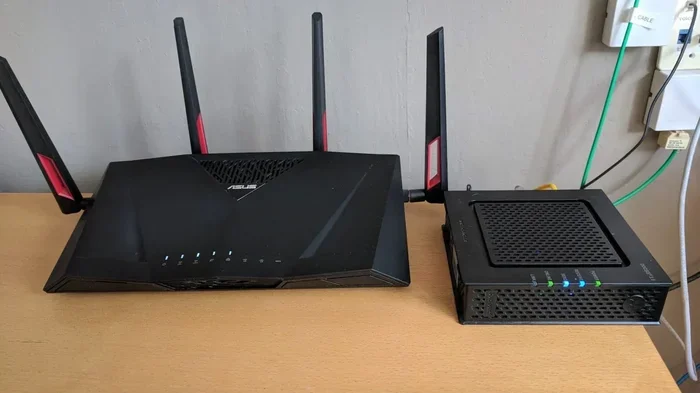
An access point is the device that broadcasts your wireless signal. It could be a standalone unit or built into your wireless router. Think of it as the front door to your digital home. Every device that connects to the internet in your home passes through this point.
When we talk about changing your password on an access point, we mean updating the security key that controls who can join your network. Without the correct password, devices cannot connect. This is your first line of defense against unwanted guests.
How Access Points Differ from Routers
Some people use the words access point and router interchangeably, but they are not always the same thing. A router directs traffic between your devices and the internet. An access point specifically creates the wireless signal that devices connect to. Many modern units combine both functions into one box.
If you have a separate access point, you might need to log into it directly rather than through the router. The process is similar, but the login page might look different. Check your device manual if you are unsure which one you have.
How to Access Your Access Point Settings
Before you can change anything, you need to get inside your access point settings. This is the control center where all your network configuration happens. The process is straightforward once you know the steps.
Step 1: Find Your Default Gateway
The default gateway is the IP address your computer uses to reach the router or access point. On most home networks, this is 192.168.1.1 or 192.168.0.1. To find it on a Windows computer, open the Command Prompt and type ipconfig. Look for the Default Gateway line.
On a Mac, go to System Settings, then Network, and click on your connected Wi-Fi. The router address appears there. On a phone, check your Wi-Fi settings and look for the network details.
Step 2: Log Into the Admin Panel
Open your web browser and type the default gateway IP into the address bar. Press Enter. You will see a login page asking for a username and password. Most routers use admin/admin or admin/password as the defaults.
If you changed these credentials before and forgot them, look for a small reset button on the back of the device. Pressing it for about 10 seconds restores factory settings. Keep in mind this erases all custom configurations, so use it as a last resort.
Step 3: Navigate to Wireless Settings
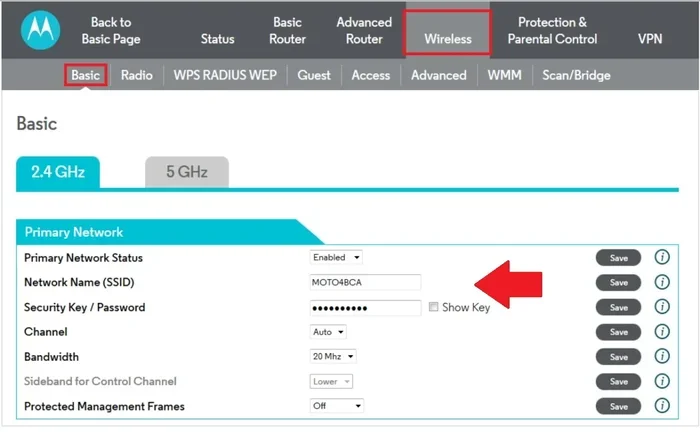
Once logged in, look for a section called Wireless, Wireless Settings, or Wireless Security. The exact name varies by brand. Inside this section, you will see fields for your network name (SSID) and your current wireless security key.
Take a screenshot of the current settings before making any changes. This way, you have a backup if something goes wrong. Also note the security type your network uses, such as WPA2 or WPA3, so you can match it when setting the new password.
Step-by-Step Guide to Changing Your Wi-Fi Password
Now comes the part you have been waiting for. Changing the password on your access point is quick and easy once you are in the right place. Follow these steps carefully to make sure everything goes smoothly.
- Log into your admin panel using the steps above.
- Navigate to the wireless security section. This is where your current password is displayed.
- Delete the old password and type in your new one.
- Choose the right security type. WPA2 or WPA3 offers the best protection for most home networks.
- Save your settings. Look for a Save or Apply button at the bottom of the page.
- Wait for the device to restart. Your access point may briefly disconnect and reconnect.
Choosing a Strong Password
The whole point of changing your password is to make it harder for others to guess. A strong network password should be at least 12 characters long. Mix uppercase letters, lowercase letters, numbers, and special characters like ! or #.
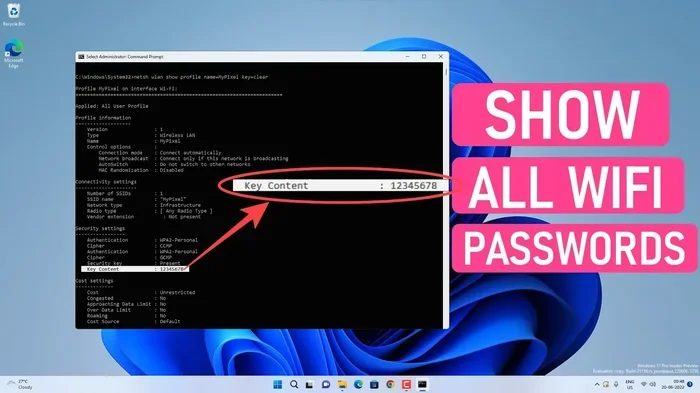
Avoid using birthdays, pet names, or simple sequences like 12345678. These are the first things hackers try. Instead, use a random phrase or a combination of unrelated words. For example, BlueTiger$Coffee42 is much harder to crack than Password123.
If you worry about forgetting your new password, write it down and store it somewhere safe. A physical note on your fridge works fine for most households. Just make sure it stays away from visitors who should not know it.
Updating All Your Connected Devices
Once you change the Wi-Fi password on access point, every device that was previously connected will lose access. This includes phones, tablets, laptops, smart TVs, and even smart home gadgets like thermostats and cameras.
Go through each device and reconnect it using the new password. Start with the devices you use most often, like your phone and laptop. Then handle the less frequently used ones, like a guest tablet or a smart speaker.
If you have many smart home devices, this process can take a while. Consider updating them in batches. Some devices, like smart plugs or light bulbs, may need to be reset and re-paired after a password change. Check the manufacturer instructions if a device refuses to reconnect.
Tips for Managing Multiple Devices
- Update phones and laptops first since you use them daily.
- Restart your router after saving to ensure all devices recognize the new settings.
- Check smart home apps for any reconnection prompts.
- Label your devices temporarily if you have many to track.
If you find yourself frequently updating passwords across many devices, you might want to explore a password manager. These tools store credentials securely and auto-fill them when needed. They work for both website passwords and network passwords.
Best Practices for Access Point Security
Changing your password is one piece of the puzzle. To truly protect your wireless network, you should follow a few additional best practices. These steps help you stay ahead of potential threats.
Enable WPA3 Encryption When Possible
WPA3 is the latest and most secure wireless encryption standard. If your access point supports it, switch from WPA2 to WPA3 in the wireless settings. WPA3 offers better protection against brute-force attacks and makes it much harder for someone to guess your password.
Not all older devices support WPA3, though. If you notice older gadgets struggling to connect after the switch, you can set your access point to WPA2/WPA3 mixed mode. This gives newer devices the best security while keeping older ones connected.
Change Your Network Name Regularly
Your network name, also called the SSID, is what people see when they scan for available Wi-Fi. If your SSID still says something like Netgear_5G or Linksys, consider changing it. A unique name does not directly improve security, but it signals that the network owner takes network configuration seriously.
If you want to change your SSID, you can do it from the same wireless settings page where you update your password. Just remember that changing the name means all devices will need to reconnect with the new network name and password.
Keep Your Firmware Updated
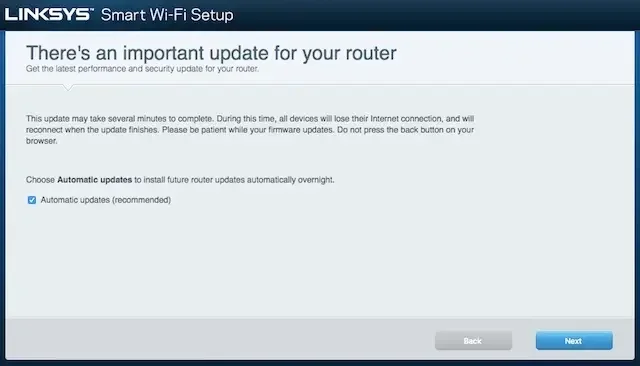
Manufacturers regularly release firmware updates that patch security vulnerabilities. Check for updates in your admin panel, usually under Administration or Maintenance. Keeping your access point firmware current is one of the easiest ways to maintain strong network security.
If your device supports automatic updates, turn that feature on. Otherwise, set a calendar reminder to check every few months. Outdated firmware is one of the most common entry points for attackers.
Consider a Wi-Fi Booster for Better Coverage
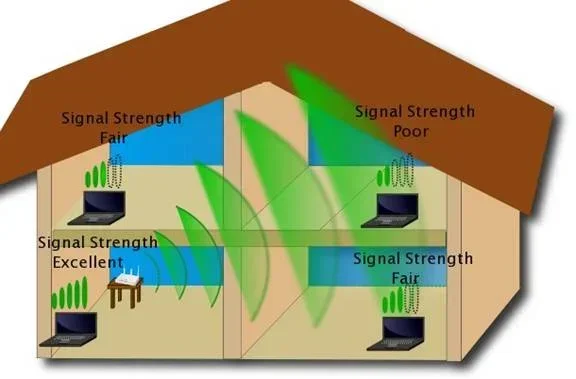
If your wireless signal does not reach every corner of your home, a Wi-Fi booster can help. These devices extend your signal range so you get strong coverage everywhere. Better coverage means fewer dead zones where someone could exploit weak signal areas.
You can learn more about whether a booster is right for you by checking out our guide on Can I Buy A Wi Fi Booster. A booster works alongside your access point and does not replace it.
Troubleshooting Common Password Change Issues
Sometimes things do not go as planned after changing your password. Do not worry. Most issues are easy to fix with a few simple steps.
Devices Will Not Connect After the Change
This is the most common problem. Double-check that you typed the new password correctly. Passwords are case-sensitive, so make sure caps lock is off. If you copied and pasted the password, make sure no extra spaces snuck in.
Try forgetting the network on your device and then reconnecting from scratch. On most phones, you can do this by going to Wi-Fi settings, tapping the network name, and selecting Forget. Then search for the network again and enter the new password.
You Forgot the New Password
If you wrote down the new password and cannot find it, do not panic. You can reset the access point to factory defaults using the reset button on the back. This restores the original password, which is usually printed on a sticker on the device itself.
After resetting, log in and set a new password right away. Store it somewhere safe this time. If you want more tips on managing your network settings, our article on Can I Change The Ssid On My Router covers related topics that can help.
Slow Internet After Changing Password
A password change should not affect your internet speed. If you notice slowdowns, it is likely a coincidence or a side effect of a factory reset. Restart your modem and access point to refresh the connection.
If speeds remain slow, check whether any new devices are using bandwidth heavily, like someone streaming in 4K. You can also look into ways to increase your Wi-Fi signal strength. Our guide on Can I Increase Wi Fi Signal has practical tips that can help improve your connection.
Guest Network Still Uses the Old Password
If you have a guest network set up on your access point, it has its own separate password. Changing your main password does not automatically update the guest password. Go back to your wireless settings and update the guest network password separately.
This is an easy thing to overlook, so make it a habit to check both networks whenever you change your main password. A forgotten guest password can let unauthorized users into your network without you realizing it.
When to Change Your Access Point Password
Timing matters when it comes to password changes. You should not wait until something goes wrong. Here are the best times to update your access point password:
- After a data breach: If any connected device gets compromised, change the password immediately.
- When someone moves out: Roommates, former partners, or ex-employees should not retain access.
- Every few months: Regular refreshes keep your network security strong.
- After a suspicious activity: If you notice unknown devices on your network, act fast.
- When you buy a used router: Previous owners may still have the password.
Making password changes a routine habit is the best defense. Set a reminder on your phone every three to six months. It takes only a few minutes and gives you peace of mind.
Key Takeaways
- Access Point Basics: Understanding what an access point does helps you manage your network more effectively.
- Router Login Steps: You need the default gateway IP, admin username, and password to reach settings.
- Password Strength Matters: A strong password uses a mix of characters and avoids common patterns.
- Update All Devices: Changing your password means every connected device needs the new key.
- Troubleshooting Is Normal: Connection issues after a password change are common and easy to fix.
- Regular Updates Keep You Safe: Changing your password every few months is a smart security habit.
- Firmware and Encryption Matter: Keeping firmware updated and using WPA3 encryption strengthens your defenses.
Frequently Asked Questions
Can I change my Wi-Fi password without accessing the router?
In most cases, you need to access the router or access point admin panel to change the password. Some modern mesh systems and ISP-provided gateways offer mobile apps that let you change the password from your phone without logging into a web page. Check your device manufacturer’s app or website for this option.
How often should I change my access point password?
Security experts recommend changing your wireless network password every three to six months. You should also change it immediately if you suspect unauthorized access or after any security incident. Regular changes significantly reduce the risk of a breach.
Will changing my Wi-Fi password disconnect all my devices?
Yes, changing the password will disconnect all devices currently connected. You will need to reconnect each device using the new password. This includes phones, laptops, smart TVs, and any smart home gadgets on your network.
What is the difference between WPA2 and WPA3?
WPA3 is the newer and more secure encryption standard. It offers better protection against password-guessing attacks and provides stronger encryption for your data. If your access point and devices support WPA3, it is the best choice for your network security.
Can I use the same password for my main and guest networks?
It is not recommended. Your guest network should have a separate password so visitors do not have access to your main network and any shared resources. Keeping them separate adds an extra layer of protection to your home network.
What should I do if my access point does not save the new password?
First, make sure you clicked Save or Apply after entering the new password. If it still does not save, try clearing your browser cache and logging in again. If the problem persists, a factory reset followed by reconfiguration usually resolves the issue.
=== CONCLUSION ===
Changing your Wi-Fi password on access point is one of the simplest yet most effective ways to protect your home network. It takes just a few minutes, and the peace of mind it gives you is well worth the effort. You now know how to access your settings, create a strong new password, update all your devices, and troubleshoot any issues that come up.
Remember that network security is an ongoing process. Make it a habit to refresh your password regularly, keep your firmware updated, and use the strongest encryption available. These small steps add up to a much safer online experience for everyone in your household.
Take action today. Log into your access point, update that password, and enjoy the confidence that comes with knowing your wireless network is locked down tight. Your future self will thank you for it.