How Can I Reduce My Neighbors Wifi Interference For Good
Neighbors wifi interference is one of the most common causes of slow internet and dropped connections. You can reduce neighbors wifi interference by changing your wifi channel, switching frequency bands, repositioning your router, and upgrading your equipment. This guide walks you through every practical fix you can try today.
Your wifi works fine one day, and the next day everything slows to a crawl. You blame your internet provider, but the real culprit might be living right next door. Neighbors wifi interference is more common than most people realize, and it can turn a reliable connection into a frustrating experience. If you have ever wondered how to reduce neighbors wifi interference and get your speed back, you are in the right place.
This guide covers every practical method you can use, from free quick fixes to equipment upgrades. We will walk through each step in plain language so you do not need to be a tech expert. By the end, you will know exactly what to do to stop interference and keep your network running smoothly.
The good news is that most solutions are simple and do not cost anything. You can start with a few basic changes and see results in minutes. If those do not work, there are more advanced options that give you even more control. Let us dive in and take back your wifi.
Key Takeaways
- Identify the problem first: Use a wifi analyzer app to pinpoint which channel your neighbor is using and where the interference is strongest.
- Switch your frequency band: Moving from 5GHz to 2.4GHz (or vice versa) can dramatically reduce overlap with your neighbor’s network.
- Change your wifi channel: A simple channel switch can eliminate most interference without any cost.
- Optimize router placement: Moving your router to a central, elevated location reduces signal overlap with nearby networks.
- Upgrade when needed: A dual band router or mesh system gives you more control and better performance in crowded wifi environments.
- Advanced tools help: QoS settings, external antennas, and wifi extenders offer additional layers of interference reduction.
📑 Table of Contents
- Understanding Why Neighbors Wifi Interference Happens
- How To Identify the Source of Neighbors Wifi Interference
- Change Your Wifi Channel and Frequency Band
- Optimize Your Router Placement and Settings
- Upgrade Your Equipment for Better Performance
- Advanced Solutions for Stubborn Interference
- Quick Tips To Reduce Neighbors Wifi Interference
- Common Mistakes People Make When Dealing With Interference
- Conclusion
Understanding Why Neighbors Wifi Interference Happens
Most home wifi routers operate on the 2.4 GHz frequency band. This band has only three non-overlapping channels, which means many routers in a single neighborhood can end up using the same channel. When two or more routers broadcast on the same or overlapping channels, their signals clash. This creates what engineers call co-channel interference. The result is slower speeds, higher latency, and occasional disconnections.
The 5 GHz band offers more channels and less congestion, but it has a shorter range. Many modern routers are dual band, meaning they broadcast on both frequencies. If your neighbor’s router is close to yours, their signal can bleed into your space on either band. This is called adjacent channel interference, and it is the primary cause of slow wifi in dense neighborhoods.
How Many Routers Cause the Problem
You do not need dozens of neighbors to experience interference. Even two or three routers on the same channel in a small apartment building can cause noticeable slowdowns. Apartments, townhouses, and row homes are especially prone to this problem because the walls are thin and signals pass through easily. If you live in a crowded area, reducing neighbors wifi interference should be a regular part of your network maintenance routine.
Common Signs of Interference
- Wifi speeds drop at certain times of the day
- Videos buffer even though your plan should be fast
- The connection drops frequently without warning
- Pings spike during online gaming sessions
- Your signal strength looks good but performance is poor
If you notice these issues, interference is likely the cause. The next step is identifying exactly where the problem comes from.
How To Identify the Source of Neighbors Wifi Interference
Before you change any settings, you need to know what you are dealing with. A wifi analyzer app is the best tool for this job. These apps scan the airwaves around you and show which channels are crowded and which ones are clear. Most apps are free or cost just a few dollars.
Using a Wifi Analyzer App
Download a wifi analyzer on your phone or tablet. Open the app and walk around your home. You will see a graph showing signal strength on each channel. Look for channels that are crowded with multiple networks. Those overlapping signals are your interference sources.
Some popular wifi analyzer apps include Wifi Analyzer for Android and NetSpot for both Android and iOS. These tools make it easy to see your neighbors networks and choose a cleaner channel for your own router.
Checking Your Router’s Admin Panel
You can also check your router settings directly. Log into your router by typing its IP address into a web browser. Look for the wireless settings section. There, you can see which channel your router is currently using and whether it is set to automatic or manual. If it is set to automatic, your router might be picking a crowded channel without you knowing.
Many routers default to automatic channel selection, which sounds convenient but often picks a busy channel. Switching to manual and choosing a clear channel is one of the fastest ways to reduce neighbors wifi interference.
Change Your Wifi Channel and Frequency Band
Once you know which channels are crowded, you can switch your router to a less congested one. This is the single most effective free fix for interference problems.
Switching to a Less Crowded Channel
On the 2.4 GHz band, the three non-overlapping channels are 1, 6, and 11. Use your wifi analyzer to see which of these three has the least traffic. Then log into your router and change the channel to that number. This simple change can make a huge difference in your connection quality.
If your router supports 40 MHz channel width on 2.4 GHz, consider switching to 20 MHz instead. A narrower channel reduces overlap with neighboring networks and can improve stability, even if it slightly lowers your maximum speed.
Switching Between 2.4 GHz and 5 GHz
The 5 GHz band has many more channels and far less congestion. If your router and devices support it, switching to 5 GHz can eliminate most interference from neighbors. However, 5 GHz has a shorter range and does not penetrate walls as well as 2.4 GHz.
Here is a quick comparison of the two bands:
- 2.4 GHz: Longer range, more interference, speeds up to 600 Mbps
- 5 GHz: Shorter range, less interference, speeds up to 3 Gbps
For best results, connect devices that are close to the router on 5 GHz and use 2.4 GHz for devices that are farther away. If you need to switch your frequency, you can change your Wi-Fi from 5GHz to 2.4 GHz through your router settings in just a few minutes.
How To Change the Channel on Common Routers
- Log into your router admin panel (usually 192.168.1.1 or 192.168.0.1)
- Navigate to the wireless or wifi settings section
- Find the channel setting and switch from automatic to manual
- Select a channel with the least congestion based on your analyzer app
- Save settings and restart your router
After making the change, run a speed test to see if your performance improves. Many people are surprised how much better their connection feels after a simple channel switch.
Optimize Your Router Placement and Settings
Where you place your router has a big impact on how much interference you experience. Small adjustments to placement and settings can reduce signal overlap with your neighbors.
Best Router Placement Tips
- Place your router in a central location in your home
- Keep it elevated on a shelf or mounted on a wall
- Avoid placing it near thick walls, metal objects, or appliances
- Keep it away from microwaves, baby monitors, and cordless phones
- Angle the antennas perpendicular to each other for best coverage
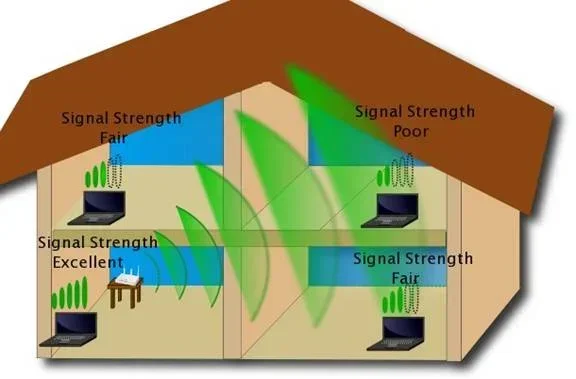
The goal is to keep your signal focused inside your home and away from your neighbor’s space. If your router is near a shared wall, moving it even a few feet can reduce interference significantly.
Adjusting Transmit Power
Some routers let you adjust the transmit power. Lowering the power might sound counterintuitive, but it can reduce the reach of your signal into your neighbor’s space. This cuts down on mutual interference and can improve stability for both households.
Try lowering the transmit power slightly and test your connection. You want enough signal to cover your home comfortably without bleeding into your neighbor’s network.
Updating Router Firmware
Router manufacturers regularly release firmware updates that improve performance and fix bugs. Check your router’s admin panel for a firmware update option. Keeping your router updated ensures you have the latest interference management features.
Some newer routers also include beamforming technology, which focuses the wifi signal directly toward your devices instead of broadcasting in all directions. This reduces wasted signal and can help minimize interference with nearby networks.
Upgrade Your Equipment for Better Performance
Sometimes free fixes are not enough, especially if you live in a very dense area with many wifi networks. Upgrading your equipment gives you more control and better performance.
Add an External Antenna
If your router has detachable antennas, you can replace the stock antennas with high-gain antennas. These antennas focus the signal more precisely, which can improve your connection and reduce interference. A good external antenna can make a noticeable difference without the cost of a whole new router.
If you are considering this option, you can add an antenna to your wifi router to boost signal strength and directionality. Look for antennas that match your router’s connector type, usually SMA or RP-SMA.
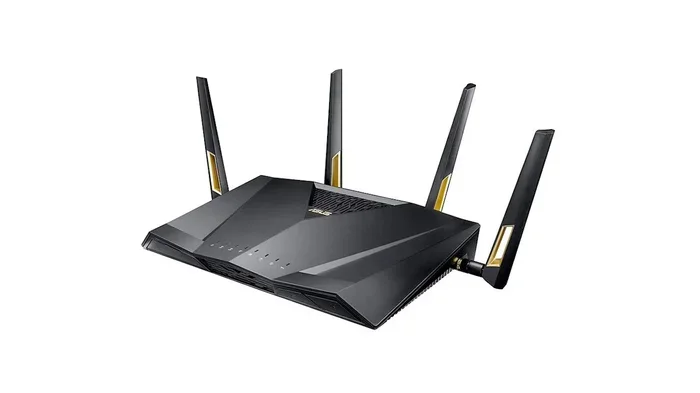
Invest in a Dual Band or Tri Band Router
A dual band router broadcasts on both 2.4 GHz and 5 GHz simultaneously. A tri band router adds a second 5 GHz band, which gives you even more options for avoiding interference. These routers are especially helpful in neighborhoods with many wifi networks.
When shopping for a new router, look for features like automatic channel selection, band steering, and QoS (Quality of Service) settings. These features help manage interference automatically and prioritize important traffic.
Consider a Mesh Wifi System
A mesh wifi system uses multiple nodes placed around your home to create a seamless network. These systems are excellent at handling interference because they can route traffic through the least congested path. Mesh systems also make it easy to expand coverage without adding more interference.
Popular mesh systems include Google Nest Wifi, Eero, and TP-Link Deco. These systems are simple to set up and manage through a phone app, making them a great choice for users who are not comfortable with router admin panels.
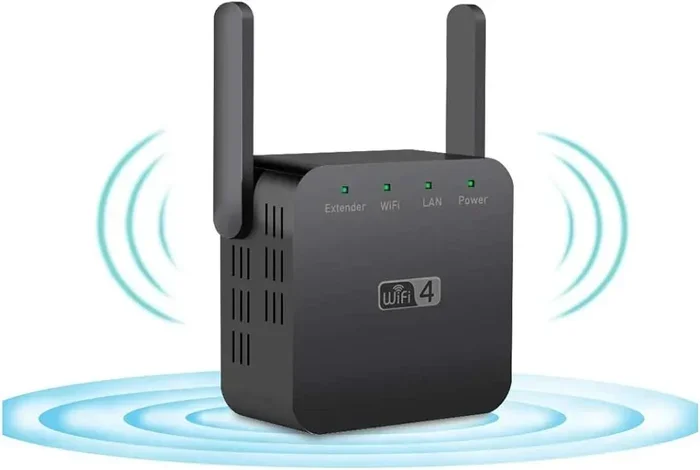
Use a Wifi Extender or Repeater
A wifi extender boosts your signal in areas where it is weak. This can help you avoid the temptation to increase transmit power, which would add more interference. Place the extender halfway between your router and the area with weak coverage for the best results.
If you need more range, you can extend your Wi-Fi to 200 feet away with the right extender or access point. This keeps your signal strong without increasing interference with neighbors.
Advanced Solutions for Stubborn Interference
If basic fixes do not solve the problem, there are more advanced techniques you can try. These solutions work well for persistent interference in heavily congested areas.
Enable QoS Settings on Your Router
QoS (Quality of Service) lets you prioritize certain types of traffic on your network. For example, you can give video calls and gaming priority over background downloads. This does not reduce interference itself, but it ensures that your important applications work well even when interference is present.
Look for QoS settings in your router admin panel under advanced or traffic management. Most modern routers include this feature, and it is easy to configure.
Switch to a Wired Connection
For devices that need a stable connection, a wired ethernet connection eliminates wifi interference entirely. Consider running ethernet cables to your desktop, gaming console, or smart TV. This frees up wifi bandwidth for your mobile devices and reduces the impact of interference.
Powerline adapters are another option if running cables is not practical. These devices use your home’s electrical wiring to carry network signals, bypassing wifi interference completely.
Use a Wifi Analyzer to Monitor Over Time
Interference can change throughout the day as your neighbors use their networks. Running a wifi analyzer periodically helps you spot new sources of interference and adjust your settings accordingly. Make it a habit to check your channels every few months, especially if you notice performance declining.
Talk to Your Neighbors
This might sound unusual, but talking to your neighbors about their wifi setup can actually help. They might not even know they are causing interference. If they are willing to change their channel or adjust their router placement, it can improve the wifi experience for everyone in the building.
Some communities even use shared wifi channel plans where neighbors coordinate to use different channels. This cooperative approach can significantly reduce interference for everyone involved.
Quick Tips To Reduce Neighbors Wifi Interference
- Run a wifi analyzer app once a month to check for new interference
- Keep your router firmware updated for the latest performance improvements
- Switch to 5 GHz when possible for less congestion
- Place your router away from shared walls and metal objects
- Use a high-gain antenna to focus your signal directionally
- Enable QoS to prioritize important traffic during interference
- Consider a mesh system if you live in a densely populated area
These quick tips take just a few minutes to implement and can make a real difference. Start with the free solutions and work your way up to equipment upgrades if needed.
Common Mistakes People Make When Dealing With Interference
- Leaving the channel on automatic: Automatic mode often picks a crowded channel. Manual selection is almost always better.
- Ignoring the 5 GHz band: Many people stick to 2.4 GHz out of habit, even when 5 GHz would be much cleaner.
- Placing the router in a corner: This wastes signal and can push it toward your neighbor’s space.
- Not updating firmware: Outdated firmware misses performance improvements and bug fixes for interference management.
- Buying the wrong equipment: Make sure any antenna or extender you buy is compatible with your router.
Avoiding these mistakes saves time and money. If you have been struggling with slow wifi, one of these errors is probably part of the problem.
Conclusion
Reducing neighbors wifi interference does not have to be complicated or expensive. You can start with a free wifi analyzer app, switch to a less crowded channel, and adjust your router placement. These simple steps often solve the problem immediately. If they do not, upgrading your router, adding an antenna, or switching to a mesh system gives you more power to fight interference. The key is to take action and keep optimizing your network over time. With the right approach, you can enjoy fast, reliable wifi no matter how many neighbors share the airwaves.
Remember that interference can change as your neighbors add new devices or change their router settings. Make it a habit to check your network every few months. A little maintenance goes a long way toward keeping your connection fast and stable. You deserve better wifi, and now you have the tools to get it.
Frequently Asked Questions
What is the main cause of neighbors wifi interference?
The main cause is overlapping wifi channels, especially on the 2.4 GHz band. When multiple routers in a neighborhood use the same or adjacent channels, their signals clash and slow down everyone’s connection. Using a wifi analyzer app helps you find a clearer channel.
Can I reduce neighbors wifi interference for free?
Yes, most interference fixes are completely free. Switching your wifi channel, changing your frequency band, and repositioning your router cost nothing. These simple changes often solve the problem without any equipment upgrades.
Does changing my wifi password help with interference?
No, your wifi password does not affect interference. Interference is caused by physical signal overlap, not by security settings. However, changing your password is still a good practice if you suspect unauthorized users are slowing down your network.
Is 5 GHz or 2.4 GHz better for avoiding interference?
5 GHz is generally better for avoiding interference because it has more channels and less congestion. However, 2.4 GHz has a longer range and better wall penetration. For best results, use 5 GHz for nearby devices and 2.4 GHz for devices farther from the router.
How often should I check my wifi channel for interference?
Check your wifi channel every two to three months, or whenever you notice a drop in performance. Interference patterns change as neighbors add new devices or move their routers. Regular monitoring helps you catch problems early.
Will a wifi extender make interference worse?
A wifi extender can add more interference if it broadcasts on the same crowded channel. To avoid this, set the extender to use a different channel than your main router and your neighbors. Choose an extender that supports both 2.4 GHz and 5 GHz for more flexibility.