How Do I Find My Tp Link Password On My Home Network
Finding your tp link password is easier than you think. Whether you need your wireless network password or your router admin password, this guide walks you through every method step by step. You will learn how to check the router label, access the Tp Link web interface, use the Tp Link app, and recover your password when all else fails.
Have you ever stood in front of your router, staring at a sticker, trying to remember your tp link password? You are not alone. Millions of people lose track of their wireless network password every single day. Whether you need to connect a new device, share your wifi with a guest, or just want to check your network security, knowing where to find your tp link password saves you a lot of frustration.
This guide covers everything you need to know about locating your tp link password on your home network. We will walk you through checking the router itself, accessing the admin panel, using the Tp Link mobile app, and even recovering your password when you have completely forgotten it. By the end of this article, you will feel confident finding and managing your network password like a pro.
The good news is that Tp Link makes it straightforward to locate your credentials. Most routers come with default settings clearly labeled. And even if you have changed your password and forgotten it, there are simple recovery methods available. Let us dive in and get your network access sorted out.
Key Takeaways
- Check the router label: Most Tp Link routers have the default wireless password printed on a sticker on the bottom or back of the device.
- Log into the admin panel: You can access your Tp Link router settings by typing 192.168.0.1 or tplinkwifi.net into your browser to view and change your password.
- Use the Tp Link Tether app: The mobile app lets you find and manage your wireless network password directly from your phone.
- Reset as a last resort: If you cannot find your password, a factory reset will restore the default credentials printed on the router label.
- Change your password regularly: Keeping your network password updated improves your home network security and prevents unauthorized access.
📑 Table of Contents
- Understanding Your Tp Link Password Types
- How To Find Your Tp Link Password On The Router Itself
- How To Find Your Tp Link Password Through The Router Settings
- How To Find Your Tp Link Password Using The Tp Link App
- What To Do When You Cannot Find Your Tp Link Password
- How To Change Your Tp Link Password For Better Security
- Common Mistakes People Make With Tp Link Passwords
- Expert Tips For Managing Your Home Network Password
- Conclusion
Understanding Your Tp Link Password Types
Before we jump into the methods, it helps to understand that there are actually two different passwords associated with your Tp Link router. Many people confuse them, which leads to confusion when they try to connect devices or manage settings.
Wireless Network Password
Your wireless network password is the password you type in when a phone, laptop, or tablet connects to your wifi. This is also called your wifi password, network security key, or WPA key. It keeps strangers from hopping onto your internet connection. When you set up a new Tp Link router, this password is usually set to a default value printed on the router label.
Router Admin Password
Your router admin password is different. This password lets you log into the Tp Link web interface to change settings. You use it to configure your network, set up parental controls, update firmware, and manage connected devices. The default admin password is also found on the router label, but many people change it after the initial setup.
Knowing which password you need is the first step. If you just want to connect a new device to your wifi, you need the wireless network password. If you want to change router settings, you need the admin password.
How To Find Your Tp Link Password On The Router Itself
The simplest and most direct way to find your tp link password is right on the router. Every Tp Link router comes with a sticker or label that contains your default login credentials. This method works especially well if you have never changed the password or if you need the default wireless network password.
Locating The Router Label
Flip your Tp Link router over or look at the bottom edge. You will see a white sticker with printed information. On most models, the sticker includes:
- Default wifi network name (SSID): This is the name of your wireless network.
- Default wireless password: Look for a field labeled “Wireless Password,” “WiFi Password,” or “Key.”
- Default admin username: Usually “admin” or “admin” for the username field.
- Default admin password: Sometimes listed separately from the wireless password.
- Default gateway IP address: Usually 192.168.0.1 or 192.168.1.1.
For example, if your Tp Link Archer C7 has a sticker that lists the wireless password as “admin1234,” that is the password you would use to connect devices to your wifi network. Write this down and store it somewhere safe.
What If The Label Is Faded Or Missing?
Over time, the sticker on your router can fade, peel, or become unreadable. If you cannot read the label, do not worry. There are other reliable methods to find your tp link password, which we will cover in the next sections.
How To Find Your Tp Link Password Through The Router Settings
If you have already changed your wireless network password and forgotten it, or if the router label is not helpful, you can access your Tp Link router settings directly. This method works when you have a device already connected to the router via wifi or ethernet cable.
Step By Step Guide To The Tp Link Web Interface
Follow these steps to log into your Tp Link router and view your wireless password:
- Connect to your network: Make sure your computer or phone is connected to the Tp Link router, either through wifi or an ethernet cable.
- Open a web browser: Use Chrome, Firefox, Safari, or Edge.
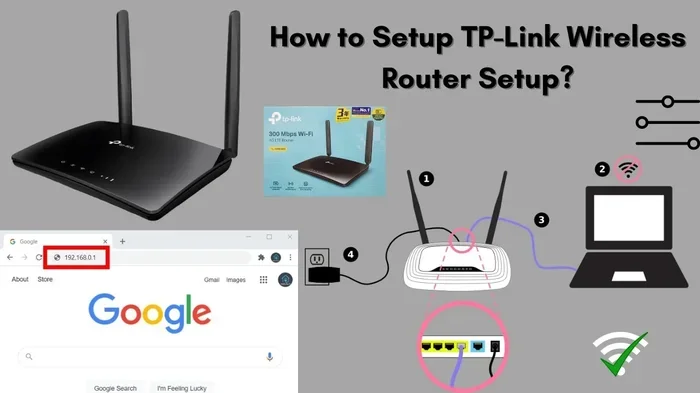
- Type the router IP address: In the address bar, enter 192.168.0.1 or tplinkwifi.net and press Enter.
- Log in: Enter the admin username and password. If you have not changed these, the defaults are usually “admin” for both the username and password fields.
- Navigate to wireless settings: Once logged in, look for a section labeled “Wireless,” “Wireless Settings,” or “Wifi Settings.”
- View the password: Your wireless network password should be visible on this page. Some routers may show it as a series of dots for security, and there is often an option to toggle visibility.
Once you find your password, write it down and store it in a safe place. You can also use this section to change your password if needed.
Finding The Password On Specific Tp Link Models
Different Tp Link router models may organize their settings slightly differently. Here are some common models and where to find the wireless password:
- Tp Link Archer series (A7, C7, C80, etc.): Go to Wireless > Wireless Settings after logging in. The password appears in the “Wireless Password” or “WPA Pre-Shared Key” field.
- Tp Link Deco mesh systems: Open the Deco app, go to the network settings, and look for the wifi password under the network name.
- Tp Link TL-WR840N and similar basic models: After logging in, go to Wireless > Wireless Security. The password is listed under “WPA Shared Key.”
If you are unsure which model you have, check the label on the bottom of the router for the model number. Then you can look up specific instructions for that model online.
How To Find Your Tp Link Password Using The Tp Link App
Tp Link offers a free mobile app called Tp Link Tether that makes managing your router incredibly easy. If you prefer using your phone rather than a computer, this is the most convenient method to find your tp link password.
Setting Up The Tp Link Tether App
Here is how to use the app to view your wireless network password:
- Download the app: Search for “Tp Link Tether” in the App Store (iPhone) or Google Play Store (Android).
- Open the app and log in: The app should automatically detect your Tp Link router on the same network.
- Navigate to wifi settings: Tap on your router name, then look for a section called “Wireless,” “Wifi,” or “Network.”
- View the password: The wireless network password should be displayed on screen. You may need to tap an eye icon to reveal it.
The Tp Link Tether app is available for both iOS and Android devices. It works with most Tp Link routers and mesh systems, including the Archer series and Deco series. The app also lets you change your password, update firmware, and manage connected devices right from your phone.
Benefits Of Using The Mobile App
Using the Tp Link app has several advantages over the web interface:
- User-friendly interface: The app is designed for mobile screens, making navigation simple and intuitive.
- No computer needed: You can find and change your password from your phone or tablet.
- Real-time notifications: The app alerts you about firmware updates and connected devices.
- Guest network management: You can set up and manage a separate guest network password easily.
What To Do When You Cannot Find Your Tp Link Password
Sometimes, despite your best efforts, you simply cannot find your tp link password. Maybe you moved to a new place and do not know the previous tenant’s password, or perhaps you changed it months ago and completely forgot it. In these situations, you have a few reliable options.
Option 1: Check Your Connected Devices
If you have a device that is already connected to your Tp Link wifi network, you can often find the saved password on that device:
- On Windows: Go to Network and Sharing Center, click on your wifi network name, then select “Wireless Properties.” Go to the Security tab and check “Show characters” to reveal the password.
- On Mac: Open Keychain Access, search for your network name, and check “Show Password” after entering your Mac login credentials.
- On iPhone: If your phone is running iOS 16 or later, go to Settings > Wifi, tap the info icon next to your network, and select “Password.” You will need Face ID or Touch ID to view it.
- On Android: Go to Settings > Network & Internet > Wifi, tap the connected network, and select “Share.” A QR code will appear, and the password may be visible depending on your Android version.
Option 2: Factory Reset The Router
If you have tried everything and still cannot access your tp link password, a factory reset is your last resort. This will restore the router to its original default settings, including the default password printed on the router label.
Here is how to perform a factory reset:
- Locate the reset button: On most Tp Link routers, there is a small pinhole reset button on the back or bottom of the device.
- Press and hold the button: Use a paperclip or pin to press and hold the reset button for 10 to 15 seconds.
- Wait for the router to reboot: The router will restart and restore all settings to factory defaults.
- Reconnect using default credentials: Use the default wireless password and admin password from the router label.
Important note: A factory reset erases all custom settings, including your wifi network name, port forwarding rules, parental controls, and any other configurations you have set up. You will need to reconfigure your router from scratch after a reset. Use this option only when absolutely necessary.
Option 3: Contact Tp Link Support
If your router is still under warranty or you have a Tp Link support plan, you can contact Tp Link customer support for assistance. They can help you recover or reset your router password through guided troubleshooting steps.
How To Change Your Tp Link Password For Better Security
Once you have found your tp link password, it is a great idea to change it to something stronger and more secure. Default passwords are widely known and can make your home network vulnerable to unauthorized access.
Why Changing Your Password Matters
Your wireless network password is the first line of defense for your home network. A weak or default password can allow strangers to:
- Use your internet connection: This slows down your internet speed and may lead to extra data charges.
- Access shared files: If you have file sharing enabled on your network, unauthorized users can access your personal files.
- Perform illegal activity: Someone using your network for illegal purposes could trace the activity back to your IP address.
- Hack your smart devices: Smart home devices connected to your network can be compromised if your network is not secure.
Steps To Change Your Tp Link Wireless Password
Changing your password is simple and takes just a few minutes:
- Log into the router admin panel: Open your browser and go to 192.168.0.1 or tplinkwifi.net.
- Navigate to Wireless Settings: Click on the “Wireless” or “Wifi” section in the menu.
- Find the password field: Look for the “Wireless Password,” “WPA Passphrase,” or “WPA Pre-Shared Key” field.
- Enter a new password: Choose a strong password that is at least 12 characters long and includes a mix of uppercase letters, lowercase letters, numbers, and special characters.
- Save your changes: Click “Save” or “Apply” to confirm the new password.
- Reconnect your devices: All connected devices will disconnect and will need to reconnect using the new password.
Quick tip: Create a password that is easy for you to remember but hard for others to guess. A passphrase like “BlueSky@Coffee42!” is much stronger than “password123” and easier to remember than a random string of characters.
Best Practices For Password Security
Follow these tips to keep your Tp Link network secure:
- Use WPA3 encryption: If your Tp Link router supports WPA3, enable it in the wireless security settings. It provides the strongest encryption available.
- Change your password every few months: Regular password changes reduce the risk of unauthorized access.
- Do not share your password publicly: Avoid posting your wifi password on social media or giving it to people you do not trust.
- Use a password manager: Store your tp link password in a reputable password manager like Bitwarden, 1Password, or LastPass for safekeeping.
- Update your router firmware: Regular firmware updates patch security vulnerabilities and keep your router protected.
Common Mistakes People Make With Tp Link Passwords
Learning how to find and manage your tp link password is one thing, but avoiding common mistakes is just as important. Here are some pitfalls that many people fall into:
Mistake 1: Never Changing The Default Password
Leaving the default password unchanged is one of the most common and dangerous mistakes. Default admin and wireless passwords are publicly available for almost every router model. Changing them should be your first priority after setting up a new Tp Link router.
Mistake 2: Writing The Password On A Sticky Note
While it is convenient to write your password on a sticky note and stick it to the router, this is a security risk. Anyone who enters your home can see it. Use a digital password manager instead.
Mistake 3: Confusing The Admin Password With The Wifi Password
As we discussed earlier, these are two different passwords. If you cannot connect to your wifi, the issue is likely with the wireless password, not the admin password. Make sure you are using the correct one for the right purpose.
Mistake 4: Forgetting To Save Changes After Updating The Password
When you change your password in the router settings, always click “Save” or “Apply.” Many people make the change but forget to save it, which means the old password remains active.
Mistake 5: Using A Weak Password
Short passwords, dictionary words, or personal information like birthdays make weak passwords. A strong password should be long, complex, and unique to your network.
Avoiding these common mistakes will help you maintain a secure and reliable home network. Your Tp Link router works hard to keep your internet running smoothly, and taking a few extra minutes to manage your password properly goes a long way.
Expert Tips For Managing Your Home Network Password
Managing your tp link password does not have to be complicated. Here are some expert tips that make the process smoother and more secure:
Create A Network Password Routine
Set a calendar reminder every three to six months to review and update your wireless network password. This simple habit keeps your network secure without requiring much effort.
Set Up A Guest Network
Most Tp Link routers allow you to create a separate guest network. This lets visitors connect to the internet without giving them access to your main network and its shared files. Give your guests the guest network password instead of your main password.
Keep A Record Of Your Passwords
Store your tp link passwords in a secure location. A password manager is the best option, but you can also write them down and keep the note in a safe place at home. Just never leave them in plain sight or carry them around with you.
Update Firmware Regularly
Tp Link releases firmware updates that improve security and performance. Check for updates in your router admin panel under “System Tools” or “Firmware Upgrade.” Keeping your router updated ensures that your network stays protected against the latest threats.
Monitor Connected Devices
Regularly check the list of devices connected to your Tp Link router. If you see a device you do not recognize, it could mean someone is using your network without permission. Change your password immediately if you suspect unauthorized access.
Conclusion
Finding your tp link password does not have to be a stressful experience. Whether you check the router label, log into the web interface, use the Tp Link Tether app, or perform a factory reset, there is always a way to recover or locate your credentials. The key is knowing which password you need and following the right steps for your situation.
We have covered every method in this guide, from the simplest approach to more advanced recovery techniques. You now know how to find your tp link password on the router itself, through the admin panel, via the mobile app, and even when you have completely forgotten it. You also learned how to change your password and keep your home network secure.
Take a few minutes today to find your tp link password, write it down in a safe place, and consider updating it to something stronger. A little proactive effort now protects your home network and your personal data for the long run. Your internet connection is the gateway to your digital life, and keeping it secure starts with managing your password effectively.
With the knowledge you have gained from this guide, you are well equipped to handle any tp link password challenge that comes your way. Stay connected, stay secure, and enjoy your home network with confidence.
Frequently Asked Questions
Where is the default tp link password located?
The default tp link password is printed on a sticker on the bottom or back of your Tp Link router. Look for a field labeled “Wireless Password” or “WiFi Password.” If you have changed the password and forgotten it, you can find it through the router admin panel or the Tp Link Tether app.
Can I find my tp link password without resetting the router?
Yes, absolutely. You can find your tp link password through several methods without resetting the router. Check the router label for default credentials, log into the admin panel at 192.168.0.1 to view the current wireless password, or check your connected devices for saved passwords. A factory reset should only be used as a last resort.
What is the default admin password for Tp Link routers?
The default admin password for most Tp Link routers is “admin” for both the username and password fields. However, some newer models may use different defaults. Always check the router label for the exact default credentials before logging into the admin panel.
How do I change my tp link wireless password?
To change your tp link wireless password, log into the router admin panel by entering 192.168.0.1 or tplinkwifi.net in your browser. Navigate to the Wireless Settings section, find the password field, enter your new password, and click Save. All connected devices will need to reconnect using the new password.
Why can I not find my tp link password anywhere?
If you cannot find your tp link password, it is possible that the password has been changed and the previous owner or user did not share it. In this case, a factory reset will restore the default password printed on the router label. You can also try checking a device that is already connected to the network for the saved password.
Is it safe to use the same tp link password for years?
No, it is not recommended to use the same tp link password for years. Over time, passwords can be compromised through data breaches or unauthorized access. Changing your wireless network password every three to six months significantly improves your home network security and reduces the risk of unauthorized users accessing your connection.
=== CONCLUSION ===
Knowing how to find your tp link password on your home network is an essential skill for every router user. We have walked you through every method, from checking the physical router label to accessing the admin panel, using the mobile app, and recovering forgotten passwords. You now have all the tools and knowledge you need to manage your network password with confidence.
Remember to keep your password secure, change it regularly, and store it in a safe place. A well-managed tp link password keeps your home network fast, reliable, and protected from unauthorized access. Take action today and make sure your network password is strong and up to date.