Can I Just Buy A Router And Have Wifi At Home Today
Yes, you can buy a router and get Wi-Fi at home — but only if you already have an active internet plan and a modem connected to your Internet Service Provider. A router alone creates a local wireless network, but it cannot connect you to the internet by itself. This guide explains exactly what you need, how to set it up, and common mistakes to avoid when building your home network setup today.
So you want to know if you can just buy a router and have Wi-Fi at home. The short answer is yes — but there is more to it than you might think. Many people walk into a store, grab a wireless router off the shelf, and expect instant internet. That is not quite how it works.
Buying a router is only one piece of the puzzle. You also need an active internet plan, a modem to connect to your Internet Service Provider, and a little bit of know-how to set everything up. In this guide, we will walk through every step so you can get your home network setup running smoothly.
Whether you are a complete beginner or someone who has been struggling with slow Wi-Fi signal for months, this article has you covered. We will break down exactly what a router does, why you might need a modem too, and how to pick the right gear for your needs.
Key Takeaways
- A router creates a Wi-Fi network but needs a modem and internet plan to access the internet.
- You can buy a standalone router or a modem-router combo depending on your ISP requirements.
- Router placement, Wi-Fi password setup, and choosing the right Wi-Fi standards matter for speed.
- Mesh networks and Wi-Fi extenders help eliminate dead zones in larger homes.
- Common mistakes include buying the wrong router type and poor placement.
- Most ISPs let you use your own router, which can save money over time.
- Setting up a home network is easier than most people think with the right guidance.
📑 Table of Contents
What Does Buying a Router Actually Do?
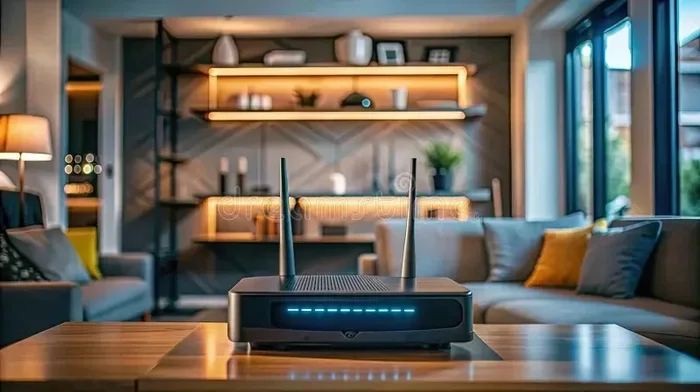
A router is the device that takes your internet connection and shares it with all your gadgets. Think of it as the traffic director for your home network. It sends data to your phone, laptop, smart TV, and any other device that connects wirelessly.
When you buy a router, you are getting a device that creates a local wireless network. This means your devices can talk to each other and share files. But here is the key point — a router by itself does not give you access to the internet.
You need something else to bridge the gap between your home and your Internet Service Provider. That something is usually a modem. Without a modem, your router has no source of internet to distribute. It is like having a really fast highway with no cars on it.
What a Router Handles
- Creating a Wi-Fi network so devices can connect wirelessly
- Managing bandwidth between connected devices
- Assigning local IP addresses to each device on your network
- Providing security features like firewalls and Wi-Fi password protection
- Routing data traffic between your devices and the modem
What a Router Cannot Do Alone
- Connect directly to the internet without a modem
- Translate the signal from your ISP into something your devices can use
- Provide internet access if you do not have an active internet plan
So when people ask, Can I Just Buy A Router And Have Wifi, the honest answer is: you can create a Wi-Fi network, but you will not have internet access unless the router is connected to a modem that is linked to an ISP.
Do You Need a Modem Too?
This is the question most people skip over. The truth is, you almost always need a modem to get internet in your home. A modem talks directly to your Internet Service Provider through a cable, phone line, or fiber connection.
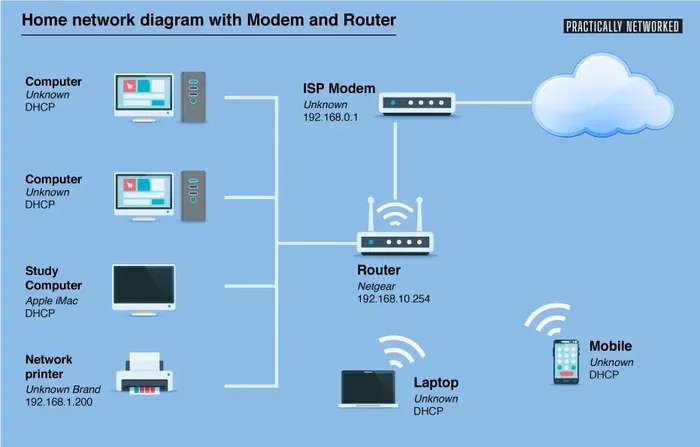
Your ISP provides internet access to your home. The modem receives that signal and passes it along to your router. Then the router spreads that connection to all your devices over Wi-Fi. Both devices play a critical role in the process.
Modem vs Router — What Is the Difference?
People often confuse these two devices because they look similar and both are needed for internet access. Here is a simple way to think about it. The modem brings the internet into your home. The router spreads it around inside your home.
Without a modem, there is no internet source. Without a router, there is no Wi-Fi. They work together as a team to deliver the broadband connection you rely on every day.
Some ISPs provide a single device called a modem router combo. This one box does both jobs. It receives the internet signal from your provider and creates a Wi-Fi network for your devices. Many people use these combos because they are convenient and require less equipment.
When You Need a Separate Modem
- Your ISP requires you to use their specific modem
- You want better performance than what your ISP’s combo unit offers
- You are switching to a mesh network system and want to use your own router
- You want to save money by avoiding monthly modem rental fees
When a Modem-Router Combo Makes Sense
- You want a simple setup with fewer devices
- You are renting equipment from your ISP and do not want to change
- Your living space is small and a single unit covers your needs
- You prefer minimal setup and maintenance
If you are serious about getting the best internet speed and Wi-Fi coverage, buying separate devices often gives you more control and better performance. But for many households, a combo unit works just fine.
Types of Routers You Can Buy Today
The router market has changed a lot in recent years. There are now several types to choose from, and picking the right one depends on your home size, budget, and internet habits. Let us look at the main options available.
| Router Type | Best For | Pros | Cons |
|---|---|---|---|
| Standard Wireless Router | Small to medium homes | Affordable, easy setup | Limited range for large spaces |
| Dual Band Router | Homes with many devices | Less interference, faster speeds | Slightly more expensive |
| Mesh Wi-Fi System | Large homes with dead zones | Excellent coverage, easy to expand | Higher cost, more units needed |
| Modem-Router Combo | Simple setups, renters | One device, less clutter | Less customization, rental fees |
| Gaming Router | Gamers, heavy streamers | Low latency, QoS features | Expensive, overkill for basic use |
Standard Wireless Routers
A standard wireless router is the most common type you will find at any electronics store. These routers connect to your modem and broadcast a Wi-Fi signal throughout your home. They work great for apartments and small houses with a handful of connected devices.
Most standard routers support the latest Wi-Fi standards, including Wi-Fi 6 and Wi-Fi 6E. These newer standards offer faster speeds and better performance when multiple devices are connected at once.
Dual Band and Tri-Band Routers
A dual band router broadcasts on two frequency bands: 2.4 GHz and 5 GHz. The 2.4 GHz band covers a wider area but is slower. The 5 GHz band is faster but has a shorter range. Dual band routers let you choose the best band for each device.
Tri-band routers add a third frequency band. This is helpful for homes with many devices all competing for bandwidth. If you have a smart home with dozens of connected gadgets, a tri-band model can make a real difference.
Mesh Wi-Fi Systems
A mesh network uses multiple units placed around your home to create seamless Wi-Fi coverage. Unlike a single router that might leave corners of your house with a weak signal, mesh systems blanket your entire home in strong internet.
These systems are especially helpful if you have a Wi-Fi dead zone in your home — an area where the signal is too weak or nonexistent. You simply add more mesh units to extend the coverage. It is one of the best solutions for larger homes.
Modem-Router Combos
Many ISPs offer a modem router combo device that handles both jobs in one box. These are convenient because you only have one device to set up and manage. However, they often come with monthly rental fees that add up over time.
If you buy your own combo unit or separate devices, you can save money in the long run. Just make sure your ISP supports third-party equipment before you make a purchase.
Setting Up Your Home Network
Once you have your router and modem, the next step is setting everything up. The good news is that most modern routers are designed to be user-friendly. You do not need to be a tech expert to get things running.
Step-by-Step Setup Process
- Connect your modem to the internet source provided by your ISP
- Plug your router into the modem using an Ethernet cable
- Power on both devices and wait for them to fully start
- Connect a device to the router using Wi-Fi or another Ethernet cable
- Open the router’s admin panel through a web browser
- Set your Wi-Fi name and password using strong, unique credentials
- Update the router firmware to get the latest security patches
- Test your connection by browsing the web or running a speed test
Router Placement Tips
Where you place your router has a huge impact on your Wi-Fi signal strength. A router tucked away in a closet or behind a TV will not perform as well as one placed in an open, central location.
Here are some quick tips to boost your coverage:
- Place the router in a central area of your home
- Keep it elevated on a shelf or table
- Avoid placing it near thick walls or metal objects
- Keep it away from microwaves and other electronic devices that cause interference
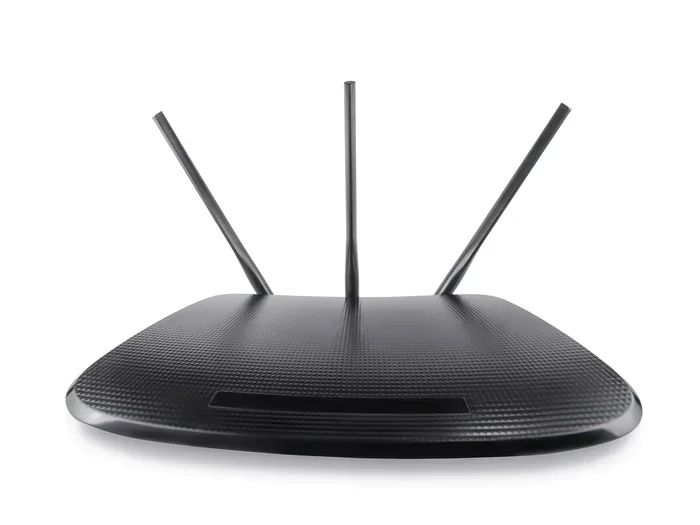
- Position the antennas vertically for the best horizontal coverage
Securing Your Wi-Fi Network
Security is an important part of any home network setup. An unprotected network can be accessed by neighbors or strangers, which slows down your internet speed and puts your personal data at risk.
Always set a strong Wi-Fi password using WPA3 encryption if your router supports it. Change the default admin password on your router as well. These simple steps protect your network from unauthorized access and keep your data safe.
Quick Tips for Better Wi-Fi
- Restart your router once a month to keep it running smoothly
- Use a Wi-Fi extender or mesh unit to cover hard-to-reach areas
- Check for firmware updates regularly to get the latest features
- Use an Ethernet cable for devices that need the fastest, most stable connection
- Limit the number of devices on each frequency band to reduce congestion
Common Mistakes People Make When Setting Up Wi-Fi
Even with the best equipment, mistakes during setup can cause frustrating problems. Here are the most common errors people make and how to avoid them.
Wrong Router for Your Internet Plan
One of the biggest mistakes is buying a router that does not match your internet plan speed. If you pay for a 500 Mbps plan but your router only supports 100 Mbps, you will never get the full speed. Check the router’s specifications before you buy to make sure it can handle your bandwidth needs.
Ignoring Wi-Fi Dead Zones
Many people set up their router in one spot and assume it covers the whole house. In reality, walls, floors, and furniture can block the signal. If certain rooms in your home have no Wi-Fi at all, you have a dead zone problem.
The fix is simple. Move the router to a more central location or add a Wi-Fi extender or mesh node to reach those hard-to-cover areas.
Using Default Settings
Most routers come with default settings that are not optimized for performance or security. Leaving the default Wi-Fi password and network name makes your network vulnerable. Always customize your settings during setup.
Skipping Firmware Updates
Router manufacturers release firmware updates to fix bugs, improve performance, and patch security holes. Skipping these updates leaves your network exposed and your internet speed suboptimal. Make it a habit to check for updates every few months.
Overcrowding the Network
If you have too many devices connected to a single router, performance drops. Smart TVs, phones, tablets, smart speakers, and gaming consoles all compete for bandwidth. Consider upgrading to a dual band or tri-band router if you have many devices.
Buying Used or Outdated Equipment
It can be tempting to save money by buying a used router. But older equipment may not support modern Wi-Fi standards like Wi-Fi 6. This means slower speeds and weaker performance. Always buy new or certified refurbished equipment from trusted sources.
Expert Insight
According to networking professionals, the single most impactful thing you can do for your Wi-Fi coverage is router placement. A high-end router in a bad location will underperform a budget router placed in the center of your home. Location matters more than brand name in most cases.
When to Call a Professional
Setting up a basic home network is something most people can handle on their own. But there are situations where calling in a professional makes sense. If you are dealing with complex wiring, large properties, or persistent connectivity issues, expert help can save you time and frustration.
ISP Installation vs DIY Setup
Many ISPs offer professional installation for an additional fee. This service includes setting up your modem, router, and optimizing the network for your specific home. It can be worth the cost if you are not comfortable with technology or if your setup involves complex wiring.
On the other hand, DIY setup is straightforward for most standard homes. You just need a modem, a router, and about 30 minutes of your time. The network adapter on your devices handles the rest automatically.
Signs You Need Professional Help
- You have tried multiple routers and still experience slow speeds
- Your home has thick walls or unusual architecture that blocks signals
- You need wired connections in multiple rooms throughout the house
- Your ISP requires specific equipment or configuration
- You are setting up a business network or a very large home network
Professional installers can also help you set up a mesh network system properly. They know the best places to position each node for maximum coverage and performance. For many homeowners, this investment pays off in the long run with fewer connectivity headaches.
Conclusion
So, Can I Just Buy A Router And Have Wifi at home today? Yes, you can — but you need to understand the full picture. A router creates a wireless network, but you also need a modem and an active internet plan from your ISP to get online.
Choosing the right router depends on your home size, the number of devices you use, and your internet speed requirements. Whether you go with a standard wireless router, a dual band router, or a full mesh network system, the key is to match your equipment to your needs.
Setting up your home network setup does not have to be complicated. Follow the steps in this guide, avoid common mistakes, and enjoy a fast, reliable Wi-Fi connection in every room. With the right gear and a little patience, you will be browsing, streaming, and gaming in no time.
Take action today. Check your internet plan, pick the right router, and get your network running. You will wonder why you did not do it sooner.
Frequently Asked Questions
Do I need an internet plan if I just buy a router?
Yes, absolutely. A router creates a local network but cannot provide internet access on its own. You need an active internet plan from an Internet Service Provider and a modem to connect to the internet. Without these, your router will only let devices communicate with each other locally.
Can I use my own router instead of the one my ISP provides?
Yes, most ISPs allow you to use your own equipment. Using your own router can save you money over time by avoiding monthly rental fees. Just make sure your router is compatible with your ISP and supports the internet speeds in your plan. Check with your provider before making the switch.
What is the difference between Wi-Fi and the internet?
The internet is the global network that connects your home to the world. Wi-Fi is the wireless technology that lets your devices connect to your router without cables. A router uses Wi-Fi to share your internet connection with all your devices. They work together but are not the same thing.
How far can a router reach?
A standard router typically covers about 1,500 square feet in open space. Walls, floors, and furniture reduce this range significantly. For larger homes, a mesh Wi-Fi system or a Wi-Fi extender can help eliminate dead zones and extend coverage to every room.
Is Wi-Fi 6 worth buying?
Yes, Wi-Fi 6 offers faster speeds, better performance with many devices, and improved efficiency. If you have a modern home with multiple smartphones, smart TVs, and IoT devices, a Wi-Fi 6 router will provide a noticeably better experience. It is the current standard and worth the investment.
What should I look for when buying a router?
Look for Wi-Fi 6 support, dual band or tri-band capability, enough ports for your wired devices, strong security features, and a speed rating that matches your internet plan. Also consider your home size and the number of devices you will connect. Reading reviews from trusted sources helps you make a confident choice.