Are Devices Always Connected To Wi Fi Or Are They Sleeping
Most devices do not stay fully awake and connected to Wi-Fi all the time. They use smart power-saving modes that keep a light connection alive while the rest of the system sleeps. Understanding how WiFi standby and background connectivity work helps you save battery, reduce data usage, and keep your home network running smoothly.
Have you ever wondered whether your phone, laptop, or tablet is truly connected to Wi-Fi right now? The answer might surprise you. Most people assume their wireless devices are either fully online or completely offline. But the truth is far more nuanced.
When you leave your home with your phone in your pocket, it is not blasting data constantly. Instead, it uses clever techniques to stay lightly tethered to your Wi-Fi connection while conserving power. Understanding this behavior helps you make smarter choices about your home network, battery life, and data usage.
In this guide, we will break down exactly how devices stay connected to Wi-Fi, what happens when they seem idle, and how you can take control of your network settings. Whether you are a casual user or a tech enthusiast, you will find practical tips that actually make a difference.
Key Takeaways
- Devices use sleep mode: Most smartphones, laptops, and tablets enter low-power states that keep a minimal WiFi link without draining resources.
- Background apps stay active: Even in sleep, apps can send and receive small data packets to keep notifications and sync running.
- You can check connected devices: Your router’s admin panel shows every device currently using or recently connected to your network.
- Always-on WiFi has trade-offs: It offers convenience but can increase battery drain and data consumption over time.
- Smart home devices behave differently: IoT gadgets like smart speakers and cameras often need constant connections to function properly.
- Simple settings changes help: Turning off auto-connect, adjusting WiFi power saving mode, and managing background data can optimize your network.
- Network security matters: Keeping your WiFi password strong and firmware updated protects all connected devices from threats.
📑 Table of Contents
- What Does It Mean When Devices Are Always Connected To Wi-Fi?
- How Do Devices Stay Connected Even When Not In Use?
- The Impact Of Always-On WiFi On Your Devices
- How To Check Which Devices Are Connected To Your Network
- Should You Keep WiFi Always On Or Turn It Off?
- Tips For Managing Your WiFi Connections Better
- Conclusion
What Does It Mean When Devices Are Always Connected To Wi-Fi?
The phrase “always connected” can mean different things depending on the device and its settings. Let us clear up the confusion right away.
True Always-On vs. Light Connectivity
There is a big difference between a device that is fully awake and one that is in a low-power standby state. A laptop streaming a movie is fully connected and using bandwidth. But that same laptop when closed and sitting on a desk is in a sleep state. It keeps a Wi-Fi link alive so it can wake up quickly and receive updates.
Think of it like a phone call. When you are on a call, you are fully engaged. But when you put someone on hold, the line stays open. Your device does something similar with wireless networking. It keeps a tiny channel open so it can receive data without waking up the entire system.
Why Manufacturers Design It This Way
Device makers want their products to feel instant. Imagine waiting 10 seconds every time you pick up your phone just to reconnect to Wi-Fi. That would be frustrating. So they build in auto-connect WiFi features that maintain a persistent link to known networks.
This design choice also supports important functions like receiving calls on VoIP apps, getting instant notifications, and syncing files in the background. The trade-off is slightly higher battery drain compared to being fully disconnected.
How Do Devices Stay Connected Even When Not In Use?
Now let us look under the hood. What is actually happening when your device appears idle but still shows a Wi-Fi icon?
The Role of Keep-Alive Packets
Your device sends tiny data packets called keep-alive signals to the router. These are like little “I am still here” messages. They happen every few minutes and use almost no bandwidth. The router acknowledges them, and the connection stays alive.
These packets also help with DNS resolution, which is how your device finds website addresses. Without keep-alive signals, your device would need to restart the entire connection process every time it wanted to send data.
Background App Activity
Even when your screen is off, many apps continue working behind the scenes. Messaging apps check for new messages. Email apps fetch new mail. Cloud services sync photos and files. All of this happens over background data while the device is in a light sleep state.
Some apps use a technique called push notifications. The server sends a tiny signal to your device when new content arrives. This keeps your apps responsive without needing to constantly check for updates yourself.
WiFi Power Saving Mode
Most modern devices include a WiFi power saving mode setting. When enabled, the wireless chip wakes up only when needed. It stays in a very low-power state the rest of the time. This is different from turning Wi-Fi off completely.
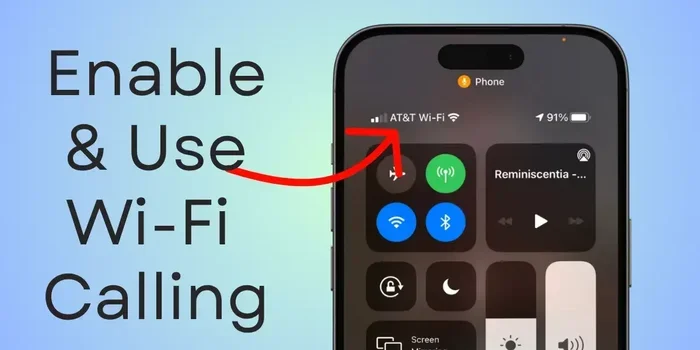
On Android phones, you can find this under Settings > Network > Wi-Fi > Advanced. On iPhones, the setting is more automatic, but you can manage it through Background App Refresh settings. On laptops, Windows and macOS both have built-in power management options for wireless adapters.
The Impact Of Always-On WiFi On Your Devices
Leaving Wi-Fi on all the time has both benefits and downsides. Let us look at what actually happens to your devices over time.
Battery Life Considerations
One of the biggest concerns people have is battery drain. Does keeping Wi-Fi on all day kill your phone battery? The answer depends on several factors.
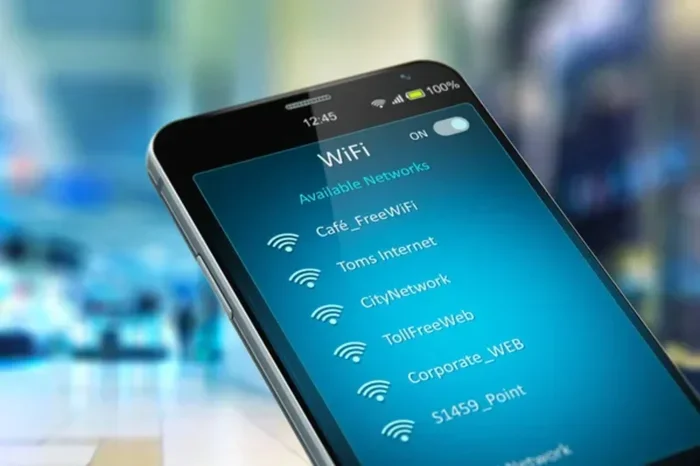
Modern chips are very efficient. A phone with a strong signal and WiFi power saving mode enabled will lose very little battery just from being connected. But weak signals cause the chip to work harder, which drains more power. If your home Wi-Fi signal is weak, your phone might actually use more battery searching for a better connection.
Here are some quick tips to reduce battery drain from Wi-Fi:
- Turn off auto-connect for open or public networks.
- Use a Wi-Fi analyzer app to check signal strength in different rooms.
- Enable WiFi power saving mode in your device settings.
- Turn off background app refresh for apps that do not need it.
- Restart your router regularly to keep connections fresh.
Data Usage Patterns
When your devices are lightly connected, they still use data. Sync jobs, app updates, and cloud backups all happen in the background. Over a month, this adds up. If you have a limited data plan, understanding your bandwidth usage is important.
You can check data usage on most devices. On Android, go to Settings > Network > Data Usage. On iPhone, it is Settings > Cellular. On Windows, go to Settings > Network > Data Usage. These tools show you which apps are using the most data and help you identify unexpected usage.
Network Performance
Every device connected to your router takes up a small slice of your network’s capacity. If you have 15 devices connected, even if only three are active, they all still register with the router. This can slightly slow down your network, especially on older routers.
Modern routers handle multiple connected devices much better than older models. If you have a smart home with many gadgets, consider upgrading to a dual-band or mesh router for better performance.
How To Check Which Devices Are Connected To Your Network
Curious about what is actually using your Wi-Fi right now? You can easily check this through your router.
Accessing Your Router’s Admin Panel
Every router has an admin panel where you can see all connected devices. To access it, type your router’s IP address into a web browser. Common addresses are 192.168.1.1 or 192.168.0.1. Log in with your admin credentials, and look for a section called “Connected Devices” or “Client List.”
The list will show each device’s name, IP address, and MAC address. You can spot unfamiliar devices and take action if needed. This is also a great way to find devices that are using a lot of bandwidth.
Using Third-Party Apps
If you do not want to dig into your router settings, there are apps that do the work for you. Apps like Fing, NetX, and WiFi Analyzer scan your network and list every connected device. They show you which devices are online right now and which were recently active.
These apps are free and very easy to use. They also help you identify devices by their brand and type, so you can tell if something belongs to a smart TV, a phone, or a smart speaker.
Understanding the Connected Devices List
Your network might include devices you did not even think about. Smart TVs, gaming consoles, smart speakers, security cameras, and even smart appliances all connect to Wi-Fi. Some of these devices stay connected 24/7 because they need to receive updates or respond to voice commands.
Here is a quick breakdown of common device types and their typical connection behavior:
- Smartphones: Connect frequently but sleep often. Use light keep-alive signals.
- Laptops: Stay connected when awake. Sleep mode keeps a light link.
- Smart TVs: Often stay connected constantly for streaming and updates.
- Smart speakers: Always listening, so they need a constant connection.
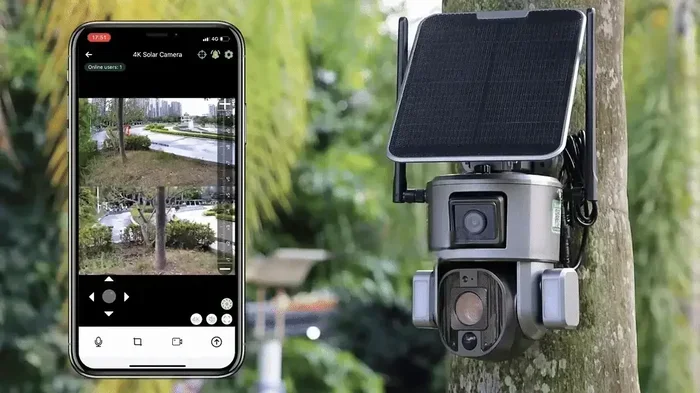
- Security cameras: Require continuous connection for live streaming.
- Smart plugs and lights: Connect periodically to check for commands.
Should You Keep WiFi Always On Or Turn It Off?
This is one of the most common questions people ask. The answer depends on your habits and needs.
When To Keep Wi-Fi On
You should keep Wi-Fi on if you rely on instant notifications, use smart home devices, or need your phone to sync data automatically. For most people, keeping Wi-Fi on is the most convenient option. Modern devices handle the power management well enough that the battery impact is minimal.
If you work from home and use video calls throughout the day, keeping Wi-Fi on ensures you are always ready. The same goes for families with multiple smart devices that need to stay in sync.
When To Turn Wi-Fi Off
There are times when turning off Wi-Fi makes sense. If you are traveling and do not need internet access, disabling Wi-Fi saves battery. If you are in an area with a very weak signal, your phone will drain battery trying to stay connected.
You should also turn off Wi-Fi when storing devices for a long time. This prevents background processes from running and protects your battery health over time.
A Balanced Approach
The best approach is a balanced one. Keep Wi-Fi on during your active hours and turn it off when you sleep or store your device. Use WiFi power saving mode to let your device manage the connection intelligently. This gives you the best of both worlds: convenience when you need it and battery savings when you do not.
You can also set up schedules on your router. Many modern routers let you turn off Wi-Fi at specific times. This is great for families who want to encourage offline time at night.
Tips For Managing Your WiFi Connections Better
Taking control of your network does not have to be complicated. Here are some simple steps that make a big difference.
Optimize Your Router Placement
Where your router sits matters a lot. Place it in a central location, away from walls and metal objects. Elevate it on a shelf rather than putting it on the floor. This improves signal strength for all your wireless devices and reduces the need for them to work harder to stay connected.
Update Your Router Firmware
Router manufacturers release firmware updates that improve performance and security. Check your router’s admin panel for updates every few months. Keeping your firmware current ensures all connected devices run smoothly and stay protected from vulnerabilities.
Use Strong Passwords And Encryption
Your network security depends on a strong password. Use WPA3 encryption if your router supports it. Change your default admin password and create a unique passphrase for your Wi-Fi network. This prevents unauthorized devices from connecting and using your bandwidth.
Set Up a Guest Network
If you have visitors frequently, set up a guest network. This keeps your main network secure while still giving guests access to the internet. Guest networks isolate visitor devices from your personal devices, adding an extra layer of protection.
Monitor Bandwidth Usage
Some devices use much more bandwidth than others. Streaming devices, game consoles, and video call apps consume the most data. If your internet feels slow, check which devices are active and consider limiting bandwidth-heavy activities during peak hours.
Restart Your Router Regularly
A simple restart can fix many connection issues. It clears the router’s memory, refreshes connections, and often improves speed. Set a reminder to restart your router once a month for best results.
Conclusion
So are devices always connected to Wi-Fi? The short answer is no, not in the way most people think. Devices use smart sleep modes, keep-alive signals, and background processes to stay lightly connected without draining resources. They are not fully awake, but they are also not completely offline.
Understanding how Wi-Fi connectivity works on your devices gives you the power to manage your network more effectively. You can save battery, reduce data usage, and improve performance with a few simple settings changes.
Take a few minutes today to check your network settings, review your connected devices, and adjust your power saving options. Small changes lead to big improvements in how your devices behave and how your network performs. Your devices will thank you for it.
Frequently Asked Questions
Do smartphones stay connected to Wi-Fi when the screen is off?
Yes, most smartphones maintain a light connection to known Wi-Fi networks even when the screen is off. They use power-saving modes that keep the wireless chip active enough to receive notifications and sync data. However, the connection is much lighter than when the phone is actively in use.
Can too many connected devices slow down my Wi-Fi?
Yes, having many devices connected can slow down your network, especially on older routers. Each device uses a portion of your router’s capacity. Modern routers with better hardware handle multiple devices much more efficiently. Consider upgrading if you have many smart home gadgets.
How can I see which devices are using the most Wi-Fi data?
You can check data usage through your router’s admin panel or use third-party apps like Fing. On your phone, go to Settings and look for Data Usage or Network Usage. These tools show you which apps and devices consume the most bandwidth.
Is it bad to leave Wi-Fi on all the time?
No, it is generally not harmful. Modern devices are designed to handle constant connections efficiently. Leaving Wi-Fi on ensures you get instant notifications and smooth syncing. Just make sure to use power-saving mode and keep your router firmware updated for best results.
What is the difference between Wi-Fi sleep mode and turning Wi-Fi off?
Wi-Fi sleep mode keeps a light connection alive so your device can wake up and connect quickly. Turning Wi-Fi off completely disconnects from the network. Sleep mode uses very little power, while being fully off uses none. Choose based on how quickly you need to reconnect.
How do smart home devices stay connected 24/7?
Smart home devices like cameras, speakers, and plugs are designed to maintain constant connections. They need to be ready to respond to commands, stream video, or send alerts at any time. These devices use minimal power and are built for continuous operation.