Does Kodak Projector Have Bluetooth Audio Streaming
Does a Kodak projector have Bluetooth audio streaming? The answer depends on the model. Some newer Kodak projectors include built-in Bluetooth for wireless audio, while older and budget models rely on wired connections. In this guide, we walk you through which Kodak projectors support Bluetooth, how to pair your devices, and what to do when the connection fails. You will also learn tips for improving sound quality and making the most of your wireless setup.
Key Takeaways
- Not all Kodak projectors have Bluetooth: Only select models include built-in Bluetooth audio streaming capability.
- Check your model number: The fastest way to confirm Bluetooth support is to look up your specific Kodak projector model online.
- You can add Bluetooth to any projector: A Bluetooth transmitter or adapter can give any projector wireless audio output.
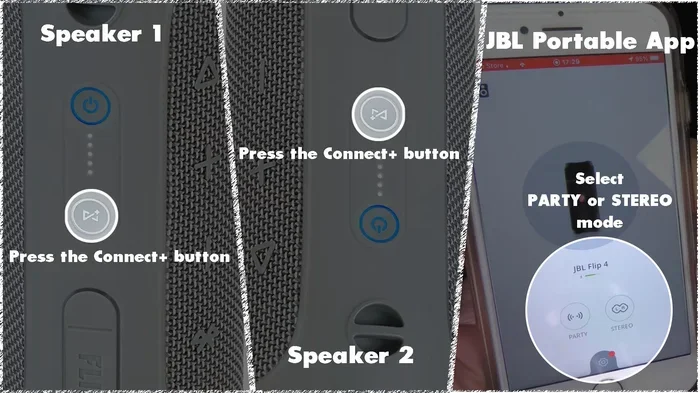
- Pairing is simple: Put both devices in pairing mode, select the projector from your phone or speaker list, and you are connected.
- Common issues have easy fixes: Distance, interference, and outdated firmware often cause Bluetooth problems with projectors.
- Bluetooth audio latency matters: For movies and gaming, consider a low-latency Bluetooth transmitter for better sync.
📑 Table of Contents
- Does Kodak Projector Have Bluetooth Audio Streaming?
- What Is Bluetooth Audio Streaming on a Projector?
- Which Kodak Projector Models Have Bluetooth?
- How to Pair Your Device with a Kodak Projector
- How to Add Bluetooth to a Kodak Projector Without Built-In Support
- Common Bluetooth Problems with Kodak Projectors and How to Fix Them
- Tips for Getting the Best Bluetooth Audio from Your Kodak Projector
- Can You Mirror Your Phone Screen to a Kodak Projector?
- Kodak Projector Bluetooth vs. Wired Audio: Which Is Better?
- Final Thoughts on Kodak Projector Bluetooth Audio Streaming
Does Kodak Projector Have Bluetooth Audio Streaming?
You just bought a Kodak projector. You want to stream music or watch a movie without fumbling with cables. So the first question that pops into your head is simple: does Kodak projector have Bluetooth?
The short answer is: it depends on the model. Some Kodak projectors come with built-in Bluetooth for wireless audio streaming. Others do not. And that can make choosing the right projector a little tricky if wireless sound matters to you.
In this guide, we break down everything you need to know about Bluetooth audio streaming on Kodak projectors. We cover which models support it, how to pair your devices, and what to do when things do not work. Whether you are setting up a home theater or a backyard movie night, this article has you covered.
Let us start with the basics. Understanding Bluetooth on a projector is not as complicated as it sounds. By the end of this read, you will know exactly what to look for and how to get the most out of your setup.
What Is Bluetooth Audio Streaming on a Projector?
Bluetooth audio streaming lets you send sound wirelessly from your phone, tablet, or laptop to your projector. Instead of plugging in an HDMI cable or a 3.5mm audio jack, you pair your device with the projector using a Bluetooth signal.
This is especially useful when you want to keep your setup clean and cable-free. Imagine setting up a movie night in your backyard. You do not want to run a long cable from your phone to the projector. Bluetooth solves that problem instantly.
Most modern Bluetooth versions support a range of about 30 feet. That means you can place your phone across the room and still enjoy uninterrupted audio. Some newer projectors even support Bluetooth 5.0, which offers a stronger signal and better sound quality.
But here is the thing. Not every projector handles Bluetooth the same way. Some projectors have built-in speakers with Bluetooth support. Others only have Bluetooth for connecting wireless keyboards or game controllers. So you always need to check the specs before you buy.
How Bluetooth Audio Works with Projectors
When you pair your phone with a projector via Bluetooth, the projector acts as a speaker. Your phone sends the audio signal over a wireless connection. The projector receives it and plays the sound through its built-in speakers or connected audio device.
The process is straightforward:
- Turn on Bluetooth on your phone or tablet.
- Put the projector into pairing mode.
- Select the projector from the list of available devices on your phone.
- Wait for the connection to establish.
- Start playing audio. It now streams wirelessly to the projector.
That is all there is to it. But the experience can vary depending on the projector model and the Bluetooth version it supports.
Which Kodak Projector Models Have Bluetooth?
Kodak has released several projector models over the years. Some of them include Bluetooth audio streaming as a standard feature. Others do not. Let us look at the most common Kodak projector lines and their Bluetooth capabilities.
Kodak Ultra Portable Projectors
The Kodak Ultra Portable series is popular for its compact size and easy setup. Some models in this line do include Bluetooth support. These projectors are great for casual movie nights and presentations. They are lightweight and easy to carry around.
If you are looking at a Kodak Ultra Portable model, check the product listing for the word “Bluetooth.” If it is listed as a feature, you are good to go. If it is not mentioned, there is a good chance the model does not support wireless audio streaming.
Kodak Home Theater Projectors
The home theater line from Kodak targets users who want a bigger, more immersive viewing experience. Some of these models include Bluetooth audio support. They also tend to have better built-in speakers, which makes wireless streaming even more enjoyable.
However, not every home theater Kodak projector has Bluetooth. Some rely on wired audio output through HDMI or a 3.5mm jack. Always check the specifications page before making a purchase decision.
Older and Budget Kodak Models
Older Kodak projectors and budget-friendly options typically do not include Bluetooth. They were designed before wireless audio became a standard feature. If you own one of these models, do not worry. You can still add Bluetooth functionality. We will cover how to do that later in this article.
How to Pair Your Device with a Kodak Projector
If your Kodak projector supports Bluetooth, pairing your device is a quick process. Here is a step-by-step guide to help you get connected.
Step 1: Turn on Bluetooth on Your Device
Go to the settings menu on your phone, tablet, or laptop. Toggle Bluetooth on. Make sure your device is visible to other Bluetooth devices. On most phones, you can find this in the quick settings panel by swiping down from the top of the screen.
Step 2: Put the Projector into Pairing Mode
On your Kodak projector, go to the Bluetooth settings. Most Kodak projectors have a dedicated Bluetooth button on the remote or in the on-screen menu. Press it, and the projector will start searching for nearby devices. You should see a blinking light or a message on the screen indicating it is in pairing mode.
Step 3: Select the Projector on Your Device
On your phone or tablet, look for the projector’s name in the list of available Bluetooth devices. Tap on it to initiate the connection. You may hear a short confirmation sound from the projector. The screen might also display a message saying the device is connected.
Step 4: Test the Audio
Play a song or start a video on your device. The sound should now come through the projector’s speakers. If you do not hear anything, check the volume on both your device and the projector. Also, make sure the audio output on your device is set to Bluetooth.
Need help connecting your phone to the projector for other purposes? Check out our guide on how to connect your phone to a projector with a USB cable for wired alternatives.
How to Add Bluetooth to a Kodak Projector Without Built-In Support
Not every Kodak projector has Bluetooth built in. But that does not mean you are stuck with cables. You can easily add wireless audio streaming to any projector using a Bluetooth transmitter or adapter.
Option 1: Use a Bluetooth Transmitter
A Bluetooth transmitter plugs into the audio output of your projector. It can connect to a 3.5mm jack, an RCA output, or an HDMI ARC port. Once connected, it sends the audio signal wirelessly to your Bluetooth speaker or headphones.
Here is how it works:
- Plug the Bluetooth transmitter into the projector’s audio output.
- Turn on the transmitter and put it in pairing mode.
- Pair your Bluetooth speaker or headphones with the transmitter.
- Play audio from the projector. It streams wirelessly to your speaker.
This is one of the easiest and most affordable ways to get wireless sound from any projector. Bluetooth transmitters cost between $15 and $40, making them a budget-friendly upgrade.
Option 2: Use a Bluetooth Speaker as the Main Audio Source
Another approach is to skip the projector’s speakers entirely. Connect your phone or laptop to a Bluetooth speaker, and then connect the projector to the same source. This works well for movie nights where the projector handles the visuals and the Bluetooth speaker handles the sound.
You can also connect devices via Bluetooth using similar pairing methods across different product categories.
Option 3: Use a Bluetooth Adapter for the Projector
Some projectors have a USB port that can power a Bluetooth audio adapter. These small dongles plug into the USB port and provide Bluetooth functionality. They are especially useful for projectors that do not have a 3.5mm audio output.
Make sure the adapter you choose is compatible with your projector. Check the projector’s manual or the manufacturer’s website for supported accessories.
Common Bluetooth Problems with Kodak Projectors and How to Fix Them
Bluetooth connections are not always perfect. Even with the best equipment, you might run into issues. Here are the most common problems and their solutions.
Bluetooth Will Not Pair
If your device will not connect to the projector, try these steps:
- Turn Bluetooth off and on again on both devices.
- Make sure the projector is in pairing mode.
- Move your device closer to the projector.
- Restart both the projector and your device.
- Delete any old Bluetooth pairings from both devices and try again.
Sometimes the simplest fix is just restarting both devices. This clears any temporary glitches and refreshes the Bluetooth connection.
Audio Delay or Lag
Bluetooth audio latency can be frustrating. You see the lips move on screen, but the sound comes a second later. This is a common issue with wireless audio streaming.
To reduce lag:
- Keep your device within 10 feet of the projector.
- Remove obstacles between the devices.
- Use a low-latency Bluetooth transmitter.
- Close other apps on your device that might be using bandwidth.
If you are using the projector for Halloween decorations or outdoor events, you might want to check our tips on using any projector for Halloween to make sure your setup runs smoothly.
Sound Quality Is Poor
If the audio sounds distorted or weak, try the following:
- Check the projector’s speaker volume and your device’s volume.
- Move closer to the projector to improve the Bluetooth signal.
- Reduce interference from other wireless devices in the area.
- Update the projector’s firmware if a firmware update is available.
Built-in projector speakers are not always the best. If sound quality is a top priority, consider connecting external speakers through the Bluetooth transmitter method we discussed earlier.
Bluetooth Keeps Disconnecting
A stable connection should stay paired. If your Kodak projector keeps losing the Bluetooth connection, here is what to do:
- Check the distance between your device and the projector.
- Make sure nothing is blocking the signal.
- Update the firmware on your projector.
- Reset the Bluetooth settings on both devices.
- Try unpairing and pairing again from scratch.
Interference from Wi-Fi routers, microwaves, and other Bluetooth devices can weaken the connection. Moving these devices away from your projector setup can help a lot.
Tips for Getting the Best Bluetooth Audio from Your Kodak Projector
Want to make the most of your Kodak projector’s Bluetooth capabilities? Here are some practical tips to improve your experience.
Keep Your Devices Close
The closer your phone or laptop is to the projector, the stronger the Bluetooth signal. Try to keep them within 15 feet of each other for the best performance. Walls and furniture can weaken the signal, so keep that in mind when setting up your viewing area.
Update Firmware Regularly
Kodak releases firmware updates that can improve Bluetooth performance and fix connection issues. Check the Kodak website or the projector’s settings menu for available updates. Keeping your projector updated is one of the easiest ways to maintain a strong connection.
Use a Bluetooth Transmitter for Better Sound
If the built-in speakers on your Kodak projector are not great, a Bluetooth transmitter can help. Connect the transmitter to the projector, pair it with a quality Bluetooth speaker, and enjoy much better audio. This is especially helpful for movie nights where you want rich, full sound.
Consider a Low-Latency Transmitter for Gaming
If you plan to use your Kodak projector for gaming, audio lag can ruin the experience. A low-latency Bluetooth transmitter reduces the delay between the audio and video. This makes gameplay much more enjoyable and immersive.
Clean the Bluetooth Contacts
Dust and debris can accumulate around the Bluetooth antenna or charging ports on your projector. Wipe them gently with a dry cloth. Clean contacts help maintain a strong and stable Bluetooth connection.
Can You Mirror Your Phone Screen to a Kodak Projector?
Bluetooth handles audio, but what about mirroring your phone screen to the projector? That is a different connection method. Most Kodak projectors use a wired connection for screen mirroring. You can mirror your iPhone to a projector using a Lightning to HDMI adapter or a USB-C to HDMI cable.
Some newer projectors support wireless screen mirroring through Wi-Fi or Miracast. However, that is separate from Bluetooth. Bluetooth on a projector handles audio only, not video or screen mirroring. Keep that in mind when setting up your viewing experience.
If you are setting up a home theater, you might also wonder about projector placement. Check out our guide on how to mount your projector off center for tips on getting the best image quality in any room.
Kodak Projector Bluetooth vs. Wired Audio: Which Is Better?
Both Bluetooth and wired audio have their strengths. Let us compare them side by side so you can decide what works best for your setup.
| Feature | Bluetooth Audio | Wired Audio (3.5mm/HDMI) |
|---|---|---|
| Convenience | Very high, no cables needed | Moderate, requires cables |
| Sound Quality | Good, can vary by distance | Excellent, consistent |
| Setup Time | Quick pairing process | Plug and play, no pairing |
| Range | Up to 30 feet | Limited by cable length |
| Latency | Slight delay possible | No delay |
| Compatibility | Works with most devices | Requires matching ports |
For most casual users, Bluetooth audio streaming is more than enough. It is convenient and easy to set up. If you are an audiophile or need perfect sync for gaming, a wired connection might be the better choice.
Either way, you can always use a Bluetooth transmitter to add wireless capability to a projector that only has wired output. This gives you the best of both worlds.
Final Thoughts on Kodak Projector Bluetooth Audio Streaming
So, does a Kodak projector have Bluetooth audio streaming? The answer is: some models do, and some do not. The key is to check the specifications of your specific model before you buy or assume it has a feature it does not.
If your Kodak projector has built-in Bluetooth, pairing your devices is quick and easy. If it does not, a Bluetooth transmitter or adapter can add wireless audio capability to almost any projector. Both options give you the freedom to enjoy wireless sound without the hassle of cables.
Remember to keep your devices close, update your firmware, and troubleshoot common issues with the tips we shared. A little maintenance goes a long way in keeping your Bluetooth connection strong and reliable.
Whether you are watching a movie, playing a game, or setting up a backyard screening, Bluetooth audio streaming on your Kodak projector can make the experience more enjoyable. Embrace the wireless freedom and enjoy your projector to the fullest.
Frequently Asked Questions
Do all Kodak projectors have Bluetooth?
No, not all Kodak projectors have Bluetooth. Only select models include built-in Bluetooth audio streaming. Check the product specifications or the user manual for your specific model to confirm whether it supports Bluetooth.
Can I add Bluetooth to a Kodak projector that does not have it?
Yes, you can. A Bluetooth transmitter or adapter can add wireless audio capability to any projector. Simply plug the transmitter into the projector’s audio output, pair it with your speaker or headphones, and you are ready to stream wirelessly.
Why is there a delay when I use Bluetooth with my Kodak projector?
Bluetooth audio latency is a common issue with wireless streaming. It happens because the audio signal takes a moment to travel from your device to the projector. Keeping your devices close together and using a low-latency Bluetooth transmitter can significantly reduce this delay.
How far can my phone be from the Kodak projector for Bluetooth to work?
Most Bluetooth connections work reliably within 30 feet. However, for the best performance, keep your phone within 15 feet of the projector. Walls, furniture, and other electronic devices can weaken the signal and cause disconnections.
Can I connect Bluetooth headphones to my Kodak projector?
Yes, if your Kodak projector supports Bluetooth, you can pair Bluetooth headphones with it. Put the projector in pairing mode, search for headphones on your device, and connect. This is a great option for late-night viewing without disturbing others.
What should I do if my Kodak projector Bluetooth keeps disconnecting?
Start by restarting both the projector and your connected device. Move closer to the projector to strengthen the signal. Check for firmware updates on the projector. If the issue persists, reset the Bluetooth settings on both devices and try pairing again.