Does Xbox Accept Bluetooth Here Is How You Can Connect
So, does Xbox accept Bluetooth? The short answer is no, not directly. Xbox consoles do not have built-in Bluetooth support for most devices. However, you can still connect Bluetooth headphones, speakers, and other accessories using a Bluetooth adapter or the Xbox Wireless protocol. This guide shows you exactly how to set up Bluetooth connectivity with your Xbox One or Xbox Series X using simple and affordable methods.
If you have ever tried to pair your Bluetooth headphones with an Xbox console, you probably ran into frustration. The truth is that Xbox does not support standard Bluetooth connectivity the way your phone or laptop does. But that does not mean you are out of luck. There are several reliable ways to get your favorite wireless devices working with Xbox One and Xbox Series X. In this guide, we will walk you through every method so you can start gaming without wires.
Many gamers want to know the answer to one simple question: does Xbox accept Bluetooth? The reality is that Xbox uses its own wireless protocol called Xbox Wireless. This is different from the Bluetooth technology found in most phones and laptops. Understanding this difference is the first step to unlocking a better gaming experience. Let us dive into the details and explore all the ways you can connect Bluetooth devices to your Xbox.
Key Takeaways
- Xbox does not support standard Bluetooth: Xbox consoles use a proprietary wireless protocol instead of traditional Bluetooth.
- A Bluetooth adapter is your best friend: You can connect Bluetooth headphones and speakers to Xbox using a USB Bluetooth transmitter.
- Xbox Wireless is different from Bluetooth: The Xbox controller uses Xbox Wireless, which is not the same as standard Bluetooth.
- Multiple connection methods exist: You can use a 3.5mm jack, Xbox Wireless Headset, or a Bluetooth adapter depending on your setup.
- Setup is simple and affordable: Most Bluetooth adapters cost under $30 and connect in minutes.
- Check compatibility first: Not all Bluetooth devices work seamlessly with Xbox, so verify before buying.
📑 Table of Contents
- Why Xbox Does Not Use Standard Bluetooth
- Can You Connect Bluetooth Headphones to Xbox?
- How to Connect a Bluetooth Adapter to Xbox
- Can You Use Bluetooth Speakers with Xbox?
- Xbox Controller Bluetooth vs Xbox Wireless
- Common Mistakes When Connecting Bluetooth to Xbox
- Quick Tips for the Best Bluetooth Experience on Xbox
- Comparing Connection Methods for Xbox Audio
- Final Thoughts
Why Xbox Does Not Use Standard Bluetooth
You might wonder why Microsoft chose not to include Bluetooth connectivity in Xbox consoles. The answer comes down to performance and interference. Bluetooth operates on a shared frequency band, which means other devices in your home can cause signal drops or lag. Xbox Wireless was designed specifically for gaming, where low latency and stable connections matter the most.
Here is a quick look at why Xbox uses its own wireless system instead of standard Bluetooth:
- Lower latency: Xbox Wireless reduces delay between your controller and the console.
- Better stability: The proprietary protocol avoids interference from Wi-Fi and other household devices.
- Longer range: Xbox Wireless offers a wider connection range compared to standard Bluetooth.
- Dedicated bandwidth: Xbox Wireless does not compete with other Bluetooth devices in your home.
While this design choice makes sense for gaming, it does create a challenge when you want to connect Bluetooth speakers or headphones. You cannot simply turn on Bluetooth and pair your device. You need a workaround, and we will cover all of them below.
Can You Connect Bluetooth Headphones to Xbox?
This is the most common question gamers ask. The answer depends on which Xbox model you own and what type of headphones you have. Let us break down the options for connecting Bluetooth headphones to your Xbox console.
Option 1: Use a Bluetooth Adapter
The most popular method is using a USB Bluetooth adapter. These small devices plug into the USB port on your Xbox and create a bridge between your Bluetooth headphones and the console. Most adapters work with Xbox One and Xbox Series X. You simply plug in the adapter, put your headphones in pairing mode, and connect them just like you would with any other device.
When choosing a Bluetooth adapter, look for one that supports low-latency codecs. This ensures your audio stays in sync with the action on screen. A good adapter costs between $15 and $35 and works with most wireless headphones. If you want to learn more about using Bluetooth adapters with other devices, check out this guide on using a Bluetooth adapter on your TV for similar setup principles.
Option 2: Use the 3.5mm Headphone Jack
Every Xbox controller has a 3.5mm jack for wired headphones. If you have wired headphones or earbuds, you can plug them directly into the controller. This method gives you reliable, zero-latency audio. It does not involve Bluetooth at all, but it is a simple and effective alternative.
Some gamers also use wireless headsets that come with their own USB dongle. These headsets bypass Bluetooth entirely and connect directly to the console using a proprietary wireless signal. The Xbox Wireless Headset from Microsoft is a great example of this approach.
Option 3: Connect Through Your TV
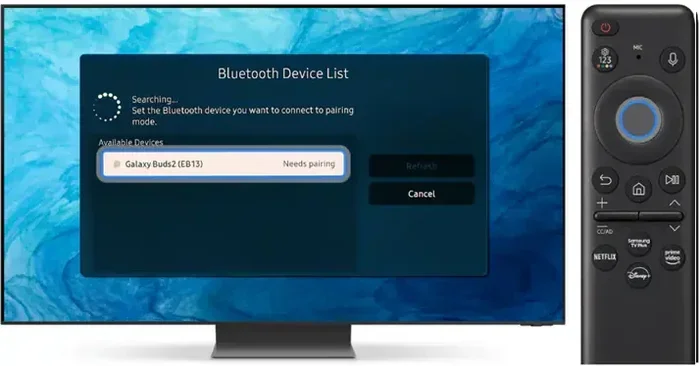
Another clever workaround is to route your audio through your television. If your TV supports Bluetooth headphones, you can connect your headphones to the TV and then play Xbox audio through the TV speakers. This method works well for late-night gaming sessions when you do not want to disturb anyone else in the house. If you are curious about how Bluetooth audio works with TVs, you can read more about using Bluetooth headphones with your TV for additional tips.
How to Connect a Bluetooth Adapter to Xbox
Setting up a Bluetooth adapter with your Xbox is straightforward. Here is a step-by-step guide to get you started.
- Buy a compatible Bluetooth adapter: Look for a USB adapter that supports audio transmission and low latency.
- Plug the adapter into your Xbox: Insert it into any available USB port on the console or the controller.
- Put your Bluetooth device in pairing mode: Most headphones and speakers have a dedicated pairing button.
- Go to Xbox settings: Navigate to Settings, then Devices & Connections, and select Accessories.
- Pair your device: The Xbox should detect the Bluetooth adapter. Follow the on-screen prompts to complete the connection.
- Test the audio: Play a game or a video to make sure the audio is working correctly and without lag.
Keep in mind that not all Bluetooth adapters work equally well. Some adapters may introduce slight audio delay, which can be distracting during fast-paced games. If you experience issues, try updating the adapter firmware or moving the adapter closer to your headphones. For more information on Bluetooth setup on other devices, you might find this guide on downloading Bluetooth on your PC helpful for understanding general Bluetooth pairing concepts.
Can You Use Bluetooth Speakers with Xbox?
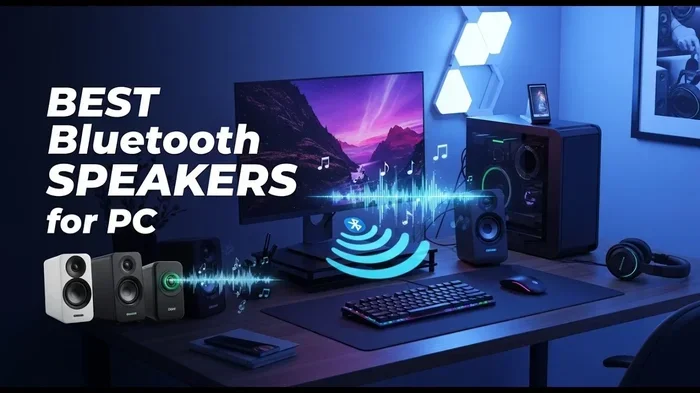
Yes, you can use Bluetooth speakers with Xbox, but again, you need a Bluetooth adapter. The process is the same as connecting headphones. Plug the adapter into your Xbox, put your speakers in pairing mode, and connect them through the Xbox settings menu.
Bluetooth speakers are a great option if you want better sound quality than your TV built-in speakers provide. Portable Bluetooth speakers are especially popular for gaming setups in bedrooms or smaller rooms. Just remember that the audio quality you get depends on both the adapter and the speaker quality. A cheap adapter paired with a high-quality speaker will still deliver better sound than a cheap speaker alone.
Some gamers prefer to use a Bluetooth transmitter instead of a USB adapter. A transmitter connects to the Xbox audio output and sends a Bluetooth signal to your speakers or headphones. This method works well if you have limited USB ports or prefer a cleaner setup. If you are interested in using Bluetooth transmitters in other settings, check out this guide on using a Bluetooth transmitter for your car for similar concepts applied to vehicles.
Xbox Controller Bluetooth vs Xbox Wireless
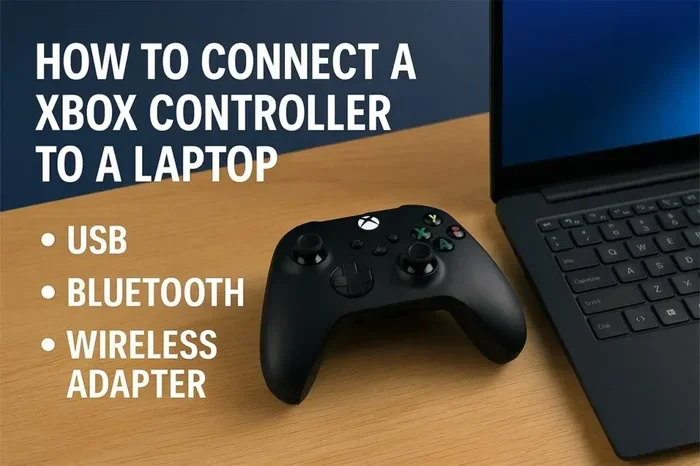
There is a lot of confusion around Xbox controller connectivity. The newer Xbox Wireless Controllers do have Bluetooth capability, but it works differently from what you might expect.
Here is the deal. Xbox Wireless Controllers built after 2021 include Bluetooth support for connecting to PCs and mobile devices. However, when you pair the controller with an Xbox console, it uses Xbox Wireless, not standard Bluetooth. This means you cannot pair an Xbox controller directly with an Xbox console using the Bluetooth settings on the console.
If you want to connect your Xbox controller to a PC or mobile device, you can use Bluetooth. But for console gaming, the controller communicates through Xbox Wireless or a USB cable. This distinction is important to understand when setting up your gaming peripherals.
Common Mistakes When Connecting Bluetooth to Xbox
Many people make avoidable mistakes when trying to set up Bluetooth with their Xbox. Here are the most common ones and how to fix them.
- Trying to pair directly without an adapter: Xbox consoles do not have native Bluetooth settings. You must use an adapter or a workaround.
- Using an incompatible adapter: Not all Bluetooth adapters support audio streaming. Make sure your adapter is designed for audio use.
- Ignoring firmware updates: An outdated adapter can cause connection drops and audio lag. Always keep your adapter updated.
- Placing the adapter too far from the device: Bluetooth range is limited. Keep the adapter close to your headphones or speakers for the best connection.
- Not checking Xbox settings: Make sure your Xbox audio output is set correctly so the sound routes through the Bluetooth device.
Avoiding these mistakes will save you time and frustration. Take a few extra minutes to verify compatibility and settings before you start gaming.
Quick Tips for the Best Bluetooth Experience on Xbox
Here are some expert tips to make your Bluetooth connection on Xbox as smooth as possible:
- Use a dedicated Bluetooth 5.0 adapter: Newer Bluetooth versions offer better range and lower latency.
- Keep your Xbox and adapter firmware updated: Updates often improve wireless performance and fix bugs.
- Minimize interference: Keep other Bluetooth devices away from your setup to avoid signal conflicts.
- Use a USB extension cable: If your adapter is bulky, use an extension cable to place it in a better position for signal reception.
- Test with different audio codecs: Some adapters support aptX or aptX Low Latency, which can significantly improve audio quality.
- Restart both devices if you experience issues: A simple restart often fixes connection problems.
These small adjustments can make a big difference in your gaming audio experience. A stable Bluetooth connection lets you enjoy immersive sound without being tethered to your console.
Comparing Connection Methods for Xbox Audio
Let us compare the different ways you can get wireless audio from your Xbox console. This table breaks down each method so you can choose the best one for your setup.
| Method | Requires Adapter | Latency | Ease of Setup | Cost |
|---|---|---|---|---|
| Bluetooth Adapter | Yes | Low to Medium | Easy | $15-$35 |
| 3.5mm Wired Headphone | No | None | Very Easy | $10-$50 |
| Xbox Wireless Headset | No | Very Low | Easy | $50-$100 |
| TV Bluetooth Routing | Sometimes | Low to Medium | Moderate | Free-$20 |
| Bluetooth Transmitter | Yes | Low | Easy | $15-$40 |
As you can see, each method has its pros and cons. The Bluetooth adapter offers the most flexibility for using existing wireless headphones and speakers. The wired 3.5mm connection provides the most reliable, lag-free audio. The Xbox Wireless Headset delivers the best dedicated gaming experience but costs more.
Final Thoughts
So, does Xbox accept Bluetooth? Not in the traditional sense, but you have plenty of options to get wireless audio working with your console. Whether you choose a Bluetooth adapter, route audio through your TV, or invest in an Xbox Wireless Headset, you can enjoy a cable-free gaming experience. The key is understanding that Xbox uses its own wireless protocol and finding the right workaround for your specific needs.
Start with the method that fits your budget and setup. A simple USB Bluetooth adapter can transform your gaming experience in minutes. Once you hear your game audio wirelessly through your favorite headphones or speakers, you will wonder how you ever played without it. Happy gaming!
Frequently Asked Questions
Can I connect Bluetooth headphones directly to Xbox without an adapter?
No, Xbox consoles do not have built-in Bluetooth support for audio devices. You will need a USB Bluetooth adapter or an alternative method like routing audio through your TV to connect wireless headphones to your Xbox.
Does Xbox Series X support Bluetooth audio?
Xbox Series X does not support standard Bluetooth audio natively. You must use a Bluetooth adapter, Xbox Wireless Headset, or route audio through your TV to enjoy wireless sound with this console.
Why does my Bluetooth adapter have audio lag on Xbox?
Audio lag usually happens because of a low-quality adapter or interference from other wireless devices. Using a Bluetooth 5.0 adapter with low-latency codecs like aptX can significantly reduce or eliminate this lag.
Can I use any Bluetooth adapter with Xbox?
Not all Bluetooth adapters work well with Xbox. Look for adapters specifically designed for audio streaming and low latency. Generic adapters meant for file transfer may not work properly for gaming audio.
Is Xbox Wireless the same as Bluetooth?
No, Xbox Wireless is a proprietary protocol developed by Microsoft. It is not the same as standard Bluetooth. Xbox Wireless is designed specifically for low-latency gaming connections between Xbox consoles and controllers.
Can I connect Bluetooth speakers to Xbox for party chat?
Yes, you can connect Bluetooth speakers to Xbox for party chat and game audio using a USB Bluetooth adapter. Just make sure the adapter supports audio output and that your speakers are in pairing mode before connecting through Xbox settings.