Does My Smart TV Have Bluetooth And How To Connect
Does My Smart TV Have Bluetooth? Most modern smart TVs include Bluetooth connectivity, but older or budget models may not. If your TV lacks wireless audio support, a simple Bluetooth adapter can add this feature in minutes. This guide shows you how to check your TV’s capabilities, pair devices, and fix common connection problems.
You settle onto the couch after a long day. You want to watch your favorite show, but the kids are sleeping. You reach for your wireless headphones and wonder, does my smart TV have Bluetooth? The good news is that most modern smart TVs do come with built-in Bluetooth. This means you can connect wireless headphones, speakers, and other audio devices without any extra cables.
However, not every TV has this feature. Some older models and budget TVs skip Bluetooth to keep costs down. If your TV does not support Bluetooth, do not worry. You have options. A Bluetooth transmitter or adapter can add wireless capability to almost any television. In this guide, we will walk you through everything you need to know about smart TV Bluetooth. You will learn how to check if your TV supports it, how to connect your devices, and what to do when things do not work as expected. Let us get started.
Key Takeaways
- Check your TV settings: Most smart TVs have a Bluetooth option hidden in the audio or connections menu.
- Not all TVs have it: Older and budget models may lack smart TV Bluetooth support, but adapters can help.
- Pairing is simple: Putting your TV and device in pairing mode usually takes less than a minute.
- Adapters work great: A Bluetooth transmitter can add wireless capability to almost any TV with an audio output.
- Watch for audio lag: Some wireless headphones may have slight delay, which you can reduce with the right settings.
- Check your Bluetooth version: Newer versions offer better range and fewer connection drops.
📑 Table of Contents
How to Check if Your Smart TV Has Bluetooth
Before you try to connect any device, you need to know whether your TV actually supports Bluetooth. The good news is that checking is quick and easy. You do not need to be a tech expert to figure this out. Here are the three simplest ways to confirm your TV’s Bluetooth capability.
Checking Your TV Settings Menu
Turn on your TV and grab your remote. Navigate to the Settings or Gear icon. Look for a section called Sound, Audio, or Connections. If you see a Bluetooth option listed there, your TV supports wireless audio. Some brands label it as “Bluetooth Audio” or “Wireless Audio Output.” If you find this option, your TV is ready to pair with devices.
On Samsung TVs, the Bluetooth settings are usually found under Sound > Sound Output > Bluetooth Speaker List. On LG TVs, look under Settings > Sound > Bluetooth. Sony and TCL TVs typically place Bluetooth under Settings > Network & Accessories or Settings > Bluetooth. Each brand has its own path, but the option is almost always in the audio or network section.
Looking at Your TV Model Number
If you cannot find Bluetooth in your settings, check your TV model number. Look on the back of your TV or in the original box. Search the model number online along with the word “specifications.” The product page will list all the features, including whether Bluetooth is built in. This is a reliable way to confirm what your TV can and cannot do.
Using Your TV Remote
Some TVs have a dedicated Bluetooth button or a quick-access shortcut on the remote. Press the Home button and look for a Bluetooth icon. If your remote has a search function, try pressing it and see if a Bluetooth device list appears. This is one of the fastest ways to check for Bluetooth enabled TV support.
What to Do If Your Smart TV Does Not Have Bluetooth
So you checked your settings and your TV does not have Bluetooth. That does not mean you are out of luck. Plenty of TVs, especially older models or budget options, do not include wireless audio support. But you can still enjoy wireless audio with a few simple tools.
Using a Bluetooth Transmitter
A Bluetooth transmitter is the easiest way to add wireless capability to any TV. This small device plugs into your TV’s audio output, usually a 3.5mm headphone jack or an optical port. The transmitter then pairs with your wireless headphones or speakers just like any Bluetooth device.
These transmitters are affordable and work with almost any TV. You can find reliable options for under $30. Simply plug it in, put your headphones in pairing mode, and connect. It is that simple. If you want to learn more about using adapters to add Bluetooth to your TV, check out this guide on how to make your TV Bluetooth with an adapter.
Exploring Other Wireless Options
Beyond Bluetooth transmitters, you also have other options. Some smart TVs support Wi-Fi audio streaming through apps like Spotify or Netflix. You can also use a smart speaker that connects to your TV via HDMI or optical cable. Another option is using HDMI ARC with a soundbar that supports wireless pairing. Each method has its own benefits, so choose the one that fits your setup best.
How to Connect Bluetooth Devices to Your Smart TV
Now that you know whether your TV has Bluetooth, let us talk about how to actually connect your devices. The process is straightforward, but it helps to know the exact steps. Whether you are pairing Bluetooth headphones, speakers, or soundbars, the basic steps are the same.
Pairing Bluetooth Headphones
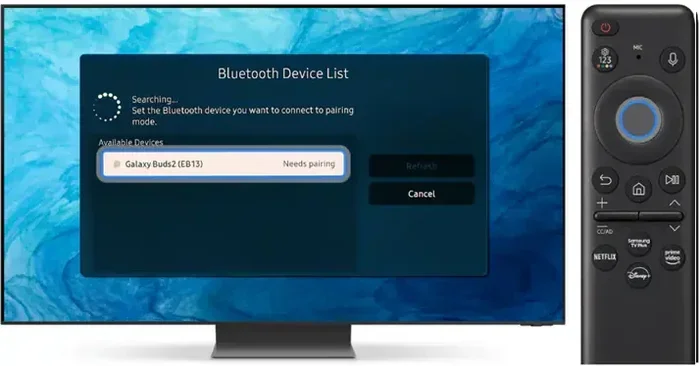
Putting your TV and headphones in pairing mode is the first step. On most smart TVs, go to Settings > Bluetooth and turn it on. Your TV will start searching for nearby devices. Next, put your headphones in pairing mode. This usually means holding down the power button or a dedicated Bluetooth button until a light flashes.
Once both devices are in pairing mode, select your headphones from the TV’s device list. The connection should happen within a few seconds. If you are using Bluetooth headphones for TV, this process works the same way across most brands. For Samsung TV users specifically, you can find more details in our guide on listening to Samsung TV with Bluetooth headphones.
Connecting Bluetooth Speakers
The process for connecting a Bluetooth speaker is nearly identical. Go to your TV’s Bluetooth settings, turn on discovery mode, and put your speaker in pairing mode. The TV should detect the speaker and show it in the list of available devices. Tap on the speaker name to connect.
Keep in mind that some TVs only allow one Bluetooth connection at a time. If you want to connect multiple speakers, you may need a Bluetooth splitter or a transmitter that supports multi-point pairing. This is important if you want to fill a large room with wireless audio.
Step-by-Step Pairing Process
Here is a quick step-by-step breakdown of the Bluetooth pairing process for most smart TVs:
- Turn on your TV and go to Settings.
- Find the Bluetooth or Sound menu.
- Turn on Bluetooth and select “Search for Devices.”
- Put your wireless device in pairing mode.
- Select your device from the list on the TV screen.
- Wait for the connection to confirm.
- Start streaming audio wirelessly.
Once connected, your TV audio will route through your Bluetooth device. You can adjust the volume from either the TV remote or the connected device. Some TVs also let you adjust the audio output settings to optimize sound quality for wireless devices.
Best Bluetooth Devices for Smart TVs
Not all Bluetooth devices are created equal when it comes to TV use. Some are designed specifically for wireless audio streaming, while others are better suited for phone calls or music. Here are the best types of Bluetooth devices for smart TVs that deliver great performance.
Wireless Headphones for TV Watching
Wireless headphones are the most popular choice for late-night TV watching. They let you enjoy your favorite shows without disturbing anyone else. Look for headphones with low audio latency, which means there is minimal delay between what you see on screen and what you hear. Over-ear headphones tend to offer better sound quality and comfort for long viewing sessions.
Many Bluetooth headphones now supportaptX or aptX HD codecs, which reduce audio delay significantly. If you are shopping for TV headphones, look for this feature. It makes a big difference in your viewing experience. You can also check our guide on using any Bluetooth headphones with your TV for more options.
Bluetooth Speakers for Better Sound
If you want better sound than your TV speakers provide but do not want to invest in a full sound system, a Bluetooth speaker is a great choice. Portable Bluetooth speakers are easy to move around and connect to any TV with Bluetooth support. Look for speakers with good battery life and clear mids and highs for dialogue-heavy content.
Audio Bars with Built-in Bluetooth
Soundbars with built-in Bluetooth are a step up from portable speakers. They deliver richer, more immersive sound and often double as a Bluetooth receiver. Many modern soundbars also support HDMI ARC, which lets you control the soundbar with your TV remote. This is a great option if you want both improved sound and wireless convenience.
| Device Type | Best For | Price Range | Bluetooth Range |
|---|---|---|---|
| Wireless Headphones | Private listening | $30 – $300 | 30 feet |
| Bluetooth Speakers | Portable sound | $20 – $150 | 30 feet |
| Soundbars with Bluetooth | Room-filling sound | $100 – $500 | 30 feet |
| Bluetooth Transmitters | Adding Bluetooth to any TV | $15 – $50 | 30 feet |
Common Bluetooth Problems and How to Fix Them
Even when everything is set up correctly, Bluetooth connections can sometimes cause frustration. Audio lag, dropped connections, and pairing failures are common issues. The good news is that most of these problems have simple fixes.
Audio Lag and Latency Issues
Audio lag happens when the sound does not match the picture. You see lips move, but the words come a split second later. This is one of the most common complaints with Bluetooth audio streaming to TVs. The delay is caused by the time it takes to encode and transmit the audio signal wirelessly.
To reduce audio lag, look for devices that support aptX Low Latency codecs. You can also try adjusting the audio sync settings in your TV menu. Some TVs have a “Lip Sync” or “Audio Delay” setting that lets you manually adjust the timing. If your TV does not have this option, a Bluetooth transmitter with built-in latency reduction can help. You can learn more about using Bluetooth adapters for your TV to improve your wireless setup.
Connection Drops and Interference
Bluetooth uses the 2.4 GHz frequency band, which is shared with Wi-Fi routers, microwaves, and other wireless devices. This can cause interference and connection drops. If your wireless connection keeps cutting out, try moving your TV and Bluetooth device closer together. Remove any obstructions between them.
You can also try changing your Wi-Fi channel to reduce interference. Some Bluetooth transmitters allow you to switch to the 5 GHz band, which is less crowded. Keeping your Bluetooth version updated on both devices also helps maintain a stable connection.
Pairing Failures
If your TV and device will not pair, start with the basics. Make sure both devices are in pairing mode. Turn Bluetooth off and back on. Restart both devices and try again. Sometimes simply removing the device from your TV’s Bluetooth memory and re-pairing solves the problem.
If pairing still fails, check if your TV has reached its connection limit. Most TVs can only remember a certain number of paired devices. Delete old or unused connections to free up space. Also, make sure your wireless headphones or speaker firmware is up to date, as outdated firmware can cause compatibility issues.
Final Thoughts on Smart TV Bluetooth
Smart TV Bluetooth has made it incredibly easy to enjoy wireless audio while watching your favorite shows and movies. Whether your TV has built-in Bluetooth or you need to add it with a transmitter, the process is simple and affordable. The key is to check your TV’s capabilities first, choose the right device for your needs, and troubleshoot any issues that come up.
Most modern smart TVs support Bluetooth out of the box, making it easy to connect wireless headphones, speakers, and soundbars. For older TVs or budget models, a Bluetooth adapter or transmitter bridges the gap quickly and affordably. The result is a more flexible and enjoyable viewing experience for everyone in your household.
Take a few minutes to explore your TV’s settings and try connecting a device. Once you experience the convenience of wireless audio on your TV, you will wonder how you ever watched without it. Happy streaming.
Frequently Asked Questions
Can I use any Bluetooth headphones with my smart TV?
Most Bluetooth headphones work with smart TVs that support Bluetooth audio. However, some TVs may have compatibility limitations with certain headphone brands or models. Check your TV’s Bluetooth settings to see what devices are supported. For a comprehensive guide on compatibility, read our article on using Bluetooth headphones with your TV.
How do I know if my TV has Bluetooth?
Check your TV’s Settings menu under Sound or Connections. Look for a Bluetooth option. If you find it, your TV supports Bluetooth. You can also search your TV model number online to view the full specifications list.
Can I add Bluetooth to an older TV that does not have it?
Yes, you can. A Bluetooth transmitter or adapter plugs into your TV’s audio output and adds wireless capability. These devices are affordable and easy to set up. They work with almost any TV that has a headphone jack or optical audio output.
Why does my Bluetooth audio lag when watching TV?
Audio lag happens because Bluetooth takes time to encode and transmit audio. This delay varies by device and codec. Using headphones or transmitters that support aptX Low Latency can significantly reduce this lag. You can also adjust the audio sync settings in your TV menu.
Can I connect multiple Bluetooth devices to my smart TV at once?
Most smart TVs only support one Bluetooth audio connection at a time. If you want to connect multiple devices, look for a Bluetooth transmitter with multi-point support or a Bluetooth splitter. This lets you pair more than one device simultaneously.
What is the best Bluetooth range for a smart TV setup?
Standard Bluetooth has a range of about 30 feet. Walls and furniture can reduce this distance. For the best wireless connection, keep your Bluetooth device within 15 to 20 feet of your TV. If you need more range, consider a Bluetooth transmitter with an extended range feature.