How Can I Install Bluetooth On My Windows 11 Laptop
Installing Bluetooth on your Windows 11 laptop is simpler than you think. Whether your laptop has built-in Bluetooth or needs a USB adapter, this guide walks you through every step. You will learn how to check for Bluetooth, install drivers, add a Bluetooth adapter, and connect your devices with confidence. Follow our tips to avoid common mistakes and get your wireless connection running fast.
Have you ever wanted to connect your Bluetooth headphones or Bluetooth speaker to your Windows 11 laptop, only to find that Bluetooth is missing? You are not alone. Many laptop users face this frustrating situation, and the good news is that fixing it is much easier than you might think.
In this guide, we will walk you through exactly how can I install Bluetooth on your Windows 11 laptop. Whether your laptop already has Bluetooth hardware but needs a driver, or you need to add a Bluetooth adapter entirely, we have you covered. We will also share quick tips, common mistakes to avoid, and troubleshooting steps that actually work. By the end of this article, you will have your wireless devices connected and working smoothly.
Key Takeaways
- Check First: Most modern laptops already have Bluetooth built in. You just need to enable it in Windows 11 settings.
- Drivers Matter: Outdated or missing Bluetooth drivers are the #1 reason Bluetooth fails. Keep them updated.
- USB Adapters Work Great: If your laptop lacks Bluetooth, a cheap USB Bluetooth adapter solves the problem instantly.
- Pairing Is Easy: Once Bluetooth is active, connecting headphones, speakers, and other devices takes just a few clicks.
- Troubleshoot Quickly: Simple fixes like restarting Bluetooth services or resetting the adapter solve most issues.
📑 Table of Contents
- Understanding Bluetooth On Windows 11
- How To Check If Your Laptop Already Has Bluetooth
- How To Install Bluetooth Drivers On Windows 11
- How To Add Bluetooth With A USB Adapter
- Connecting Your First Bluetooth Device
- Troubleshooting Common Bluetooth Problems
- Expert Tips For Maintaining Bluetooth Performance
- Common Mistakes To Avoid When Installing Bluetooth
- Conclusion
Understanding Bluetooth On Windows 11
Before you jump into installation, it helps to understand what Bluetooth is and how it works on Windows 11. Bluetooth is a short-range wireless technology that lets your laptop communicate with other devices. Think of it as an invisible cable that connects your phone, headphones, keyboard, and more without any wires.
Windows 11 has built-in support for Bluetooth. This means the operating system already knows how to manage Bluetooth connections. However, your laptop still needs the right hardware and software to make it all work. That software is called a Bluetooth driver. Without it, Windows 11 simply cannot use Bluetooth, even if the hardware is there.
Built-In Bluetooth vs. USB Bluetooth Adapters
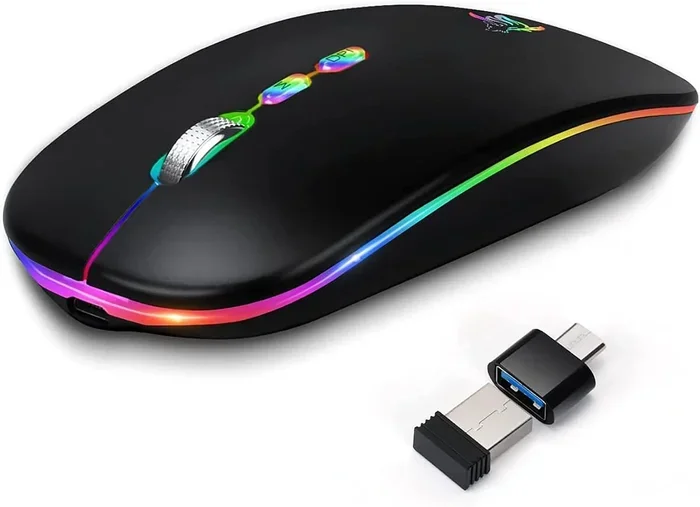
There are two main ways Bluetooth works on a laptop. First, many modern laptops come with built-in Bluetooth already installed on the motherboard. You just need to turn it on. Second, older laptops or certain budget models might not have Bluetooth hardware at all. In that case, you add a USB Bluetooth adapter, which plugs into any available USB port and gives your laptop Bluetooth capability right away.
Both approaches are perfectly fine. Built-in Bluetooth is more convenient and does not take up a USB port. A USB Bluetooth adapter costs only a few dollars and works with almost any laptop. You can even find them at most electronics stores or online.
How To Check If Your Laptop Already Has Bluetooth
Before you install anything, you should first check whether your laptop already supports Bluetooth. This saves you time and money. Here is how to do it on Windows 11.
Method 1: Check Device Manager
Open the Start menu and type “Device Manager.” Click on the app to open it. Look for a category called “Bluetooth.” If you see it, expand the section. You should see one or more Bluetooth devices listed there. This means your laptop has Bluetooth hardware installed.
If you do not see a Bluetooth section at all, do not worry yet. Sometimes the hardware is hidden under “Network adapters” or “Universal Serial Bus controllers.” But if there is absolutely no sign of Bluetooth, your laptop likely does not have it built in.
Method 2: Check Windows Settings
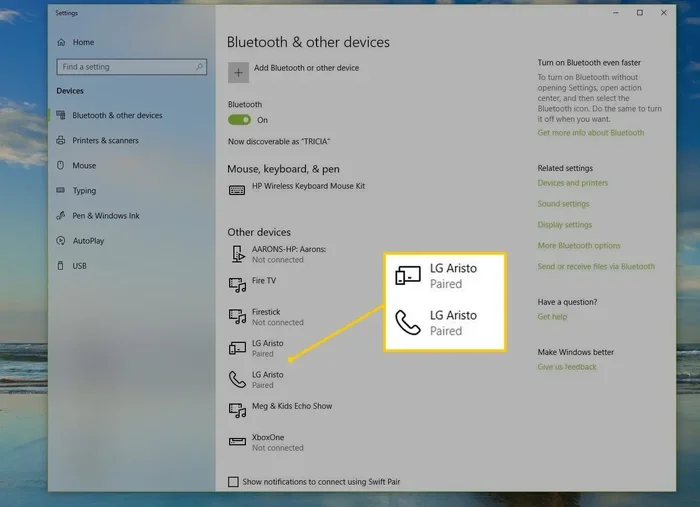
Go to Settings by pressing Windows key + I. Click on “Bluetooth & devices” in the left sidebar. If you see a toggle switch for Bluetooth, your laptop supports it. If the entire section looks grayed out or missing, you may need to install a driver or add a Bluetooth adapter.
Quick Tip: Even if your laptop has Bluetooth hardware, the driver might be missing or outdated. Always check Device Manager first before buying any new hardware.
How To Install Bluetooth Drivers On Windows 11
If your laptop has Bluetooth hardware but it is not working, the most common cause is a missing or outdated driver. A driver is a small program that tells Windows 11 how to communicate with your Bluetooth chip. Installing the right driver is often all you need to get Bluetooth working.
Step 1: Update Drivers Through Windows Update
The easiest way to install or update a Bluetooth driver is through Windows Update. Here is how:
- Open Settings (Windows key + I).
- Click on “Windows Update” in the left menu.
- Click “Check for updates.”
- Wait for Windows to search for available updates.
- Look under “Optional updates” or “Driver updates.”
- If a Bluetooth driver update is available, click “Download” and install it.
- Restart your laptop after the installation completes.
Windows Update often has the latest drivers for your Bluetooth hardware. This is the safest and most reliable method for most users.
Step 2: Download Drivers From The Manufacturer Website
If Windows Update does not find a Bluetooth driver, you can download one directly from your laptop manufacturer’s website. Here is what to do:
- Find your laptop brand and model number. You can usually see this on a sticker on the bottom of the laptop.
- Go to the manufacturer’s support website (such as Dell.com, Lenovo.com, or HP.com).
- Search for your exact model number.
- Navigate to the “Drivers & Downloads” section.
- Look for the Bluetooth driver. It might be listed under “Wireless” or “Network.”
- Download the driver for Windows 11.
- Run the installer and follow the on-screen instructions.
- Restart your laptop when prompted.
This method ensures you get the exact driver designed for your specific laptop model. It works much better than using a generic driver from a third-party website.
Step 3: Use Device Manager To Update Manually
You can also update your Bluetooth driver directly through Device Manager. Right-click the Start button and select “Device Manager.” Find the Bluetooth section, right-click on your Bluetooth device, and choose “Update driver.” Then select “Search automatically for drivers.” Windows will look for the latest driver online and install it for you.
If that does not work, you can try uninstalling the driver and then scanning for hardware changes. Right-click the Bluetooth device, select “Uninstall device,” and then restart your laptop. Windows 11 will automatically reinstall the driver during boot-up.
For more detailed help with Bluetooth driver installation, you can check our guide on Can I Download A Bluetooth Driver For Windows 10, which covers driver troubleshooting in detail.
How To Add Bluetooth With A USB Adapter
If your laptop does not have built-in Bluetooth, adding a USB Bluetooth adapter is the simplest solution. These small devices plug directly into a USB port and give your laptop full Bluetooth capability within seconds.
Choosing The Right Bluetooth Adapter
Not all Bluetooth adapters are the same. Here are a few things to consider before buying one:
- Bluetooth Version: Look for Bluetooth 5.0 or newer. This gives you faster speeds, longer range, and better stability. Bluetooth 5.0 can reach up to 80 feet in open space.
- USB Version: Make sure the adapter is compatible with your laptop’s USB ports. Most adapters work with both USB-A and USB-C. Check what ports your laptop has before buying.
- Compatibility: Most adapters work with Windows 11 out of the box. However, always check the product description to confirm Windows 11 support.
- Brand: Stick with well-known brands like TP-Link, ASUS, or Dell. These brands offer reliable drivers and good customer support.
Installing A USB Bluetooth Adapter
Once you have your adapter, follow these simple steps:
- Plug the Bluetooth adapter into an available USB port on your laptop.
- Wait for Windows 11 to recognize the new hardware. You should see a notification in the bottom-right corner.
- Windows will automatically try to install the driver. This usually takes less than a minute.
- If Windows does not install the driver automatically, go to Device Manager. You should see the adapter listed under “Other devices” with a yellow warning icon.
- Right-click the device and select “Update driver.” Choose “Search automatically for drivers.”
- Once the driver is installed, go to Settings > Bluetooth & devices and toggle Bluetooth on.
- Your laptop is now ready to connect to any Bluetooth device.
USB Bluetooth adapters are incredibly affordable. You can find a quality one for under $15. They are a great investment if your laptop does not have Bluetooth built in.
If you are interested in using Bluetooth with other devices, you might also enjoy our article on Can I Use A Bluetooth Adapter On My Tv, which explores how Bluetooth adapters work across different devices.
Connecting Your First Bluetooth Device
Once Bluetooth is installed and working, connecting your first device is quick and easy. Whether it is a pair of wireless headphones, a Bluetooth speaker, or your phone, the process is nearly the same.
Pairing A Bluetooth Device
Here is the general process for pairing any Bluetooth device with your Windows 11 laptop:
- Make sure your Bluetooth device is turned on and in pairing mode. Most devices have a blinking light or a voice prompt to indicate they are ready.
- Open Settings on your Windows 11 laptop (Windows key + I).
- Click on “Bluetooth & devices” in the left sidebar.
- Make sure Bluetooth is toggled ON.
- Click “Add device” at the top of the screen.
- Select “Bluetooth” from the list of device types.
- Wait for your laptop to scan for nearby devices.
- Click on your device when it appears in the list.
- Wait for the pairing to complete. You should see a confirmation message.
That is it. Your device is now connected and ready to use. You can disconnect it anytime by going back to Bluetooth settings and clicking “Disconnect.”
Managing Multiple Bluetooth Devices
Windows 11 lets you connect to multiple Bluetooth devices at the same time. You can have your headphones connected while your keyboard and mouse are also paired. To manage your devices, go to Settings > Bluetooth & devices. Here you can see all connected devices, remove old ones, and set your audio output device.
Quick Tip: If your Bluetooth connection feels slow or unstable, try moving closer to your laptop. Bluetooth has a limited range, and walls or other electronics can interfere with the signal. Keeping your devices within 10 to 15 feet of each other usually gives the best results.
Troubleshooting Common Bluetooth Problems
Even after you install Bluetooth correctly, you might run into issues from time to time. Do not worry. Most Bluetooth problems have simple fixes. Here are the most common issues and how to solve them.
Bluetooth Is Not Showing Up In Settings
If you do not see the Bluetooth option in Settings, the Bluetooth service might be turned off. Here is how to fix it:
- Press Windows key + R to open the Run dialog.
- Type “services.msc” and press Enter.
- Scroll down and find “Bluetooth Support Service.”
- Right-click it and select “Properties.”
- Set the Startup type to “Automatic.”
- If the service is not running, click “Start.”
- Click “Apply” and then “OK.”
- Restart your laptop and check Settings again.
This fixes the problem for most users. The Bluetooth service sometimes gets disabled after a Windows update or a system restart.
Bluetooth Devices Keep Disconnecting
If your Bluetooth device keeps disconnecting, try these steps:
- Move closer to your laptop. Distance is the most common cause of disconnections.
- Remove other Bluetooth devices from the area. Too many devices can cause interference.
- Restart your laptop and the Bluetooth device.
- Check for driver updates through Device Manager.
- Remove the device from your Bluetooth settings and pair it again from scratch.
Bluetooth Works But There Is No Sound
If your Bluetooth headphones or speaker connect but you cannot hear any sound, the audio output might be set to the wrong device. Here is how to fix it:
- Click the speaker icon in your taskbar (bottom-right corner).
- Click the up arrow to expand the audio options.
- Select your Bluetooth device from the list of output devices.
- If it does not appear, go to Settings > System > Sound and look under “Output.”
- Select your Bluetooth device there.
Sometimes Windows 11 switches the audio output back to your laptop speakers after a notification or a system update. Just switch it back to your Bluetooth device, and the sound will return.
For additional help with Bluetooth connectivity, you might also want to read our guide on Can I Turn My Stereo Into Bluetooth, which covers making older audio devices wireless.
Expert Tips For Maintaining Bluetooth Performance
Once you have Bluetooth working on your Windows 11 laptop, keeping it running smoothly is easy with a few simple habits. These expert tips will help you avoid frustration and get the best performance from your wireless connections.
Keep Your Drivers Updated
Bluetooth driver updates often include bug fixes and performance improvements. Check for updates once a month through Windows Update or your manufacturer’s website. Outdated drivers are the leading cause of Bluetooth problems on Windows 11.
Restart Bluetooth Regularly
If you notice slow connections or disconnections, try turning Bluetooth off and back on. This clears the connection cache and refreshes the Bluetooth stack. You can do this from the Quick Settings panel by clicking the Bluetooth icon.
Remove Unused Devices
Over time, your laptop may remember dozens of Bluetooth devices you no longer use. Each remembered device takes up a small amount of system resources. Go to Settings > Bluetooth & devices and remove any devices you no longer need. This keeps your Bluetooth list clean and your system running faster.
Keep Your Adapter Firmware Updated
If you use a USB Bluetooth adapter, check the manufacturer’s website for firmware updates. Firmware updates can improve range, speed, and compatibility with new devices. Most adapter manufacturers offer a simple download and install process on their support pages.
Quick Tip: If you are using a Bluetooth adapter with a USB hub, plug the adapter directly into your laptop’s USB port. USB hubs can sometimes weaken the Bluetooth signal and cause connection drops.
Common Mistakes To Avoid When Installing Bluetooth
Even experienced users make mistakes when setting up Bluetooth. Here are the most common ones and how to avoid them.
Skipping Driver Installation
Some users plug in a Bluetooth adapter and expect it to work immediately. While Windows 11 often installs drivers automatically, this does not always happen. Always check Device Manager after plugging in a new adapter to make sure the driver is properly installed.
Using The Wrong Bluetooth Version
Older Bluetooth adapters (like Bluetooth 2.0 or 3.0) may not work well with newer devices. If you are buying a new adapter, choose Bluetooth 5.0 or higher. This ensures compatibility with modern headphones, speakers, and peripherals.
Ignoring Interference
Other wireless devices can interfere with your Bluetooth connection. Wi-Fi routers, microwaves, and even USB 3.0 ports can cause Bluetooth signal problems. If you experience connection issues, try moving away from these devices or plugging your Bluetooth adapter into a different USB port.
Not Restarting After Installation
After installing a new Bluetooth driver or adapter, always restart your laptop. Many users skip this step and then wonder why Bluetooth still does not work. A simple restart allows Windows 11 to fully initialize the new hardware and software.
For more Bluetooth-related setup guidance, check out our article on Can I Make My Old Bose Speakers Bluetooth, which covers adding Bluetooth functionality to older audio equipment.
Conclusion
Installing Bluetooth on your Windows 11 laptop does not have to be complicated. Whether you needed to update a driver, add a USB Bluetooth adapter, or simply enable Bluetooth in your settings, you now have all the tools and knowledge to get it done. The key is to start by checking what your laptop already has, install the right drivers, and then connect your devices with confidence.
Remember that keeping your drivers updated and maintaining good connection habits will keep your Bluetooth running smoothly for years to come. If you run into issues, the troubleshooting steps in this guide will help you fix most problems quickly.
Now that you know how can I install Bluetooth on Windows 11, go ahead and connect your favorite wireless devices. Enjoy the freedom of wireless audio, wireless peripherals, and seamless connectivity. Your laptop is ready to go wireless, and you are ready to enjoy it.
Frequently Asked Questions
Can I install Bluetooth on any Windows 11 laptop?
Most Windows 11 laptops already have Bluetooth built in. If your laptop does not have it, you can easily add it using a USB Bluetooth adapter. These adapters are affordable and work with virtually any laptop that has a USB port.
How do I know if my laptop has Bluetooth hardware?
Open Device Manager and look for a “Bluetooth” category. If you see Bluetooth devices listed there, your laptop has the hardware. You can also check Settings > Bluetooth & devices. If you see a Bluetooth toggle, your laptop supports it.
Do I need to pay for Bluetooth drivers on Windows 11?
No. Bluetooth drivers for Windows 11 are free. You can download them from Windows Update or directly from your laptop manufacturer’s website. Never pay for drivers that you can get for free from official sources.
Why is my Bluetooth not showing up in Windows 11 Settings?
This is usually caused by a missing driver or a disabled Bluetooth service. Check Device Manager for driver issues and run the “services.msc” command to make sure the Bluetooth Support Service is running. Restarting your laptop often fixes this problem too.
Can I use a Bluetooth adapter with any laptop?
Yes. A USB Bluetooth adapter works with almost any laptop, regardless of brand or model. Just make sure the adapter is compatible with Windows 11 and that your laptop has an available USB port.
How do I update my Bluetooth adapter firmware?
Visit the manufacturer’s website for your Bluetooth adapter. Look for a “Support” or “Downloads” section and search for your adapter model. Download the latest firmware update and follow the installation instructions provided by the manufacturer.
=== CONCLUSION ===
Installing Bluetooth on your Windows 11 laptop is a straightforward process that anyone can do. You have learned how to check for built-in Bluetooth, install drivers, add a USB adapter, connect devices, and troubleshoot common problems. With these skills, you can enjoy wireless connectivity on your laptop without any hassle.
Start by checking your laptop’s current Bluetooth status. Then follow the steps in this guide to get everything set up. Whether you are connecting headphones for a movie night, a speaker for a party, or a keyboard for better productivity, Bluetooth makes it all possible. Enjoy your wireless freedom and happy connecting.