How Can I Mute The Ringing Sound In Skype Calls Today
Muting the ringing sound in Skype is simple once you know where to look. Whether you use Skype on a computer or phone, you can turn off the ringtone, adjust call volume, and silence notifications in just a few taps. This guide walks you through every method so you can stop unwanted noise during your Skype calls right away.
Have you ever been in the middle of something important when your Skype ringtone suddenly blares through the room? It is embarrassing, disruptive, and completely avoidable. The good news is that you can mute the ringing sound in Skype in just a few simple steps. Whether you are using Skype on a laptop, phone, or tablet, this guide covers every method you need.
Many people struggle with Skype notification sounds because the settings are buried in menus. You might not even realize how many options exist for controlling ring volume, call alerts, and notification behavior. Once you know where to look, you will never be caught off guard by a loud ring again.
This article breaks down each method clearly and practically. You will learn how to silence incoming calls, adjust audio output, and even set up automated mute schedules. No technical skills are required. If you can tap a few buttons, you can follow along.
Key Takeaways
- You can mute the Skype ringtone directly from the app settings on both desktop and mobile devices.
- Adjusting your device volume or using Do Not Disturb mode is a quick workaround if you need silence fast.
- Bluetooth headphones and speakers can route call audio differently, giving you more control over ring sounds.
- Customizing notification settings lets you keep calls audible while silencing other Skype alerts.
- Scheduled mute features can automate silence during meetings or off-hours.
📑 Table of Contents
- Why You Should Mute the Skype Ringing Sound
- How to Mute the Ringing Sound on Desktop Skype
- How to Mute the Ringing Sound on Mobile Skype
- Using Bluetooth Devices to Control Skype Ringing
- Advanced Tips for Managing Skype Audio
- Common Mistakes People Make When Trying to Mute Skype
- How to Test Your Mute Settings
- Frequently Asked Questions
- Conclusion
Why You Should Mute the Skype Ringing Sound
Constant ringing from Skype calls can interrupt your workflow, your sleep, and your personal time. Many users report that they feel stressed by the relentless ping of incoming notifications. The Skype ringtone is designed to grab your attention, but sometimes you just need quiet.
Here are some real reasons people want to silence their Skype ring volume:
- Work meetings: You do not want a personal call to ring loudly during an important presentation.
- Late hours: Nighttime notifications can disrupt sleep and disturb family members.
- Public spaces: Libraries, cafes, and offices demand silence, and a loud ring draws unwanted attention.
- Focus time: Deep work requires uninterrupted concentration, and constant alerts break your flow.
- Battery life: Reducing sound alerts can actually help extend your device battery.
The good thing is that Skype gives you full control. You do not have to completely turn off calls. You can simply mute the ringing sound while keeping everything else working normally.
How to Mute the Ringing Sound on Desktop Skype
Using Skype on your computer gives you the most control over audio settings. The desktop app works on Windows and Mac, and the steps are nearly identical. Let us walk through the process.
Step-by-Step: Changing Ringtone Settings
- Open Skype and sign in to your account.
- Click on your profile picture or name in the top-left corner.
- Select Settings from the dropdown menu.
- Click on Notifications in the left sidebar.
- Look for the Ringtones section.
- Click the dropdown menu next to the ringtone option.
- Select None or choose a softer sound.
- Click Save to apply your changes.
That is it. Your Skype notification sound for incoming calls will now be muted. You will still see the visual alert on your screen, but no sound will play. This method works for both one-on-one calls and group calls.
Adjusting System Volume for Skype
Sometimes the easiest fix is simply lowering your computer volume. You can also use the volume mixer in Windows or the sound settings on Mac to control Skype audio separately from other apps.
On Windows, right-click the speaker icon in your taskbar and select Open Volume Mixer. Find Skype in the list and drag its slider down. On Mac, go to System Settings > Sound and adjust the output volume. This approach lets you keep other sounds active while silencing Skype call alerts.
Using Do Not Disturb Mode on Desktop
Skype has a built-in Do Not Disturb mode that silences all notifications. When you activate it, you will not hear any incoming call alert sounds. Your status will change to DND, so your contacts know you are unavailable.
To turn it on, click your profile picture and select Set status. Choose Do Not Disturb from the list. When you are ready to receive calls again, simply switch back to Available.
How to Mute the Ringing Sound on Mobile Skype
Using Skype on your phone is slightly different, but just as effective. Both iPhone and Android devices offer multiple ways to silence the Skype ringtone. Let us explore each option.
Mute Through the Skype App Settings
Open the Skype app on your phone and follow these steps:
- Tap your profile icon in the top-left corner.
- Go to Settings.
- Tap Notifications.
- Find the Ringtone option.
- Select None or choose a silent vibration pattern.
- Exit the settings. Your changes are saved automatically.
This method gives you the same level of control as the desktop version. You can still receive calls, but the ringing sound will be silenced. You will see the incoming call screen on your phone, so you will not miss anything important.
Using Your Phone’s Built-In Silent Mode
If you need silence right now, you can use your phone’s built-in features. On iPhone, flip the silent switch on the side. On Android, press the volume button down until you reach Silent or Vibrate mode.
Keep in mind that this mutes all sounds on your phone, not just Skype. If you want to mute only Skype calls while keeping other apps audible, use the app-specific method instead.
Enabling Do Not Disturb on Mobile
Both iPhone and Android have a Do Not Disturb feature that works perfectly with Skype. When DND is active, your phone will not make any sound for incoming calls or notifications.
On iPhone, swipe down from the top-right corner and tap the moon icon. On Android, swipe down and look for Do Not Disturb in your quick settings. You can also schedule DND to turn on automatically during certain hours, which is great for avoiding late-night Skype notification sounds.
Using Bluetooth Devices to Control Skype Ringing
Bluetooth devices offer an interesting workaround for managing Skype call audio. Many users route their call sound through headphones or speakers, which gives them more flexibility over volume and mute options.
For example, you can use Bluetooth headphones during calls so that only you hear the ring. This is especially useful in shared spaces where you do not want to disturb others. You can also connect a Bluetooth speaker and control its volume independently from your phone.
Some users prefer to use a Bluetooth transmitter for their car so they can take Skype calls hands-free while driving. The key takeaway is that Bluetooth gives you more options for managing audio output, which indirectly helps you control how and when the Skype ringtone plays.
If you already use Bluetooth headphones for phone calls or listening to music, you are halfway there. Simply connect them before you start your Skype session, and you can mute the ring sound by pausing or lowering the volume on your headphones directly.
Advanced Tips for Managing Skype Audio
Once you have the basic muting methods down, there are a few advanced tricks that can make your Skype experience even better. These tips help you fine-tune your audio settings for maximum control.
Schedule Mute Times Automatically
Did you know you can set automatic mute schedules in Skype? This feature is especially helpful if you have regular meeting times or need quiet hours every night. You can set your status to Do Not Disturb during specific time windows, and Skype will automatically silence all call alerts during those periods.
To set this up, go to Settings > Notifications and look for the Schedule Do Not Disturb option. Enter your preferred start and end times, and Skype will handle the rest. This is one of the best ways to ensure you never get interrupted by a loud Skype ringtone again.
Customize Notification Sounds for Different Events
Skype lets you customize sounds for different types of notifications. You can set a unique sound for instant messages, a different one for group chats, and silence the incoming call alert entirely. This means you can keep some notifications audible while muting only the ones that bother you.
To customize, go to Settings > Notifications and explore each category. You will see options for call sounds, message sounds, and event sounds. Pick the ones you want to keep and mute the rest.
Use the Volume Slider During Active Calls
When you are already on a Skype call, you can adjust the ring volume for future calls without ending your current conversation. Look for the volume icon in the call toolbar and drag it down. This quick trick is perfect when you realize mid-call that you need to silence the next incoming ring.
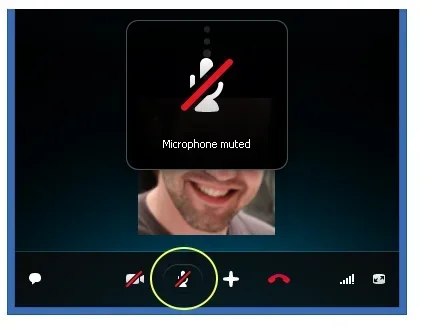
Some users also find it helpful to mute their microphone when they are not speaking. This does not affect the ring sound, but it does keep your environment quiet for other participants. You can learn more about managing audio devices and Bluetooth connections in our guide on using Bluetooth headphones for phone calls.
Common Mistakes People Make When Trying to Mute Skype
Even with clear instructions, people still run into issues when trying to silence Skype notifications. Here are the most common mistakes and how to avoid them.
- Forgetting to save settings: Always click Save after changing your ringtone or notification options. If you skip this step, your changes will not take effect.
- Confusing system volume with app volume: Lowering your phone volume mutes everything, not just Skype. Use the app-specific settings for targeted control.
- Ignoring Do Not Disturb scheduling: Manual mute works for the moment, but scheduled DND ensures silence every day during your chosen hours.
- Not checking individual contact settings: Skype lets you mute specific contacts. If only one person is bothering you, you can silence their calls without affecting others.
- Restarting the app after changes: Sometimes Skype needs a restart for new audio settings to fully apply. Close and reopen the app after making changes.
Avoiding these simple mistakes will save you a lot of frustration. Most people fix their Skype ringtone issues within minutes once they know what to check.
How to Test Your Mute Settings
After you have adjusted your settings, it is always a good idea to test them. You do not want to discover that the ringing sound is still playing when you actually need silence.
Here is a simple test you can do:
- Change your ringtone setting to None or a very soft sound.
- Ask a friend to call you on Skype at a scheduled time.
- Observe what happens. You should see the incoming call screen, but hear no sound or only a very faint one.
- If you still hear a ring, go back and double-check that you saved your settings.
This quick test gives you peace of mind that everything is working correctly. You can repeat it anytime you change your Skype audio settings or switch to a new device.
Frequently Asked Questions
Can I mute the Skype ringtone without turning off notifications completely?
Yes, absolutely. You can select a silent or very soft ringtone in the Notifications settings while keeping all other alerts active. This way, you will still see incoming calls on your screen but without the disruptive sound.
Will muting the Skype ringtone affect my ability to receive calls?
No, muting the ringtone only stops the sound. You will still receive calls normally and see the visual incoming call screen. You can answer the call by tapping the screen or using your keyboard shortcut.
Can I set different ring tones for different contacts?
Skype does not currently support custom ringtones per contact. However, you can use the Do Not Disturb mode selectively or mute specific contacts to manage noise from particular people.
How do I unmute the Skype ringtone when I want it back?
Simply go back to Settings > Notifications > Ringtones and select a sound again. The Skype notification sound will return immediately. You can also reactivate your normal volume or turn off Do Not Disturb mode.
Does muting Skype on my phone also mute it on my desktop?
No, the settings are device-specific. You need to adjust the ringtone settings separately on each device you use Skype on. However, if you use the same Microsoft account, your status and availability sync across devices.
Can I use a Bluetooth device to control the Skype ring sound?
Yes, connecting a Bluetooth headset or speaker can help you manage the ring sound more effectively. You can route call audio through the Bluetooth device and control its volume independently, which gives you more flexibility over how loud or quiet the Skype ringtone is. For more on using Bluetooth audio devices, check out our guide on using Bluetooth headphones with your TV.
Conclusion
Muting the ringing sound in Skype is easier than most people think. You have multiple options, from simple volume adjustments to advanced scheduled mute settings. Whether you use Skype on your computer or phone, the steps are straightforward and take only a minute or two to complete.
Start by adjusting your Skype ringtone settings in the app. Then explore Do Not Disturb mode and Bluetooth audio routing for even more control. Avoid the common mistakes we covered, and always test your settings after making changes.
Remember, you do not have to suffer through loud, unexpected rings ever again. Take a few minutes today to set up your Skype notification sounds the way you want them. Once you do, you will wonder how you ever managed without these simple controls.
Share this guide with anyone who struggles with Skype call alerts. A little setup goes a long way toward keeping your day peaceful and distraction-free.