How Can I Watch Tv On My Projector Without Cable Box
You can easily watch TV on your projector without a cable box by using streaming devices, HDMI connections, or wireless casting from your phone or laptop. This guide covers every method you need, from budget-friendly options to premium setups. Whether you have a basic projector or a smart projector, you will find a solution that works for your home.
Watching TV on a big screen is one of the best feelings in the world. A projector turns any room into a home theater. But many people think you need a bulky cable box to make it work. That is simply not true. You can watch TV on my projector without cable box using several simple and affordable methods.
Whether you want to cut the cord, save money, or just simplify your setup, this guide has you covered. You will learn every way to get TV on your projector without a traditional cable box. From streaming sticks to phone casting, the options are easier than you think. Let us dive in and explore how you can enjoy your favorite shows on the big screen.
Key Takeaways
- Multiple cable-free options exist: Streaming sticks, HDMI direct connections, and wireless casting all let you watch TV without a cable box.
- Streaming devices are the easiest solution: Roku, Amazon Fire Stick, and Chromecast work great with most projectors.
- Your phone or laptop can replace a cable box: Screen mirroring and USB connections offer flexible alternatives.
- Proper setup matters: Placement, screen choice, and audio setup make a huge difference in your viewing experience.
- You do not need expensive equipment: Many budget-friendly methods deliver great TV on a projector.
📑 Table of Contents
- Why Watch TV on a Projector Without a Cable Box?
- What You Need to Watch TV on a Projector
- Methods to Watch TV on Your Projector Without a Cable Box
- Setting Up Your Projector for the Best TV Experience
- Common Mistakes to Avoid
- Quick Tips for the Best Setup
- Expert Insights on Projector TV Viewing
- Conclusion
Why Watch TV on a Projector Without a Cable Box?
More and more people are moving away from cable subscriptions. The costs keep going up, and the channels you actually watch do not always justify the price. A projector gives you a cinematic experience right in your living room. And you do not need a cable box to make it happen.
Here are some reasons why ditching the cable box makes sense:
- Cost savings: Cable bills can run 50 to 150 dollars a month. Streaming services cost a fraction of that.
- More flexibility: You can watch what you want, when you want, without being tied to a schedule.
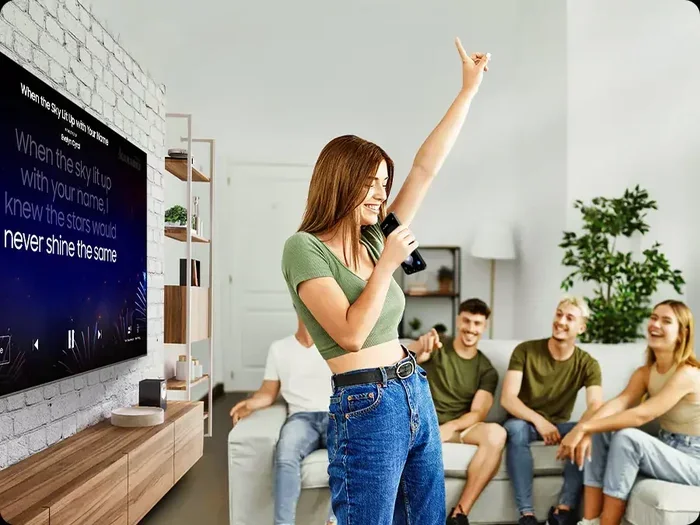
- Bigger screen: A projector gives you a screen size that no cable box can match on its own.
- Less clutter: Fewer devices mean fewer cables and a cleaner setup.
- Portability: Many projectors are portable, so you can take your TV experience anywhere.
If you are wondering whether a projector can truly replace your TV, you might want to check out Can I Use a Projector Instead of a TV for a deeper look at this comparison.
What You Need to Watch TV on a Projector
Before you start, you need to understand the basic equipment involved. The good news is that you likely already own most of what you need. Here is a quick breakdown of the essentials.
A Projector
You need a projector that supports HDMI input or has built-in smart capabilities. Most modern projectors come with HDMI ports. If yours does not, do not worry. There are workarounds for that too. The brightness of your projector matters as well. A brighter projector works better in rooms with some light.
A Streaming Device (Optional but Recommended)
A streaming device acts as your cable box replacement. Devices like Roku, Amazon Fire Stick, or Google Chromecast plug right into your projector’s HDMI port. They give you access to all major streaming apps like Netflix, Hulu, and YouTube.
A Stable Internet Connection
Most streaming methods require Wi-Fi. Make sure your projector is within range of your router. A strong connection ensures smooth playback without buffering.
A Screen or Wall
You can project onto a white wall, but a dedicated projector screen gives better results. If you want a budget option, you can even use black cloth for projector setups in certain scenarios, though a white or light surface works best for general TV viewing.
Methods to Watch TV on Your Projector Without a Cable Box
Now for the fun part. Here are the most effective ways to get TV on your projector without a cable box. Each method has its own advantages, so pick the one that fits your needs best.
Method 1: Use a Streaming Stick or Device
This is the easiest and most popular method. A streaming stick plugs directly into your projector’s HDMI port. It connects to your Wi-Fi and gives you access to hundreds of channels and apps.
Here are the best options:
- Roku Streaming Stick: Simple to use, great app selection, and affordable. If you want to learn more about using Roku with a projector, check out Can I Use a Roku With a Projector.
- Amazon Fire TV Stick: Works well with Alexa voice remote and offers a wide range of apps.
- Google Chromecast: Lets you cast content from your phone or laptop directly to the projector.
- Apple TV: A premium option with excellent picture quality and seamless Apple device integration.
All you need to do is plug the streaming stick into the HDMI port, connect to Wi-Fi, and start watching. It really is that simple.
Method 2: Connect Your Laptop Directly via HDMI
If you have a laptop, you can use it as your TV source. Most laptops have an HDMI output port. Simply connect an HDMI cable from your laptop to the projector.
Once connected, you can open any streaming website or app on your laptop. The projector will display the content on the big screen. This method works great for watching live TV through websites like Pluto TV or Tubi, both of which are free.
Here is how to set it up:
- Plug one end of the HDMI cable into your laptop.
- Plug the other end into the projector’s HDMI port.
- Switch the projector to the correct HDMI input.
- Open your browser or streaming app on the laptop.
- Start watching your favorite shows.
Method 3: Cast from Your Phone or Tablet
Your smartphone or tablet can replace a cable box entirely. If you have a projector with built-in smart features or a connected streaming stick, you can cast content wirelessly.
For Android users, Google Cast or screen mirroring works seamlessly. iPhone users can use AirPlay if the projector supports it. You can also connect your phone to the projector using a USB cable in some cases. Learn more about connecting your phone to a projector with a USB cable here.
Some popular free streaming apps for casting include:
- Pluto TV
- Tubi
- YouTube
- Samsung TV Plus
- Roku Channel
These apps give you access to live TV channels, movies, and shows without any subscription fees.
Method 4: Use a Smart Projector
Smart projectors come with built-in apps and Wi-Fi connectivity. They do not need any external devices to stream content. You simply connect the projector to your Wi-Fi, open the built-in apps, and start watching.
Smart projectors are becoming more affordable. Brands like XGIMI, Anker, and ViewSonic offer models with built-in streaming capabilities. If you want to explore projector alternatives to a traditional TV setup, this is a great path to consider.
Setting Up Your Projector for the Best TV Experience
Getting TV on your projector is only half the battle. Proper setup makes a huge difference in picture quality and overall enjoyment. Here are some tips to get the most out of your projector for TV watching.
Placement Matters
Where you place your projector affects the image quality significantly. You want the projector positioned at the right distance and angle. Most projectors work best when placed on a stable surface or ceiling mount directly facing the screen.
If your projector is not perfectly centered, you might need to adjust the keystone settings. You can also mount your projector off center if space is limited. Just be aware that off-center placement may require more keystone correction, which can slightly reduce image quality.
Choose the Right Screen
A projector screen makes a big difference compared to a bare wall. A proper screen enhances brightness, contrast, and color accuracy. You do not need an expensive screen either. A simple pull-down screen or even a white bedsheet can work well for casual viewing.
Do Not Forget About Audio
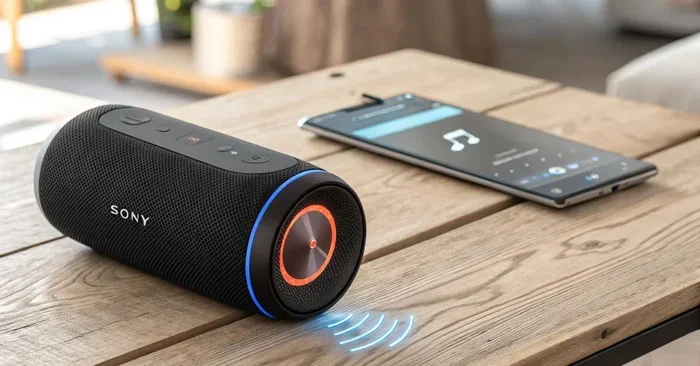
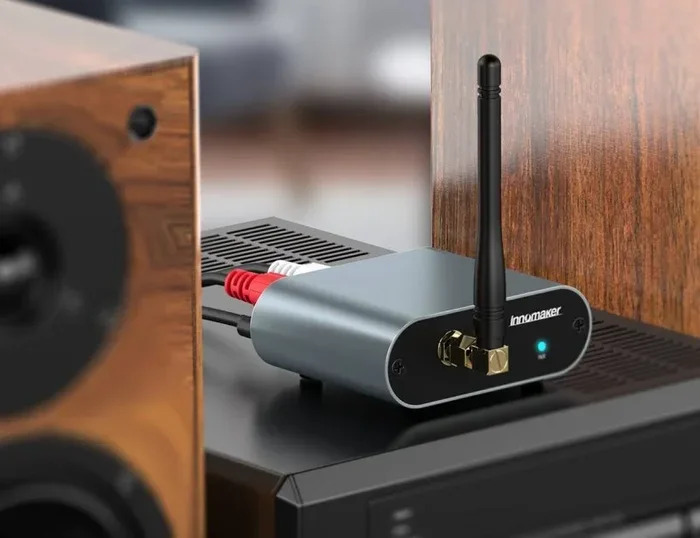
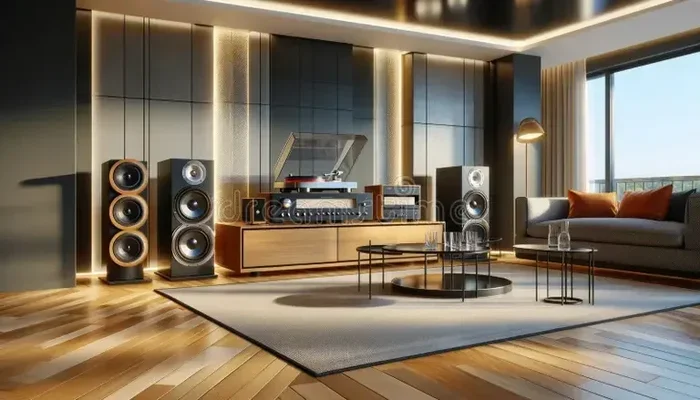
Most projectors have small built-in speakers that do not deliver great sound. For a better TV experience, consider connecting external speakers. You can use Bluetooth speakers, a soundbar, or even your home theater system. Some people connect their projector to a receiver for richer audio.
Adjust Brightness and Contrast
Projector settings can be tweaked to improve TV viewing. Lower the brightness slightly for a more natural look in darker rooms. Increase the contrast to make colors pop. Each projector model is different, so spend a few minutes experimenting with the settings.
Common Mistakes to Avoid
Setting up a projector for TV is straightforward, but some common mistakes can ruin the experience. Here is what to watch out for.
- Using the wrong HDMI cable: A cheap or damaged HDMI cable can cause signal issues. Always use a high-quality cable.
- Ignoring projector brightness: A low-brightness projector will look washed out in rooms with ambient light. Choose a brighter model or watch in a dark room.
- Forgetting to update firmware: Streaming devices and smart projectors need regular updates for the best performance.
- Placing the projector too close or too far: Check your projector’s manual for the recommended throw distance.
- Skipping audio upgrades: Poor sound can ruin even the best picture. Invest in decent speakers or a soundbar.
Avoiding these mistakes will save you frustration and help you enjoy a much better viewing experience.
Quick Tips for the Best Setup
Quick Tip 1: Use a streaming stick with voice control to easily navigate channels and apps from your couch.
Quick Tip 2: If your projector does not have Wi-Fi, use a Wi-Fi extender to boost the signal in your projector’s location.
Quick Tip 3: Keep your projector lens clean. Dust can blur the image and reduce sharpness.
Quick Tip 4: Consider a ceiling mount for a clean, space-saving setup that projects the image perfectly centered on your screen.
Quick Tip 5: Use free streaming apps like Tubi and Pluto TV to watch live TV without paying for any subscription.
Expert Insights on Projector TV Viewing
Many people assume that watching TV on a projector requires expensive equipment and technical expertise. That is a myth. With the right setup, projector TV viewing can be just as simple as watching on a traditional television set.
The key is understanding your options. A streaming stick replaces the cable box function entirely. A laptop connection gives you unlimited access to free and paid content. Phone casting offers the most flexibility for casual viewers. Each method has its place depending on your budget and preferences.
One thing to keep in mind is resolution. Most modern projectors support at least 720p or 1080p resolution. For the best TV watching experience, look for a projector that supports 1080p or higher. This ensures that your shows and movies look crisp and detailed on the big screen.
If you are new to projector setups, start simple. A streaming stick and a basic projector can transform your viewing experience in under 30 minutes. You do not need to be a tech expert to enjoy TV on a projector.
Conclusion
Watching TV on your projector without a cable box is easier than most people think. You have multiple paths to choose from, whether it is a streaming stick, a laptop connection, or wireless casting from your phone. Each method offers a cable-free way to enjoy your favorite content on a big, bright screen.
The key is finding the method that fits your budget, your equipment, and your viewing habits. Start with one approach, test it out, and adjust as needed. With the right setup, your projector can deliver a TV experience that rivals or even beats a traditional television setup.
Now you know how to watch TV on my projector without cable box. Pick your favorite method, set up your projector, and enjoy the show. Your big-screen TV experience is just a few steps away.
Frequently Asked Questions
Can I watch live TV on a projector without a cable box?
Yes, absolutely. You can use free streaming apps like Pluto TV and Tubi, or use a streaming stick like Roku or Fire Stick that supports live TV channels. These options give you access to live broadcasts without any cable subscription.
What is the cheapest way to watch TV on a projector without a cable box?
The cheapest method is to connect your laptop to the projector via HDMI and use free streaming websites or apps. You can also use free apps like Tubi and Pluto TV directly on a smart projector or streaming stick. No extra cost is needed beyond your existing equipment.
Do I need a smart projector to watch TV without a cable box?
No, you do not need a smart projector. A standard projector with an HDMI port works perfectly fine when paired with a streaming stick or by connecting a laptop. The streaming device does the smart work for you.
Can I use a Roku with my projector to replace a cable box?
Yes, a Roku streaming stick or Roku device works great with most projectors that have an HDMI port. Roku gives you access to hundreds of streaming channels and apps, effectively replacing your cable box. You can learn more about Roku and projector compatibility in our dedicated guide.
How do I connect my phone to a projector to watch TV?
You can cast content wirelessly if your projector supports it, or connect via a USB cable in some cases. Android users can use Google Cast, and iPhone users can use AirPlay if compatible. You can also download free TV apps on your phone and mirror the screen to the projector.
Is watching TV on a projector better than watching on a regular TV?
Many people prefer projectors because of the larger screen size and cinematic experience. A projector can display images from 80 to 150 inches or more, which is much bigger than most TVs. However, brightness and room lighting play a big role in how good the picture looks.