How Do I Bluetooth Beats Headphones and Get Connected Fast
Pairing your Beats headphones via Bluetooth is simple once you know the right steps. This guide walks you through every method, from basic pairing to advanced troubleshooting, so you can get your Beats headphones Bluetooth connected quickly. Whether you own Beats Studio, Beats Solo, or Beats Flex, you will find clear instructions that work for all models.
You just unboxed your new Beats headphones and want to start listening to music right away. The good news is that connecting them via Bluetooth is easier than you think. Whether you are pairing with a phone, laptop, or TV, the process follows a similar pattern. In this guide, we will walk you through every step so you can get your Beats headphones Bluetooth connected in no time.
Beats by Dre has built a strong reputation for delivering great sound and comfortable design. Their wireless lineup includes models like the Beats Studio, Beats Solo, Beats Flex, and Beats Powerbeats. Each model offers Bluetooth connectivity, but the pairing process can vary slightly. That is exactly why we created this detailed guide. You will learn how to pair, how to fix common issues, and how to get the best wireless experience from your headphones.
Key Takeaways
- Quick Pairing: Most Beats headphones support fast Bluetooth pairing in under two minutes.
- Wide Compatibility: Beats headphones connect to phones, tablets, laptops, TVs, and gaming consoles.
- Troubleshooting Helps: Resetting and updating firmware solves most connection issues.
- Multiple Devices: Many Beats models support Bluetooth multipoint for switching between devices.
- Cable Backup: You can always use the included aux cable if Bluetooth fails.
📑 Table of Contents
- What You Need Before You Start
- How to Pair Beats Headphones via Bluetooth
- Connecting Beats Headphones to Different Devices
- Beats Headphones Bluetooth Settings and Features
- Troubleshooting Common Bluetooth Connection Issues
- Maximizing Your Beats Bluetooth Experience
- Can I Use Beats Headphones for Gaming?
- Final Thoughts
What You Need Before You Start
Before you try to connect your Beats headphones, make sure you have everything ready. This small prep work saves time and prevents frustration later.
- Charged Beats Headphones: Make sure your headphones have at least 20 percent battery. A low battery can cause pairing failures.
- Bluetooth Enabled on Your Device: Go to your phone or laptop settings and turn Bluetooth on.
- Close Proximity: Keep your Beats headphones within three feet of your device during pairing.
- Fresh Pairing List: If you previously paired your headphones with another device, remove them from that device first.
Taking these simple steps ensures a smooth Bluetooth Beats headphones setup every time. Many people skip this step and wonder why pairing fails. A little preparation goes a long way.
How to Pair Beats Headphones via Bluetooth
Now let us get into the actual pairing process. The steps below work for most Beats models including Beats Studio 3, Beats Solo Pro, Beats Flex, and Beats Powerbeats Pro.
Step 1: Put Your Beats Headphones in Pairing Mode
Every Beats model has a slightly different way to enter pairing mode. Here is how to do it for the most popular models:
- Beats Studio 3 and Solo Pro: Press and hold the power button for five seconds. The LED light on the headphone will flash red and white.
- Beats Flex: With the headphones folded, press and hold the power button until the LED flashes. The Flex will announce Bluetooth pairing.
- Beats Powerbeats Pro: Hold the button on the back of the charging case until the LED starts flashing.
- Beats Solo 3: Press and hold the power button for five seconds. The Five button will flash.
Once you see the flashing light or hear the voice prompt, your headphones are ready to be found. This is the most important step in pairing Beats headphones. If you skip it, your device will not detect them.
Step 2: Find Your Beats on Your Device
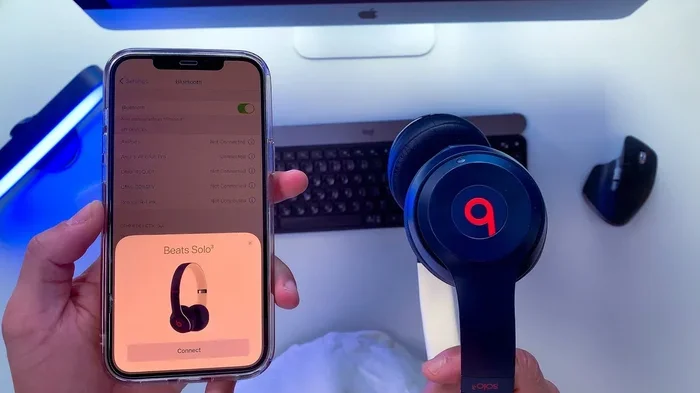
Now go to your phone, tablet, or laptop. Open the Bluetooth settings menu. Your Beats headphones should appear in the list of available devices. The name usually starts with “Beats” followed by the model name.
Tap or click on your Beats headphones to initiate the connection. Within a few seconds, the LED light on your headphones will stop flashing and stay solid. You will also hear a short confirmation tone.
Step 3: Confirm the Connection
Play some music or a video to test the connection. If the audio plays through your Beats headphones, you are all set. If you hear nothing, try moving closer to your device or restarting the Bluetooth connection.
Many users ask, can I use Bluetooth headphones with PS4 or other gaming consoles? The answer depends on the device. Some consoles need additional adapters for Bluetooth audio. For most phones and laptops, the process above works perfectly.
Connecting Beats Headphones to Different Devices
Beats headphones work with many devices beyond just smartphones. Let us look at how to connect them to specific devices you may use regularly.
Connecting to an iPhone or Android Phone
On iPhone, open Control Center and tap the Bluetooth icon. Then go to Settings > Bluetooth and tap your Beats name. On Android, go to Settings > Connected Devices > Pair New Device and select your Beats.
Both platforms support Bluetooth Beats headphones seamlessly. Once paired, your iPhone or Android will automatically connect to your Beats when you turn them on nearby.
Connecting to a Laptop or Desktop Computer
On Windows laptops, go to Settings > Devices > Bluetooth & Other Devices. Toggle Bluetooth on and click Add Device. Select your Beats from the list. On Mac, click the Bluetooth icon in the menu bar and choose your Beats headphones.
For desktop computers without built-in Bluetooth, you can use a USB Bluetooth dongle. This small adapter plugs into a USB port and adds Bluetooth capability to your PC. Just make sure to use a USB Bluetooth dongle on your TV or computer that supports audio streaming.
Connecting to a Smart TV
Most smart TVs support Bluetooth audio output. Go to your TV settings, find Bluetooth, and search for devices. Select your Beats headphones when they appear.
If your TV does not have built-in Bluetooth, you can use a Bluetooth adapter. A Bluetooth adapter on TV plugs into the USB or audio port and enables wireless connections. This is a great solution for older TVs that lack Bluetooth support.
Some users also want to know can I listen to my Samsung TV with Bluetooth headphones. The answer is yes, Samsung TVs have built-in Bluetooth settings that make this very easy.
Connecting to a Car Stereo
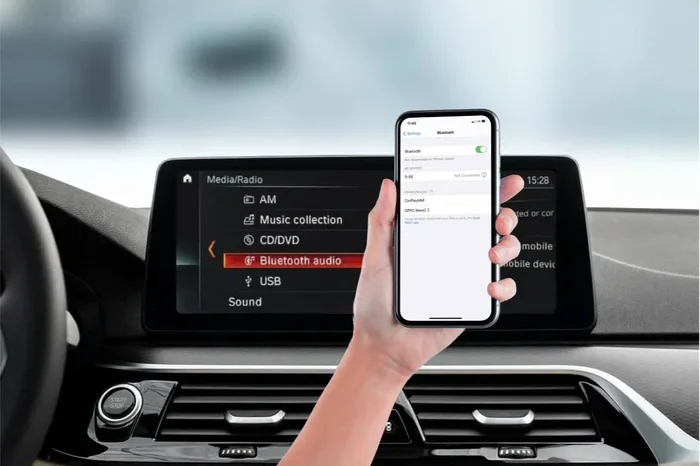
If your car supports Bluetooth, you can connect your Beats headphones for hands-free calls and music. Go to your car infotainment system, enable Bluetooth, and pair with your Beats. This works great for long drives or commutes.
Some car owners also explore options to make their car radio Bluetooth capable using aftermarket transmitters. These small devices plug into your car’s audio output and broadcast Bluetooth signals to your headphones.
Beats Headphones Bluetooth Settings and Features
Once your Beats headphones are connected, you can customize your experience using Bluetooth settings and companion apps.
Understanding Bluetooth Codecs
Bluetooth codecs determine the quality of audio transmitted wirelessly. Most Beats headphones use standard Bluetooth codecs like SBC and AAC. These codecs deliver good sound quality for everyday listening. Some advanced codecs like aptX and LDAC offer higher quality, but Beats headphones typically do not support them.
For most users, the default Bluetooth settings work perfectly fine. You do not need to change any codec settings unless you are an audiophile chasing the best possible sound.
Bluetooth Range and Stability
Bluetooth has a typical range of about 30 feet (10 meters). Walls, furniture, and other obstacles can reduce this range. For the best experience, keep your Beats headphones within reasonable distance of your source device.
If you experience audio dropouts, try moving closer to your device. Also, stay away from Wi-Fi routers and microwaves, as these can interfere with Bluetooth signals.
Multipoint Connection
Some newer Beats models support Bluetooth multipoint. This feature lets your headphones connect to two devices at the same time. For example, you can be connected to your phone and laptop simultaneously. When a call comes in on your phone, the headphones automatically switch to it.
Check your Beats model’s manual to see if it supports multipoint. This feature is especially useful for people who work from home and switch between a computer and phone throughout the day.
Troubleshooting Common Bluetooth Connection Issues
Even with the best setup, you may run into connection problems. Here are the most common issues and how to fix them.
Beats Headphones Not Showing Up in Bluetooth List
If your Beats do not appear in the Bluetooth list, try these steps:
- Make sure your headphones are in pairing mode (flashing LED light).
- Turn Bluetooth off and back on on your device.
- Restart your phone or computer.
- Remove old Beats pairings from both your headphones and your device.
- Move closer to your device and remove obstacles between them.
Sometimes simply resetting your Beats headphones fixes the problem. To reset most Beats models, hold the power button and the volume down button together for 10 seconds. The LED will flash, indicating a successful reset.
Audio Cutting Out or Lagging
Wireless audio delay or cutting out can be frustrating. Here are common causes and fixes:
- Distance: Move closer to your source device.
- Interference: Stay away from other Bluetooth devices and Wi-Fi routers.
- Battery: Low battery on your Beats can cause audio issues. Charge them fully.
- Firmware: Update your Beats firmware using the Beats app on your phone.
For phone calls, can I talk on the phone with Bluetooth headphones? Absolutely yes. Beats headphones have built-in microphones that work well for calls. Just make sure the headphones are connected to your phone and not another device.
Sound Quality Issues
If the sound quality drops after connecting via Bluetooth, try these fixes:
- Check that your Beats are connected to the correct device.
- Lower the volume on both your device and headphones to prevent distortion.
- Update the Beats app and firmware for optimal performance.
- Clean the headphone speakers gently with a soft cloth.
Remember that Bluetooth audio will never sound exactly like wired audio. The compression involved in wireless transmission slightly reduces audio quality. However, modern Beats headphones deliver excellent sound for wireless listening.
Maximizing Your Beats Bluetooth Experience
Now that your Beats headphones are connected, here are some tips to get the most out of them.
Use the Beats App
The Beats app for iOS and Android lets you customize your headphone settings. You can update firmware, adjust EQ settings, and manage Bluetooth connections. Download it from the App Store or Google Play Store.
Keep Firmware Updated
Regular firmware updates improve Bluetooth stability and sound quality. The Beats app will notify you when updates are available. Always install them for the best experience.
Store Your Headphones Properly
When not in use, store your Beats in their carrying case. This protects the Bluetooth antenna and keeps the battery healthy. Avoid extreme temperatures, which can damage both the battery and Bluetooth components.
Use the Aux Cable When Needed
Every Beats headphone comes with an aux cable. If Bluetooth is not working or you want to save battery, use the cable to connect directly to your device. This is a reliable backup option for any situation.
Many people also explore ways to make old Bose speakers Bluetooth or upgrade their audio setup with wireless adapters. The same principles apply to making any audio device wireless. Bluetooth technology has made it easy to enjoy music without cables.
Can I Use Beats Headphones for Gaming?
Beats headphones work well for casual gaming on phones and laptops. However, they are not ideal for competitive gaming where low latency matters. Bluetooth introduces a slight delay that can affect gameplay timing.
If you want to use Bluetooth headphones with PS4 or other gaming consoles, you may need a compatible Bluetooth transmitter. Some consoles have limited Bluetooth support for audio devices. Always check your console’s Bluetooth compatibility before trying to connect Beats headphones.
For the best gaming experience with Beats, use them with a PC or mobile device where Bluetooth latency is less noticeable. The sound quality on these platforms is excellent for immersive gaming sessions.
Final Thoughts
Connecting your Beats headphones via Bluetooth is a straightforward process that takes just a few minutes. Whether you own the latest Beats Studio or the compact Beats Flex, the pairing steps are similar across all models. Start by putting your headphones in pairing mode, find them on your device, and confirm the connection.
If you run into issues, the troubleshooting steps in this guide will help you resolve them quickly. Keep your firmware updated, use the Beats app for customization, and store your headphones properly to extend their lifespan.
Wireless audio has come a long way, and Beats headphones deliver an excellent experience. Now that you know how to get connected, put on your favorite playlist and enjoy the freedom of wireless listening. The world of Bluetooth audio is yours to explore.
Frequently Asked Questions
How long does it take to Bluetooth pair Beats headphones?
Most Beats headphones pair within 30 seconds to two minutes. The key is putting them in pairing mode first. Once in pairing mode, your device should find them almost instantly.
Why won’t my Beats headphones connect to Bluetooth?
This usually happens when the headphones are not in pairing mode or when they are already connected to another device. Try resetting your Beats headphones and removing old pairings from your device. Make sure Bluetooth is turned on and your headphones are charged.
Can I connect Beats headphones to a TV?
Yes, most smart TVs support Bluetooth audio. Go to your TV settings, enable Bluetooth, and search for devices. If your TV does not have built-in Bluetooth, you can use a Bluetooth adapter to connect your Beats headphones wirelessly.
How far can I move away from my device while using Bluetooth Beats headphones?
Bluetooth has a typical range of about 30 feet or 10 meters. Walls and obstacles can reduce this distance. For the best experience, stay within 15 to 20 feet of your connected device.
Do I need an app to connect Beats headphones via Bluetooth?
No, you do not need an app for basic Bluetooth pairing. Your phone or laptop has built-in Bluetooth settings that handle the connection. However, the Beats app gives you access to firmware updates, EQ settings, and additional customization options.
Can I use my Beats headphones while riding a motorcycle?
While technically possible, it is not recommended for safety reasons. Wind noise and road noise can make it difficult to hear audio, and wearing headphones while riding may be illegal in some areas. If you need wireless audio on a motorcycle, consider using a helmet with built-in Bluetooth speakers instead.