How Do I Connect My Airpods To Bluetooth Right Now
Connecting your Airpods to Bluetooth is quick and easy when you follow the right steps. This guide walks you through pairing your AirPods to any device, fixing common connection issues, and getting the best wireless audio experience. Whether you have AirPods Pro, AirPods Max, or the original model, you will find everything you need here.
Key Takeaways
- Fast Pairing: Connecting your Airpods to Bluetooth takes under a minute with the right steps.
- Works Across Devices: You can pair AirPods to iPhones, Androids, Macs, PCs, and even smart TVs.
- Troubleshooting Is Simple: Most Bluetooth connection problems have easy fixes you can do at home.
- Maximize Range: Keeping your Bluetooth devices within 30 feet ensures a strong, stable signal.
- Battery Matters: Always check your AirPods battery before pairing to avoid interruptions.
- Multiple Devices: You can switch your AirPods between devices, but only one at a time plays audio.
📑 Table of Contents
- How Do I Connect My Airpods To Bluetooth Right Now
- How to Connect Your Airpods to Bluetooth Step by Step
- How to Put Your Airpods in Pairing Mode
- Troubleshooting Common Airpods Bluetooth Connection Issues
- Can You Connect Airpods to a TV?
- Switching Airpods Between Devices
- Maximizing Your Airpods Bluetooth Performance
- Key Takeaways
- Frequently Asked Questions
- Conclusion
How Do I Connect My Airpods To Bluetooth Right Now
You just got your Airpods To Bluetooth connection set up, and you are ready to enjoy wire-free music, podcasts, and calls. But wait, how do you actually pair them? The good news is that connecting your AirPods to any Bluetooth device is straightforward. You do not need to be a tech expert. This guide shows you every step, from the first pairing to fixing common problems. Let us get your AirPods paired and ready to go.
Whether you use AirPods Pro, AirPods Max, or the standard AirPods, the pairing process is very similar. The steps work on iPhones, Android phones, Windows laptops, and even smart TVs. I will walk you through each scenario so you can get sound flowing to your AirPods no matter what device you are using. Bluetooth pairing has come a long way, and Apple made it as simple as possible.
Before we dive in, let me share a quick tip. Make sure your AirPods are charged. A low battery can cause pairing failures and frustrating dropouts. Also, keep your device close during the setup process. Wireless earbuds work best when they are near the source device. Now let us get started.
How to Connect Your Airpods to Bluetooth Step by Step
The AirPods setup process is different depending on what device you are connecting to. Below I cover the most common scenarios. Pick the one that matches your situation and follow along.
Pairing AirPods to an iPhone or iPad
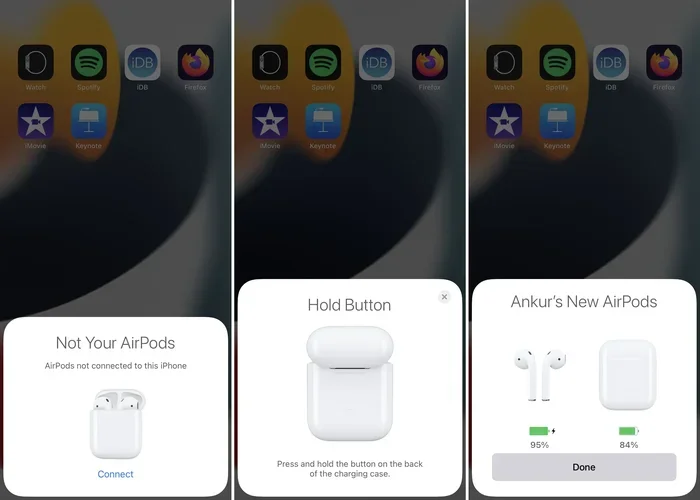
This is the easiest path. When you use an Apple device, the connection happens almost automatically. Here is exactly what to do:
- Open your AirPods case lid while the AirPods are inside.
- Hold the case near your unlocked iPhone or iPad.
- A setup animation will appear on your screen. Tap Connect.
- Follow any on-screen prompts if they appear.
- Your AirPods will now appear in your Bluetooth settings under My Devices.
That is it. The device pairing process is smooth because Apple devices share the same ecosystem. Your AirPods will automatically reconnect whenever you open the case near your iPhone. This is one of the biggest advantages of the Apple wireless connection ecosystem.
If this is your first time setting up AirPods, you will also get the option to personalize your listening experience. You can enable Spatial Audio, adjust EQ settings, and choose which ear does what. Take a moment to explore these options in your Bluetooth settings after pairing.
Pairing AirPods to an Android Phone
You do not need an iPhone to use AirPods. Bluetooth connectivity works across platforms. Here is how to pair AirPods with an Android device:
- Open the AirPods case lid and press and hold the setup button on the back of the case.
- The LED light on the case will flash white. This means your AirPods are in pairing mode.
- On your Android phone, go to Settings and then Bluetooth.
- Make sure Bluetooth is turned on.
- Look for your AirPods in the list of available Bluetooth devices.
- Tap on them to connect.
Once connected, your AirPods will work just like any other wireless earbuds on your Android phone. You can play music, take calls, and use voice assistants. The experience is slightly different from the Apple ecosystem, but the core functionality remains the same.
Connecting AirPods to a Windows PC or Mac
Want to use your AirPods for work or streaming on a computer? Here is how to get that Bluetooth audio flowing:
For Mac:
- Click the Bluetooth icon in the menu bar at the top of your screen.
- Open Bluetooth Settings if the icon is not visible.
- Put your AirPods in pairing mode by holding the setup button.
- Click on your AirPods when they appear in the device list.
For Windows PC:
- Go to Settings and then Devices.
- Click on Add Bluetooth or other device.
- Select Bluetooth from the options.
- Hold the setup button on your AirPods case until the light flashes.
- Select your AirPods from the list.
Once paired, your Bluetooth compatible AirPods will stream audio from your computer. This is great for video calls, watching movies, or listening to music while you work. The wireless connection keeps your desk tidy and lets you move around freely.
How to Put Your Airpods in Pairing Mode
Getting your AirPods into pairing mode is the key step many people miss. Without pairing mode active, your device cannot find the AirPods. Here is how to do it for each AirPod model.
Standard AirPods
Open the lid of the charging case. Press and hold the small circular button on the back of the case for about five seconds. The status LED will flash amber, then white. That white flash means your AirPods are ready to be found.
AirPods Pro
The process is the same as the standard AirPods. Open the case, hold the setup button on the back, and wait for the white flashing light. AirPods Pro support the same Bluetooth pairing method as all other AirPod models.
AirPods Max
AirPods Max do not have a charging case with a button. Instead, press and hold the noise control button on the top right ear cup for about five seconds. The LED will flash white, indicating pairing mode is active.
Once you see that white flash, go to your device and look for the AirPods in the Bluetooth settings. The whole process takes less than 30 seconds once you know what to do.
Troubleshooting Common Airpods Bluetooth Connection Issues
Sometimes the Bluetooth connection does not work the way you expect. Do not worry. Most problems have simple solutions. Here are the most common issues and how to fix them.
Airpods Not Showing Up in Bluetooth List
If your device cannot find the AirPods, try these steps:
- Make sure the AirPods case is open and the AirPods are inside.
- Check that the AirPods are fully in pairing mode (white flashing light).
- Turn Bluetooth off and back on on your device.
- Restart your device and try again.
- Move closer to the device. Bluetooth range is typically about 30 feet.
Airpods Connected But No Sound
Sometimes the AirPods pair successfully but no audio plays. This usually happens because the audio output is set to a different device. Check your device audio settings and make sure AirPods are selected as the output. On iPhone, you can swipe down from the top right and tap the audio output icon to switch.
Airpods Keep Disconnecting
Frequent disconnections can be annoying. Here is what causes them and how to fix it:
- Low battery: Charge both AirPods and the case fully.
- Interference: Wi-Fi routers and other Bluetooth devices can cause signal drops. Move away from crowded wireless areas.
- Software update: Make sure your device has the latest firmware and OS updates.
- Reset AirPods: Put the AirPods in the case, close the lid, wait 30 seconds, then open and hold the setup button for 15 seconds.
One Airpod Not Connecting
If only one AirPod connects, try this quick fix. Place both AirPods in the case, close the lid, wait a few seconds, then open and check the battery level. If one shows low battery, charge it. You can also try resetting the AirPods as described above. This solves most single-ear connection problems.
Can You Connect Airpods to a TV?
Many people want to use their AirPods with a television for private listening. The answer depends on your TV model. Most modern smart TVs support Bluetooth audio, but the process varies.
If you have a Samsung, LG, or Sony smart TV, you can usually go to Settings, then Sound, then Bluetooth, and pair your AirPods directly. This works great for late-night watching without disturbing anyone in the house.
For TVs that do not have built-in Bluetooth, you can use a Bluetooth adapter. A USB Bluetooth dongle plugs into your TV and adds wireless audio capability. This is an affordable solution that works with almost any TV. You can also use your AirPods with other Bluetooth audio devices in your home setup, such as Bluetooth headphones with your TV using a transmitter.
Some people also use a Bluetooth adapter on their TV to connect AirPods or other wireless earbuds. This opens up a lot of flexibility for your home entertainment system. If you want to learn more about using Bluetooth with your TV setup, check out our guide on using a Bluetooth adapter on your TV for step-by-step instructions.
Switching Airpods Between Devices
One of the best features of AirPods is the ability to switch between devices. If you are listening to music on your iPhone and get a call on your Mac, the audio switches automatically. This works seamlessly within the Apple ecosystem.
For Android and Windows users, switching is not automatic. You need to manually disconnect from one device and connect to another. Go to the Bluetooth settings on the new device and select your AirPods. They will disconnect from the previous device in most cases.
If you want to use your AirPods with a gaming console or another device, note that not all platforms support AirPods natively. For example, you can pair my Airpods to my Switch using a Bluetooth adapter since the Switch does not support standard Bluetooth audio natively. Always check device compatibility before expecting a smooth connection.
Another great option for laptop users is connecting Bluetooth headphones to your computer for work calls and music. If you are curious about connecting other wireless earbuds to your laptop, you can explore how to connect Powerbeats to your laptop using a similar Bluetooth pairing process.
Maximizing Your Airpods Bluetooth Performance
Once your AirPods are connected, you want the best possible experience. Here are tips to get the most out of your wireless earbuds.
Keep Your AirPods Charged
A full charge gives you around 5 to 6 hours of listening time for standard AirPods and up to 8 hours for AirPods Pro. The charging case provides additional charges. Always return your AirPods to the case when not in use to preserve battery life.
Stay Within Bluetooth Range
Bluetooth works best within about 30 feet of the source device. Walls, furniture, and other obstacles can weaken the signal. If you experience dropouts, move closer to your device. This is especially important when streaming video, where a stable connection prevents audio lag.
Update Your Firmware
Apple regularly releases firmware updates for AirPods. These updates improve Bluetooth connectivity, fix bugs, and add new features. To update, place your AirPods in the case, keep them near your iPhone, and leave the case lid open. The update happens automatically when your iPhone is charging and connected to Wi-Fi.
Clean Your AirPods Regularly
Wax and dust buildup can affect speaker performance and sensor responsiveness. Use a soft, dry cloth to clean the speaker mesh and sensors. Avoid using liquids or sharp objects. Clean AirPods sound better and connect more reliably.
Use the Right Audio Codec
For the best audio quality, make sure your device supports the right codec. Apple devices use AAC by default, which works well with AirPods. If you use third-party apps or Android devices, you may need to check codec compatibility in your audio settings.
Key Takeaways
- Quick Pairing: Connecting your Airpods to Bluetooth takes under a minute with the right steps.
- Cross-Platform Support: You can pair AirPods to iPhones, Androids, Macs, PCs, and even smart TVs.
- Pairing Mode Is Essential: Always activate pairing mode by holding the setup button until the light flashes white.
- Troubleshooting Is Simple: Most Bluetooth connection problems have easy fixes like resetting, charging, or moving closer.
- Maximize Performance: Keep AirPods charged, update firmware, and stay within 30 feet of your source device.
- TV Connectivity: Use built-in Bluetooth or a USB Bluetooth adapter to connect AirPods to your television.
Frequently Asked Questions
Can I connect Airpods to any Bluetooth device?
Yes, AirPods can connect to any device that supports Bluetooth. This includes iPhones, Androids, Windows PCs, Macs, smart TVs, and tablets. The pairing process is slightly different on each device, but the core steps remain the same. Just put your AirPods in pairing mode and look for them in your device Bluetooth settings.
Why won’t my Airpods connect to Bluetooth?
Several factors can prevent a connection. The most common causes are low battery, AirPods not in pairing mode, Bluetooth being turned off on your device, or too much distance between the devices. Try resetting your AirPods by holding the setup button for 15 seconds. Also make sure your device software is up to date. These steps resolve the issue in most cases.
How far can Airpods be from the connected device?
AirPods use Bluetooth technology with a typical range of about 30 feet or 10 meters. Walls, furniture, and other obstacles can reduce this distance. If you move too far away, the connection may drop. For the best experience, stay within a reasonable range of your source device. This ensures a strong and stable wireless connection.
Can I connect Airpods to two devices at once?
AirPods can only play audio from one device at a time. However, you can quickly switch between devices. Apple devices make this easy with automatic switching within the ecosystem. On non-Apple devices, you need to manually disconnect from one device and connect to another in your Bluetooth settings. The switch takes only a few seconds.
How do I reset my Airpods for Bluetooth connection issues?
To reset your AirPods, place them in the charging case and close the lid. Wait 30 seconds, then open the lid. Press and hold the setup button on the back of the case for about 15 seconds. The LED will flash amber, then white. This resets your AirPods and clears any stored Bluetooth connections. After resetting, try pairing them again with your device.
Do Airpods work with Bluetooth version differences?
Yes, AirPods work with various Bluetooth versions. Apple designs AirPods to be compatible with most Bluetooth versions found in modern devices. However, older Bluetooth versions may not support the latest features like Spatial Audio or high-quality codecs. For the best experience, use devices with Bluetooth 4.0 or higher. Most devices made in the last several years meet this requirement.
Conclusion
Connecting your Airpods to Bluetooth is a simple process that opens up a world of wireless audio freedom. Whether you are pairing them to your phone, laptop, or TV, the steps are quick and easy. Remember to keep your AirPods charged, activate pairing mode properly, and stay within Bluetooth range for the best results.
If you run into issues, the troubleshooting tips in this guide will help you get back on track in minutes. Bluetooth pairing becomes second nature once you do it a few times. You will wonder how you ever listened to audio with wires.
Take a few minutes right now to follow the steps in this guide. Get your AirPods connected and enjoy the seamless wireless connection you deserve. Once you experience the convenience of wire-free audio, you will never want to go back to tangled cables again.