Definition Of A Query In Access Made Easy To Understand
The definition of a query in Access is a request you make to a database to find, filter, or organize specific data. Think of it like asking a smart librarian to pull only the books you need. Microsoft Access uses queries to retrieve data, run calculations, and update records. This guide makes the concept easy to understand for anyone, even if you are brand new to database management.
Have you ever opened a huge spreadsheet and felt completely lost? You know the data is in there somewhere, but finding the exact piece you need feels like searching for a needle in a haystack. That is where the definition of a query in Access becomes your best friend.
A query is simply a way to ask your database a question and get a precise answer. In Microsoft Access, a query pulls specific records from your tables, filters them based on rules you set, and presents only the data you actually need. It is like having a personal assistant who knows exactly where everything is stored.
Whether you are a student, a small business owner, or someone just curious about how databases work, understanding database queries is a valuable skill. This guide walks you through everything in plain, simple language. No confusing jargon. No unnecessary fluff. Just clear, helpful information you can use right away.
Key Takeaways
- A query in Access is a tool that retrieves specific data from one or more tables based on your criteria.
- There are several query types, including select, action, parameter, and SQL queries, each serving a unique purpose.
- Queries save time by automating data retrieval and reducing manual searching through large databases.
- Query design lets you join tables, set filters, and sort results to get exactly the information you need.
- Understanding queries improves your database skills and makes you more effective at managing data in Access.
- You do not need to know coding to build basic queries, though learning SQL opens up more advanced options.
- Queries work hand in hand with reports to help you analyze and present your data clearly.
📑 Table of Contents
- What Is the Definition of a Query in Access?
- The Different Types of Queries You Can Build
- How to Create Your First Query in Access
- How Queries Work with Tables and Relationships
- Common Mistakes to Avoid When Using Queries
- Real-World Uses for Access Queries
- Query Optimization: Making Your Queries Run Faster
- Queries and Security: Protecting Your Data
- Final Thoughts
What Is the Definition of a Query in Access?
At its core, the definition of a query in Access is a saved request that tells the database what information to find and how to organize it. When you run a query, Access goes through your tables, applies the rules you set, and returns a result set. This result set is a temporary table filled only with the records that match your criteria.
Think of it this way. You have a table with 10,000 customer names. You only want the names of customers who live in Texas and made a purchase last month. Instead of scrolling through 10,000 rows, you build a query. The query does all the heavy lifting for you. It retrieves data in seconds and shows you exactly what you asked for.
Why Queries Matter in Database Management
Queries are the backbone of any well-organized relational database. Without them, you would have to manually scan through every record every time you needed information. That would take hours, if not days. Queries automate this process and make data extraction fast and accurate.
Here are a few reasons why queries are so important:
- Speed: Queries return results almost instantly, even from very large datasets.
- Accuracy: They follow your rules exactly, so there is no guesswork involved.
- Reusability: Once you save a query, you can run it again and again whenever you need fresh results.
- Security: You can share query results without giving anyone full access to your underlying tables.
- Flexibility: You can combine data from multiple tables and present it in a single view.
Since Access is a proprietary operating system component in the Microsoft Office suite, its query engine is tightly integrated with the rest of the application. This means queries work smoothly with forms, reports, and other database objects. If you want to learn more about how proprietary systems compare to open alternatives, you can check out our guide on the advantages and disadvantages of a proprietary operating system.
The Different Types of Queries You Can Build
Not all queries do the same thing. Access offers several query types, and each one serves a different purpose. Knowing which type to use is a big part of mastering database management.
Select Queries
A select query is the most common type. It simply retrieves data from one or more tables and displays it. You can sort, filter, and group the results however you like. A select query does not change your original data. It only shows you a view of it.
For example, you might create a select query to list all products priced under $20 that were added to inventory this week. The query pulls those specific records and leaves everything else untouched.
Action Queries
Action queries go a step further. They actually modify data in your database. There are four kinds of action queries:
- Update Query: Changes existing data in multiple records at once.
- Delete Query: Removes records that match your criteria.
- Append Query: Adds new records from one table to another.
- Make-Table Query: Creates a brand new table from query results.
Action queries are powerful, but they should be used carefully. A single mistake can change or delete a lot of data very quickly. Always back up your database before running an action query.
Parameter Queries
A parameter query asks the user for input before it runs. For instance, it might prompt you to enter a date range. Then it returns only the records that fall within that range. This makes your query design flexible and interactive.
SQL Queries
SQL stands for Structured Query Language. An SQL query lets you write commands directly in code instead of using the visual query builder. While this sounds technical, even beginners can learn basic SQL syntax fairly quickly. It gives you more control over complex data extraction tasks.
How to Create Your First Query in Access
Building a query in Access is easier than most people think. You do not need to be a programmer. The query builder gives you a visual interface where you can drag and drop fields, set criteria, and preview results.
Step-by-Step Guide
- Open your database in Microsoft Access.
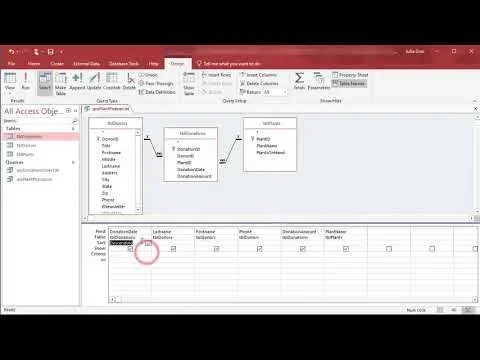
- Go to the Create tab on the ribbon and click Query Design.
- Add the tables you want to pull data from. You can join tables by dragging a field from one table to a related field in another.
- Double-click the fields you want to see in your results.
- Set your criteria in the Criteria row. For example, type “Texas” in the State field to filter for Texas customers.
- Run the query by clicking the Run button (the red exclamation mark).
- Save the query with a meaningful name so you can use it again later.
Quick Tips for Better Query Design
- Start simple. Build a basic query first, then add complexity as you get comfortable.
- Use meaningful names. Name your queries clearly so you remember what they do months later.
- Test with small data sets. Run your query on a few records first to make sure the results look right.
- Use the wildcard character in text fields to search for partial matches.
- Sort your results. Click on any column header and choose ascending or descending order to organize your data.
When you store your query results or use them alongside other data-sharing tools, the underlying secondary storage where your database files live plays an important role. If you are curious about how secondary storage affects your data workflow, our article on the advantages and disadvantages of secondary storage provides great insights.
How Queries Work with Tables and Relationships
Access databases store information in tables. A single table might hold customer data, while another holds order details. The magic happens when you connect these tables through relationships and use queries to pull data across them.
When you join tables in a query, you create a link between related fields. For example, a Customer ID field in the Orders table matches a Customer ID in the Customers table. The query uses this link to combine information from both tables into one result set.
This is one of the biggest advantages of a relational database. You do not have to repeat the same information over and over. Instead, you store it once in each table and let queries bring it together when you need it.
Understanding Inner Joins and Outer Joins
When joining tables, Access gives you options for how records are matched:
- Inner Join: Returns only records that have matching values in both tables. This is the default and most common type.
- Left Outer Join: Returns all records from the left table, plus matching records from the right table. If there is no match, the right-side fields show null values.
- Right Outer Join: The opposite of a left join. It returns all records from the right table plus matches from the left.
Choosing the right join type can change your query results dramatically. If your results look incomplete, check your joins first.
Common Mistakes to Avoid When Using Queries
Even experienced users make mistakes with queries. Here are a few common pitfalls and how to avoid them:
Forgetting to Set Criteria
If you run a query without setting any criteria, it returns every single record in the table. This can be overwhelming and slow, especially with large databases. Always double-check that your filters are in place before running a query.
Using the Wrong Data Type in Criteria
Access expects certain data types in certain fields. If you put text criteria in a number field, the query will either fail or return no results. Make sure your criteria match the field type.
Not Backing Up Before Action Queries
Update and delete queries can permanently change or remove data. Always make a backup copy of your database before running any action query. This one habit can save you hours of headaches.
Overcomplicating Simple Queries
Sometimes the simplest query is the best one. If you only need a list of names, do not add unnecessary joins or calculations. Keep your query design clean and focused.
Real-World Uses for Access Queries
Queries are not just a classroom exercise. People use them every day in real business scenarios. Here are a few practical examples:
- Sales Tracking: A retail business uses a query to find all orders above a certain dollar amount from the past quarter. The sales team uses this list to follow up with high-value customers.
- Inventory Management: A warehouse runs a query to identify products that are low in stock. This triggers a reorder process and prevents stockouts.
- Student Records: A school uses a parameter query to pull all students who scored below a certain grade threshold, helping teachers identify who needs extra support.
- Healthcare Data: Medical offices use queries to retrieve patient records for specific appointments or treatments. Computers play a huge role in modern medicine, and queries are a key part of that workflow. To see how computers are used in medicine more broadly, check out our article on 10 ways computers are used in medicine.
- Financial Reporting: An accountant builds a query that calculates total revenue by category for a fiscal year, then exports the results into a report.
In each of these cases, the definition of a query in Access stays the same. You are asking the database to find and organize specific information for you. The only difference is the context and the criteria you set.
Query Optimization: Making Your Queries Run Faster
As your database grows, your queries might start to slow down. This is normal, but there are ways to keep things running smoothly.
Tips for Faster Queries
- Index your fields: Adding indexes to fields you frequently search or join on can dramatically speed up query performance.
- Avoid SELECT : Only retrieve the fields you actually need. Pulling unnecessary columns slows things down.
- Use filters early: Apply your most restrictive criteria first to reduce the number of records the query needs to process.
- Compact your database regularly: This frees up space and keeps the file running efficiently.
- Limit joins: Too many table joins can slow a query down. Only join tables that are essential to your results.
If you ever need to share query results or database information across a network, the communication method you use matters. For a deeper look at electronic data communication, our article on the advantages and disadvantages of using a value added network for electronic commerce communication covers this topic in detail.
Queries and Security: Protecting Your Data
One often-overlooked benefit of queries is their role in data security. Instead of giving users direct access to your raw tables, you can let them interact with query results only. This limits what they can see and do.
You can also use queries in combination with other security features. For example, if you want to control which devices can access your database, you might use MAC address filtering at the network level. This adds another layer of protection by only allowing approved hardware to connect. To learn more about this approach and its pros and cons, read our article on the advantage and disadvantage of MAC address filtering.
Final Thoughts
The definition of a query in Access is straightforward: it is a saved request that retrieves, filters, or modifies data in your database. But the power of queries goes far beyond that simple definition. They are the engine that drives efficient database management, the tool that turns raw data into useful information, and the skill that separates casual users from true database professionals.
Start with simple select queries. Practice building action queries in a safe environment. Experiment with parameter queries to make your databases interactive. Over time, you will find that queries become one of the most valuable tools in your tech toolkit.
The beauty of Microsoft Access is that it gives you all of these capabilities in one friendly package. You do not need to be a developer or a data scientist. You just need curiosity and a willingness to learn. And now that you understand what a query is and how it works, you are already on your way.
Go ahead and open Access. Create a new query. Try something small. See how it feels. Once you get that first set of results back, you will understand why so many people rely on queries to manage their data every single day.
Frequently Asked Questions
What is the simple definition of a query in Access?
A query in Access is a saved request that asks the database to find, filter, or organize specific data based on rules you set. It pulls records from one or more tables and presents only the results that match your criteria.
Do I need to know programming to create a query in Access?
No, you do not. Access provides a visual query builder where you can drag and drop fields and set criteria without writing any code. However, learning basic SQL can help you build more advanced queries later on.
What is the difference between a select query and an action query?
A select query only retrieves and displays data without changing anything in your database. An action query actually modifies data by updating, deleting, appending, or creating new tables based on your instructions.
Can a query pull data from more than one table?
Yes, absolutely. This is one of the strongest features of Access. You can join related tables in a query and combine data from multiple sources into a single result set.
How do I make my queries run faster?
You can speed up queries by indexing frequently searched fields, avoiding unnecessary columns, applying restrictive filters early, and compacting your database regularly to keep it optimized.
Are queries safe to share with other users?
Yes, queries are a safe way to share data because they only show the results you choose to display. You do not have to give other users direct access to your underlying tables, which helps protect sensitive information.
=== CONCLUSION ===
The definition of a query in Access might sound technical at first, but it is really just a way of asking your database a question and getting a clear answer. From simple select queries that pull specific records to powerful action queries that update or delete data in bulk, queries are the heart of any well-designed Access database.
By understanding the different query types, learning how to build them step by step, and avoiding common mistakes, you can take control of your data like a pro. Start small, practice often, and soon you will wonder how you ever managed without them.