Simple Steps To Connect My Bluetooth To My HP Laptop
Connecting Bluetooth to your HP laptop is easier than you think. This guide walks you through every step to pair wireless devices fast. You will learn how to turn on Bluetooth, fix common issues, and connect headphones, speakers, and printers to your HP laptop.
Have you ever wanted to go wireless with your HP laptop? Maybe you have a pair of Bluetooth headphones, a speaker, or even a printer sitting on your desk. The good news is that connecting Bluetooth to your HP laptop does not require any tech skills. You do not need to be a computer expert. In just a few minutes, you can have your devices paired up and ready to go.
This guide covers everything you need to know. From turning on Bluetooth to fixing common problems, we have you covered. Whether you are a student, a remote worker, or just someone who loves wireless freedom, this article will help you get connected. Let us walk through the process together.
Key Takeaways
- Step-by-step pairing: Learn the exact clicks to enable Bluetooth on any HP laptop model.
- Troubleshooting tips: Fix Bluetooth not working issues quickly and easily.
- Device compatibility: Discover which wireless devices work best with HP laptops.
- Driver updates: Keep your Bluetooth driver current for smooth wireless connections.
- Range and performance: Understand Bluetooth range limits and how to improve signal strength.
- Multiple devices: Connect and manage several Bluetooth devices at once on your HP laptop.
📑 Table of Contents
- What Is Bluetooth and Why Use It With Your HP Laptop?
- How to Check If Your HP Laptop Has Bluetooth
- Step-by-Step Guide to Connect My Bluetooth To My HP Laptop
- Common Bluetooth Problems and How to Fix Them
- Tips to Improve Your Bluetooth Experience on HP Laptops
- Bluetooth Devices You Can Connect to Your HP Laptop
- Bluetooth Security Tips for HP Laptop Users
- Frequently Asked Questions
- Conclusion
What Is Bluetooth and Why Use It With Your HP Laptop?
Bluetooth is a wireless technology that lets devices talk to each other without cables. It uses short-range radio waves to send data between devices. Most modern HP laptops come with Bluetooth built right in. This means you do not need any extra hardware to start connecting wireless devices.
There are many reasons to use Bluetooth with your HP laptop. First, it cuts the cord clutter. No more tangled cables on your desk. Second, it gives you freedom to move around. You can sit on your couch and still control your laptop. Third, it makes sharing files and audio super simple.
Bluetooth is also great for productivity. You can connect a wireless mouse, keyboard, or even a printer. If you want to listen to music, you can easily connect my Powerbeats to my laptop without any fuss. The possibilities are really endless when you embrace wireless connectivity.
How to Check If Your HP Laptop Has Bluetooth
Before you start pairing devices, you need to confirm that your HP laptop supports Bluetooth. Most HP laptops made in the last 8 to 10 years have it built in. But it is always smart to double-check. Here is how you can find out.
Method 1: Check Through Device Manager
Open the Start menu on your HP laptop. Type “Device Manager” and press Enter. Look for a section called “Bluetooth.” If you see it listed, your laptop has Bluetooth hardware. You should also see the name of your Bluetooth adapter there. This is the small chip inside your laptop that handles wireless connections.
Method 2: Look for the Bluetooth Icon
Another quick way is to check your taskbar. Look at the bottom-right corner of your screen, near the clock. If you see a Bluetooth icon, your laptop supports it. If you do not see it, do not worry. You can still add Bluetooth to your laptop using a USB Bluetooth dongle.
Method 3: Check HP Support Tools
HP laptops come with HP Support Assistant installed. Open it from the Start menu. Go to the “System Information” section. Look for “Bluetooth” in the list of components. This will tell you the exact Bluetooth version your laptop supports. Newer versions like Bluetooth 5.0 offer better range and faster speeds.
Step-by-Step Guide to Connect My Bluetooth To My HP Laptop
Now that you know your HP laptop supports Bluetooth, let us get into the actual pairing process. Follow these steps carefully and you will be connected in no time.
Step 1: Turn On Bluetooth on Your HP Laptop
Click on the Start menu. Go to “Settings” and then click “Devices.” You will see a section for Bluetooth at the top. Toggle the switch to turn it on. Your HP laptop is now searching for nearby devices. You should see a message that says “Searching for devices.”
If you cannot find the Settings app, try clicking the Bluetooth icon in the taskbar instead. A small menu will pop up. Click “Go to Settings” and then toggle Bluetooth on. This is the fastest way to enable Bluetooth on most HP laptops.
Step 2: Put Your Device in Pairing Mode
Every Bluetooth device has a pairing mode. This is a special state where the device is visible to other devices. How you activate it depends on the device you are using.
- Bluetooth headphones: Hold down the power button for 5 to 7 seconds. Look for a flashing LED light.
- Bluetooth speakers: Press and hold the Bluetooth button until the light blinks.
- Bluetooth keyboard or mouse: Look for a small button on the bottom or side. Press it once.
- Bluetooth printer: You can also connect my Brother printer via Bluetooth by holding the Bluetooth button on the printer panel.
The flashing light means the device is ready to be found. Keep the device close to your HP laptop during this process. Bluetooth works best within about 30 feet.
Step 3: Find and Select Your Device
Go back to your HP laptop. In the Bluetooth settings, you should see a list of available devices. Click on the device you want to pair. Then click “Connect.” Your HP laptop will establish a wireless link with the device.
Sometimes it takes a few seconds for the connection to appear. If your device does not show up, make sure it is still in pairing mode. You may also need to move the device closer to your laptop. Try refreshing the device list by toggling Bluetooth off and then back on.
Step 4: Confirm the Connection
Once connected, you should see a confirmation message. The device name will appear under “Audio, input, and output devices” or “Other devices.” You can now start using your device wirelessly.
To test the connection, try playing some audio through your Bluetooth headphones or speaker. If you hear sound, you are all set. If not, do not panic. Move on to the troubleshooting section below.
Step 5: Manage Connected Devices
Your HP laptop can remember multiple Bluetooth devices. To manage them, go back to Settings > Devices > Bluetooth. You will see a list of all paired devices. Click on any device to see options like “Connect,” “Remove,” or “More options.”
You can also set a default audio device. This is useful if you have both Bluetooth headphones and a Bluetooth speaker. Just click on the device you want to use as default and select “Set as default.”
Common Bluetooth Problems and How to Fix Them
Even though Bluetooth is very reliable, you might run into issues from time to time. Here are the most common problems and their solutions.
Bluetooth Not Showing Up on Your HP Laptop
If Bluetooth is missing from your settings, the driver might be the problem. Open Device Manager again. Look under “Bluetooth” and right-click your adapter. Select “Update driver.” Windows will search for the latest driver online. You can also visit the HP support website and download the driver for your specific laptop model.
Another fix is to restart the Bluetooth support service. Press Windows Key + R. Type “services.msc” and press Enter. Find “Bluetooth Support Service” in the list. Right-click it and select “Restart.” This often fixes hidden Bluetooth issues.
Device Won’t Pair Even Though It Is in Pairing Mode
This is frustrating but common. First, make sure Bluetooth is turned on both on your laptop and the device. Second, move the device closer to your laptop. Third, try removing the device from your laptop’s Bluetooth list and pairing it again from scratch. Sometimes old pairing data causes conflicts.
You can also try restarting both devices. A simple reboot fixes many Bluetooth connection problems. Turn off Bluetooth on your laptop, power off your device, wait 10 seconds, and then turn everything back on.
Poor Audio Quality or Constant Disconnections
If your Bluetooth audio sounds choppy or keeps cutting out, the signal might be weak. Move closer to your HP laptop. Avoid placing the Bluetooth device near microwaves, cordless phones, or Wi-Fi routers. These devices can interfere with Bluetooth signals.
You should also check if your Bluetooth driver is up to date. Outdated drivers often cause audio problems. Visit the HP website, enter your laptop model number, and download the latest Bluetooth driver. Install it and restart your laptop.
Too Many Devices Connected and Laptop Is Slow
Bluetooth uses your laptop’s wireless bandwidth. If you have too many devices connected at once, your laptop might slow down. Disconnect devices you are not using. Keep only the devices you need active at any given time. This will improve both Bluetooth performance and overall laptop speed.
Tips to Improve Your Bluetooth Experience on HP Laptops
Want to get the most out of your Bluetooth connection? Here are some expert tips that make a big difference.
- Keep your drivers updated: Check for Bluetooth driver updates every month. Updated drivers improve stability and speed.
- Stay within range: Keep your Bluetooth device within 30 feet of your HP laptop for the best connection.
- Reduce interference: Move away from other wireless devices that use the same 2.4 GHz frequency.
- Turn off unused devices: Disconnect Bluetooth devices you are not actively using. This frees up bandwidth.
- Restart regularly: A simple restart of your HP laptop can clear temporary Bluetooth glitches.
- Use the latest Bluetooth version: Newer Bluetooth versions offer better range and lower power consumption.
Bluetooth Devices You Can Connect to Your HP Laptop
The beauty of Bluetooth is that it works with many different types of devices. Here are some popular ones you can pair with your HP laptop.
- Wireless headphones and earbuds: Great for music, calls, and video watching. You can even use any Bluetooth headphones with my TV and connect them to your laptop for a similar experience.
- Bluetooth speakers: Perfect for sharing music with friends or enjoying louder audio at home.
- Wireless keyboards and mice: Free up your desk space and enjoy a clean setup.
- Printers: Print documents wirelessly from your HP laptop to a Bluetooth-enabled printer.
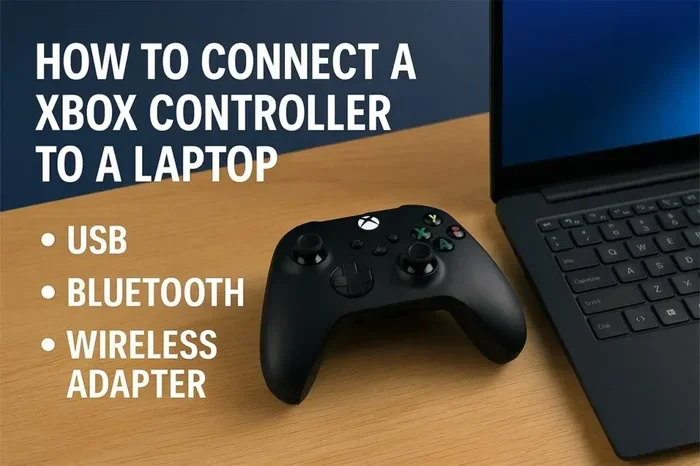
- Game controllers: Connect wireless gamepads for a more comfortable gaming experience.
- Smartphones: Transfer files, sync contacts, and even use your phone as a hotspot.
You can also connect your stereo system wirelessly. If you want to learn more about that, check out how you can turn my stereo into Bluetooth and stream audio directly to your speakers.
Bluetooth Security Tips for HP Laptop Users
Wireless connections are convenient, but they also come with security considerations. Here is how you can keep your HP laptop safe.
- Turn off Bluetooth when not in use: This prevents unauthorized devices from trying to connect.
- Only pair with trusted devices: Do not accept pairing requests from devices you do not recognize.
- Keep your laptop updated: Windows updates often include security patches for Bluetooth vulnerabilities.
- Use a strong PIN: When pairing, choose a PIN that is hard to guess. Avoid simple codes like “0000.”
- Be careful in public places: Bluetooth signals can be detected by others nearby. Turn off Bluetooth in crowded areas when you are not actively using it.
Frequently Asked Questions
Why Is Bluetooth Not Working on My HP Laptop?
Bluetooth issues on HP laptops are often caused by outdated drivers or a simple software glitch. Start by checking that Bluetooth is turned on in Settings > Devices. If it is on and still not working, try updating your Bluetooth driver through Device Manager. Restarting your laptop can also resolve temporary software conflicts that prevent Bluetooth from functioning properly.
Can I Connect Multiple Bluetooth Devices to My HP Laptop at Once?
Yes, you can connect multiple Bluetooth devices to your HP laptop at the same time. However, keep in mind that too many connected devices can slow down your wireless performance. It is best to only keep the devices you are actively using connected. Most HP laptops can handle around 7 to 8 Bluetooth connections at once without any issues.
Do I Need Any Extra Hardware to Use Bluetooth on My HP Laptop?
Most modern HP laptops have Bluetooth built in, so you do not need any extra hardware. If your HP laptop is older and does not have Bluetooth, you can buy a USB Bluetooth adapter. These small dongles plug into any USB port and add Bluetooth capability to your laptop in seconds. They are inexpensive and work great.
How Far Can Bluetooth Reach From My HP Laptop?
Standard Bluetooth has a range of about 30 feet or 10 meters. Bluetooth 5.0, which is found on newer HP laptops, can reach up to 80 feet in ideal conditions. Walls, furniture, and other electronic devices can reduce this range. For the best connection, keep your Bluetooth device within a clear line of sight from your laptop.
How Do I Remove a Bluetooth Device From My HP Laptop?
Go to Settings > Devices > Bluetooth on your HP laptop. Find the device you want to remove. Click on it and select “Remove device.” Confirm the action. This will delete the pairing information from your laptop. You can always pair the device again later if you need it.
Is Bluetooth Safe to Use on My HP Laptop?
Yes, Bluetooth is very safe to use on your HP laptop. It uses low-power radio waves that are considered safe for everyday use. To stay secure, always keep your laptop updated with the latest Windows updates. Only pair with devices you trust, and turn off Bluetooth when you are not using it to minimize any potential security risks.
Conclusion
Connecting Bluetooth to your HP laptop is a simple and rewarding process. You have learned how to check for Bluetooth support, turn it on, pair devices, and troubleshoot common issues. With just a few clicks, you can enjoy wireless audio, wireless peripherals, and wireless printing from your HP laptop.
Remember to keep your Bluetooth drivers updated and your devices within range for the best experience. Follow the security tips to keep your connection safe. Whether you are listening to music, working on a project, or printing a document, Bluetooth makes everything more convenient.
Now that you know how to connect my Bluetooth to my HP laptop, go ahead and try it. Pick up your favorite wireless device and start pairing. You will wonder how you ever lived with cables. Wireless freedom is just a few clicks away on your HP laptop.