Are USB A and B the Same Here Is What You Need to Know
USB A and USB B are not the same. They look different, serve different purposes, and connect to different devices. USB A is the flat, rectangular port you see on computers and hubs, while USB B is the square-ish connector found on printers and scanners. Understanding this difference saves time and prevents frustrating connection mistakes.
Have you ever stared at a pile of USB cables and wondered which one goes where? You are not alone. Many people assume all USB cables look the same and work the same way. But here is the truth. USB A and USB B are not the same. They have different shapes, different jobs, and different places they belong. In this guide, we will break down everything you need to know about these two connector types. By the end, you will never mix them up again.
The world of USB connectors can feel confusing at first glance. There are so many shapes, sizes, and versions floating around. But once you understand the basics, it all starts to make sense. USB A and USB B are two of the most common connector types you will encounter every day. They each play a specific role in how your devices talk to each other. Let us dive into the details and clear up the confusion once and for all.
Key Takeaways
- USB A and USB B are different connector types designed for specific roles in data transfer and device connections.
- USB A is the host connector found on computers, while USB B is the device connector used on printers and external drives.
- They are not interchangeable in most cases because of their distinct shapes and pin configurations.
- USB versions (2.0, 3.0, 3.1)** affect speed and power delivery, regardless of the connector type.
- Using the wrong cable can lead to slow transfers, charging failures, or even device damage in rare cases.
- USB B connectors come in several variants, including standard, mini, and micro sizes.
- Knowing your connectors helps you troubleshoot connection issues and choose the right accessories.
📑 Table of Contents
- What Are USB A and USB B?
- Key Differences Between USB A and USB B
- Where You Will Find USB A and USB B Connectors
- Can You Use USB A and USB B Interchangeably?
- The Evolution of USB Connectors
- Quick Tips for Identifying and Using USB Connectors
- Common Mistakes People Make with USB A and USB B
- Expert Insights on USB A and USB B
- Key Takeaways
- Conclusion
What Are USB A and USB B?
Before we get into the differences, let us start with the basics. What exactly are USB A and USB B? Both are types of USB connectors, but they serve very different functions. USB A is the flat, rectangular connector that plugs into your computer or charging brick. USB B is the squarish connector that plugs into your printer, external hard drive, or other peripheral device.
Think of it like a wall outlet and an appliance plug. The wall outlet stays put and supplies power. The appliance plug moves with the device. That is essentially how USB A and USB B work together. One is the host side, and the other is the device side. This design helps prevent accidental damage and keeps connections stable.
The Role of USB A
USB A connectors are known as “downstream” ports. This means they send data and power outward to connected devices. Your laptop, desktop computer, and USB hubs all use USB A ports. These ports are designed to be permanent fixtures on the host device. You will not typically find a cable with a USB A plug on both ends, because that would create a loop that does not make sense electrically.
USB A ports come in different versions too. USB 2.0 A ports are black inside. USB 3.0 A ports are blue inside. And USB 3.1 Gen 2 A ports are teal or red. The color coding helps you identify the speed and capability of each port at a glance. This is a handy trick to remember.
The Role of USB B
USB B connectors are the “upstream” side of the connection. They plug into the device that receives data and power. Printers, scanners, external hard drives, and some audio interfaces all use USB B connectors. The shape is intentionally different from USB A so that you cannot accidentally plug a host cable into a device port or vice versa.
USB B connectors have evolved over the years too. The original standard USB B is a large square shape with slightly beveled corners. Then came mini USB B, which was popular on older cameras and portable devices. Today, micro USB B is common on phones, tablets, and smaller gadgets. Each variant serves the same basic purpose but fits different device sizes.
Key Differences Between USB A and USB B
Now that you know what each connector does, let us look at the specific differences. These are the details that set USB A and USB B apart.
Shape and Size
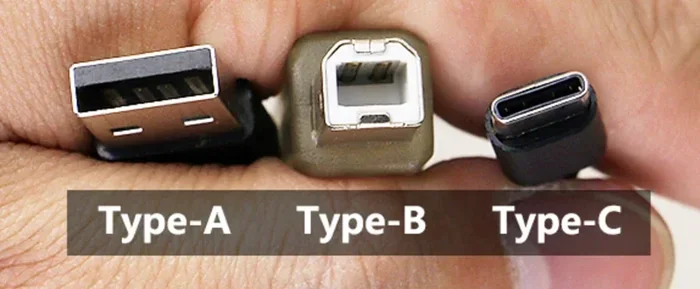
The most obvious difference is the shape. USB A is flat and rectangular. It looks like a small trapezoid when you look at the plug end. USB B is more square-shaped with slightly rounded edges and a small notch on one side. They are physically incompatible with each other, which is by design.
Here is a quick comparison to help you visualize:
- USB A: Flat, rectangular, and wider. Fits into host ports on computers and hubs.
- USB B: Square-ish, with beveled corners. Fits into device ports on printers and peripherals.
- USB A is about 12mm wide, while USB B is about 12mm tall in the standard version.
- USB A plugs in one way due to the rectangular shape, while USB B plugs in one way due to the notch alignment.
Function and Purpose
USB A always acts as the source. It provides power and data from the host to the connected device. USB B always acts as the destination. It receives power and data on the peripheral device. This one-way flow is fundamental to how USB connections work.
When you plug a printer cable into your computer, the USB A end goes into the computer. The USB B end goes into the printer. The computer sends print commands through the USB A port. The printer receives them through the USB B port. Without this division, the system would not know which device is in charge.
Power Delivery
Both connectors can deliver power, but the amount depends on the USB version rather than the connector type. USB 2.0 delivers up to 2.5 watts. USB 3.0 delivers up to 4.5 watts. USB 3.1 can deliver up to 10 watts. The connector shape does not change the power limits. What matters is the USB specification inside the port.
Speed and Data Transfer
The speed of your connection depends on the USB version, not just the connector shape. Here is a quick breakdown:
- USB 2.0: Up to 480 Mbps. Sufficient for basic peripherals like keyboards and mice.
- USB 3.0: Up to 5 Gbps. Great for external hard drives and large file transfers.
- USB 3.1 Gen 2: Up to 10 Gbps. Ideal for fast backups and high-resolution media.
A USB A port can be any of these speeds. A USB B port can also support any of these speeds. The connector type does not limit the speed. The hardware inside the port and cable does.
Where You Will Find USB A and USB B Connectors
You encounter USB A and USB B connectors every day, even if you do not notice them. Let us walk through the most common places you will see each type.
Common Places for USB A
USB A ports are everywhere in the tech world. Here are the most common spots:
- Desktop computers: Most desktops have multiple USB A ports on the front and back of the tower.
- Laptops: Nearly every laptop has at least one or two USB A ports.
- USB hubs and docking stations: These devices expand your connection options with additional USB A ports.
- Charging bricks and power banks: The output side of most phone chargers uses a USB A port.
- Gaming consoles: Many consoles use USB A for controllers and accessories.
- Smart TVs and streaming devices: These often include USB A ports for media playback and updates.
Because USB A is so widespread, it is the most recognizable USB connector type. If you have ever plugged a flash drive into a computer, you used a USB A connection.
Common Places for USB B
USB B connectors are less common in everyday life but still very important. Here is where you will typically find them:
- Printers: Most printers use a USB B port for the computer connection.
- Scanners: Flatbed scanners often rely on USB B for data transfer.
- External hard drives: Many desktop external drives use USB B or USB B mini connectors.
- Audio interfaces: Music production equipment frequently uses USB B connections.
- UPS systems: Uninterruptible power supplies sometimes include USB B ports for computer communication.
- Industrial equipment: CNC machines and lab instruments often use USB B for data and control.
If you work in a medical setting, you might encounter USB B connectors on medical devices and diagnostic equipment. Computers play a vital role in modern medicine, from imaging systems to patient monitoring devices, and many of these rely on USB B connections to interface with larger systems. To learn more about how computers are used in healthcare settings, check out this guide on 10 ways computers are used in medicine.
Can You Use USB A and USB B Interchangeably?
The short answer is no. USB A and USB B are physically incompatible. You cannot plug a USB A connector into a USB B port, and you cannot plug a USB B connector into a USB A port. The shapes simply do not match.
This design is intentional. It prevents people from connecting devices incorrectly, which could cause damage. The USB Implementers Forum (USB-IF) created different connector types specifically to enforce the host-and-device relationship. This keeps connections safe and predictable.
What About USB Cables with Different Ends?
Many cables have a USB A connector on one end and a USB B connector on the other. These are the standard printer cables and external drive cables you buy in stores. The USB A end goes into the computer. The USB B end goes into the device. This combination is the most common setup for peripherals that need both data transfer and power.
You will also find cables with USB A on one end and USB B mini or USB B micro on the other. These serve the same purpose but fit smaller devices. Always check which USB B variant your device requires before buying a cable.
When People Get Confused
Confusion often happens when people see a cable with a USB A plug on one end and another USB A plug on the other. This is called an A-to-A cable. These cables are NOT for connecting two computers directly. They are used for specific purposes like connecting a USB hub to a computer or for data transfer between certain types of devices. Plugging an A-to-A cable between two computers can cause damage. Always be careful with cable types.
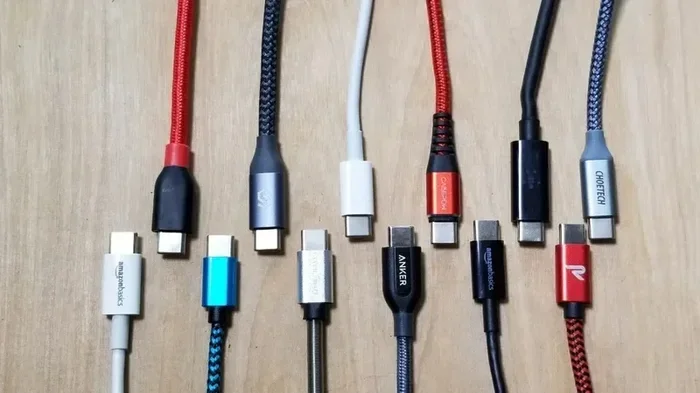
Similarly, some people confuse USB B with USB C. USB C is a completely different connector type that is smaller, oval-shaped, and reversible. USB C is gradually replacing both USB A and USB B in newer devices. But USB A and USB B are still very much in use today.
The Evolution of USB Connectors
USB technology has come a long way since its introduction in the mid-1990s. The original USB A and USB B designs were created to standardize the messy world of connectors. Before USB, every device had its own unique cable and port. This made connecting peripherals a frustrating experience.
USB 1.0 and 1.1
The first versions of USB supported speeds of up to 12 Mbps. The USB A and USB B connector shapes were established during this era. These original designs are still in use today, even though faster versions have been introduced.
USB 2.0
USB 2.0 boosted speeds to 480 Mbps. This was a massive improvement and made USB B connections practical for devices like printers and external drives that needed faster data transfer. USB 2.0 ports are still found on millions of devices worldwide.
USB 3.0 and Beyond
USB 3.0 introduced the blue-colored USB A port and dramatically increased speeds to 5 Gbps. Later versions pushed speeds even higher. Throughout all these changes, the basic USB A and USB B shapes remained the same. The internal pins and wiring evolved, but the external design stayed consistent for backward compatibility.
Today, USB C is the future. It is smaller, faster, and reversible. But USB A and USB B are not going away anytime soon. Millions of devices still rely on these connectors. Understanding them remains essential for anyone who works with computers and peripherals.
Quick Tips for Identifying and Using USB Connectors
Here are some practical tips to help you quickly identify and correctly use USB A and USB B connectors:
- Look at the shape: Rectangular means USB A. Square-ish with beveled corners means USB B.
- Check the color: Black or white inside usually means USB 2.0. Blue means USB 3.0.
- Feel the size: USB A is wider and flatter. USB B is taller and more square.
- Match the cable to the device: USB A goes to the computer. USB B goes to the peripheral.
- Never force a connector: If it does not fit easily, you probably have the wrong cable or the wrong orientation.
- Label your cables: Use small tags or colored tape to mark which cable goes with which device.
- Check your motherboard components: The back panel of your computer shows all the USB A ports and their versions. Understanding what is on your motherboard helps you troubleshoot connection issues.
These simple habits will save you a lot of frustration. They also extend the life of your ports and cables by preventing accidental damage from incorrect connections.
Common Mistakes People Make with USB A and USB B
Even experienced users sometimes make mistakes with these connectors. Here are the most common ones to avoid:
Using the Wrong Cable
grabbing any cable and hoping it works is a bad habit. A USB A to USB A cable will not connect a printer to a computer. You need a USB A to USB B cable for that. Always check the connector types on both ends before plugging anything in.
Ignoring USB Versions
Just because a cable has a USB B connector does not mean it supports fast speeds. The cable must also support the USB version your device needs. A USB 2.0 B cable will not give you USB 3.0 speeds, even if you plug it into a USB 3.0 B port. Always match the cable version to the port version for the best performance.
Forcing the Connector
If a connector does not go in easily, do not force it. Check the orientation. USB A plugs in only one way. USB B plugs in only one way. Forcing a connector can bend the pins or damage the port. Take a moment to align it correctly.
Assuming All USB B Connectors Are the Same
Not all USB B connectors are identical. Standard USB B, mini USB B, and micro USB B are all different sizes. Using the wrong size will not work, even though they all share the same basic shape. Always verify which USB B variant your device requires.
Expert Insights on USB A and USB B
Industry experts agree that understanding your connectors is the first step to better device management. According to the USB Implementers Forum, the different shapes of USB A and USB B were designed with a specific purpose in mind: to create a clear distinction between the host and the device. This design philosophy has kept the USB ecosystem organized and safe for decades.
Tech professionals also emphasize the importance of cable quality. Cheap cables may not support the full speed or power delivery of the USB version they claim to be. Investing in well-made cables from reputable brands ensures reliable data transfer and safe charging. Look for cables that are certified by the USB-IF for guaranteed performance.
Another expert tip is to keep a small collection of different USB A to USB B cables on hand. Having the right cable ready prevents downtime and frustration. Whether you need a standard USB B for your printer or a micro USB B for an older device, being prepared makes all the difference.
Key Takeaways
- USB A and USB B are not the same connector type. They serve different roles in the USB connection ecosystem.
- USB A is the host connector used on computers, hubs, and chargers.
- USB B is the device connector used on printers, scanners, and external drives.
- The shapes are intentionally different to prevent incorrect connections and potential damage.
- Speed and power depend on the USB version, not the connector shape alone.
- USB B comes in multiple sizes, including standard, mini, and micro variants.
- Knowing your connectors helps you troubleshoot issues, choose the right cables, and get the best performance from your devices.
Conclusion
USB A and USB B are not the same, and now you know exactly why. They have different shapes, different jobs, and different places they belong in your tech setup. USB A is the host side, always connecting to your computer or hub. USB B is the device side, always connecting to your printer, drive, or peripheral.
Understanding this difference might seem small, but it makes a big impact. You will plug in the right cable the first time. You will avoid frustrating connection errors. You will even protect your devices from potential damage caused by incorrect cables.
The next time you reach for a USB cable, take a second to look at the connector shapes. You will know exactly which end goes where. That small bit of knowledge adds up to a smoother, more efficient tech experience every single day. Keep this guide handy, and you will always have the right cable for the right job.
Frequently Asked Questions
Can I plug a USB A cable into a USB B port?
No, you cannot. USB A and USB B connectors have different shapes and sizes. They are designed to be physically incompatible so you do not accidentally create a wrong connection. Always use a cable that matches both port types, such as a USB A to USB B cable.
Why does my USB B connector look different from my friend’s USB B connector?
USB B connectors come in several sizes. The standard USB B is large and square. There is also mini USB B and micro USB B, which are smaller. Your device determines which size you need. Always check your device manual or the port shape before buying a replacement cable.
Is USB B faster than USB A?
No, the connector type does not determine speed. Both USB A and USB B can support the same speeds depending on the USB version. A USB 3.0 B port can transfer data just as fast as a USB 3.0 A port. The version number is what matters for speed.
Can I use a USB A to USB B cable for charging?
Yes, you can. Many devices charge through USB B connections. However, the charging speed depends on the USB version and the power source. USB 3.0 and USB 3.1 ports deliver more power than USB 2.0 ports, so charging may be faster with newer versions.
Will USB A and USB B become obsolete?
USB C is gradually replacing both USB A and USB B in newer devices. However, millions of existing devices still use these connectors. USB A and USB B will remain relevant for years to come. It is still important to understand them even as USB C becomes more common.
What is the difference between USB B and USB C?
USB B is a square-shaped connector used on printers and peripherals. USB C is a small, oval-shaped, reversible connector used on modern laptops, phones, and tablets. USB C is smaller, faster, and more versatile than USB B. They are completely different connector types and are not interchangeable.