Can You Use A Usb To Hdmi Adapter For A Monitor Now
Yes, you can use a USB to HDMI adapter for a monitor. It lets you turn any USB port into a video output. This guide covers how they work, what to buy, setup steps, and common issues.
Have you ever plugged in a USB to HDMI adapter and wondered if it would really work with your monitor? Maybe you are traveling, working from a coffee shop, or just tired of swapping cables around. The good news is that yes, you can use a USB to HDMI adapter to connect a monitor to your laptop, desktop, or even a tablet.
This is one of the most handy display adapter solutions out there. Whether you need a second screen for work or want to mirror your laptop on a bigger display, a USB to HDMI adapter makes it possible. In this guide, we will walk through everything you need to know. We will cover how they work, what to look for when buying one, setup steps, and the common pitfalls to avoid.
Let us be real. Not all adapters are created equal. Some work great out of the box. Others will leave you frustrated and searching for answers. That is why we put this guide together. By the end, you will know exactly what to look for and how to get the best results from your USB to HDMI adapter.
Key Takeaways
- USB to HDMI adapters work: They convert USB signals into HDMI output for monitors and displays.
- Check compatibility first: Not all USB ports support video output. Make sure your device and adapter match.
- USB-C adapters are the most popular: They offer better speeds and support higher resolutions.
- Setup is simple: Most adapters are plug and play and need no extra software.
- Watch for resolution limits: Cheap adapters may not support 4K or high refresh rates.
- OS matters: Windows, Mac, and Linux handle USB to HDMI adapters differently. Check your system requirements.
- Avoid common mistakes: Using the wrong USB port or skipping driver updates can cause problems.
📑 Table of Contents
- What Is a USB to HDMI Adapter and How Does It Work?
- Why People Are Turning to USB to HDMI Adapters
- How to Choose the Right USB to HDMI Adapter
- Step-by-Step Setup Guide for Your USB to HDMI Adapter
- Common Problems and How to Fix Them
- USB to HDMI Adapter vs. Other Connection Methods
- Final Thoughts on Using a USB to HDMI Adapter for a Monitor
What Is a USB to HDMI Adapter and How Does It Work?
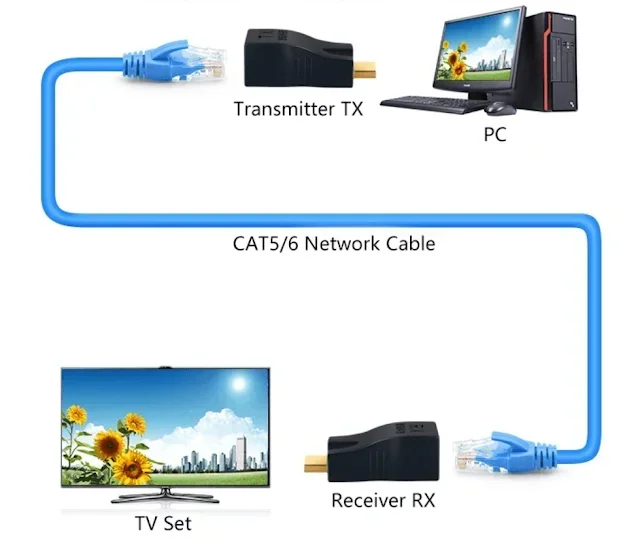
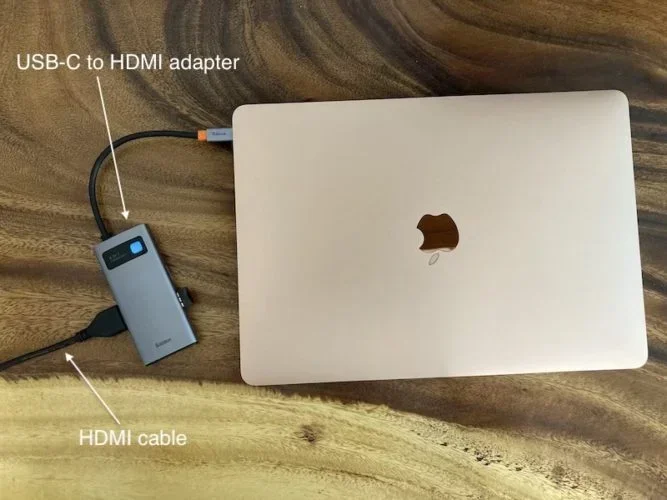
A USB to HDMI adapter is a small device that converts a USB signal into an HDMI video signal. Think of it as a translator between your computer and your monitor. Your computer sends data through the USB port, and the adapter turns that data into a video signal your monitor can read.
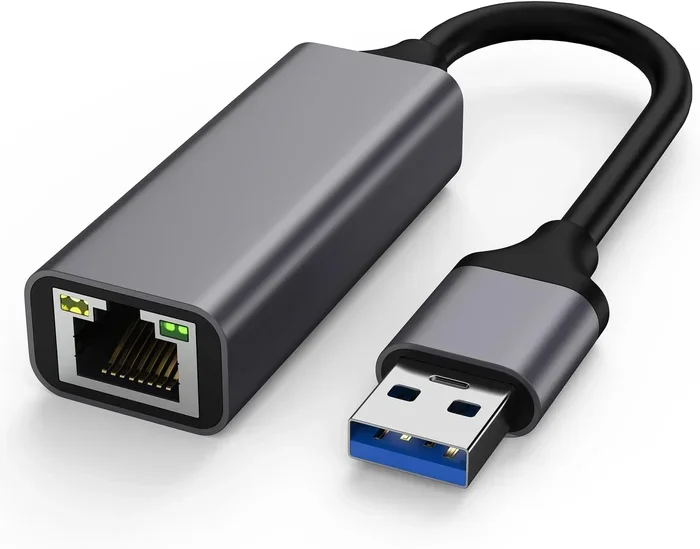
Most USB to HDMI adapters come in two main forms. The first is a USB-A to HDMI adapter, which plugs into the older rectangular USB ports. The second is a USB-C to HDMI adapter, which fits into the newer, smaller oval-shaped ports. Both do the same basic job, but the USB-C version usually offers faster data transfer and better support for high-resolution displays.
How the Signal Conversion Works
Inside the adapter, there is a tiny chip that handles signal conversion. This chip takes the digital data from the USB port and encodes it into an HDMI-compatible video format. Some adapters also handle audio, sending sound alongside the video through the same HDMI cable.
The quality of this chip matters a lot. Better chips support higher display resolution, smoother refresh rate performance, and more colors. Cheaper adapters may struggle with 4K content or experience lag during fast motion. This is why you should always check the specs before buying.
Plug and Play vs. Driver Required
Many modern USB to HDMI adapters are plug and play. You just plug them in, and your computer recognizes the new display. No downloads needed. Other adapters require you to install a driver or software first. Always check the product details to know which type you are getting.
Plug and play options are great for most users. They save time and reduce headaches. If you are not tech-savvy, stick with adapters that do not need extra software. You can also check the pros and cons of proprietary operating systems to better understand how your OS might affect adapter compatibility.
Why People Are Turning to USB to HDMI Adapters
The demand for USB to HDMI adapters has grown a lot in recent years. More people work remotely, use multiple screens, and need flexible display options. A USB to HDMI adapter gives you that flexibility without buying expensive new hardware.
Working From Home and Dual Screens
Remote work has changed how we use our computers. Many people need two or more screens to stay productive. A USB to HDMI adapter lets you connect an extra monitor to your laptop without needing a special docking station. It is a simple and affordable way to boost your workspace.
You do not need a powerful graphics card to use one either. The adapter handles the video conversion for you. This makes it a great option for budget laptops or older computers that lack extra video outputs.
Presentations and Meetings
If you give presentations at work or school, a USB to HDMI adapter is a lifesaver. You can plug your laptop into a projector or large display in seconds. No need to worry about matching ports or carrying extra cables. Just toss the adapter in your bag and go.
Gaming and Entertainment
Some people use USB to HDMI adapters for gaming or streaming content on a bigger screen. While they are not a replacement for a dedicated graphics setup, they work well for casual gaming and watching movies. Just keep in mind that cheap adapters may add a small delay, which can bother serious gamers.
Travel and Portability
Travelers love USB to HDMI adapters because they are small and light. You can plug into a hotel TV or a portable monitor while on the road. It turns any HDMI display into a second screen for your laptop or tablet. This is especially useful for digital nomads and frequent flyers.
How to Choose the Right USB to HDMI Adapter
Not all USB to HDMI adapters are the same. Picking the wrong one can lead to poor picture quality, no sound, or a display that does not work at all. Here is what you should look for before making a purchase.
Check Your USB Port Type
First, figure out what kind of USB port your device has. Most older laptops use USB-A ports. Newer ones use USB-C ports. Some tablets and phones use USB-C as well. Make sure you buy an adapter that matches your port type.
Using a USB-A to HDMI adapter with a USB-C port will not work, and vice versa. Always double-check before you buy. If you are unsure, look up your device specifications online or check the port shape on your computer.
Resolution and Refresh Rate Support
Look for an adapter that supports the display resolution you need. If you have a 4K monitor, make sure the adapter can handle 4K output. For everyday office work, 1080p is usually enough. But if you want sharp text and vibrant colors, go for an adapter that supports at least 4K at 30Hz or 1080p at 60Hz.
The refresh rate matters too. A higher refresh rate means smoother motion on screen. If you watch a lot of videos or do any light gaming, aim for an adapter that supports 60Hz or higher.
Build Quality and Brand Reputation
Stick with trusted brands when buying a USB to HDMI adapter. Cheap no-name adapters may seem tempting, but they often have poor build quality and unreliable performance. Look for adapters from well-known manufacturers that offer warranties and good customer support.
Does It Support Audio?
Some USB to HDMI adapters also carry audio through the HDMI cable. This is handy if you want sound from your computer to play through external speakers or a soundbar. Check the product description to confirm audio support before buying.
Compatibility With Your Operating System
Make sure the adapter works with your operating system. Most adapters support Windows and macOS, but some may have limited Linux support. Check the manufacturer’s website for a list of supported systems. You can also explore the pros and disadvantages of value added networks for insights on how connectivity solutions vary across platforms.
Quick Tips for Choosing the Right Adapter
- Match the USB port type on your device
- Check if the adapter supports your monitor’s resolution
- Look for adapters with at least 60Hz refresh rate
- Choose brands with good reviews and warranties
- Confirm audio support if you need sound
- Verify OS compatibility before purchasing
- Read user reviews for real-world performance insights
Step-by-Step Setup Guide for Your USB to HDMI Adapter
Setting up a USB to HDMI adapter is usually quick and easy. Here is a simple walkthrough to get your monitor up and running.
Step 1: Plug in the Adapter
Insert the USB end of the adapter into an available port on your computer. If you are using a USB-C adapter, make sure it clicks into place. For USB-A adapters, you may need to push a bit harder depending on the fit.
Step 2: Connect the HDMI Cable
Take an HDMI cable and plug one end into the adapter and the other end into your monitor. Make sure both connections are secure. A loose cable can cause signal drops or no display at all.
Step 3: Turn on Your Monitor
Power on your monitor and set it to the correct HDMI input. Most monitors have multiple HDMI ports, so use the one you plugged the cable into. You can usually switch inputs using the monitor’s menu button.
Step 4: Configure Display Settings
Your computer should recognize the new display within a few seconds. On Windows, go to Settings > Display. On macOS, go to System Settings > Displays. From there, you can choose to extend your desktop, mirror the screen, or adjust the resolution.
Step 5: Install Drivers (If Needed)
If your monitor does not show up, you may need to install drivers. Visit the adapter manufacturer’s website and download the latest driver for your operating system. After installation, restart your computer and try again.
Common Setup Mistakes to Avoid
- Using a damaged or low-quality HDMI cable
- Plugging the adapter into a USB hub instead of a direct port
- Skipping driver installation when required
- Selecting the wrong HDMI input on the monitor
- Not updating your operating system before setup
Common Problems and How to Fix Them
Even with a good USB to HDMI adapter, you might run into issues now and then. Here are the most common problems and how to solve them.
No Display Signal
If your monitor shows no signal, first check all cable connections. Make sure the HDMI cable is firmly plugged into both the adapter and the monitor. Try a different HDMI cable if possible. Also, test the adapter on another computer to rule out a hardware defect.
Poor Image Quality
Blurry or pixelated images often mean the adapter cannot handle the resolution of your monitor. Lower the display resolution in your settings and see if it improves. If the problem persists, the adapter may not be compatible with your monitor’s native resolution.
No Sound Through HDMI
Some USB to HDMI adapters do not carry audio. If you are getting video but no sound, check your audio output settings. On Windows, right-click the speaker icon and select your HDMI device as the default output. On macOS, go to Sound Settings and choose the HDMI output.
Flickering or Intermittent Signal
Flickering usually points to a loose connection or a USB port that is not supplying enough power. Try plugging the adapter directly into your computer instead of through a hub. Also, avoid using USB extension cables with the adapter.
Adapter Not Recognized by Your Computer
If your computer does not detect the adapter, update your USB drivers. On Windows, go to Device Manager and look for any yellow warning signs under “Universal Serial Bus controllers.” On macOS, check for system updates in System Settings. Restarting your computer after updates often fixes detection issues.
Expert Insight: Most USB to HDMI adapter issues come from cable problems, outdated drivers, or incompatible hardware. Always start troubleshooting with the basics before assuming the adapter is faulty.
USB to HDMI Adapter vs. Other Connection Methods
There are several ways to connect a monitor to a computer. Let us compare the most common options so you can decide which works best for you.
| Connection Method | Pros | Cons |
|---|---|---|
| USB to HDMI Adapter | Affordable, portable, works with most laptops | May have lower performance than native ports |
| Direct HDMI Port | Best quality, no extra hardware needed | Not all laptops have HDMI ports |
| USB-C Direct (with DisplayPort Alt Mode) | High quality, supports 4K and more | Requires a compatible USB-C port |
| Wireless Display (Miracast/AirPlay) | No cables needed, very convenient | Can have lag, lower image quality |
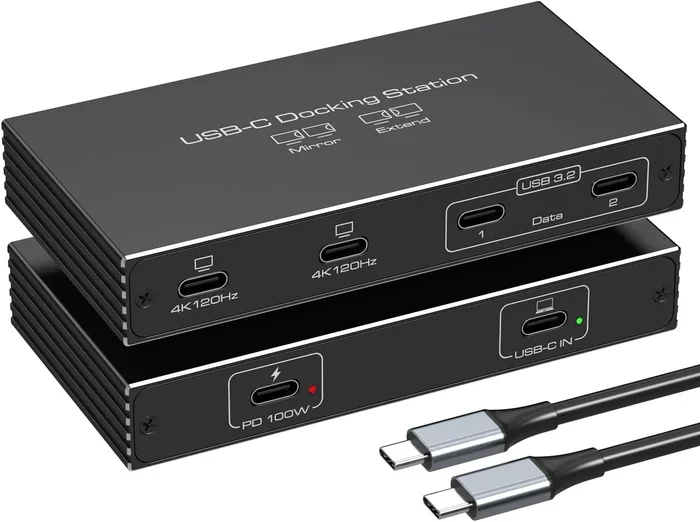
| Docking Station | Multiple ports, stable connection | More expensive, less portable |
A USB to HDMI adapter is a great middle-ground option. It is cheaper than a docking station and more flexible than relying on a direct HDMI port. For most everyday users, it gets the job done without any hassle.
If you need the best possible image quality and performance, a direct HDMI connection or a USB-C connection with DisplayPort Alt Mode is the way to go. But if your device lacks those ports, a USB to HDMI adapter is your best bet.
Final Thoughts on Using a USB to HDMI Adapter for a Monitor
To answer the question directly: yes, you absolutely can use a USB to HDMI adapter for a monitor. It is a simple, affordable, and effective way to add an external display to your setup. Whether you are working from home, giving presentations, or just want a bigger screen for movies, a USB to HDMI adapter delivers.
The key is to choose the right adapter for your needs. Check your USB port type, confirm resolution support, and buy from a reputable brand. Follow the setup steps carefully, and you will be up and running in minutes.
Remember that not every adapter is the same. Cheap adapters may save you money upfront but can cause frustration later. Invest in a quality USB to HDMI adapter and you will enjoy a reliable, high-quality connection for years to come.
If you run into any issues, refer back to the troubleshooting tips in this guide. Most problems have simple fixes. And if you are curious about how different connectivity solutions compare, explore more resources on value added networks for communication and proprietary operating systems to deepen your understanding of how connectivity and compatibility work across different platforms.
Now you have everything you need to make an informed decision. Go ahead, plug in that adapter, and enjoy your new extra screen. Happy computing!
Frequently Asked Questions
Can any USB to HDMI adapter work with any monitor?
Most USB to HDMI adapters work with any monitor that has an HDMI input. However, you should check the adapter’s resolution and refresh rate support to make sure it matches your monitor’s capabilities. Always verify compatibility before purchasing.
Do I need to install drivers for a USB to HDMI adapter?
Many modern adapters are plug and play and do not need drivers. However, some adapters require you to download and install a driver from the manufacturer’s website. Check the product details to see if driver installation is needed.
Can I use a USB to HDMI adapter for gaming?
Yes, but with some limitations. A USB to HDMI adapter works for casual gaming and media consumption. However, it may not deliver the same performance as a native HDMI or DisplayPort connection. For competitive gaming, a direct connection is always better.
Why is my USB to HDMI adapter not working?
Common reasons include a loose HDMI cable, outdated drivers, or an incompatible USB port. Try unplugging and replugging the adapter, updating your drivers, and testing with a different HDMI cable. If the problem persists, the adapter itself may be faulty.
Does a USB to HDMI adapter support 4K resolution?
Some USB to HDMI adapters support 4K, but not all. Check the product specifications before buying. Higher-quality adapters typically support 4K at 30Hz or 60Hz, while cheaper models may only handle 1080p.
Can I connect multiple monitors using USB to HDMI adapters?
Yes, you can connect multiple monitors if your computer has enough USB ports. Each adapter will add one external display. Just make sure your operating system supports multiple displays and that your adapters are compatible with your system.
=== CONCLUSION ===
Using a USB to HDMI adapter for a monitor is not only possible but also one of the easiest ways to expand your display setup. Whether you are a remote worker, a student, or someone who just wants a bigger screen, a good USB to HDMI adapter delivers reliable results. Pick the right adapter, follow the setup steps, and enjoy your new multi-screen workspace.