Does Eero Replace Your Router And Improve Your WiFi
Eero is a mesh WiFi system that can replace your traditional router and deliver stronger, more reliable internet throughout your home. It acts as both a router and a WiFi extender, eliminating dead zones and simplifying your network setup. However, you still need a modem from your internet provider to get started. This guide covers everything you need to know about whether Eero replaces your router and how it improves your WiFi.
Eero has become one of the most popular names in home networking. People buy it because they want better WiFi without the hassle of managing complex hardware. But one question keeps coming up: does Eero replace your router? The short answer is yes, but there is more to the story than a simple yes or no.
When you switch to Eero, you are not just getting a new router. You are getting an entire mesh WiFi system. This system handles routing, broadcasting, and managing your home network all in one. But before you toss out your old equipment, you need to understand how Eero fits into your existing setup. This guide will walk you through everything step by step.
Key Takeaways
- Eero replaces your traditional router: It functions as a complete router and mesh WiFi system combined.
- You still need a modem: Eero connects to your modem from your internet provider to deliver WiFi.
- Mesh nodes extend coverage: Additional Eero units create a seamless network across large homes.
- Setup is simple and app-based: No technical expertise is needed to get your network running.
- Eero improves WiFi speed and stability: It uses smart routing to direct devices to the best node.
- You can integrate Eero with existing routers: In some cases, you can keep your old hardware and add Eero nodes.
- Eero supports advanced features: Parental controls, device prioritization, and guest networks come built in.
📑 Table of Contents
- What Exactly Is Eero?
- Does Eero Fully Replace Your Router?
- How Eero Improves Your WiFi
- Can You Use Eero With Your Existing Router?
- Setting Up Eero: What You Need to Know
- Eero vs. Traditional Routers and Extenders
- Common Mistakes to Avoid When Switching to Eero
- Does Eero Replace Your Router? The Final Verdict
What Exactly Is Eero?
Eero is a mesh WiFi system designed for homes. It replaces the traditional single-router setup with multiple units that work together. Each unit, called a node, broadcasts WiFi throughout your home. The nodes communicate with each other to create one unified network.
Unlike a standard wireless router, Eero uses multiple devices to cover your entire space. This means no more weak signals in the back bedroom or dead zones in the garage. The system is managed through a simple mobile app. You can set up your network, add new devices, and run speed tests right from your phone.
How Mesh WiFi Differs From a Traditional Router
A traditional wireless router sends WiFi signals from one central point. If your home is large or has thick walls, the signal weakens fast. You end up with slow speeds in certain rooms. A mesh system like Eero solves this problem by spreading the signal across multiple nodes.
Here is a simple comparison:
- Traditional Router: One device broadcasts WiFi. Coverage depends on placement and home size.
- Mesh WiFi System (Eero): Multiple devices work together. Coverage expands as you add more nodes.
- WiFi Extender: Boosts a signal but often creates a separate network name. Mesh keeps one seamless name.
The difference matters a lot. With a mesh system, your phone or laptop moves smoothly between nodes without dropping the connection. You do not have to manually switch networks. This seamless experience is why so many people choose Eero over a standard router replacement.
Does Eero Fully Replace Your Router?
This is the big question, and the answer depends on your current setup. In most cases, yes, Eero replaces your router completely. But there are situations where you might keep some existing hardware in place.
When Eero replaces your router, it takes over all the core functions. It assigns IP addresses to your devices. It manages traffic between your devices and the internet. It handles security settings and firewall protection. In short, Eero does everything a traditional router does, but it does it better.
The Role of Your Modem
Even with Eero, you still need a modem. Your modem connects to your internet service provider (ISP). The modem brings the internet signal into your home. Eero then connects to the modem and broadcasts that signal as WiFi.
Some ISPs provide a combo modem-router unit. This device does both jobs in one box. If you switch to Eero, you bypass the router part of the combo. Eero becomes your new router. The modem part of the combo unit continues to do its job.
Here is how the connection flows:
- Your ISP sends internet through a cable or phone line.
- The modem receives the signal and converts it.
- Eero connects to the modem and creates your WiFi network.
- Eero’s nodes spread the WiFi signal throughout your home.
Understanding this flow helps you set up Eero correctly. It also helps you avoid confusion when you are troubleshooting connection issues.
How Eero Improves Your WiFi
Replacing your router is only half the story. The real benefit of Eero is how it improves your WiFi experience. Many users notice a big difference right after setup.
Better Coverage Across Your Home
One of the biggest advantages of Eero is coverage. Traditional routers struggle with large homes. Walls, floors, and furniture all weaken the signal. Eero nodes talk to each other and fill in the gaps. Every room gets strong WiFi.
For example, if your router sits in the living room, the bedroom upstairs might get a weak signal. Add an Eero node upstairs, and the signal strengthens instantly. The system automatically routes your devices to the nearest node for the best performance.
Faster Speeds With Smart Routing
Eero uses intelligent routing to manage your network traffic. When multiple devices are online at once, Eero decides the best path for each device. This keeps speeds fast even when everyone in the house is streaming, gaming, or working remotely.
The system also supports dual-band WiFi. This means it uses two frequency bands to balance speed and range. The 2.4 GHz band covers more distance. The 5 GHz band delivers faster speeds for nearby devices. Eero handles this automatically, so you do not need to switch bands manually.
Easy Network Management
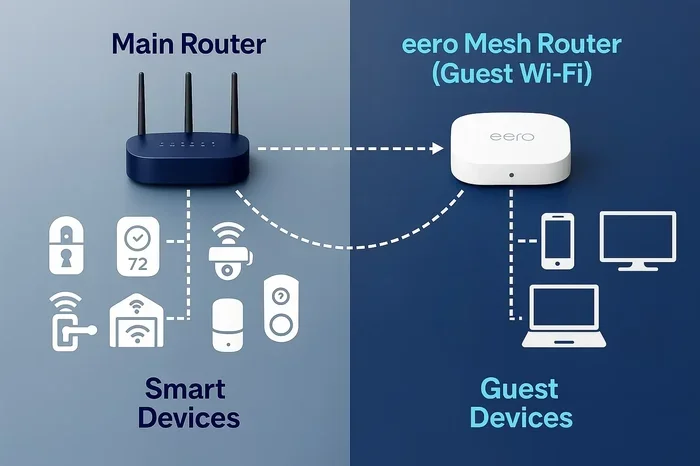
Managing a home network used to require technical knowledge. Not anymore. The Eero app makes everything simple. You can see which devices are connected, set parental controls, and prioritize bandwidth for specific devices. Guest networks are built in too, so visitors can get online without accessing your main network.
The app also provides real-time diagnostics. If something goes wrong, the app shows you exactly what is happening. You can run speed tests, check signal strength, and restart nodes from your phone. This level of control is something most traditional routers simply cannot offer.
Can You Use Eero With Your Existing Router?
Some people wonder if they can keep their old router and add Eero to the mix. The answer is yes, in certain setups. However, this is not the recommended way to use Eero.
If you already have a mesh setup, like an Asus router used as a mesh system, you might be hesitant to switch. But Eero is designed to be a standalone solution. Using it alongside an old router can create conflicts. Double NAT issues, IP address conflicts, and slower speeds can all result from running two routers at once.
That said, there is one scenario where keeping your old router makes sense. If you have a router with advanced features that Eero does not offer, you might bridge Eero behind it. In this setup, Eero acts as a WiFi access point while your old router handles the advanced routing. But for most users, replacing your router entirely with Eero is the better choice.
When to Keep Your Existing Router
- You have a specialized router with features Eero does not support.
- Your ISP requires a specific modem-router combo for certain services.
- You want to test Eero before fully committing to replacing your router.
In all other cases, Eero works best as a standalone replacement. It simplifies your setup and removes the need for extra hardware.
Setting Up Eero: What You Need to Know
Setting up Eero is one of its strongest selling points. Most users can get their network running in under 30 minutes. No IT degree required.
Here is what you need before you start:
- A modem from your internet service provider.
- An active internet connection.
- The Eero app installed on your phone or tablet.
- Your WiFi network name and password (if keeping your existing ISP modem).
The setup process is straightforward. You plug your Eero into the modem. You open the app and follow the on-screen instructions. The app walks you through every step. It asks you where you want to place your nodes and helps you find the best spots for maximum coverage.
Once your Eero network is live, you can add more nodes anytime. Simply press the button on the new node and follow the app prompts. The system recognizes the new unit and adds it to your network automatically.
Tips for Optimal Placement
Where you place your Eero nodes matters a lot. Follow these tips for the best results:
- Place your main Eero unit near your modem in a central location.
- Keep nodes within reasonable distance of each other. They do not need to be right next to each other, but close enough to maintain a strong connection.
- Avoid placing nodes inside closets or behind thick furniture. Walls and obstacles weaken the signal.
- Place a node on each floor in multi-story homes.
- Keep Eero away from microwaves, cordless phones, and other devices that cause interference.
Good placement makes a huge difference. Even the best mesh system will underperform if the nodes are poorly positioned.
Eero vs. Traditional Routers and Extenders
It helps to compare Eero directly with other options. This gives you a clearer picture of what you are getting.
Eero vs. Traditional Router
A traditional router handles routing and WiFi from one box. It works fine for small apartments or single-story homes. But as your home grows or your device count increases, a single router falls behind. Eero scales with your needs. You start with one unit and add more as your coverage demands grow.
Traditional routers also require more manual configuration. You access settings through a web interface. You change channels, adjust frequencies, and manage security settings yourself. Eero automates most of these tasks through the app.
Eero vs. WiFi Extenders
WiFi extenders boost an existing signal. But they often create a separate network. Your phone might connect to the extender instead of the router, even when the router has a stronger signal. Eero avoids this problem. All nodes share the same network name. Your devices automatically connect to the strongest signal available.
Also, extenders typically cut your speed in half because they use the same radio to receive and transmit data. Eero uses dedicated backhaul channels between nodes. This preserves your speed even as the signal travels from node to node.
Common Mistakes to Avoid When Switching to Eero
Switching to Eero is easy, but a few common mistakes can cause problems. Avoid these pitfalls to get the best experience.
- Forgetting to return your rented modem-router: If your ISP provided a combo unit, check your rental agreement. You might need to return it to avoid monthly fees.
- Placing nodes too far apart: Eero nodes need to communicate with each other. Too much distance weakens the mesh connection.
- Not updating the firmware: Eero pushes updates automatically, but you should check the app occasionally to make sure your system is running the latest version.
- Ignoring the 5 GHz band: Eero handles band steering automatically. But you can manually assign devices to the 5 GHz band for the fastest speeds when they are close to a node.
- Skipping the speed test: After setup, run a speed test to confirm your Eero system is delivering the speeds your ISP promises.
Steering clear of these mistakes ensures a smooth transition to your new Eero network. Most users find the switch to be a huge upgrade with very few headaches.
Does Eero Replace Your Router? The Final Verdict
So, does Eero replace your router? Yes, it does. Eero takes over all the functions of a traditional router and adds mesh WiFi capabilities on top. It delivers better coverage, faster speeds, and easier management. For most households, Eero is a complete upgrade over the old router setup.
The key thing to remember is that Eero needs a modem to work. It is not a standalone internet source. It relies on your ISP’s connection. But once connected, Eero handles everything else. It routes traffic, broadcasts WiFi, manages devices, and keeps your network secure.
If you are tired of slow WiFi, dead zones, and complicated router settings, Eero is a fantastic solution. It replaces your router, improves your WiFi, and makes your home network work the way it should. Simple, powerful, and designed for real life.
Whether you live in a small apartment or a large multi-story home, Eero scales to meet your needs. Start with one unit for a small space. Add more nodes as your coverage demands grow. The system adapts to your home, not the other way around.
Switching to Eero means saying goodbye to the frustration of weak signals and dropped connections. It means saying hello to a home network that just works. And that is exactly what you deserve.
Frequently Asked Questions
Can Eero work without a modem?
No, Eero needs a modem to connect to your internet service provider. The modem brings the internet signal into your home, and Eero broadcasts it as WiFi. Without a modem, Eero has no internet source to share.
Will Eero improve my internet speed?
Eero improves your WiFi coverage and stability, which can make your connection feel faster. However, Eero cannot increase the speed your ISP provides. If your plan offers 100 Mbps, Eero will help deliver that speed more reliably throughout your home.
Can I use Eero with any internet provider?
Yes, Eero works with any modem that supports your ISP’s connection type, whether that is cable, DSL, or fiber. You just need to make sure your modem is compatible with your provider before you switch to Eero.
How many Eero nodes do I need for my home?
One Eero unit covers up to about 1,500 square feet. For larger homes, you can add more nodes. A 2,000 square foot home typically needs two units. A 3,000 square foot home or larger may require three or more nodes for full coverage.
Do I need to change my WiFi password when switching to Eero?
Yes, when you set up Eero, it creates a new WiFi network. You will set a new network name and password through the Eero app. This is part of the fresh setup process and ensures your network is secure from the start.
Can I connect a mesh router to an existing router with Eero?
While it is technically possible to connect a mesh router to an existing router, doing so with Eero is not recommended. It can cause double NAT issues and create network conflicts. For the best performance, Eero should replace your existing router entirely and work as a standalone mesh system.