How Do I Change My Wifi From 2 4 To 5 GHz Step by Step
Changing your WiFi from 2.4 GHz to 5 GHz is simpler than most people think. This guide walks you through every step, from accessing your router settings to optimizing your new frequency band. You will learn the key differences between the two bands, how to make the switch, and how to fix common problems that come up during the process.
Your WiFi connection affects almost everything you do online. Whether you are streaming movies, playing games, or just browsing the web, the frequency band your router uses makes a big difference. Many people stick with the default 2.4 GHz band without ever realizing that switching to 5 GHz could transform their experience.
If you have been dealing with slow speeds, buffering, or dropped connections, this guide is for you. We will show you exactly how do I change my WiFi from 2.4 to 5 GHz with clear, step-by-step instructions. By the end, you will know everything you need to get faster, more reliable WiFi in your home.
The 2.4 GHz band is older and more widely used. It has a longer range but slower speeds. The 5 GHz band is newer and offers much faster data rates over shorter distances. Most modern routers are dual-band, meaning they support both frequencies. This gives you the power to choose the best band for each device and situation.
Key Takeaways
- 5 GHz WiFi offers faster speeds and less interference compared to the 2.4 GHz band, making it ideal for streaming and gaming.
- Accessing your router settings is the first step — you need your router’s IP address, username, and password.
- Not all devices support 5 GHz, so check compatibility before switching your entire network.
- Dual-band routers let you run both frequencies at the same time, giving you flexibility.
- Common issues like weak signal or disconnection can often be fixed with simple troubleshooting steps.
- Changing the WiFi channel and placement can significantly improve your 5 GHz performance.
📑 Table of Contents
Understanding the Difference Between 2.4 GHz and 5 GHz WiFi
Before you make any changes, it helps to understand what each frequency band does. Think of them like two different roads leading to the same destination. One road is wider but more crowded. The other is narrower but lets you drive much faster.
What Is the 2.4 GHz Band?
The 2.4 GHz band has been around for a long time. It uses a longer wavelength, which means it can travel farther and pass through walls more easily. This makes it great for covering large areas.
However, 2.4 GHz is also used by many other devices. Microwaves, baby monitors, Bluetooth devices, and even garage door openers share this frequency. Because so many devices use it, network congestion is a real problem. This leads to slower speeds and more channel interference.
Here are some key facts about the 2.4 GHz band:
- Speed: Typically up to 600 Mbps on older routers
- Range: Longer coverage, better wall penetration
- Interference: High, due to many shared devices
- Best for: Smart home devices, basic browsing, and IoT gadgets
What Is the 5 GHz Band?
The 5 GHz band uses a shorter wavelength. This means it carries data faster but does not travel as far. It also has a harder time getting through thick walls and obstacles.
On the plus side, there is much less congestion on 5 GHz. Fewer devices use it, and it offers more channels. This translates to a cleaner, faster connection with less wireless frequency overlap.
Here are some key facts about the 5 GHz band:
- Speed: Typically up to 1.3 Gbps or higher on modern routers
- Range: Shorter coverage, weaker wall penetration
- Interference: Low, with more available channels
- Best for: Streaming, gaming, video calls, and large file downloads
Which Band Should You Choose?
The right choice depends on what you need. If you want maximum speed and your router is close to your device, 5 GHz is the clear winner. If you need wide coverage across a large home or through multiple walls, 2.4 GHz may serve you better.
Many people choose to run both bands at the same time. This way, smart home devices can stay on 2.4 GHz while your phone and laptop enjoy the speed of 5 GHz. If you want to learn more about managing two networks, check out our guide on can I have two WiFi networks with the same name.
How to Access Your Router Settings
To change your WiFi frequency, you need to get into your router’s settings panel. This is the control center for your entire home network. Do not worry — it is easier than it sounds.
Step 1: Find Your Router’s IP Address
Every router has an IP address you can type into your web browser. On most computers, you can find this quickly:
- Windows: Open Command Prompt and type
ipconfig. Look for the “Default Gateway” address. - Mac: Go to System Settings, then Network, then Advanced. The router IP is listed there.
- Phone: Check your WiFi settings and look for the router or gateway address.
Common router IP addresses include 192.168.1.1, 192.168.0.1, or 10.0.0.1.
Step 2: Log In to Your Router
Once you have the IP address, open any web browser and type it into the address bar. You will see a login page. Enter your router’s username and password.
If you never changed these, the default login is often printed on a sticker on the back of your router. Common defaults are:
- Username: admin
- Password: admin or password
If those do not work, check your router’s manual or search online for the default credentials for your model.
Step 3: Navigate to Wireless Settings
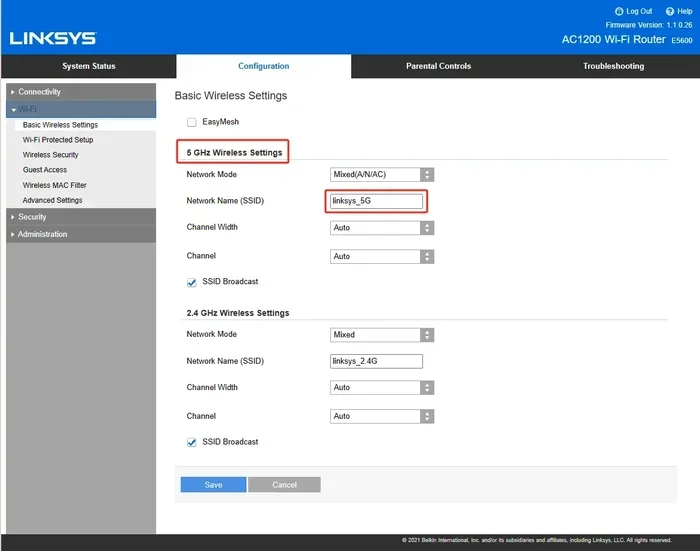
After logging in, look for a section called “Wireless,” “WiFi Settings,” or “Network Settings.” The exact name varies by router brand. Common brands like Netgear, TP-Link, ASUS, and Linksys all have slightly different layouts, but the general path is similar.
You are looking for the wireless configuration or band settings page. This is where you control which frequency your router broadcasts.
Step-by-Step: Changing WiFi from 2.4 GHz to 5 GHz
Now that you are in your router settings, here is exactly what to do to switch your WiFi to the 5 GHz band.
Step 1: Locate the Band Selection Option
Look for an option labeled “Band,” “Frequency Band,” or “Wireless Mode.” Some routers call it “SSID Settings” for each band separately. You may see options like:
- 2.4 GHz Only
- 5 GHz Only
- Dual Band (Both)
Select the 5 GHz option. If your router has separate SSID fields for each band, you can set the 5 GHz SSID to whatever name you prefer.
Step 2: Set the Channel Width
Next, look for the channel width setting. For 5 GHz, wider channels mean faster speeds. Set the channel width to 80 MHz or 160 MHz if your router supports it. This will give you the best bandwidth performance.
If you are not sure, start with 80 MHz. It offers a good balance between speed and stability.
Step 3: Choose the Best Channel
Unlike 2.4 GHz, which has only three non-overlapping channels, 5 GHz has many more options. Look for a “Channel” dropdown and pick one that is least congested.
You can use a free WiFi analyzer app on your phone to see which channels are crowded. Choose a channel with the least activity for the best signal strength.
Step 4: Save and Restart
Click “Save” or “Apply” at the bottom of the page. Your router may restart automatically. Once it comes back on, your WiFi should be broadcasting on the 5 GHz frequency.
Now, on your devices, look for the new WiFi network name. Connect to it and enjoy faster speeds. If you ever want to switch back, you can follow the same steps and select 2.4 GHz instead. You can also read our article on changing your WiFi from 5GHz to 2.4GHz for the reverse process.
Step 5: Connect Your Devices
Each device needs to connect to the 5 GHz network separately. On your phone, laptop, or tablet, go to WiFi settings and select the new 5 GHz network name.
Some devices may not automatically switch to 5 GHz even if it is available. In that case, you might need to forget the 2.4 GHz network first. If you are having trouble forcing a specific device onto a certain band, our guide on forcing your phone to use 2.4 GHz WiFi has helpful tips that also apply in reverse.
Troubleshooting Common Issues When Switching to 5 GHz
Switching to 5 GHz is usually smooth, but sometimes problems pop up. Here are the most common issues and how to fix them.
Device Cannot Find the 5 GHz Network
If your device does not see the new network, the first thing to check is compatibility. Older devices may not support the 5 GHz frequency at all. Check your device’s specifications to confirm it supports wireless N or wireless AC or WiFi 6.
Also make sure you saved the settings correctly on your router. Log back in and verify that the 5 GHz band is enabled and broadcasting.
Slow Speeds Despite Being on 5 GHz
5 GHz should be faster, but it is not magic. If you are still getting slow speeds, try these fixes:
- Move closer to the router. 5 GHz has a shorter range than 2.4 GHz.
- Remove physical obstructions. Walls, furniture, and appliances can block the signal.
- Check for channel congestion. Use a WiFi analyzer to find a less crowded channel.
- Update your router firmware. Outdated firmware can cause performance issues.
Frequent Disconnections
If your device keeps dropping off the 5 GHz network, the signal may be too weak in that area. Try moving the router to a more central location. You can also consider using a WiFi extender or WiFi range extender to boost coverage.
Another common cause is outdated network drivers on your device. Make sure your WiFi adapter drivers are up to date, especially on Windows computers.
Tips for Optimizing Your 5 GHz WiFi Network
Once you have switched to 5 GHz, you can take a few extra steps to get the most out of it.
Place Your Router in a Central Location
The position of your router matters a lot. Place it in the center of your home, ideally on a shelf or table at waist height. Avoid putting it on the floor or inside a cabinet. The more open the space around the router, the better the WiFi coverage will be.
Keep Your Router Firmware Updated
Router manufacturers release firmware updates regularly. These updates fix bugs, improve security, and sometimes even boost performance. Check your router’s settings panel for a “Firmware Update” option and install any available updates.
Use a Separate Network Name for Each Band
Many people set their 2.4 GHz and 5 GHz bands to the same network name. While this works, it can cause devices to stick to the slower band even when the faster one is available.
Setting different names — like “MyHome_2.4” and “MyHome_5” — lets you choose which band each device uses. This is especially helpful for smart home devices that only work on 2.4 GHz.
Limit the Number of Connected Devices
Even on 5 GHz, too many devices can slow things down. If you have a lot of smart home gadgets, consider keeping them on 2.4 GHz and reserving 5 GHz for your phones, laptops, and streaming devices.
When to Stick with 2.4 GHz Instead
5 GHz is not always the better choice. There are situations where 2.4 GHz is actually the smarter option.
If you have a large home with thick walls, the 2.4 GHz band may reach rooms that 5 GHz cannot. Smart home devices like smart plugs, sensors, and cameras often only support 2.4 GHz. Switching to 5 GHz could leave these devices disconnected.
Also, if you are far from the router and need a stable connection for basic tasks like checking email or browsing the web, 2.4 GHz provides a more reliable connection over longer distances.
The key is to use both bands wisely. Let 2.4 GHz handle range and smart devices, and let 5 GHz handle speed and heavy data tasks. For more on managing your home network effectively, you might also enjoy our article on connecting your phone to your TV for WiFi.
Conclusion
Changing your WiFi from 2.4 GHz to 5 GHz is one of the easiest ways to improve your home network. You get faster speeds, less interference, and a better overall experience for streaming, gaming, and video calls. The process is straightforward — access your router settings, switch to the 5 GHz band, and connect your devices.
Remember that not every device will benefit from the switch, and that is perfectly fine. The beauty of a dual-band setup is that you get the best of both worlds. Use 2.4 GHz for range and smart devices, and 5 GHz for speed and performance.
Take a few minutes today to make the change. Your future self will thank you every time you stream a movie without buffering or hop on a video call without lag. Your faster WiFi journey starts now.
Frequently Asked Questions
Can I switch my WiFi from 2.4 GHz to 5 GHz without buying a new router?
Yes, as long as your current router is dual-band, you can switch between 2.4 GHz and 5 GHz through the router’s settings panel. You do not need to purchase any new equipment. Simply log into your router admin page and change the frequency band setting.
Will switching to 5 GHz improve my internet speed?
It can, especially if you are close to the router and have many devices competing for bandwidth. 5 GHz offers faster data rates and less congestion. However, your overall internet speed also depends on your internet plan and your provider’s speeds.
Why can’t my older phone connect to the 5 GHz network?
Older phones may not have a 5 GHz WiFi radio built in. Most devices made before 2013 only support 2.4 GHz. Check your phone’s specifications to confirm whether it supports the 5 GHz frequency band before switching.
Should I use the same name for both my 2.4 GHz and 5 GHz networks?
You can, but using separate names is usually better. When both bands share the same name, devices sometimes stay connected to the slower 2.4 GHz band even when 5 GHz is available. Separate names let you manually choose the best band for each device.
Is 5 GHz WiFi safe for my health?
Yes, 5 GHz WiFi is completely safe. It uses the same type of non-ionizing radiation as 2.4 GHz WiFi. The signal strength is very low and well within safety standards set by health organizations worldwide. There is no health risk from using 5 GHz WiFi.
How do I know which band my device is currently connected to?
On most phones and computers, you can check the WiFi settings and look for the network name or frequency details. On Windows, click the WiFi icon and check the network properties. On iPhone, look for the network name in WiFi settings — if it ends in “5G” or “5GHz,” you are on the 5 GHz band.