Can Old Laptops Use Windows 10 Find Out Before Upgrading
Can old laptops use Windows 10? The short answer is yes, but with some important caveats. Windows 10 system requirements are modest, yet older machines may struggle with speed and driver support. Upgrading Windows 10 on an aging laptop demands careful hardware checks, driver updates, and smart optimization. This guide walks you through every step so you can decide confidently.
You have an old laptop sitting around. Maybe it still works fine for basic tasks. Or maybe it struggles to open a web browser anymore. Either way, you have probably wondered about can old laptops use Windows 10. It is a fair question. After all, Windows 10 has been around for years. Millions of people still use it every day. And it is not exactly a brand-new operating system anymore.
The truth is that old laptop performance varies wildly. One machine from 2012 might run Windows 10 beautifully. Another from the same year might crawl through every click. What makes the difference? Hardware specs, driver availability, and how you use the computer. This article breaks down everything you need to know about upgrade Windows 10 on an older machine. By the end, you will know exactly whether your laptop can handle it.
Let us be upfront. Not every old laptop deserves a Windows 10 upgrade. But many do. And the ones that do can still serve you well for everyday tasks. Browsing the web, writing documents, watching videos, and light office work are all perfectly doable. The key is knowing what to check before you start. So let us dive in and find out if your old laptop is up to the task.
Key Takeaways
- Minimum Requirements Matter: Your old laptop needs at least 1 GHz processor, 1 GB RAM, and 16 GB storage to run Windows 10.
- Driver Support Is Critical: Many legacy laptops lack updated drivers, which can cause crashes and poor performance.
- 32-Bit vs 64-Bit Matters: Check your system architecture before downloading the Windows 10 installation files.
- Free Upgrade May Still Work: Some users can still access the free Windows 10 upgrade path through workarounds.
- Performance May Suffer: Even if Windows 10 installs, an old laptop may feel sluggish without proper optimization.
- Windows 10 End of Life Is Approaching: Microsoft will end support for Windows 10 in October 2025, which affects long-term security.
- Hardware Upgrades Help: Adding RAM or switching to an SSD can breathe new life into an old laptop.
📑 Table of Contents
- Understanding Windows 10 System Requirements
- How to Check If Your Old Laptop Qualifies
- Common Problems When Installing Windows 10 on Old Laptops
- How to Optimize Windows 10 for Old Laptops
- Hardware Upgrades That Make a Huge Difference
- Is It Worth Upgrading to Windows 10 in 2025?
- Free Windows 10 Upgrade Options
- Final Thoughts and Key Takeaways
Understanding Windows 10 System Requirements
Before you even think about Windows 10 installation, you need to know what Microsoft says is required. The official Windows 10 system requirements are not demanding. But meeting the minimum does not always mean a smooth experience. Let us break down exactly what Microsoft lists.
Minimum Hardware Requirements for Windows 10
Microsoft has set clear baseline specs for Windows 10. Here is what you need at the very least:
- Processor: 1 GHz or faster processor or SoC
- RAM: 1 GB for 32-bit or 2 GB for 64-bit
- Storage: 16 GB for 32-bit OS or 20 GB for 64-bit OS
- Graphics Card: DirectX 9 or later with WDDM 1.0 driver
- Display: 800 x 600 resolution
On paper, these specs look easy to meet. Most laptops from 2010 and newer can hit these numbers. But here is the catch. Meeting the minimum does not mean your laptop will feel fast. It just means it will technically run. Think of it like fitting a small engine in a big truck. It starts, but it does not move quickly.
Recommended Hardware for a Smooth Experience
For a genuinely pleasant experience with laptop compatibility Windows 10, you should aim higher than the minimum. Here are the recommended specs:
- Processor: 2 GHz or faster dual-core processor
- RAM: 4 GB or more
- Storage: 64 GB or more, ideally an SSD
- Graphics Card: DirectX 11 or later
- Display: 1366 x 768 or higher resolution
Notice how different these numbers are from the minimums? The gap between minimum and recommended is where most old laptops fall. If your old laptop has 2 GB of RAM and a basic processor, it will technically run Windows 10. But you will likely notice slow boot times, laggy apps, and frustration. That is the reality of old laptop performance that many people overlook.
How to Check If Your Old Laptop Qualifies
Now that you know the requirements, let us talk about how to check your specific machine. You do not need to be a tech expert for this. A few simple steps will tell you everything you need to know.
Check Your Current Operating System
First, find out what you are running right now. Many old laptops come with Windows 7 or Windows 8.1. These older systems can often be upgrade Windows 10 directly. Here is how to check:
- Click the Start menu
- Type “About your PC” in the search bar
- Look for your Windows edition and system type
This tells you two important things. Your current operating system version, and whether you are running 32-bit or 64-bit. The system type matters a lot for Windows 10 installation. A 64-bit system can use more RAM and run the 64-bit version of Windows 10, which performs better.
Use the Windows 10 Upgrade Assistant
Microsoft offers a free tool called the Windows 10 Upgrade Assistant. It scans your laptop and tells you if it is compatible. Here is how it works:
- Visit the official Microsoft website
- Download the Windows 10 Upgrade Assistant tool
- Run the scan on your laptop
- Review the compatibility results
This tool checks your system memory, processor speed, and available storage. It gives you a clear yes or no answer. If it says your laptop is compatible, that is a great starting point. But remember, compatible does not always mean smooth. You still need to consider real-world performance.
Check Your Processor and RAM Manually
If you prefer a hands-on approach, you can check your specs manually. On Windows, right-click the Start button and select System. You will see your processor name, installed RAM, and system type. Write these down. Then compare them to the requirements listed above.
For example, if your laptop has a 1.5 GHz Intel Core 2 Duo and 2 GB of RAM, it meets the minimum. But if it has 4 GB of RAM and a 2.4 GHz Core i5, you are in great shape. The laptop upgrade tips in this article will help you get the most out of whatever hardware you have.
Common Problems When Installing Windows 10 on Old Laptops
Even when a laptop meets the minimum requirements, problems can pop up. These issues are common and frustrating. But they are also fixable in most cases. Let us look at the biggest hurdles people face.
Driver Compatibility Issues
This is the number one problem with operating system compatibility on old laptops. Drivers are the software that lets Windows talk to your hardware. Your laptop needs drivers for the Wi-Fi card, graphics chip, sound card, touchpad, and more. When a laptop is several years old, the manufacturer may have stopped making drivers for it.
Here is what can happen without proper drivers:
- Wi-Fi stops working after the upgrade
- The screen looks blurry or flickers
- Sound disappears completely
- The touchpad becomes unresponsive
- USB ports stop recognizing devices
Before you install Windows 10, visit your laptop manufacturer’s website. Search for your exact model number. Look for Windows 10 drivers. Download and save them to a USB drive. This way, you have them ready if anything goes wrong. Driver support is one of the most overlooked parts of laptop compatibility with Windows 10.
Slow Performance After Upgrade
Another common issue is that the laptop feels painfully slow after the upgrade. This happens because Windows 10 is heavier than older systems like Windows 7. It uses more background processes, more memory, and more storage. On a machine with only 2 GB of RAM, this creates a bottleneck fast.
The good news is that you can improve old laptop performance significantly with a few tweaks. More on that in the optimization section below. But first, let us talk about storage.
Storage Space Constraints
Windows 10 needs at least 16 GB of free space for the 32-bit version and 20 GB for the 64-bit version. But that is just for the installation. In real life, you need much more. Windows updates, apps, files, and temporary files all eat up space quickly.
If your old laptop has a tiny hard drive, say 80 GB or 120 GB, you will run out of space fast. This leads to slow performance and error messages. One of the best laptop upgrade tips is to replace an old mechanical hard drive with a solid-state drive. An SSD makes a massive difference in speed. We will cover this in more detail shortly.
How to Optimize Windows 10 for Old Laptops
So your old laptop can run Windows 10. Great. But it might feel sluggish at first. That is normal. The good news is that you can make it much faster with some simple optimization steps. These tweaks are free and easy to do.
Disable Unnecessary Startup Programs
Windows 10 comes with many programs set to start automatically. These run in the background and eat up your system memory. Disabling them frees up resources for the things you actually use.
Here is how to do it:
- Press Ctrl + Shift + Esc to open Task Manager
- Click the Startup tab
- Right-click programs you do not need at startup
- Select Disable
Keep your antivirus and essential system tools enabled. But disable things like Spotify, Skype, or Adobe updaters. They can wait until you actually open them.
Turn Off Visual Effects
Windows 10 looks pretty with animations and transparency effects. But these effects use processing power. On an old laptop, turning them off can make the system feel much snappier.
Go to System in the Control Panel, click Advanced system settings, then under Performance click Settings. Choose Adjust for best performance. This disables most animations. You can also selectively turn them back on if you miss certain visual features.
Switch to a Lightweight Browser
Google Chrome is popular but resource-heavy. On an old laptop, it can eat up your RAM fast. Consider using a lighter browser like Mozilla Firefox, Microsoft Edge, or Brave. These browsers use less memory and can make a noticeable difference in daily use.
Keep Windows Updated
Regular Windows Update patches fix bugs and improve performance. Never ignore update notifications. They often include optimizations for older hardware and security fixes that protect your laptop from threats.
Hardware Upgrades That Make a Huge Difference
Sometimes software tweaks are not enough. Your old laptop might simply need better hardware to run Windows 10 well. The good news is that a few affordable upgrades can transform an aging machine.
Upgrade Your RAM
RAM is one of the easiest and cheapest upgrades you can make. If your laptop has 2 GB of RAM, upgrading to 4 GB or 8 GB can dramatically improve performance. Windows 10 runs much more smoothly with extra memory.
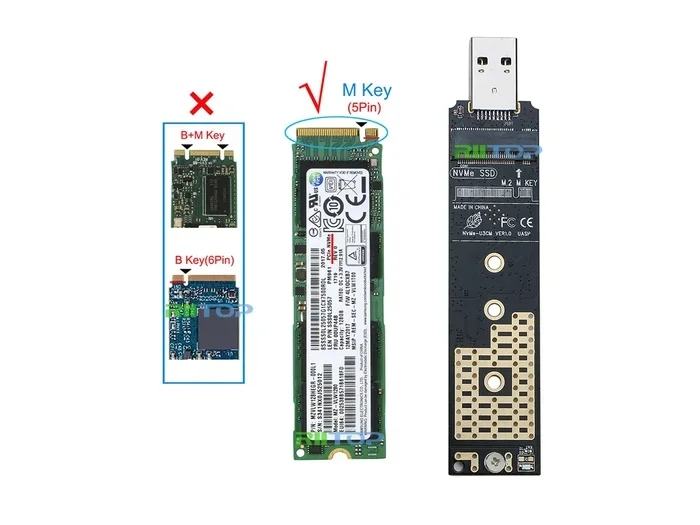
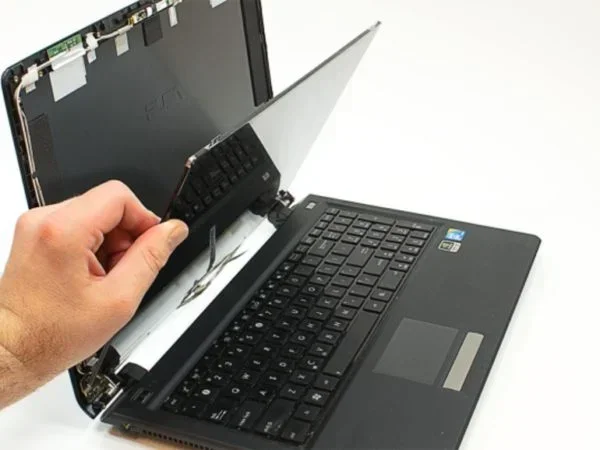
Check your laptop’s manual or the manufacturer’s website to find compatible RAM. Most old laptops have accessible RAM slots on the bottom. Swapping in new memory takes about five minutes and costs under $30 in most cases.
Replace the Hard Drive with an SSD
This is hands-down the best upgrade for any old laptop. A traditional mechanical hard drive is slow. An SSD is lightning fast. The difference is like night and day.
With an SSD, your laptop will boot in seconds instead of minutes. Apps will open instantly. Files will copy faster. The entire experience feels brand new. A 240 GB SSD costs around $25 to $40. It is the single most impactful upgrade you can make for old laptop performance.
Clean the Internals and Replace the Thermal Paste
Old laptops often overheat because dust clogs the fans and heatsinks. Overheating causes the processor to slow down to protect itself. This is called thermal throttling. It makes everything feel slow.
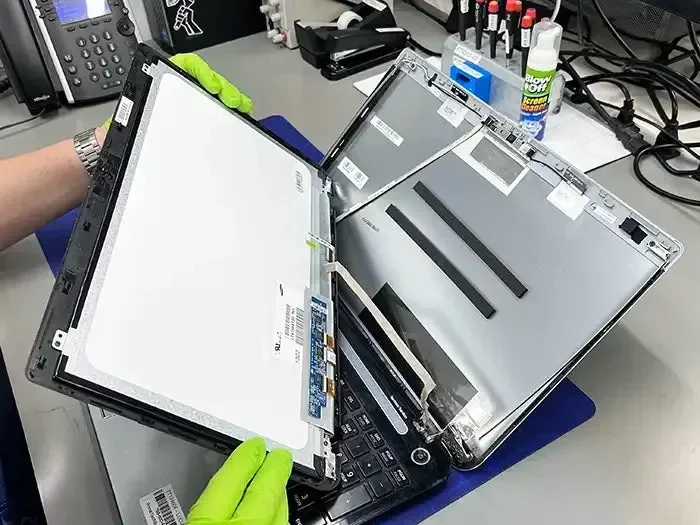
Open up your laptop (if you are comfortable doing so) and clean out the dust with compressed air. You can also replace the thermal paste on the CPU. This is a small investment that pays off big in cooling and performance.
Is It Worth Upgrading to Windows 10 in 2025?
This is a question many people are asking right now. And the answer depends on your situation. Let us look at the big picture.
Microsoft has announced that Windows 10 end of life is coming in October 2025. After that date, Windows 10 will no longer receive security updates. This means your laptop could become vulnerable to malware and security threats. That alone is a strong reason to consider upgrading.
But here is the thing. If your old laptop cannot run Windows 10 properly, you have two options. One, you can upgrade the hardware to make it capable. Two, you can consider switching to a lightweight Linux distribution. Linux is free, secure, and runs well on old hardware. Options like Linux Mint or Lubuntu are designed for older machines.
For most people, though, upgrading to Windows 10 on a compatible old laptop is still a smart move. It extends the life of your device, keeps it secure, and gives you access to modern apps. Just make sure you do your homework first. Check laptop compatibility, back up your files, and have your drivers ready.
Free Windows 10 Upgrade Options
You might be wondering about the free Windows 10 upgrade that Microsoft offered a few years ago. Technically, that offer ended in 2016. But there are still ways to get Windows 10 for free or at a reduced cost.
If you already have a genuine copy of Windows 7 or Windows 8.1, you can use the media creation tool from Microsoft to perform a clean install. The system will still activate using your old license. This is a legitimate method that many people use successfully.
Also, if you purchased a PC with Windows 10 before the free offer ended, your digital license is still tied to your hardware. You can reinstall Windows 10 at any time using that license. Check your activation status in the Settings app under Update and Security.
Final Thoughts and Key Takeaways
So, can old laptops use Windows 10? The answer is yes, in most cases. But it comes with conditions. You need to check your hardware specs, ensure driver support is available, and be prepared for some optimization work. Windows 10 system requirements are not steep, but real-world performance on old hardware can vary a lot.
The best approach is to start with the checks we covered. Use the Upgrade Assistant, verify your RAM and processor, and look up driver availability. If your laptop qualifies, go ahead and upgrade. But do it smartly. Back up your files first. Download your drivers. And be ready to optimize after the installation.
If your laptop is too old or too weak, do not give up. Hardware upgrades like adding RAM or installing an SSD can make a world of difference. These changes are affordable and can turn an ancient machine into a usable daily driver again. The key is knowing your limits and working within them.
Ultimately, the decision to upgrade Windows 10 on an old laptop comes down to how you use the computer. If you need it for basic tasks and want to keep using it for a few more years, the upgrade is absolutely worth it. Just go in with realistic expectations, and you will be pleasantly surprised at what an old laptop can still do.
Frequently Asked Questions
Can a 10-year-old laptop run Windows 10?
A 10-year-old laptop may technically meet the minimum Windows 10 system requirements, but performance will likely be poor. Expect slow boot times, laggy apps, and limited driver support. Upgrading the RAM and adding an SSD can help, but results vary by model.
Is Windows 10 still free to upgrade?
The official free upgrade offer ended in 2016. However, if you have a genuine license for Windows 7 or Windows 8.1, you can still upgrade using the media creation tool. Your old license will activate Windows 10 on the same hardware.
What happens when Windows 10 reaches end of life?
After October 2025, Microsoft will stop providing security updates for Windows 10. This means your laptop will be more vulnerable to viruses and malware. It is still safe to use, but you should consider upgrading to Windows 11 or switching to a supported operating system.
How much RAM do I need for Windows 10 on an old laptop?
The minimum is 1 GB for 32-bit or 2 GB for 64-bit. But for a usable experience, 4 GB is strongly recommended. If your old laptop has only 2 GB, adding more RAM is one of the best upgrades you can make.
Can I install Windows 10 on a laptop with Windows 7?
Yes, you can upgrade Windows 10 directly from Windows 7. Microsoft still supports in-place upgrades from Windows 7 to Windows 10. Make sure to back up your files and download the latest drivers before starting the process.
Will my old laptop be slow after installing Windows 10?
Possibly, yes. Old laptop performance depends heavily on the hardware specs. A machine with 2 GB of RAM and a mechanical hard drive will feel slow. But with optimizations like disabling startup programs, switching to an SSD, and using a lightweight browser, you can significantly improve speed.