Do You Have To Press Or Hold The Wps Button On Router
You typically just need to press the WPS button on your router, not hold it. Most routers require a quick press of one to two seconds to activate WPS pairing mode. The WPS light will start blinking, giving you a two-minute window to connect your device.
Setting up a new device on your home network can feel confusing. One question many people ask is whether they need to press or hold the WPS button on their router. The short answer is simple. You just need a quick press.
WPS stands for Wi-Fi Protected Setup. It was designed to make connecting devices to your wireless network easier. Instead of typing in a long password, you can use the WPS button to pair devices in seconds. But the process is not always obvious. Different routers behave slightly differently, and small mistakes can cause frustration.
In this guide, we will walk you through everything you need to know. You will learn the correct way to use the WPS button, what happens when you press it, and how to troubleshoot common problems. By the end, you will feel confident setting up any device using WPS.
Before we dive in, let us talk about why WPS matters. When you change your router settings or set up a new network, entering passwords on smart TVs, printers, and IoT devices can be tedious. WPS simplifies this process. It is especially helpful for devices that lack a keyboard or touchscreen. But knowing exactly how to use it makes all the difference.
Key Takeaways
- Quick press is enough: You do not need to hold the WPS button for a long time.
- Two methods exist: The push button method and the PIN method are both widely supported.
- Time limit matters: You usually have about two minutes to complete the pairing after pressing.
- Security risks exist: WPS can be vulnerable, so consider disabling it after setup.
- Router models vary: Always check your specific router manual for exact instructions.
- Common mistakes happen: Holding too long or missing the time window causes failed connections.
📑 Table of Contents
What Is the WPS Button on a Router?
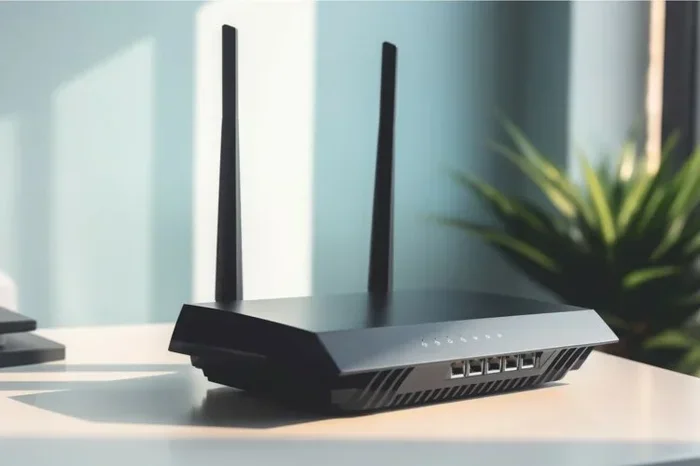
The WPS button is a physical or virtual button on your router. It activates a short-lived pairing mode. During this mode, your router looks for devices that want to connect. This feature works with most modern wireless routers and access points.
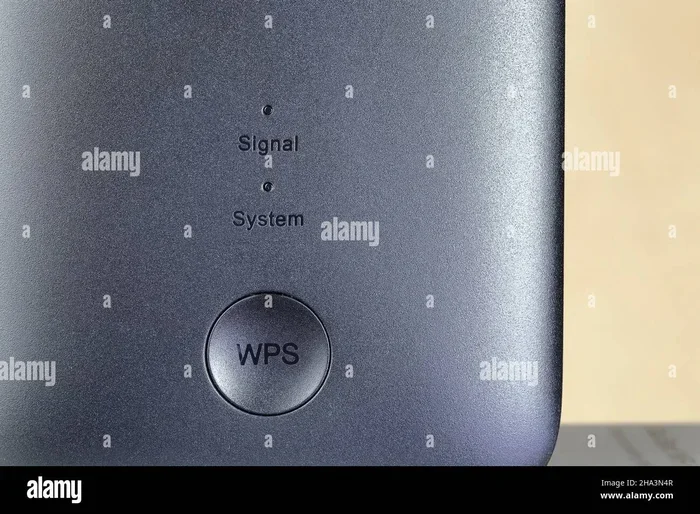
On many routers, the WPS button is on the back or side panel. It may be labeled “WPS” or show two arrows forming a circle. Some routers use a shared button that also serves as the reset button. This can cause confusion, so always check your router label carefully.
Virtual WPS buttons exist too. You can find them in your router admin panel. To access this, you type your router IP address into a web browser. From there, you navigate to the wireless settings section. The virtual button works just like the physical one. This is especially useful if your router does not have a physical WPS button.
When you activate WPS, the WPS light on your router starts blinking. This blinking light means the router is ready to pair. If the light turns solid, the pairing was successful. If it stops blinking and turns off, the pairing attempt may have failed or timed out.
How WPS Pairing Works
WPS uses one of two methods to connect devices. The first is the push button method. You press the WPS button on the router and then select the network on your device. The second is the PIN method. You enter an eight-digit PIN displayed on your router into the device you want to connect. Both methods achieve the same result. They establish a secure wireless connection without requiring you to type the full WiFi password.
The push button method is faster and more common. It takes just a few seconds. The PIN method is helpful when your device does not have a physical WPS button. For example, many smart TVs and gaming consoles use the PIN approach. Either way, the WPS process is designed to be simple and fast.
Do You Press or Hold the WPS Button?
This is the question that brings most people here. The answer is straightforward. You press the WPS button. You do not hold it down. A quick press of one to two seconds is all you need.
Holding the button for too long can cause problems. Some routers interpret a long press as a reset command. This could restart your router or change settings you do not want to change. Always use a quick, firm press. Let go immediately after you feel or hear a click.
After pressing, watch the WPS light on your router. It should start blinking. This blinking means the router is in pairing mode. You now have a limited window to connect your device. Most routers give you about two minutes. If you do not complete the connection in time, the WPS mode will turn off automatically. You would need to press the button again.
What Happens If You Hold the Button Too Long?
Holding the WPS button for more than five to ten seconds can trigger different responses depending on your router model. On some routers, a long press resets the WPS settings entirely. On others, it may reboot the router. This is why a quick press is always the right approach. If your router restarts after pressing WPS, check your manual to confirm whether your model uses a shared reset and WPS button.
If you accidentally hold too long and your router resets, do not panic. You can log back into your router admin panel and reconfigure your settings. Your WiFi name and password should remain the same unless you changed them previously. To avoid this issue, simply press and release quickly every time.
Step-by-Step Guide to Using WPS on Your Router
Using WPS is easy once you know the steps. Here is a simple walkthrough that works for most router brands including Netgear, TP-Link, ASUS, and Linksys.
Step 1: Make sure your router is powered on. Check that all lights are normal. If your router just restarted, wait a minute for it to fully boot up.
Step 2: Find the WPS button. Look at the back or side of your router. It may be clearly labeled. If you cannot find it, check your router manual or log into the admin panel to use the virtual WPS option.
Step 3: Press the WPS button once. Use a quick press. Do not hold it down. You should see the WPS light start blinking.
Step 4: Go to your device. On the device you want to connect, go to WiFi settings. Look for your network name with a WPS option. Select it and wait for the connection to complete.
Step 5: Check the WPS light. If the light turns solid, the connection is successful. If it stops blinking and turns off, the pairing did not work. Try again and make sure you stay within the two-minute window.
Step 6: Test your connection. Open a browser or app on your newly connected device. Make sure the internet works. If it does, you are all set.
Remember, if you are trying to change your WiFi settings or extend your network range, WPS is not the right tool for those tasks. For example, if you want to extend your Wi-Fi range, you may need a WiFi extender or mesh system instead. WPS is strictly for pairing devices to your existing network.
Using WPS with Different Device Types
Different devices handle WPS differently. Smartphones and tablets usually have a simple WPS option in their WiFi settings. You tap your network name, select WPS, and the device connects automatically. Laptops may require you to click a WPS notification that pops up after you press the router button.
Printers often have a WPS button on their control panel. You press the WPS button on the printer first, then press the router button within two minutes. The pairing should complete automatically. Smart home devices like smart plugs and cameras may require you to use their companion app. The app will guide you through the WPS pairing process step by step.
Common WPS Problems and How to Fix Them
Even though WPS is designed to be simple, things can go wrong. Here are the most common issues and their solutions.
WPS light does not blink after pressing. This usually means the WPS function is disabled in your router settings. Log into your router admin panel and check the wireless settings. Make sure WPS is turned on. On some routers, WPS is disabled by default for security reasons.
Device does not find the WPS network. This can happen if your device is too far from the router. Move closer and try again. Also, make sure you are within the two-minute window after pressing the WPS button. If your device is very old, it may not support WPS at all.
WPS pairing keeps failing. Try restarting both your router and the device you are connecting. Sometimes temporary software glitches cause repeated failures. If the problem continues, consider updating your router firmware. Outdated firmware can cause compatibility issues with newer devices.
WPS button on router is not physical. Many modern routers do not have a physical WPS button. You can access WPS through the router admin panel. Log in using your router IP address, usually 192.168.1.1 or 192.168.0.1. Navigate to wireless settings and look for the WPS option there.
Connection drops after WPS pairing. This may indicate interference or a weak signal. Try moving your device closer to the router. If you live in a dense area with many networks nearby, changing your WiFi channel can help. You can also switch your WiFi band to improve stability.
WPS does not work after router reset. After a factory reset, WPS settings may revert to default. You may need to re-enable WPS in the admin panel. Check your router manual for the default WPS PIN if you need it.
Is WPS Safe to Use?
Security is an important consideration with WPS. The WPS protocol has known vulnerabilities. The PIN method in particular is susceptible to brute-force attacks. Hackers can potentially guess your WPS PIN and gain access to your network. This is why many security experts recommend disabling WPS after you finish setting up your devices.
The push button method is generally safer than the PIN method. It does not expose a static PIN that can be attacked. However, even the push button method has limitations. If someone is within range of your WiFi signal during the pairing window, they could potentially connect to your network.
To stay safe, use WPS only when you need to connect a new device. Once the device is connected, go to your router settings and turn off WPS. This way, you still enjoy the convenience of quick pairing without leaving your network exposed. You can always turn WPS back on the next time you need to add a new device.
If you are concerned about your network security, make sure your WiFi password is strong. Use a mix of letters, numbers, and symbols. Also, keep your router firmware updated. Manufacturers regularly release patches that address security vulnerabilities. For more tips on securing your home network, consider reviewing your router settings regularly.
WPS vs. Manual WiFi Connection
WPS is not the only way to connect devices to your WiFi network. You can always connect manually by entering your WiFi password. Each method has its pros and cons.
WPS is faster and more convenient. It is ideal for devices without keyboards. Manual connection gives you more control and better security. You can see exactly which network you are connecting to and verify the password before joining.
For most everyday devices like smart speakers, printers, and IoT gadgets, WPS is the preferred method. For sensitive devices like laptops and phones, manual connection adds an extra layer of security. You can use both methods depending on the device and situation.
When to Use WPS
- Setting up a smart TV or streaming device
- Connecting a printer without a touchscreen
- Pairing smart home devices like cameras or plugs
- Adding a new device quickly when you are in a hurry
When to Use Manual Connection
- Connecting a laptop or phone where you can easily type the password
- When you want maximum security for your network
- When WPS is not supported by the device
- When you are troubleshooting a connection issue
Some people also use a wired connection for better stability. If you are using an Ethernet cable to connect a desktop or gaming console, you do not need WPS at all. Simply plug in and configure through your router settings. If you are setting up a new router and want to configure it first, you might want to check whether you can buy a modem and set up internet independently before relying on WPS for wireless connections.
Expert Tips for a Smooth WPS Experience
Here are some expert tips that will help you get the best results every time you use WPS.
Keep your router firmware updated. Manufacturers improve WPS compatibility and security with every update. Check for updates at least once a month.
Place your router in a central location. WPS signals work best when the device is close to the router. If your router is in a basement or far corner, the pairing may fail.
Do not press the WPS button multiple times in a row. Each press starts a new two-minute window. Pressing repeatedly can confuse both the router and your device. Press once, then go to your device and complete the connection.
Know your router model. Different brands have different WPS behaviors. Check your router manual or the manufacturer website for specific instructions. If you are using a mesh system and want to add a new node, the process may differ from standard WPS pairing.
Disable WPS when you are not using it. This is the single best thing you can do for your network security. It takes five seconds in your router admin panel and significantly reduces your exposure to attacks.
Have your WiFi password handy. If WPS fails, you can always fall back to manual connection. Having your password ready saves time and frustration.
Remember, WPS is a convenience feature, not a replacement for proper network security. Use it wisely and your wireless setup will be smooth and hassle-free.
Conclusion
So, do you have to press or hold the WPS button on your router? You press it. A quick one to two second press is all it takes. Holding the button can cause unintended resets or other problems. Now you know the right way to use WPS, the common issues you might face, and how to stay safe while using it.
WPS makes connecting devices to your wireless network quick and easy. Whether you are setting up a printer, smart TV, or IoT device, the WPS button saves you from typing long passwords. Just remember to use it carefully, keep your network secure, and disable WPS when you are done pairing new devices.
With the steps and tips in this guide, you should feel confident using WPS on any router. If you run into issues, refer back to the troubleshooting section. And always keep your router manual nearby for model-specific details. Happy connecting!
Frequently Asked Questions
Can I use WPS if my router does not have a physical WPS button?
Yes, you can. Many modern routers offer a virtual WPS button in the admin panel. Log in to your router settings using your browser, navigate to the wireless section, and look for the WPS option. This works exactly like a physical button.
How long does the WPS pairing window last?
Most routers keep the WPS pairing window open for about two minutes. If you do not complete the connection within that time, the router exits pairing mode. You will need to press the WPS button again to start a new window.
Is WPS safe for home networks?
WPS has known security vulnerabilities, especially the PIN method. The push button method is safer but still has risks. For the best security, use WPS only when needed and disable it afterward. Always use a strong WiFi password alongside WPS.
What should I do if the WPS light stays solid and does not blink?
A solid WPS light usually means the router is not in pairing mode. Make sure WPS is enabled in your router settings. Try pressing the button again and check if the light starts blinking. If it stays solid, restart your router and try once more.
Can I connect multiple devices using WPS at the same time?
No, WPS typically pairs one device at a time. You need to press the WPS button and connect each device individually. Some routers allow multiple WPS sessions, but most require you to press the button for each new device you add.
Why does my WPS connection keep failing even after following the steps?
Several factors can cause repeated WPS failures. Your device may be too far from the router, your router firmware may be outdated, or WPS may be disabled in your settings. Try moving closer to the router, updating your firmware, and checking that WPS is enabled in your admin panel.