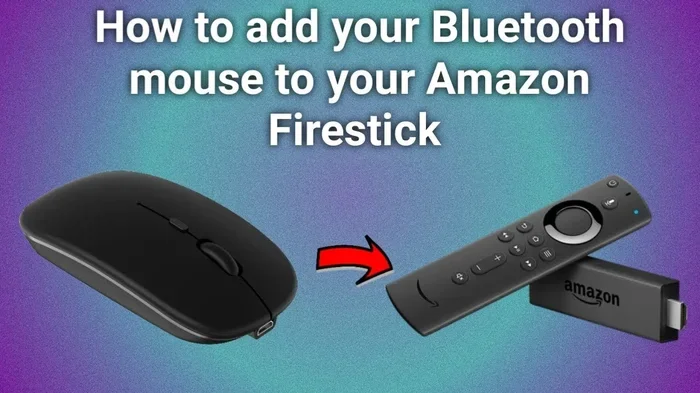
Does A Firestick Have Bluetooth And How To Pair Devices
Yes, every Amazon Firestick comes with built-in Bluetooth, letting you wirelessly connect headphones, speakers, game controllers, and more. In this guide, we walk you through the exact steps to pair devices, fix common connection issues, and get the most out of your Firestick’s wireless features. Whether you are a new Firestick user or looking to expand your setup, this guide has everything you need.
Do you own an Amazon Firestick and want to go wireless? You are not alone. Many people ask, does a Firestick have Bluetooth, and the answer is a clear yes. Every Firestick model from Amazon comes with built-in Bluetooth. This means you can connect wireless headphones, speakers, game controllers, and other peripherals without any extra hardware.
In this guide, we will show you exactly how to pair Bluetooth devices with your Firestick. We also cover common problems, quick fixes, and expert tips to make your experience smoother. Whether you want to watch movies late at night with wireless headphones or fill your room with music from a Bluetooth speaker, this article has you covered.
The Firestick is one of the most popular streaming devices on the market. It is small, affordable, and packed with features. But many users do not realize just how powerful the Bluetooth capabilities really are. Let us dive in and explore everything you need to know about Firestick Bluetooth connectivity.
Key Takeaways
- Built-In Bluetooth: Every Firestick model includes Bluetooth support for wireless audio and peripherals.
- Easy Pairing Process: You can connect Bluetooth devices in just a few simple steps from the Firestick settings menu.
- Multiple Device Types: Firestick supports Bluetooth headphones, speakers, keyboards, game controllers, and more.
- Troubleshooting Is Simple: Most Bluetooth issues on Firestick can be fixed with a quick restart or re-pairing.
- Bluetooth Range Matters: Keep paired devices within 30 feet for the best connection stability.
- Alternative Options Exist: If Bluetooth fails, you can use a Bluetooth adapter or wired connection as a backup.
📑 Table of Contents
- Does A Firestick Have Bluetooth? Yes, Here Is What You Need To Know
- How To Pair Bluetooth Devices With Your Firestick
- Common Bluetooth Problems On Firestick And How To Fix Them
- Best Bluetooth Devices For Firestick Users
- Firestick Bluetooth Settings And Tips
- Expert Insights On Firestick Bluetooth
- Key Takeaways
- Conclusion
Does A Firestick Have Bluetooth? Yes, Here Is What You Need To Know
The short answer is yes. Every Firestick includes Bluetooth 4.2 or newer, depending on the model. This wireless technology lets you connect audio devices and controllers without using any cables. You can pair up to seven devices at once, though you can only actively use a few at a time.
Bluetooth on the Firestick serves several purposes. It handles your remote, connects wireless audio devices, and even supports game controllers. This makes the Firestick a very versatile device for your living room setup.
Which Firestick Models Support Bluetooth?
All modern Firestick models include Bluetooth support. Here is a quick look at what you can expect:
- Fire TV Stick 4K: Bluetooth 5.0 with improved range and stability
- Fire TV Stick (3rd Gen): Bluetooth 4.2, reliable for most uses
- Fire TV Stick Lite: Bluetooth 4.2, same core connectivity
- Fire TV Stick 4K Max: Bluetooth 5.0, the fastest and most stable option
No matter which model you own, you will have full Bluetooth functionality. Older models may have slightly older Bluetooth versions, but they still work great for most wireless devices.
What Can You Connect Via Bluetooth On A Firestick?
The Firestick supports a wide range of Bluetooth devices. Here are the most common ones:
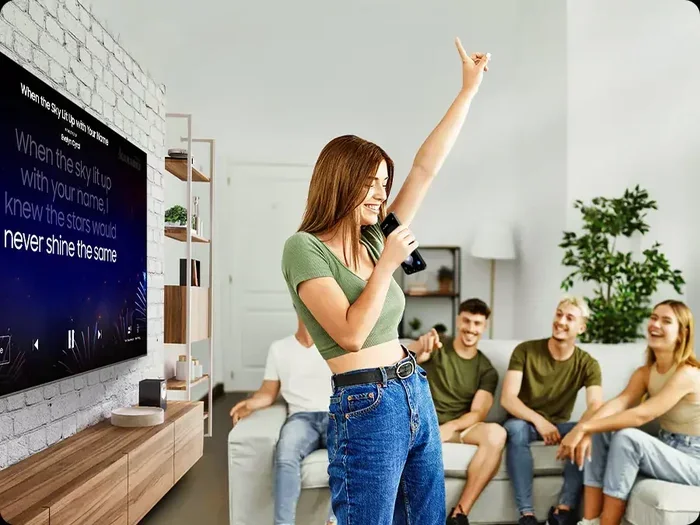
- Wireless Headphones: Perfect for late-night watching without disturbing anyone
- Bluetooth Speakers: Great for filling a room with sound
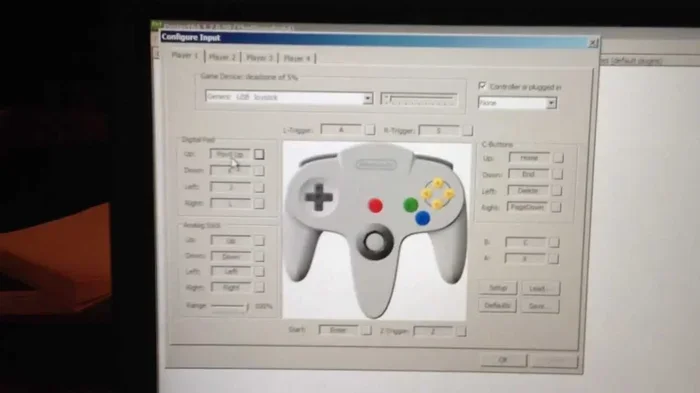
- Game Controllers: Play mobile games on your big screen
- Keyboards: Make typing searches and passwords much easier
- Universal Remotes: Replace the Firestick remote with a compatible third-party option
The versatility of Firestick Bluetooth is one of its best features. You are not limited to just audio devices either. The Firestick can connect with input peripherals that make navigation and gaming much more comfortable.
How To Pair Bluetooth Devices With Your Firestick
Pairing a Bluetooth device with your Firestick is straightforward. The process takes less than a minute once you know where to look. Follow these steps to get connected.
Step By Step Pairing Guide
Here is the exact process to connect a Bluetooth device to your Firestick:
- Turn on your Firestick and navigate to the home screen
- Go to Settings in the top menu
- Select Controllers & Bluetooth Devices
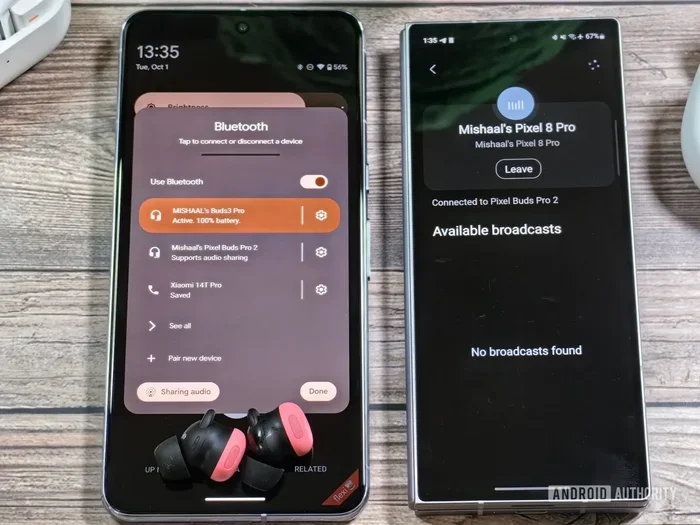
- Choose Add New Bluetooth Device
- Put your Bluetooth device into pairing mode
- Wait for your device to appear on the screen
- Select the device to complete the pairing
That is it. Your device is now connected and ready to use. The Firestick will remember paired devices, so you will not need to repeat this process every time.
Pairing Bluetooth Headphones To Firestick
Bluetooth headphones are one of the most popular devices people connect to a Firestick. The process is the same as the general steps above. Make sure your headphones are in pairing mode before searching on the Firestick.
Once paired, you can adjust the audio output. Go to Settings > Display & Sounds > Audio and select your Bluetooth headphones as the output device. This routes all Firestick audio through your wireless headphones.
Pairing A Bluetooth Speaker With Firestick
Want louder sound? Connecting a Bluetooth speaker to your Firestick is simple. Put the speaker in pairing mode, follow the steps above, and your Firestick audio will stream wirelessly. This is a great option when you do not want to use the Firestick remote speaker or when you want sound that fills a larger room.
Some users also explore using a Bluetooth transmitter if their existing speaker system does not have built-in Bluetooth. A transmitter bridges the gap between wired speakers and wireless connectivity, giving you more flexibility in how you set up your audio.
Using A Bluetooth Adapter As An Alternative
If you have an older TV without Bluetooth, you can still use a Bluetooth adapter on your TV to connect wireless audio devices. The adapter plugs into your TV and adds Bluetooth capability. This is a handy workaround for TVs that do not have built-in wireless support.
Common Bluetooth Problems On Firestick And How To Fix Them
Bluetooth connections are generally reliable, but sometimes issues pop up. Here are the most common problems and their solutions.
Device Not Showing Up During Pairing
If your Bluetooth device does not appear on the Firestick screen, try these steps:
- Make sure the device is in pairing mode
- Turn Bluetooth off and back on the Firestick
- Move the device closer to the Firestick
- Restart the Firestick and try again
- Check if the device is already connected to another device
Sometimes a device stays connected to a previous source and will not appear in the Firestick pairing list. Disconnect it from the other device first, then try again.
Audio Lag Or Delay
Audio lag is a common issue with wireless connections. If you notice a delay between the video and the audio, try these fixes:
- Move the Bluetooth device closer to the Firestick
- Reduce the number of connected Bluetooth devices
- Restart both the Firestick and the Bluetooth device
- Check for Firestick software updates
Audio lag happens because Bluetooth has a slight delay in transmitting data. This is normal for wireless connections. If the lag is severe, a wired connection may be a better option.
Connection Keeps Dropping
A Bluetooth connection that drops frequently can be frustrating. Here is what to do:
- Check that the device is within 30 feet of the Firestick
- Remove physical obstacles between the devices
- Avoid placing the Firestick near Wi-Fi routers or microwaves
- Unpair and re-pair the device
- Update the Firestick software to the latest version
Wireless interference from other devices can weaken your Bluetooth signal. Keeping your Firestick and Bluetooth device in the same room usually solves most connection drops.
Best Bluetooth Devices For Firestick Users
Not all Bluetooth devices work equally well with a Firestick. Here are some of the best options for a seamless experience.
Bluetooth Headphones For Firestick
Wireless headphones are a game-changer for Firestick users. You can watch your favorite shows late at night without anyone else being disturbed. Look for headphones with low latency Bluetooth support for the best audio-sync experience.
Many users also enjoy connecting Bluetooth headphones with their TV for a similar wireless experience on a larger screen. The setup process is nearly identical across devices.
Bluetooth Speakers For Firestick
A portable Bluetooth speaker gives you flexible sound anywhere in your home. You can take it from room to room or even outside for a backyard movie night. Some speakers also double as a charging station for your Firestick remote.
If you want a richer sound experience, consider connecting a Bluetooth speaker that supports stereo pairing. This uses two speakers to create a wider soundstage that fills your room.
Game Controllers For Firestick
The Firestick supports Xbox, PlayStation, and many third-party Bluetooth game controllers. This opens up a world of mobile gaming on your big screen. Make sure your controller is fully charged before pairing for the best experience.
Using Alexa With Firestick Bluetooth
If you have an Alexa-enabled device, you can use it as a Bluetooth speaker with Alexa for your Firestick. This lets you control your Firestick with voice commands while enjoying wireless audio from your Alexa speaker. The setup is simple and adds a layer of convenience to your streaming setup.
Firestick Bluetooth Settings And Tips
Once you have your Bluetooth devices connected, a few settings tweaks can improve your experience significantly.
Managing Paired Devices
You can view and manage all paired Bluetooth devices from Settings > Controllers & Bluetooth Devices. This screen shows all connected and previously paired devices. From here, you can remove devices, check battery levels, and set the default audio output.
Switching Between Audio Outputs
The Firestick lets you switch between different audio outputs easily. You can go from the TV speaker to Bluetooth headphones or a Bluetooth speaker in seconds. This is handy when multiple people want to use the same Firestick with different audio setups.
Updating Firestick Software
Keeping your Firestick software up to date ensures the best Bluetooth performance. Amazon regularly releases updates that improve wireless connectivity and fix bugs. Go to Settings > My Fire TV > About > Check For Updates to stay current.
Quick Tips For Better Bluetooth Performance
- Keep your Firestick software updated at all times
- Restart your Firestick once a week for optimal performance
- Do not pair more than four Bluetooth devices at once
- Place the Firestick near the center of your room
- Avoid placing the Firestick behind metal objects or electronics
- Turn off unused Bluetooth devices to reduce interference
Expert Insights On Firestick Bluetooth
Bluetooth technology has come a long way over the years. The latest Firestick models use Bluetooth 5.0, which offers better range, faster speeds, and more stable connections than older versions. This means fewer dropouts and better audio quality when streaming content.
One thing many users do not realize is that the Firestick Bluetooth connection is shared between all connected devices. If you have a Bluetooth keyboard, a game controller, and headphones all connected, they share the same Bluetooth bandwidth. This is why keeping the number of active devices manageable helps maintain a smooth experience.
For users who want even more flexibility, external accessories like a Bluetooth adapter can expand your Firestick’s wireless capabilities. These small devices plug into USB ports or audio jacks and add extra Bluetooth functionality. They are especially useful for older TVs or setups where the built-in Bluetooth is not enough.
Another useful option is using a Bluetooth transmitter with your Firestick setup. This is especially helpful if you want to connect wireless headphones to a TV that does not support Bluetooth natively. The transmitter bridges the gap and gives you wireless freedom without replacing your existing equipment.
Key Takeaways
- Built-In Bluetooth: Every Firestick model includes Bluetooth support for wireless audio and peripherals.
- Easy Pairing Process: You can connect Bluetooth devices in just a few simple steps from the Firestick settings menu.
- Multiple Device Types: Firestick supports Bluetooth headphones, speakers, keyboards, game controllers, and more.
- Troubleshooting Is Simple: Most Bluetooth issues on Firestick can be fixed with a quick restart or re-pairing.
- Bluetooth Range Matters: Keep paired devices within 30 feet for the best connection stability.
- Alternative Options Exist: If Bluetooth fails, you can use a Bluetooth adapter or wired connection as a backup.
Conclusion
So, does a Firestick have Bluetooth? Absolutely. Every Firestick comes with built-in Bluetooth that lets you connect wireless headphones, speakers, game controllers, keyboards, and more. The pairing process is simple, and the wireless experience is smooth once everything is set up.
Whether you want to watch movies quietly with wireless headphones or pump up the volume with a Bluetooth speaker, the Firestick makes it easy. Just follow the pairing steps we covered, troubleshoot any issues that come up, and enjoy your wireless streaming experience.
If you run into connection problems, remember that a quick restart or re-pairing usually solves the issue. And if your TV does not support Bluetooth, a Bluetooth adapter or transmitter can bridge the gap. The key is to keep your devices updated and within range for the best performance.
Now that you know how to get the most out of Firestick Bluetooth, go ahead and connect your favorite wireless devices. You will wonder how you ever streamed without them.
If you are also exploring other smart home devices, check out whether Alexa can double as a Bluetooth speaker for more wireless audio options. You might also want to learn about using a Bluetooth adapter on your TV if your television lacks built-in wireless support. For even more audio freedom, see which Bluetooth headphones work best with your TV to find the perfect match for your setup.
Frequently Asked Questions
Can I Connect Multiple Bluetooth Devices To My Firestick At Once?
Yes, the Firestick supports multiple Bluetooth connections. You can pair up to seven devices at once. However, you can only actively use a few devices simultaneously. For example, you can have a game controller, headphones, and a keyboard all paired, but you would typically use one audio output at a time.
Why Is My Bluetooth Device Not Showing Up On My Firestick?
This usually happens when the device is not in pairing mode or is already connected to another source. Make sure your Bluetooth device is discoverable and not connected to a phone or computer. Restarting both the Firestick and the Bluetooth device often solves this problem.
Can I Use Bluetooth Headphones With My Firestick For Late-Night Viewing?
Absolutely. Bluetooth headphones work perfectly with the Firestick for private listening. Simply pair your headphones, go to the audio settings, and select your headphones as the output device. This lets you watch movies or shows without disturbing anyone else in the house.
Does Bluetooth On The Firestick Support Audio Lag-Free Streaming?
Bluetooth has a slight inherent delay, which can cause minor audio lag. Newer Firestick models with Bluetooth 5.0 have much less lag than older versions. If you experience noticeable delay, try moving closer to the Firestick or reducing the number of active Bluetooth connections.
Can I Use A Bluetooth Speaker Instead Of The Firestick Remote Speaker?
Yes, you can connect a Bluetooth speaker to your Firestick and use it as your primary audio output. After pairing, go to the audio settings and select the speaker as the output device. This gives you louder, richer sound compared to the built-in Firestick speaker.
What Should I Do If My Bluetooth Connection Keeps Dropping?
First, make sure your Bluetooth device is within 30 feet of the Firestick. Remove any physical barriers and avoid placing the Firestick near Wi-Fi routers or microwaves. Unpairing and re-pairing the device often fixes frequent disconnections. Also, check for Firestick software updates, as these frequently improve Bluetooth stability.