Does Resetting The Router Clear Everything For Good
Does resetting the router clear everything? Yes — a factory reset wipes all custom settings, Wi-Fi names, passwords, and port forwards. However, your ISP credentials and modem settings usually stay intact. This guide walks you through exactly what gets deleted, what survives, and how to restore your network after a reset.
Have you ever stared at your router, wondering if hitting that tiny reset button would wipe everything clean? Maybe your internet has been acting up, or you’re selling your old gear and want a fresh start. Either way, the question is the same: does resetting the router clear everything?
The short answer is yes — but not everything. A factory reset clears most of your custom settings, but some things stick around. Understanding what gets removed and what survives can save you a lot of headaches. Let’s break it all down in simple terms.
Whether you’re troubleshooting slow internet, preparing to sell a router, or just curious about how your device works, this guide covers it all. You’ll learn exactly what happens when you press that little reset button and how to protect important data before you do it.
Key Takeaways
- A factory reset removes all custom configurations: This includes Wi-Fi name, password, port forwarding rules, and parental controls.
- ISP settings and modem connections typically survive: Your internet provider credentials are stored on the modem side, not the router.
- You must back up settings before resetting: Most routers let you export a configuration file before performing a reset.
- There are soft resets and factory resets: A simple reboot clears temporary glitches, while a factory reset wipes everything.
- Setting up after a reset takes time: Plan for 15-30 minutes to reconfigure your network after a full reset.
- Changing your SSID is part of post-reset setup: You can customize your network name again after restoring your router.
- Resetting does not fix hardware problems: If your router is physically damaged, a reset won’t help.
📑 Table of Contents
- What Happens When You Reset Your Router
- What Survives a Router Reset
- Why People Reset Their Routers
- How to Back Up Your Router Settings Before Resetting
- How to Reset Your Router Properly
- Setting Up Your Router After a Reset
- Common Mistakes People Make When Resetting Routers
- Expert Tips for Router Management
- Frequently Asked Questions
- Conclusion
What Happens When You Reset Your Router
When you perform a factory reset, your router goes back to the exact state it was in when you first took it out of the box. Think of it like restoring a phone to its original settings. Everything you added, changed, or customized gets wiped away.
But here’s the thing most people don’t realize. Not all resets are the same. There’s a big difference between a quick reboot and a full factory reset. Let’s look at both.
Soft Reset vs Factory Reset
A soft reset simply restarts your router. It clears temporary glitches, refreshes your connection, and fixes minor software hiccups. Your settings stay exactly where they are. You can do this by unplugging the router for 30 seconds and plugging it back in.
A factory reset is a completely different story. This erases all your custom configurations. The router forgets every setting you ever changed. Here’s what gets wiped during a factory reset:
- Wi-Fi network name (SSID) and password
- Port forwarding rules and DMZ settings
- Parental controls and access schedules
- Custom DNS settings
- Guest network configurations
- Static IP assignments
- VPN settings
- Firewall rules and security exceptions
- QoS (Quality of Service) settings
That’s a long list. If you’ve spent time customizing your network, a factory reset wipes all of it. This is why backing up your settings first is so important.
What Survives a Router Reset
Here’s some good news. Not everything disappears when you reset your router. Some settings are stored in a different part of your network and survive the process. Let’s look at what stays put.
ISP Credentials and Modem Settings
Your Internet Service Provider credentials are usually stored on the modem, not the router. When you reset your router, your modem keeps its settings intact. This means your internet connection should come back automatically once you reconnect the router.
However, there’s a catch. Some ISPs bundle the modem and router into one device. In that case, a reset might affect your ISP settings too. It’s always smart to write down your ISP username and password before resetting. You can find these on a sticker on your modem or in your ISP account portal.
Firmware Version
Your router’s firmware doesn’t get rolled back during a factory reset. The software version stays the same. This is good news because it means you don’t have to re-update your firmware after a reset.
Physical Hardware Settings
The reset button doesn’t change anything physical. Your Ethernet ports, USB ports, and antenna connections all stay the same. If you have external antennas, they remain attached and functional after a reset.
If you’re planning to add an antenna to boost your signal, you can do that anytime. Check out our guide on Can I Add An Antenna To My Wifi Router for helpful tips on improving your coverage.
Why People Reset Their Routers
People reset their routers for many different reasons. Understanding these can help you decide if a reset is the right move for your situation. Let’s explore the most common reasons.
Troubleshooting Connectivity Issues
When your internet starts acting strange, a reset can often fix the problem. Maybe your connection drops randomly, or pages load slowly. These issues sometimes stem from corrupted settings or memory buildup in the router’s cache.
A reset clears all that junk and gives your router a clean slate. Think of it like restarting your computer when it starts running slow. Sometimes a fresh start is all you need.
Selling or Giving Away Old Equipment
If you’re passing your router to someone else, you absolutely need to reset it. Leaving your Wi-Fi password, network name, and personal settings on the device is a security risk. A factory reset ensures the next user gets a clean device with no traces of your network.
Recovering From a Hack or Security Breach
If someone gained unauthorized access to your router, a factory reset is one of the best ways to lock them out. It removes any changes the attacker made, like new admin passwords or suspicious port forwarding rules.
After a security reset, make sure to change your default admin password immediately. Use a strong, unique password that nobody can guess easily.
Starting Fresh With a New Setup
Some people just want a clean network. Maybe you’ve been tweaking settings for months and things got messy. A reset lets you start over with a clear plan. You can set up your network from scratch with better organization this time.
How to Back Up Your Router Settings Before Resetting
Before you hit that reset button, take a few minutes to back up your settings. This simple step can save you hours of reconfiguration later. Most modern routers make this process easy.
Step-by-Step Backup Process
- Log into your router’s admin panel. Type your router’s IP address into your browser (usually 192.168.1.1 or 192.168.0.1).
- Enter your admin username and password. These are often printed on a sticker on the back of your router.
- Look for a “Backup” or “Save Settings” option in the admin menu.
- Click download to save the configuration file to your computer.
- Store this file in a safe place like a cloud folder or external drive.
Having this backup means you can quickly restore your settings after a reset. You won’t have to remember every port forwarding rule or DNS setting from memory.
What to Document Manually
Even with a backup file, it helps to write down a few key details by hand. Here’s what you should note:
- Your Wi-Fi network name and password
- Your admin login credentials
- Any port forwarding rules you’ve set up
- Your DNS server addresses
- Static IP assignments for specific devices
- Your ISP username and password
Keep this list somewhere safe. A simple note on your phone works perfectly.
How to Reset Your Router Properly
Now that you know what gets cleared and how to back things up, let’s talk about the actual reset process. Doing it the right way matters.
Using the Reset Button
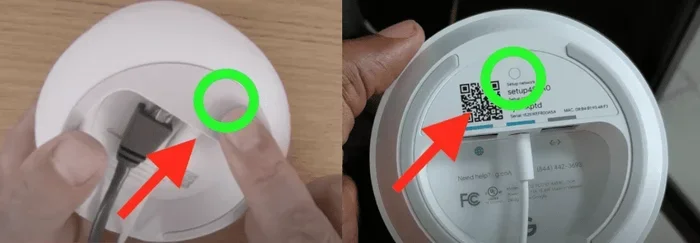
Most routers have a small reset button on the back or bottom. It’s usually recessed, so you’ll need a paperclip or a pin to press it. Here’s how to do it:
- Make sure your router is powered on.
- Find the reset button. It’s often labeled “Reset” or “RST.”
- Use a paperclip to press and hold the button for 10-15 seconds.
- Release the button and wait for the router to restart.
- The lights on your router will blink and then stabilize.
Once the router finishes restarting, it’s back to factory settings. You’ll need to log in with the default admin credentials and set everything up again.
Resetting Through the Admin Panel
Some people prefer to reset through the software interface. This method is just as effective and sometimes easier. Here’s how:
- Open your browser and go to your router’s IP address.
- Log into the admin panel.
- Navigate to the “Administration” or “System” section.
- Look for “Factory Reset” or “Restore Factory Defaults.”
- Click the button and confirm the action.
This method achieves the same result as pressing the physical button. The choice is yours based on what’s more convenient.
Setting Up Your Router After a Reset
After a factory reset, your router is basically empty. You need to rebuild your network from scratch. This might sound daunting, but it’s actually pretty straightforward if you followed the backup steps earlier.
Step-by-Step Setup Process
- Log in with default credentials. Check the sticker on your router for the default admin username and password.
- Change the admin password. This is the first thing you should do for security. Pick a strong password that’s hard to guess.
- Set up your Wi-Fi network name. You can customize this to whatever you want. If you’re unsure what to pick, you can always change it later. For help with this, check out our article on Can I Change The Ssid On My Router.
- Set a strong Wi-Fi password. Use WPA3 encryption if your router supports it. At minimum, use WPA2.
- Restore your backed-up settings. If you saved a configuration file earlier, upload it now. This restores all your custom settings at once.
- Reconfigure port forwarding and DNS settings. If you didn’t use a backup, you’ll need to set these up manually.
- Update your router’s firmware. Even though the firmware version survives a reset, it’s a good habit to check for updates.
Once you complete these steps, your network should be back to exactly how it was before the reset. It might take a little time, but the result is worth it.
Common Mistakes People Make When Resetting Routers
Resetting a router seems simple, but people make mistakes that cause problems. Here are the most common ones to avoid.
Not Backing Up First
This is the number one mistake. People forget to save their settings and then spend hours trying to remember every configuration. Don’t be that person. Always back up before you reset.
Holding the Reset Button Too Long or Too Short
Timing matters. If you hold the button for too short a time, you might only trigger a soft reset. If you hold it too long, you could potentially affect firmware settings. Stick to the 10-15 second guideline.
Forgetting to Change Default Passwords
After a reset, your router goes back to its default admin password. Leaving this unchanged is a serious security risk. Anyone on your network could access your router settings. Always change this first.
Resetting When You Don’t Need To
A factory reset is a big step. Before you do it, try simpler fixes first. Restart your router, update the firmware, or check your cables. A full reset should be your last resort, not your first move.
Not Documenting Your ISP Settings
If your ISP requires specific login credentials or VLAN settings, you need to write those down before resetting. Losing this information can make it hard to get your internet working again.
Expert Tips for Router Management
Managing a router doesn’t have to be complicated. A few smart habits can keep your network running smoothly and reduce the need for future resets.
Schedule Regular Reboots
You don’t need to factory reset your router often. A simple reboot once a week clears temporary issues and keeps things running fast. Many modern routers let you schedule automatic reboots through the admin panel.
Keep Your Firmware Updated
Firmware updates fix bugs, improve security, and add new features. Check for updates every month or two. An outdated router is more vulnerable to security threats.
Use a Mesh System for Large Homes
If your router struggles to cover your entire home, consider a mesh system. These devices work together to eliminate dead zones. If you have an Asus router, you might be interested in learning whether it can function as a mesh node. Visit our guide on Can Asus Router Be Used As A Mesh to find out.
Label Your Cables and Settings
Take a photo of your router’s back panel before you ever need to reset it. Note which cable goes where. This small habit saves tons of confusion during setup after a reset.
Frequently Asked Questions
Does resetting the router delete my Wi-Fi password?
Yes, a factory reset removes your Wi-Fi password completely. After the reset, the router uses the default password printed on the device sticker. You’ll need to set a new password during the setup process.
Will resetting my router affect my ISP internet connection?
Usually no. Your ISP settings are stored on the modem, not the router. However, you may need to reconnect the router to the modem after the reset. If your ISP uses specific login credentials, make sure you have those written down before resetting.
How long does it take to reset a router?
The physical reset process takes about 30 seconds. However, setting everything back up can take anywhere from 15 to 45 minutes depending on how many custom configurations you had. Having a backup file makes this much faster.
Can I undo a factory reset?
You can’t undo a factory reset directly. However, if you backed up your settings before resetting, you can restore them from the backup file. This is why backing up is so critical before performing a reset.
What’s the difference between restarting and resetting a router?
Restarting (or rebooting) simply turns the router off and back on. All your settings stay intact. Resetting (factory reset) wipes everything and returns the router to its original out-of-the-box state. Always choose restarting for minor issues and reserve resetting for serious problems.
Do I need any special tools to reset my router?
No special tools are needed. Just a paperclip or a small pin to press the recessed reset button. You also need access to your router’s admin panel if you want to reset through the software. Everything else is built into the router itself.
Conclusion
Does resetting the router clear everything for good? The answer is mostly yes. A factory reset wipes your Wi-Fi settings, passwords, port forwards, and all custom configurations. But it leaves your ISP connection and firmware untouched. The key is to prepare before you reset.
Back up your settings, write down important credentials, and know exactly what you’re getting into. With the right preparation, a router reset becomes a simple and even empowering process. You get to rebuild your network with better organization and stronger security.
Remember, resetting should be a tool you use with purpose, not a habit you fall into. Keep your router updated, reboot it regularly, and only factory reset when you truly need to. Your network will thank you for it.