How Do I Change My Wifi Username On My Router Today
Changing your WiFi username is one of the easiest ways to personalize and secure your home network. You can update your WiFi name directly through your router admin panel in just a few minutes. This guide shows you exactly how to change your WiFi username on your router without any technical headaches.
Have you ever looked at your WiFi list and seen a name that someone else chose years ago? Maybe it still says “default” or “linksys.” That old name doesn’t just look lazy. It can also make your network an easier target for strangers. The good news is that changing your WiFi username on your router is simple, fast, and free.
In this guide, we walk you through every single step. You do not need to be a tech expert. Whether you use a Netgear, TP-Link, ASUS, or any other brand, the process is very similar. By the end of this article, you will know exactly how to change your WiFi username on your router and make your home network feel like yours.
Your WiFi username is also called your SSID, which stands for Service Set Identifier. Think of it as the name tag for your wireless network. Every device that scans for WiFi sees this name. When you change it, you are simply updating that name tag. It does not change your internet speed, your password, or how your router works. It just gives your network a fresh identity.
Many people never bother to change their default WiFi name. That is a missed opportunity. A custom name makes your network easier to find. It also shows that you care about your setup. And when you care about your setup, you tend to pay attention to other important things like network security and router configuration.
Key Takeaways
- Easy Access: You can change your WiFi username by logging into your router admin panel through any web browser.
- Security Boost: A custom WiFi name helps you identify your network and adds a layer of personalization to your setup.
- No Special Tools Needed: You only need your router, a device connected to it, and your admin login details.
- Quick Process: The entire change takes less than five minutes once you know where to look.
- Multiple Routers, Same Steps: The process is similar across most router brands like Netgear, TP-Link, and ASUS.
📑 Table of Contents
- Why You Should Change Your WiFi Username
- What You Need Before You Start
- Step-by-Step Guide to Change Your WiFi Username
- How Router Brands Differ in the Process
- Best Practices for Naming Your WiFi Network
- What Happens After You Change Your WiFi Name
- Common Mistakes People Make When Changing Their WiFi Name
- When to Change Your WiFi Username Again
- Final Thoughts
Why You Should Change Your WiFi Username
There are several good reasons to update your WiFi name. Some people do it for fun. Others do it for safety. Here are the main reasons you should consider making the change.
It Makes Your Network Easy to Identify
When you walk into your home and open your phone, you see a list of available networks. If your name blends in with all the others, you might connect to the wrong one. A unique wireless network name helps you pick the right one every time. You can use your last name, your street name, or something fun and personal.
It Improves Network Security
A default WiFi name can tell hackers what brand of router you use. For example, if your network says “NETGEAR-5G,” a bad actor knows exactly what model you have. That gives them a starting point for finding weaknesses. Changing your network name change removes that clue. It makes your home network a little harder to target.
It Helps With Troubleshooting
If you live in an apartment building with dozens of WiFi networks, a unique name helps you spot yours quickly. You will also find it easier to explain WiFi issues to a support agent when your network has a clear, recognizable name.
What You Need Before You Start
Before you dive into the settings, gather a few things. You do not need anything fancy. Just the basics.
- A device connected to your router: Use a phone, tablet, or computer that is already on your WiFi network.
- Your router admin login: Most routers use “admin” for both the username and password by default. Check the sticker on the back of your router if you have not changed it.
- Your router’s IP address: This is usually 192.168.1.1 or 192.168.0.1. You can find it on the router sticker or in your device’s network settings.
- A web browser: Chrome, Safari, Firefox, or Edge all work fine. You do not need anything special.
Once you have these items ready, you are good to go. The whole process takes about three to five minutes.
Step-by-Step Guide to Change Your WiFi Username
Now let us get into the actual steps. Follow along carefully and you will have your new WiFi name up and running in no time.
Step 1: Open Your Web Browser
On the device connected to your router, open any web browser. You do not need to go to a specific website. You are going to type your router’s address directly into the address bar at the top of the screen.
Step 2: Type in Your Router’s IP Address
In the address bar, type in your router’s IP address. Most common ones are 192.168.1.1 or 192.168.0.1. Press Enter. A login page should appear. If it does not, double-check the IP address on your router’s sticker.
Step 3: Log Into Your Router Admin Panel
Enter your admin username and password. If you have never changed these, the default is usually “admin” for both fields. Some newer routers let you log in through a mobile app instead. If that is the case for you, open the app and skip to the wireless settings section.
Once logged in, you are in the router admin panel. This is the control center for your entire network. Take a moment to look around. You will see sections for WiFi settings, security, devices, and more.
Step 4: Find the Wireless Settings
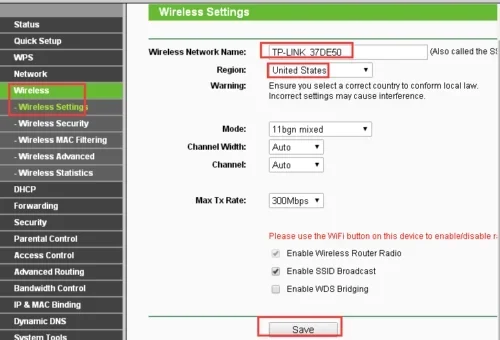
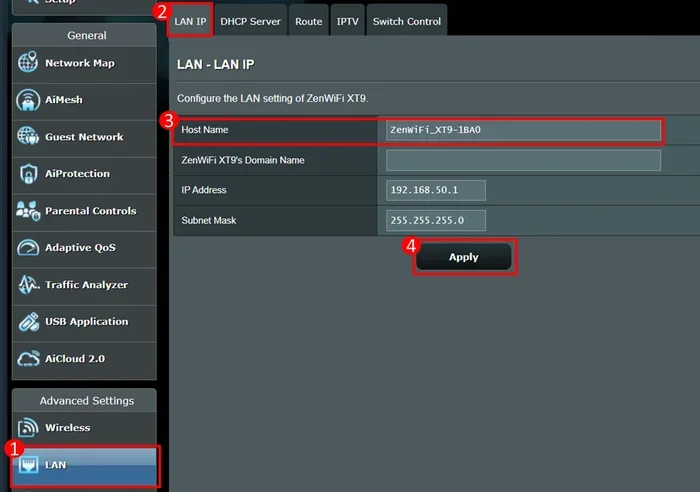
Look for a tab or menu item called “Wireless,” “WiFi Settings,” or “Network Settings.” On some routers, it might be under “Advanced Settings.” Click on it. You should see a field labeled “SSID,” “Network Name,” or “WiFi Name.”
Step 5: Enter Your New WiFi Username
Delete the old name and type in your new one. Keep it short and easy to remember. Avoid using personal information like your full name or address. A good rule of thumb is to make it recognizable but not too revealing. Something like “SmithFamilyWiFi” or “CozyHomeNet” works great.
Step 6: Save Your Changes
Click the “Save” or “Apply” button at the bottom of the page. Your router will take a few seconds to update. Do not turn off your device during this time. Once the router finishes, your new WiFi username will appear in the list of available networks on all your devices.
Step 7: Reconnect Your Devices
After saving, you will need to reconnect all your devices to the new network name. Go to your phone, laptop, tablet, and smart home devices. Find the new name in the WiFi list and enter your password. That is it. You are done.
If you want to learn more about router settings and how they affect your daily connection, you can also check out Can I Change The Ssid On My Router for additional tips and insights.
How Router Brands Differ in the Process
While the general steps are the same across brands, each router has its own layout. Here is a quick look at what to expect from the most popular brands.
| Router Brand | Where to Find WiFi Settings | Default IP Address |
|---|---|---|
| TP-Link | Wireless > Wireless Settings | 192.168.0.1 |
| Netgear | Wireless > Basic Wireless Settings | 192.168.1.1 |
| ASUS | Wireless > General | 192.168.1.1 |
| Linksys | Wireless > Wireless Settings | 192.168.1.1 |
| Xfinity | Gateway > Wi-Fi Settings | 10.0.0.1 |
These paths may vary slightly depending on your router model and firmware version. If you cannot find the right section, look for a search bar inside the admin panel. Type in “SSID” or “wireless” and it should point you in the right direction.
For users who also want to adjust their frequency band settings after renaming, you might find Can I Change My Wi Fi From 5Ghz To 2 4 Ghz helpful for managing dual-band networks.
Best Practices for Naming Your WiFi Network
Now that you know how to change your name, let us talk about how to pick a good one. A bad name can cause problems. A good name makes life easier for everyone.
Do Keep It Short
Short names are easier to find and select on your phone. Try to stay under 20 characters. Long names can get cut off on some devices, which makes them harder to pick from the list.
Do Make It Unique
Avoid generic names like “WiFi” or “Internet.” These are boring and do not help you stand out from your neighbors’ networks. Pick something that reflects your personality or household.
Do Not Include Personal Information
Never use your full name, birth date, or home address in your WiFi name. This information is broadcasted to everyone nearby. Keep it vague and fun instead.
Do Not Use Offensive Names
This one might seem obvious, but it happens more than you think. Keep it family-friendly, especially if your neighbors or guests might see it.
Consider Using a Naming Convention
If you have multiple routers or access points in your home, use a consistent naming pattern. For example, “SmithWiFi_Main” and “SmithWiFi_Backyard” help you know which router a device is connected to.
After updating your network name, you may also want to review your signal strength and coverage. If you notice weak spots, check out Can I Increase Wi Fi Signal for proven methods to boost your wireless coverage throughout your home.
What Happens After You Change Your WiFi Name
Changing your WiFi name does not break anything. Your internet connection stays the same. Your password stays the same. But there are a few things that do happen that you should know about.
- All devices forget the old network: Your phone, laptop, and smart devices will no longer auto-connect to the old name. You will need to reconnect each one with the new name and your existing password.
- Guest networks stay separate: If you have a guest network, it keeps its own name. You do not need to change it unless you want to.
- Smart home devices may need reconfiguring: Devices like smart speakers, cameras, and plugs may need to be reconnected to the new network name. This is a small hassle but worth it for the improved organization.
- Your password is unchanged: Unless you also change it, your WiFi password stays exactly the same. You only need to update the name on each device.
If you ever want to run two networks with the same name for seamless roaming, you can learn more about that in Can I Have Two Wifi Networks With The Same Name.
Common Mistakes People Make When Changing Their WiFi Name
Even though the process is simple, people still make mistakes. Here are the most common ones and how to avoid them.
Forgetting to Save Changes
This is the number one mistake. You type in a new name, click around a bit, and then close the browser. Nothing changes because you never hit “Save” or “Apply.” Always double-check that you clicked the final button before closing the page.
Using a Very Long Name
Some people try to cram their whole address into the WiFi name. This causes display issues on some devices. Keep it concise and clean.
Not Updating All Devices
After the change, some devices will keep trying to connect to the old name. This can cause confusion and slow internet if the device is stuck trying to reach a network that no longer exists. Go through your devices and reconnect them one by one.
Changing the Name Too Often
There is no need to change your WiFi name every week. Doing so just creates more work for you and confuses everyone connected to the network. Pick a name you like and stick with it.
Confusing the SSID Name with the Password
Some people change the network name and think they also need to change their password. The SSID and the password are two separate settings. Changing one does not affect the other.
For users who also want to extend their WiFi coverage after making these changes, you might want to look into Can I Extend My Wi Fi To 200 Feet Away for helpful range-boosting strategies.
When to Change Your WiFi Username Again
You do not need to change your WiFi name often. But there are a few situations where it makes sense to do so again.
- You moved to a new home: A new address might call for a fresh network name.
- You changed your internet provider: Your new router might have a default name you want to customize.
- You suspect someone else is using your network: Changing both the name and the password is a smart security move.
- You added a new router or mesh system: You might want to rename your networks to keep them organized.
Regularly reviewing your router settings is a good habit. It keeps your internet connection running smoothly and your network secure. Think of it like changing the batteries in your smoke detector. It is a small task that makes a big difference.
Final Thoughts
Changing your WiFi username on your router is one of the simplest and most rewarding things you can do for your home network. It takes less than five minutes, requires no special tools, and gives your network a fresh, personal touch. You also get the bonus of improved security and easier troubleshooting.
Remember the steps we covered. Log into your router admin panel, find the wireless settings, update the SSID field, save your changes, and reconnect your devices. That is all there is to it. Whether you use a TP-Link, Netgear, ASUS, or any other brand, the process is straightforward and beginner-friendly.
Take a few minutes today to give your WiFi network the name it deserves. Your future self will thank you every time you connect without confusion. And once you have your new name set up, you can move on to other WiFi optimization tasks like updating your password or adjusting your channel settings.
Your network is your digital front door. Make sure it has a name you are proud of. Happy networking.
Frequently Asked Questions
Can I change my WiFi username without logging into my router?
No, you need to access your router admin panel to change the WiFi username. The admin panel is where all wireless settings are stored. You can access it through your web browser using your router’s IP address and admin login credentials.
Will changing my WiFi name disconnect my devices?
Yes, temporarily. After you save the new name, all your devices will lose connection to the old network. You will need to reconnect each device by selecting the new network name and entering your WiFi password. This is normal and takes just a few minutes.
Can I use special characters in my WiFi username?
Most routers support letters, numbers, and some special characters in the SSID field. However, sticking to simple letters, numbers, and spaces ensures the widest compatibility across all your devices. Avoid emojis or unusual symbols that some devices may not display correctly.
How often should I change my WiFi username?
There is no set schedule. Most people change their WiFi name once or twice. You might want to update it when you move to a new home, change internet providers, or want to refresh your network’s appearance. Changing it too often just creates unnecessary reconnection work.
Does changing my WiFi name affect my internet speed?
No, changing your WiFi username has no effect on your internet speed. The SSID is just a label for your network. It does not change how your router transmits data or how fast your internet connection runs. Speed depends on your plan, hardware, and signal strength.
What is the difference between my WiFi username and my WiFi password?
Your WiFi username is the name that appears in the list of available networks on your devices. Your WiFi password is the secret code you enter to connect to that network. They are two separate settings in your router admin panel, and changing one does not affect the other.
=== CONCLUSION ===
Changing your WiFi username on your router is a quick win that improves both your experience and your security. You now know exactly how to log into your router, find the right settings, pick a great name, and reconnect all your devices. The process is simple, fast, and requires no technical background.
Take action today. Open your browser, type in your router’s IP address, and give your network a name that feels like home. It is one of the smallest changes that makes the biggest difference. And once you have it done, you will wonder why you did not do it sooner.