Does Wi Fi Assist Drain Your Phone Battery Quickly
So, does Wi Fi Assist drain battery? The short answer is yes — it can. Wi Fi Assist is a handy iPhone feature that switches you to cellular data when your Wi-Fi signal gets weak, but that constant switching can eat up your phone battery life fast. In this guide, we break down exactly how Wi Fi Assist affects your battery, when to turn it off, and easy steps to optimize your settings and keep your phone running longer.
We have all been there. You are sitting at home, scrolling through your phone, and suddenly the battery percentage drops by five percent in just a few minutes. You did not even open a new app. What is going on? One common culprit is a feature called Wi Fi Assist. Many iPhone users have this turned on without even realizing it. And the big question everyone asks is, does Wi Fi Assist drain battery? The answer is more complicated than a simple yes or no. In this article, we will walk through everything you need to know about Wi Fi Assist battery drain, how the feature works, and what you can do to stop it from killing your phone battery.
Wi Fi Assist was introduced by Apple to make your internet experience smoother. The idea is simple. When your Wi-Fi network signal gets weak, your phone automatically switches to cellular data so you do not lose your connection. Sounds great, right? But here is the catch. That constant monitoring and switching takes a toll on your phone battery life. If you have ever noticed your battery draining faster than usual, Wi Fi Assist might be the hidden cause. Let us dive deep into how this feature works and what you can do about it.
Key Takeaways
- Wi Fi Assist can significantly drain your battery because it constantly monitors your Wi-Fi signal strength and switches to cellular data when the signal drops.
- You can turn off Wi Fi Assist in your iPhone settings under Settings > Cellular to save battery life immediately.
- Weak Wi-Fi signals cause the most battery drain, as your phone works harder to maintain a connection and switches back and forth between networks.
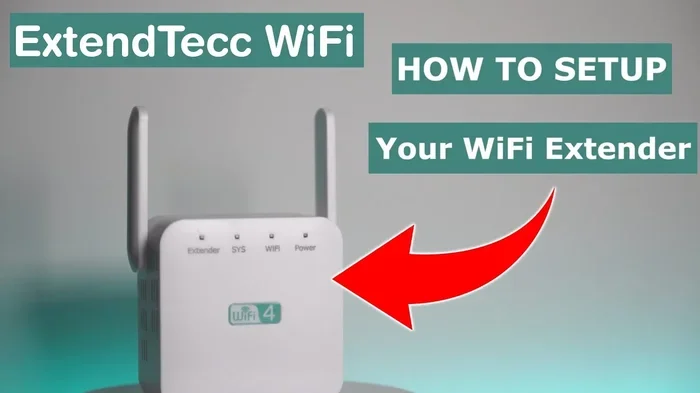
- Using a Wi-Fi booster or extender can help stabilize your signal and reduce the need for Wi Fi Assist to kick in.
- Other settings like background app refresh and location services also impact battery drain when combined with Wi Fi Assist.
- Turning off Wi Fi Assist does not affect your ability to make calls or send messages over Wi-Fi when the signal is strong.
- Monitoring your cellular data usage helps you understand how much data Wi Fi Assist is consuming and whether the trade-off is worth it.
📑 Table of Contents
- What Is Wi Fi Assist and How Does It Work?
- Does Wi Fi Assist Actually Drain Your Battery?
- How to Check If Wi Fi Assist Is Draining Your Battery
- How to Turn Off Wi Fi Assist to Save Battery
- Other Settings That Affect Battery Drain With Wi Fi Assist
- Tips to Maximize Battery Life When Using Wi-Fi
- Common Mistakes People Make With Wi Fi Assist
- Frequently Asked Questions
What Is Wi Fi Assist and How Does It Work?
Wi Fi Assist is a built-in feature on iPhones that helps maintain your internet connection. When your phone detects that the Wi-Fi signal is too weak to provide a good browsing experience, it quietly switches you over to your cellular data plan. This happens in the background without any notification. Most users do not even know it is happening until they check their data usage and see a big spike.
The feature is designed to keep you connected. But the problem is that your phone is always working to check the Wi-Fi signal strength. This constant checking uses power. And every time it switches between networks, it uses even more. Over time, this adds up and can noticeably shorten your battery life.
How Wi Fi Assist Affects Battery Performance
Here is where things get interesting. When Wi Fi Assist is active, your phone is doing more work than you might think. It is constantly scanning the Wi-Fi network and comparing its strength to your cellular signal. If the Wi-Fi signal drops below a certain threshold, your phone makes the switch. Then when the Wi-Fi signal comes back, it switches again. This back-and-forth is called network hopping, and it is a real battery killer.
Think of it like this. Imagine you are trying to sleep, but every time the room gets slightly cold, you get up, turn on the heater, then go back to sleep when it gets warm. You would be exhausted, right? That is what Wi Fi Assist does to your phone. It keeps waking up the radio antennas to check signals and make switches. All of that activity drains your battery much faster than normal.
According to Apple, Wi Fi Assist only activates when you are actively using data. It does not kick in for background tasks like email syncing. But many users report that their battery still drains faster with the feature turned on. This could be because other apps and services also rely on stable connections and put extra load on your phone when the network keeps switching.
Does Wi Fi Assist Actually Drain Your Battery?
Let us get to the heart of the matter. Does Wi Fi Assist drain battery? The honest answer is yes, it can. But how much it drains depends on several factors. If you have a strong Wi-Fi signal at home or at work, Wi Fi Assist probably does very little. But if you live in an area with spotty Wi-Fi coverage, your phone is switching networks constantly, and that can make a big difference.
Here are some situations where Wi Fi Assist can drain your battery quickly:
- You live in a large home with thick walls that weaken the Wi-Fi signal in certain rooms.
- Your router is old or outdated and does not broadcast a strong signal throughout your space.
- You use your phone in areas with weak Wi-Fi, like basements, garages, or far corners of your house.
- You have many devices connected to the same Wi-Fi network, which reduces the signal strength for each device.
- Your Wi-Fi network is crowded, like in an apartment building or office with many networks nearby.
In all of these cases, Wi Fi Assist is constantly jumping between Wi-Fi and cellular data. Each switch uses power. And the weaker the Wi-Fi signal, the more often the switch happens. Over the course of a day, this can reduce your battery life by a noticeable amount.
Real-World Battery Drain Examples
Let us look at a few real-world scenarios. Say you are at home and your Wi-Fi signal in the kitchen is weak. You go to check your email. Wi Fi Assist switches you to cellular data. You walk to the living room where the signal is stronger. Your phone switches back to Wi-Fi. You go back to the kitchen. Switch again. This might happen dozens of times a day without you noticing. Each switch uses a small amount of battery, but they add up.
Another example is when you are at work. Your office Wi-Fi might be slow or unreliable. Wi Fi Assist keeps switching you to cellular data throughout the day. By the end of the workday, your battery is much lower than it should be. Many users have reported up to a 20 to 30 percent increase in battery drain when Wi Fi Assist is active in areas with poor Wi-Fi coverage.
How to Check If Wi Fi Assist Is Draining Your Battery
If you suspect that Wi Fi Assist is causing battery problems, there are a few ways to check. Your iPhone has built-in tools that can help you figure out what is going on.
First, go to Settings and tap on Battery. Here you can see which apps and services are using the most power. If you see a lot of cellular data usage or network-related activity right before your battery drops, Wi Fi Assist might be the cause.
Second, check your cellular data usage. Go to Settings, then Cellular, and scroll down to see how much data you have used this month. If your data usage is much higher than usual and you have not changed your habits, Wi Fi Assist could be the reason. It is using your cellular data plan to compensate for weak Wi-Fi signals.
Third, pay attention to when your battery drains the most. If you notice that your battery drops faster when you are at home or in areas with weak Wi-Fi, that is a strong sign that Wi Fi Assist is active and causing the problem.
Quick Tips to Monitor Battery Usage
- Check your battery usage weekly to spot unusual patterns early.
- Turn on Low Power Mode when you notice your battery draining fast.
- Restart your phone regularly to clear background processes that might be contributing to drain.
- Update your iOS to the latest version, as Apple often improves battery optimization with updates.
How to Turn Off Wi Fi Assist to Save Battery
The simplest way to stop Wi Fi Assist from draining your battery is to turn it off. The good news is that it is very easy to do. Here is how:
- Open the Settings app on your iPhone.
- Tap on Cellular.
- Scroll all the way to the bottom.
- Toggle off Wi Fi Assist.
That is it. Once you turn it off, your phone will no longer automatically switch to cellular data when your Wi-Fi signal gets weak. You will stay on Wi-Fi even if the signal is weak. This can save a significant amount of battery life, especially if you are in an area with poor Wi-Fi coverage.
Some users worry that turning off Wi Fi Assist means they will lose their internet connection when the Wi-Fi signal is weak. But in most cases, your phone will simply stay connected to the Wi-Fi network, even if the connection is slow. You might experience slower browsing, but you will not lose your connection entirely. And your battery will last much longer.
When Should You Keep Wi Fi Assist On?
There are times when keeping Wi Fi Assist on makes sense. If you are in an area where you need a reliable internet connection and the Wi-Fi signal is inconsistent, Wi Fi Assist can help keep you connected. For example, if you are traveling and need to check maps or send important messages, having Wi Fi Assist on ensures you do not lose your connection when the Wi-Fi signal drops.
Another situation where Wi Fi Assist is useful is when you are at a public Wi-Fi hotspot that has a weak signal. Coffee shops, airports, and hotels often have Wi-Fi that does not reach every corner of the building. Wi Fi Assist can keep you online by switching to cellular data when needed.
The key is to be mindful of when you have it on and when you do not. If you are at home and your Wi-Fi signal is strong, there is no reason to keep Wi Fi Assist on. But if you are in a crowded area with weak Wi-Fi, it can be a useful tool. Just be aware that it will use more battery.
Other Settings That Affect Battery Drain With Wi Fi Assist
Wi Fi Assist is not the only setting that affects your battery life. Several other iPhone settings can make battery drain worse, especially when combined with Wi Fi Assist. Understanding these settings can help you get the most out of your battery.
Background App Refresh
Background App Refresh is a feature that lets apps update their content even when you are not using them. This is great for staying up to date with social media, news, and email. But it also uses battery power. When Wi Fi Assist is on and your phone is switching networks, Background App Refresh can make the problem worse because apps are trying to refresh their content while the network is unstable.
To turn off Background App Refresh, go to Settings, then General, then Background App Refresh. You can either turn it off completely or limit it to Wi-Fi only. This is a great way to save battery without losing important app updates.
Location Services
Location Services use both Wi-Fi and cellular data to determine your location. Apps like Maps, weather, and social media use Location Services to give you relevant information. But they also drain your battery. When Wi Fi Assist is active and your phone is switching networks, Location Services have to work even harder to keep track of your position.
To save battery, go to Settings, then Privacy, then Location Services. You can turn off Location Services completely or limit it to only the apps that really need it. This simple change can make a big difference in your battery life.
Wi-Fi Network Selection
Sometimes the problem is not Wi Fi Assist itself but the Wi-Fi network you are connecting to. If your router is old or placed in a bad location, your Wi-Fi signal will be weak throughout your home. This causes Wi Fi Assist to switch to cellular data more often, which drains your battery faster.
Consider upgrading your router or moving it to a central location in your home. You might also want to look into getting a Wi-Fi booster to extend your signal to areas of your home where the coverage is weak. A stronger and more stable Wi-Fi signal means less switching and less battery drain.
Network Band Settings
Your router can broadcast on different frequency bands, like 5GHz and 2.4GHz. The 5GHz band is faster but has a shorter range. The 2.4GHz band is slower but reaches further. If your phone is constantly trying to connect to a 5GHz network that is too far away, Wi Fi Assist will kick in more often. Switching your router to use both bands or forcing your phone to connect to the 2.4GHz band can help stabilize your connection and reduce battery drain.
For more information on adjusting your network band settings, check out our guide on can I change my Wi-Fi from 5GHz to 2.4 GHz.
Tips to Maximize Battery Life When Using Wi-Fi
Want to get the most out of your battery while still using Wi-Fi? Here are some practical tips that can help:
- Turn off Wi Fi Assist if you have a strong and stable Wi-Fi signal at home or work.
- Use a Wi-Fi extender to boost your signal in areas of your home where it is weak. This reduces the need for your phone to switch to cellular data.
- Keep your iPhone updated to the latest iOS version. Apple regularly includes battery optimizations in software updates.
- Turn on Low Power Mode when your battery is running low. This disables many background processes and extends your battery life significantly.
- Restart your phone once a week to clear out apps and processes that might be draining your battery in the background.
- Check for rogue apps that might be using too much data or battery in the background. Go to Settings, then Battery, to see which apps are using the most power.
- Reduce screen brightness and turn off auto-brightness if you want to squeeze out extra battery life.
By following these tips, you can enjoy the benefits of Wi-Fi connectivity without worrying about your battery draining too fast. A little bit of tweaking goes a long way toward keeping your phone powered up throughout the day.
Expert Insight: How Network Engineers View Wi Fi Assist
Network engineers often advise users to be cautious with Wi Fi Assist. The feature is designed to improve connectivity, but it does so at the cost of battery life. According to many tech experts, the constant network switching that Wi Fi Assist performs is one of the most overlooked causes of battery drain on iPhones. They recommend turning it off for most users, especially those who have strong and stable Wi-Fi connections at home and work.
Some experts also suggest using a Wi-Fi range extender or mesh network system to improve coverage throughout your home. This way, your phone does not need to rely on Wi Fi Assist as much, and your battery lasts longer. If you are interested in learning more about extending your Wi-Fi range, you can read our article on can I extend my Wi-Fi to 200 feet away.
Another tip from the experts is to keep an eye on your cellular data usage. If you notice that your data usage spikes when you are at home, Wi Fi Assist is likely the cause. Turning it off can save both battery life and data. For more on managing your data connections, check out our guide on can I get Wi-Fi without a router.
Common Mistakes People Make With Wi Fi Assist
There are several common mistakes that people make with Wi Fi Assist that can make battery drain worse. Avoiding these mistakes can help you get the most out of your battery.
- Leaving Wi Fi Assist on all the time without checking if you really need it. If your Wi-Fi signal is strong, you do not need this feature.
- Ignoring battery usage stats. Your iPhone gives you detailed information about what is draining your battery. Use it to identify problems early.
- Not updating your iPhone. Software updates often include fixes for battery drain issues, including problems related to Wi Fi Assist.
- Keeping too many apps open. Apps running in the background use data and battery. Close apps you are not using to save power.
- Not checking your router placement. A poorly placed router can cause weak signals that trigger Wi Fi Assist more often than necessary.
By avoiding these mistakes, you can keep your battery healthy and your phone running smoothly. Small changes to your settings and habits can make a big difference over time.
Frequently Asked Questions
Does turning off Wi Fi Assist save battery?
Yes, turning off Wi Fi Assist can save battery life. When you turn it off, your phone stops switching between Wi-Fi and cellular data. This reduces the amount of work your phone has to do and helps your battery last longer. Many users report noticeable improvements in battery life after turning off this feature.
Will turning off Wi Fi Assist affect my internet connection?
Turning off Wi Fi Assist means your phone will stay on Wi-Fi even if the signal is weak. You might experience slower internet speeds in areas with poor Wi-Fi coverage, but you will not lose your connection entirely. For most users, this is a small trade-off for the battery savings you get.
Does Wi Fi Assist use a lot of cellular data?
Wi Fi Assist can use more cellular data than usual, especially if you are in an area with a weak Wi-Fi signal. When your phone switches to cellular data, it uses your data plan. If you have a limited data plan, this can be a concern. Keep an eye on your data usage if you decide to keep Wi Fi Assist turned on.
Can Wi Fi Assist drain battery even when I am not using my phone?
Wi Fi Assist is designed to only activate when you are actively using data. However, some background processes and apps might trigger network checks that cause Wi Fi Assist to kick in even when you are not actively using your phone. This is rare but can happen, especially if you have many apps running in the background.
Is Wi Fi Assist available on all iPhones?
Yes, Wi Fi Assist is available on all iPhones that run iOS 9 or later. It is turned on by default on most iPhones. You can check if it is enabled by going to Settings, then Cellular, and scrolling to the bottom of the page. If the toggle is green, Wi Fi Assist is active.
Does Wi Fi Assist affect Wi-Fi calling?
Wi Fi Assist should not affect Wi-Fi calling directly. Wi-Fi calling uses a stable Wi-Fi connection to make calls, and it does not rely on the same switching mechanism as Wi Fi Assist. However, if Wi Fi Assist keeps switching your network, it could potentially interrupt a Wi-Fi call if the signal changes during the call. This is rare but possible.