How Can I Connect My Tv To My Phone Without Wi Fi
You can connect your TV to your phone without Wi-Fi using HDMI cables, USB adapters, Bluetooth, or wired streaming devices. This guide walks you through every method step by step, so you can mirror your phone screen, stream media, or share photos on a bigger display — even when you have no internet connection.
There is something magical about watching your phone’s screen appear on a big TV. Maybe you want to share vacation photos with family. Maybe you want to watch a video without eating up your mobile data. Or perhaps your Wi-Fi is down and you still want entertainment.
Connecting your TV to your phone without Wi-Fi is easier than most people think. You do not need a fancy smart TV or expensive equipment. A simple cable or a basic adapter can do the trick. This guide covers every practical method you can use right now.
Whether you have an iPhone or an Android phone, there is a wired or Bluetooth solution for you. We will walk through each option clearly and simply. No jargon. No confusing steps. Just straightforward advice that gets the job done.
Let us dive into the different ways you can connect your TV to your phone without Wi-Fi and enjoy your content on the big screen.
Key Takeaways
- HDMI connections offer the best quality: A simple cable or adapter gives you high-definition screen mirroring without any wireless setup.
- USB cables work for certain phone and TV combos: You can plug your phone directly into your TV using the right USB cable or adapter.
- Bluetooth is a solid wireless alternative: You can pair your phone to your TV using Bluetooth if both devices support it.
- No Wi-Fi does not mean no options: Wired and Bluetooth methods bypass Wi-Fi completely, giving you full flexibility.
- The right adapter matters a lot: Choosing the correct cable or adapter ensures smooth performance and the best picture quality.
📑 Table of Contents
- Why Connect Your Phone to Your TV Without Wi-Fi?
- Method 1: Using an HDMI Cable or Adapter
- Method 2: Using a USB Cable or USB-to-HDMI Adapter
- Method 3: Bluetooth Connection Between Phone and TV
- Method 4: Using a Wired Streaming Device
- Method 5: Using a Bluetooth Transmitter or Adapter
- Tips for the Best Experience
- Common Mistakes to Avoid
- Which Method Should You Choose?
- Final Thoughts
Why Connect Your Phone to Your TV Without Wi-Fi?
You might wonder why anyone would want to connect a phone to a TV without Wi-Fi. There are actually many good reasons for this.
First, Wi-Fi connections can be unreliable. They drop signals, slow down, or experience interference from other devices. A wired connection eliminates all of these problems. You get a stable, uninterrupted connection every time.
Second, some situations simply do not have Wi-Fi available. Think about hotel rooms, cabins, or outdoor gatherings. In these cases, a cable or Bluetooth connection becomes your only option for screen sharing.
Third, wired connections often deliver better quality. HDMI cables transmit high-definition video and audio without compression or lag. This means a sharper picture and smoother playback compared to wireless methods.
Finally, connecting without Wi-Fi keeps your phone’s data safe. You are not streaming over a public network. Everything stays local and private between your devices.
Method 1: Using an HDMI Cable or Adapter
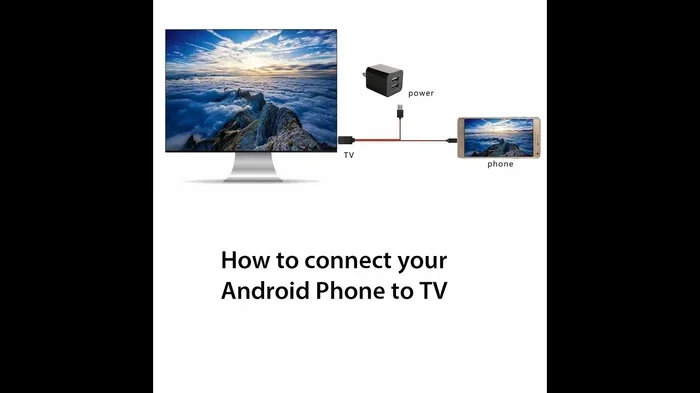
The most reliable way to connect your phone to your TV is through HDMI. This method gives you the best picture quality and the simplest setup. You just plug in a cable, and your TV mirrors your phone screen instantly.
What You Need for HDMI Connection
Before you start, make sure you have the right equipment. Here is what you typically need:
- An HDMI cable: A standard HDMI cable connects to your TV’s HDMI port.
- A phone-compatible adapter: This adapter plugs into your phone’s charging port and converts the signal to HDMI.
- Your TV: Make sure your TV has an available HDMI input port.
For iPhones, you will need a Lightning to HDMI adapter. For Android phones with USB-C, a USB-C to HDMI adapter works perfectly. Some Android phones also support MHL (Mobile High-Definition Link), which uses a special micro-USB to HDMI cable.
Step-by-Step HDMI Setup
Follow these simple steps to set up your HDMI connection:
- Plug the HDMI adapter into your phone’s charging port.
- Connect the HDMI cable to the adapter.
- Plug the other end of the HDMI cable into your TV’s HDMI port.
- Switch your TV to the correct HDMI input using your remote.
- Your phone screen should now appear on the TV.
If you are using an iPhone, you can learn more about connecting an iPhone to HDMI for device-specific tips. The process is very similar across most phones.
Pros and Cons of HDMI
Let us look at the advantages and disadvantages of using HDMI for your phone-to-TV connection:
- Pros: Excellent picture quality, no lag, stable connection, works without Wi-Fi, supports audio and video together.
- Cons: Requires a physical cable, adapters can be pricey, limited mobility since you are tethered to the TV.
Despite the minor drawbacks, HDMI remains the gold standard for wired screen mirroring. The quality is unmatched, and the setup takes less than a minute.
Method 2: Using a USB Cable or USB-to-HDMI Adapter
Another effective way to connect your TV to your phone without Wi-Fi is through a USB connection. Many modern TVs have USB ports that can accept video input from phones. This method is especially handy if you do not have an HDMI port available.
How USB Connections Work
Some TVs support USB display input directly. You can plug your phone into the TV using a USB cable, and the TV will recognize your phone as an external display. This works best with Android phones that support USB display output.
For phones that do not support direct USB display, you can use a USB-to-HDMI adapter. This small device converts your phone’s USB signal to HDMI, which then connects to your TV just like a regular HDMI cable.
If you want to learn more about USB-to-HDMI options, check out our guide on connecting USB to HDMI for detailed compatibility information.
Setting Up a USB Connection
Here is how to get started with a USB connection:
- Check if your TV supports USB display input. Look for “USB Display” or “USB Host” in your TV’s settings menu.
- Use a compatible USB cable that fits your phone’s charging port.
- Plug one end into your phone and the other into the TV’s USB port.
- Select the USB input source on your TV using the remote.
- Your phone screen should now display on the TV.
If your TV does not recognize the phone automatically, try enabling “USB debugging” or “File Transfer” mode on your phone. These settings are usually found in your phone’s developer options or notification panel when you plug in the cable.
When USB Works Best
USB connections shine in specific situations. They work great for displaying photos, playing videos from your phone’s storage, or using your phone as a media player. USB also provides charging power to your phone while it is connected, so your battery stays topped up during long viewing sessions.
Method 3: Bluetooth Connection Between Phone and TV
Bluetooth offers a wireless option for connecting your phone to your TV without Wi-Fi. While Bluetooth does not mirror your entire screen like HDMI does, it is excellent for streaming audio and casting certain types of content.
Bluetooth Capabilities on TVs
Many modern smart TVs come with built-in Bluetooth. This allows them to pair with phones, headphones, and other devices. Once paired, you can stream audio from your phone directly to your TV’s speakers.
However, Bluetooth screen mirroring is limited. Most TVs do not support full Bluetooth screen mirroring natively. You may need a Bluetooth transmitter or a Bluetooth adapter to enable this feature on older TVs.
If you are interested in adding Bluetooth to your TV, our article on making your TV Bluetooth with an adapter provides excellent guidance on this process.
How to Pair Your Phone to Your TV via Bluetooth
Follow these steps to establish a Bluetooth connection:
- Turn on Bluetooth on your phone. Go to Settings and enable Bluetooth.
- Put your TV into pairing mode. This is usually found in the TV’s Bluetooth or Sound settings.
- Select your TV from the list of available devices on your phone.
- Enter the pairing code if prompted. This is usually “0000” or “1234.”
- Once paired, you can stream audio from your phone to your TV.
Keep in mind that Bluetooth has a shorter range than Wi-Fi. Stay within about 30 feet of your TV for the best connection. Walls and obstacles can also weaken the signal, so positioning matters.
Bluetooth vs. HDMI: Which Is Better?
Here is a quick comparison of these two methods for connecting your phone to your TV:
- HDMI: Best for full screen mirroring, superior video and audio quality, zero lag, requires a cable.
- Bluetooth: Best for wireless audio streaming, no cables needed, limited video mirroring capability, shorter range.
For the best experience, use HDMI when you want to see your phone screen on the TV. Use Bluetooth when you only need audio and want the freedom of wireless streaming.
Method 4: Using a Wired Streaming Device
Wired streaming devices can bridge the gap between your phone and TV without relying on Wi-Fi. These small gadgets plug into your TV’s HDMI port and create a direct connection with your phone.
What Are Wired Streaming Devices?
These are compact adapters or dongles that connect to your TV and receive signals from your phone through a wired connection. Some devices use USB, while others use proprietary connectors. They essentially act as a middleman between your phone and TV.
Popular options include HDMI capture cards and wired display adapters. These devices are especially useful when your phone does not natively support HDMI output or when you want a cleaner setup without visible cables running across the room.
Setting Up a Wired Streaming Device
The setup process is straightforward:
- Plug the streaming device into your TV’s HDMI port.
- Connect the device to your phone using the provided cable or adapter.
- Switch your TV to the correct HDMI input.
- Follow the on-screen prompts to establish the connection.
- Your phone screen should now appear on the TV.
These devices are portable and easy to set up. They are perfect for travel or temporary setups where you want a quick, reliable connection without dealing with Wi-Fi configuration.
Method 5: Using a Bluetooth Transmitter or Adapter
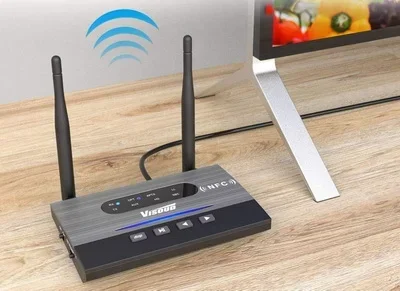
If your TV does not have built-in Bluetooth, you can still go wireless using a Bluetooth transmitter or Bluetooth adapter. These small devices plug into your TV and add Bluetooth functionality instantly.
How Bluetooth Adapters Work
A Bluetooth transmitter connects to your TV’s audio output — either through a 3.5mm headphone jack, optical port, or HDMI ARC port. It then broadcasts an audio signal that your phone can pick up and stream from.
For a full list of Bluetooth options for TVs, you can also explore our guide on using a Bluetooth adapter on your TV for compatible devices and setup tips.
Setting Up a Bluetooth Transmitter
Here is how to get a Bluetooth transmitter working with your setup:
- Plug the Bluetooth transmitter into your TV’s audio output port.
- Power on the transmitter and put it into pairing mode.
- Enable Bluetooth on your phone and search for available devices.
- Select the Bluetooth transmitter from the list.
- Once connected, audio from your phone will play through your TV speakers.
Some Bluetooth transmitters also support aptX or LDAC codecs, which deliver high-quality audio with minimal compression. This is great for music lovers who want premium sound without Wi-Fi.
Limitations to Keep in Mind
Bluetooth transmitters primarily handle audio. They do not typically support video mirroring. If you want to see your phone screen on the TV, you will still need an HDMI or USB connection. Think of a Bluetooth transmitter as a way to make your TV a speaker for your phone, not a mirror of your phone’s display.
Tips for the Best Experience
No matter which method you choose, a few tips can help you get the best results when connecting your phone to your TV without Wi-Fi.
Keep Your Cables Short and Quality
Shorter cables deliver better signal quality. Avoid running cables longer than 6 feet for HDMI connections. Use high-quality, certified cables to prevent signal loss or interference. Cheap cables can cause flickering, low resolution, or audio dropouts.
Check Compatibility Before Buying
Not all adapters work with all phones. Before purchasing an adapter or cable, confirm that it is compatible with your specific phone model. Check your phone’s specifications for supported output standards like HDMI, MHL, or DisplayPort Alt Mode.
Update Your Phone’s Software
Keeping your phone updated ensures the best compatibility with external displays. Software updates often include fixes for display output issues and improve performance with wired connections.
Use a Power Source
When mirroring your phone screen, your phone works hard and drains battery quickly. Plug your phone into a power source while using it as a display. This prevents your phone from dying mid-movie or mid-presentation.
Restart Devices If You Encounter Issues
If your connection is not working, try restarting both your phone and your TV. This simple step resolves most connectivity issues. Also, try unplugging and replugging your cables to ensure a secure connection.
Common Mistakes to Avoid
Here are some frequent mistakes people make when trying to connect their phone to their TV without Wi-Fi:
- Using the wrong adapter: Not all adapters are the same. A Lightning adapter will not work with a USB-C phone. Always match your adapter to your phone’s port.
- Ignoring TV input settings: Forgetting to switch your TV to the correct input source is the most common mistake. Always double-check this before assuming something is broken.
- Using low-quality cables: Cheap cables can cause poor picture quality, signal drops, or no connection at all. Invest in good-quality cables for reliable performance.
- Expecting Bluetooth to mirror video: Bluetooth is great for audio but usually cannot mirror your full phone screen. Do not expect Bluetooth alone to give you a complete screen-sharing experience.
- Overlooking phone settings: Some phones require you to enable specific settings like “USB debugging” or “Screen mirroring” before a wired connection will work.
Avoiding these mistakes saves time and frustration. Take a few extra minutes to verify your setup before you start troubleshooting.
Which Method Should You Choose?
Choosing the right method depends on what you want to accomplish. Here is a quick guide to help you decide:
- For the best picture quality: Use HDMI with an adapter. This gives you the sharpest image and the most reliable connection.
- For simplicity and speed: Use a USB-to-HDMI adapter. It is quick to set up and works with most modern phones.
- For wireless audio only: Use Bluetooth or a Bluetooth transmitter. This is perfect for streaming music or podcasts to your TV speakers.
- For portability: Use a wired streaming device. These are compact and easy to carry for travel or temporary setups.
If you want to learn more about connecting phones to displays, our article on connecting your phone to an HDMI TV covers additional methods and device-specific details.
Final Thoughts
Connecting your TV to your phone without Wi-Fi is simple, practical, and often delivers better quality than wireless methods. Whether you choose HDMI, USB, Bluetooth, or a wired streaming device, each method has its strengths and works well for different situations.
The key is to match your method to your needs. Want the best picture? Go with HDMI. Need wireless audio? Use Bluetooth. Looking for a quick and easy setup? Try a USB-to-HDMI adapter.
With the right cable, adapter, or transmitter, you can enjoy your phone’s content on the big screen anytime — no Wi-Fi required. So grab your cables, check your ports, and start sharing your phone’s screen on your TV today.
Experiment with different methods to find what works best for your setup. Once you experience the convenience and quality of a wired connection, you may never go back to wireless-only streaming again.
Frequently Asked Questions
Can I connect my phone to my TV without Wi-Fi using just a cable?
Yes, you can. An HDMI cable with the right adapter or a USB cable can connect your phone directly to your TV without any Wi-Fi connection. This is the most reliable method for screen mirroring and media sharing.
Does Bluetooth screen mirroring work on all TVs?
No, not all TVs support Bluetooth screen mirroring. Many smart TVs support Bluetooth audio streaming, but full screen mirroring over Bluetooth is less common. You may need a Bluetooth transmitter or adapter to enable this feature on older TVs.
What adapter do I need for an iPhone to connect to a TV?
You need a Lightning to HDMI adapter for iPhones. Plug the adapter into your iPhone’s charging port, connect an HDMI cable from the adapter to your TV, and switch your TV to the correct HDMI input.
Can I charge my phone while mirroring to my TV with a cable?
Yes, in most cases you can charge your phone while it is connected to your TV. Use a USB power bank or plug a charger into the adapter if it has a pass-through port. This keeps your phone powered during long viewing sessions.
Is a wired connection better than Wi-Fi for screen mirroring?Yes, a wired connection is generally better for screen mirroring. It offers higher quality, zero lag, and a more stable connection compared to Wi-Fi-based methods. Wired connections also do not depend on your router or network strength.
Can I use a USB-C to HDMI adapter with any Android phone?
Most modern Android phones with USB-C ports support USB-C to HDMI adapters. However, some budget phones may not support video output over USB-C. Check your phone’s specifications to confirm it supports DisplayPort Alt Mode or MHL before purchasing an adapter.
=== CONCLUSION ===
Connecting your TV to your phone without Wi-Fi opens up a world of possibilities. You get reliable, high-quality screen sharing without depending on a wireless network. Whether you use HDMI cables, USB adapters, Bluetooth, or wired streaming devices, each method offers a practical solution for different needs and situations.
Start with the method that fits your equipment and goals. HDMI gives you the best quality for full screen mirroring. USB offers a simple alternative for direct connections. Bluetooth works well for wireless audio streaming. And wired streaming devices provide flexibility for setups that need a little extra support.
The beauty of these methods is their simplicity. You do not need technical expertise or expensive equipment. With the right cable or adapter, you can transform your TV into an extension of your phone in minutes. Enjoy your favorite content on the big screen, share memories with loved ones, and never worry about Wi-Fi limitations again.