How Can I Use My Spectrum Wifi Away From Home Anywhere
You can use your Spectrum WiFi away from home by setting up a mobile hotspot, using a portable WiFi device, or connecting through WiFi extension solutions. Whether you are traveling, working remotely, or just need internet outside your home network, there are several practical ways to keep your Spectrum connection working wherever you go. This guide covers every method in simple, easy-to-follow steps.
Staying connected to the internet is no longer a luxury. It is a daily need. Whether you are on a road trip, working from a coffee shop, or visiting family a few hours away, having Spectrum WiFi access outside your home can make a huge difference. But how exactly do you do that?
The good news is that there are several straightforward ways to use your Spectrum WiFi away from home. You do not need to be a tech expert. With the right setup and a little planning, you can stay online almost anywhere. In this guide, we will walk you through every method, tip, and trick you need to know.
We will cover mobile hotspots, portable WiFi devices, WiFi extenders, and even in-car solutions. By the end of this article, you will have a clear picture of your options. You will know exactly which method works best for your lifestyle and budget.
Key Takeaways
- Mobile Hotspot: Turn your phone into a WiFi hotspot using your Spectrum data plan to connect other devices on the go.
- Portable WiFi Devices: Buy a dedicated mobile hotspot or portable router to share your Spectrum connection anywhere with cellular coverage.
- WiFi Extension Tools: Use WiFi extenders or signal boosters to reach farther from your home router when you are nearby.
- Alternative Providers: Explore options like Can I Connect To Xfinity Wi Fi Away From Home if you need a backup network while traveling.
- In-Car WiFi: Use solutions like Can I Get Wifi Through Onstar or Verizon car WiFi to stay connected while driving.
📑 Table of Contents
- Understanding Your Spectrum WiFi Setup
- Method 1: Use Your Phone As A Mobile Hotspot
- Method 2: Buy A Portable WiFi Device
- Method 3: Extend Your WiFi Signal Further
- Method 4: Use In-Car WiFi Solutions
- Method 5: Use Spectrum WiFi Hotspots In Public
- Comparing Your Options
- Common Mistakes To Avoid
- Expert Tips For The Best WiFi Experience On The Go
- Final Thoughts
Understanding Your Spectrum WiFi Setup
Before you can use your Spectrum WiFi away from home, it helps to understand how your home network works. Your Spectrum WiFi setup includes a modem and a router. The modem connects to the internet through your cable line. The router then spreads that connection as a wireless signal throughout your home.
Your home WiFi network has a specific name, called the SSID. It also has a password. These credentials let your devices connect securely. When you leave home, you lose access to that local network. That is why you need alternative methods to stay connected.
What Makes Spectrum WiFi Different
Spectrum Internet uses a cable-based connection. This is different from fiber or DSL. Cable internet tends to offer fast speeds in most areas. However, your home WiFi signal is limited by the range of your router. Walls, floors, and distance all weaken the signal.
When you step outside your home, the WiFi signal fades quickly. Most home routers cover about 150 feet indoors. Beyond that, the connection drops. This is exactly why people search for ways to use their WiFi outside the home network. Understanding this limitation is the first step toward finding a solution.
Method 1: Use Your Phone As A Mobile Hotspot
The easiest and most popular way to get online away from home is by using your phone as a mobile hotspot. This method turns your smartphone into a WiFi router. Other devices like laptops, tablets, and iPads can then connect to your phone’s data connection.
How To Set Up A Mobile Hotspot
Setting up a hotspot on your phone is simple. Here is how to do it on both iPhone and Android:
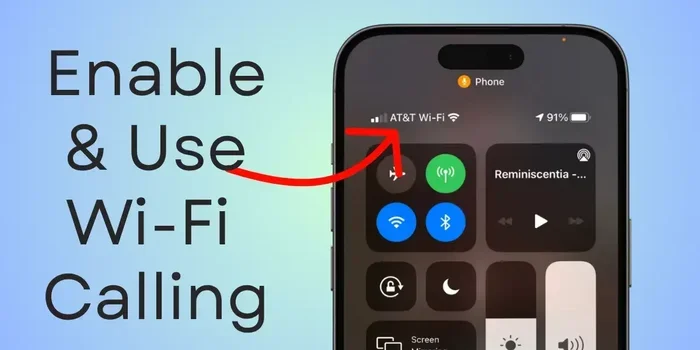
- On iPhone: Go to Settings. Tap Personal Hotspot. Toggle it on. Set a password. Other devices can now find your iPhone WiFi network.
- On Android: Go to Settings. Tap Network and Internet. Tap Hotspot and Tethering. Turn on WiFi Hotspot. Set a name and password.
Once your hotspot is active, your other devices will see the new network. Connect using the password you created. You can now browse the web, stream videos, and work just like you would at home.
Things To Keep In Mind
Using your phone as a hotspot uses your cellular data. If you have a limited data plan, this can eat through your allowance quickly. Streaming videos and downloading large files use the most data. Here are some tips to manage your data usage:
- Turn off automatic updates on connected devices.
- Use WiFi-saving browser modes when possible.
- Download content for offline use before you leave home.
- Monitor your data usage through your phone settings.
If you are looking for unlimited data options, you might want to explore Can I Get Unlimited Hotspot to find plans that support heavy hotspot use without extra charges.
Method 2: Buy A Portable WiFi Device
If you travel often or need reliable internet on the go, a portable WiFi device is a great investment. These small gadgets create a personal WiFi network wherever you have cellular signal. They are also called mobile hotspots or pocket WiFi.
Types Of Portable WiFi Devices
There are a few different types of portable WiFi options available. Each has its own benefits:
- Dedicated Mobile Hotspots: These are small devices made specifically for creating WiFi networks. They connect to cellular networks and broadcast WiFi to nearby devices. Brands like Netgear and TP-Link make popular models.
- USB WiFi Dongles: These plug directly into your laptop. They connect to cellular networks without creating a shared WiFi network. Good for single-device use.
- Portable Routers: These are small routers that can connect to cellular networks. They offer stronger signals and can connect more devices at once.
Many people wonder if they can buy their own portable WiFi device and use it with their Spectrum plan. The answer is yes, but with a catch. You need a separate cellular data plan for the portable device. Spectrum provides home internet, not cellular data. So you will need to pair your portable device with a carrier like Verizon, AT&T, or T-Mobile.
If you want to explore buying your own portable device, check out Can I Buy My Own Portable Wifi for helpful tips on choosing the right device.
How To Choose The Right Portable WiFi Device
Not all portable WiFi devices are the same. Here are some factors to consider before buying:
- Battery Life: Look for devices that last at least 8 hours on a single charge. Some models last up to 20 hours.
- Coverage: Check which cellular network the device uses. Better network coverage means better WiFi access in more places.
- Number Of Devices: If you travel with family, choose a device that can connect 10 or more devices at once.
- Size And Portability: Pick a device that fits in your pocket or bag easily.
- Price: Portable WiFi devices range from $50 to $300. Data plans add $20 to $60 per month.
Method 3: Extend Your WiFi Signal Further
If you just need to use your Spectrum WiFi a bit farther from home, a WiFi extender might be all you need. These devices boost your existing WiFi signal and push it beyond the normal range of your router.
How WiFi Extenders Work
A WiFi extender receives your existing WiFi signal. It then amplifies it and rebroadcasts it. This effectively increases the area your WiFi covers. Some extenders can push your signal an extra 100 to 200 feet beyond your router’s normal range.
You place the extender halfway between your router and the area where you want better coverage. It plugs into a wall outlet. Once set up, your devices can connect to the extended signal just like they connect to your regular network.
If you are curious about how far you can push your WiFi signal, check out Can I Extend My Wi Fi To 200 Feet Away for detailed guidance on maximizing your WiFi range.
Best Practices For WiFi Extension
To get the best results from your WiFi extender, follow these tips:
- Place the extender where it still gets a strong signal from your router.
- Avoid placing it near thick walls or metal objects.
- Keep the extender at a higher elevation, like on a shelf.
- Update your extender firmware regularly for best performance.
- Use a dual-band extender for both 2.4GHz and 5GHz coverage.
Keep in mind that extenders work best when you are still relatively close to home. They are not magic solutions for getting WiFi across town. They are perfect for your backyard, a nearby park, or a vacation cabin within range of your home network.
Method 4: Use In-Car WiFi Solutions
For those who want to stay connected while driving, in-car WiFi solutions are a game changer. These systems let you create a WiFi network inside your vehicle using cellular data.
Options For In-Car WiFi
There are several ways to get WiFi in your car. Here are the most popular options:
- Built-In Car WiFi: Some newer vehicles come with WiFi built in. These systems use a cellular connection and create a WiFi network inside the car. You can connect your phone, tablet, and laptop just like you would at home.
- OBD WiFi Devices: These small devices plug into your car’s OBD port. They create a WiFi hotspot using cellular data. They are affordable and easy to install.
- Phone Hotspot In Car: The simplest option is just using your phone as a hotspot while driving. This works well for short trips.
If you are interested in car WiFi through Verizon, you can read more at Can I Get Wi Fi In My Car With Verizon. For Onstar users, check out Can I Get Wifi Through Onstar to learn about built-in connectivity options.
Tips For Safe In-Car WiFi Use
While staying connected on the road is convenient, safety should always come first:
- Set up your WiFi connection before you start driving.
- Ask a passenger to handle WiFi setup while you drive.
- Use voice commands when possible to avoid looking at your phone.
- Keep data usage moderate to avoid throttling from your carrier.
- Consider a dedicated car WiFi device instead of relying on your phone.
Method 5: Use Spectrum WiFi Hotspots In Public
Spectrum offers a network of WiFi hotspots in public locations. If you are a Spectrum Internet subscriber, you may have free access to these hotspots. This is one of the easiest ways to use Spectrum WiFi outside your home.
Where To Find Spectrum WiFi Hotspots
Spectrum WiFi hotspots are available in many public places. These include:
- Shopping malls and retail centers
- Restaurants and coffee shops
- Parks and public squares
- Transit stations and airports
- Some apartment complexes and campuses
To use a Spectrum hotspot, simply open your WiFi settings on your device. Look for a network name that starts with “Spectrum” or “xfinitywifi.” Connect and enter your Spectrum username and password. Once connected, you can browse the internet just like you would at home.
How To Find Hotspots Near You
Spectrum provides a hotspot finder tool on their website and mobile app. You can use it to locate nearby hotspots before you head out. This saves time and helps you plan your stops. The app also shows whether a hotspot is currently available and how strong the signal is.
Keep in mind that public hotspots are less secure than your home network. Avoid accessing sensitive information like bank accounts when using public WiFi. If you must, use a VPN for extra protection.
Comparing Your Options
With so many methods available, it can be hard to choose the right one. Here is a quick comparison of the five methods we covered:
| Method | Best For | Cost | Range |
|---|---|---|---|
| Mobile Hotspot | Quick, short-term use | Uses your phone data plan | As far as your phone has signal |
| Portable WiFi Device | Frequent travelers | $50-$300 device + data plan | Wherever cellular coverage exists |
| WiFi Extender | Using home WiFi nearby | $20-$100 for the extender | 100-200 feet beyond router |
| In-Car WiFi | Road trips and commuting | Varies by solution | Inside your vehicle |
| Spectrum Public Hotspots | Casual use in public areas | Free for Spectrum subscribers | At hotspot locations only |
Each method has its strengths. For most people, a combination of two or more methods works best. For example, you might use your phone hotspot for quick errands and a portable WiFi device for longer trips. The key is to match your method to your specific needs.
Common Mistakes To Avoid
Even with the best setup, people make mistakes that hurt their WiFi experience away from home. Here are some common pitfalls to watch out for:
- Ignoring Data Limits: Many plans have data caps. Using your phone or portable device as a hotspot can burn through data fast. Always check your data allowance before relying on a mobile connection.
- Forgetting To Update Settings: WiFi settings on your devices can change. Make sure your hotspot password is correct and your devices are set to auto-connect.
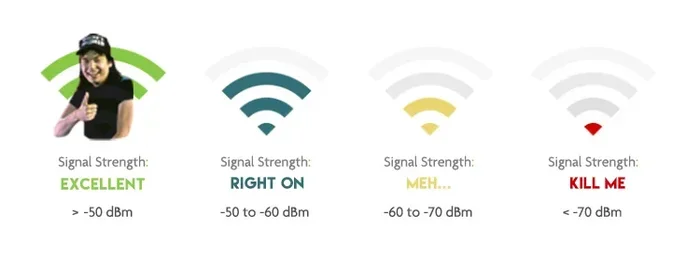
- Using Weak Signals: Connecting to a weak signal causes slow speeds and dropped connections. Move to a location with a stronger signal when possible.
- Not Securing Your Connection: An open or weak hotspot password puts your data at risk. Always use a strong password and enable encryption.
- Overloading Your Network: Connecting too many devices to one hotspot slows everyone down. Limit the number of connected devices to what you actually need.
Expert Tips For The Best WiFi Experience On The Go
Here are some pro tips that can make a real difference in your experience when using WiFi away from home:
- Plan Ahead: Before you leave home, check your data plan and make sure your hotspot is set up and working.
- Carry A Backup: Never rely on just one method. Have a backup plan in case your primary connection fails.
- Use WiFi-Only Apps: Many apps have a WiFi-only mode. This prevents them from using your cellular data in the background.
- Keep Devices Charged: Hotspots and extenders drain batteries. Carry a portable charger to keep everything powered up.
- Update Your Apps: Outdated apps can cause connection issues. Keep all your networking apps up to date.
- Test Before You Go: Try your setup at home first. Make sure everything works before you need it in a real situation.
Final Thoughts
Using your Spectrum WiFi away from home is easier than you might think. Whether you choose to use your phone as a hotspot, invest in a portable WiFi device, extend your home signal, or take advantage of public Spectrum hotspots, there is a solution that fits your needs.
The key is to understand your options and pick the methods that match your lifestyle. A quick trip to the store might only need your phone hotspot. A week-long road trip might require a dedicated portable WiFi device. And working from your backyard might just need a WiFi extender.
Remember that staying connected on the go is about more than just having a signal. It is about having a reliable, secure, and fast connection wherever you are. With the right setup, you can enjoy all the benefits of your Spectrum WiFi no matter where life takes you.
Start with one method today. Test it out. Adjust as needed. Soon, using your WiFi away from home will feel just as natural as using it in your living room. The freedom of staying connected anywhere is well within your reach.
Frequently Asked Questions
Can I Use My Spectrum WiFi In Another City?
Your home Spectrum WiFi network only works within range of your router. However, you can use mobile hotspots, portable WiFi devices, or Spectrum public hotspots in other cities to stay connected. These methods use cellular data or public WiFi networks instead of your home router.
Do I Need A Special Plan To Use My Spectrum WiFi Away From Home?
You do not need a special plan for most methods. Using your phone as a hotspot works with your existing cellular plan. Portable WiFi devices require a separate cellular data plan. Spectrum public hotspots are free for Spectrum Internet subscribers with no extra cost.
Is It Safe To Use Public WiFi Hotspots?
Public WiFi hotspots are convenient but less secure than home networks. Avoid accessing sensitive accounts like banking when using public WiFi. If you must, use a VPN to encrypt your connection. Always make sure you are connecting to the legitimate Spectrum network and not a fake hotspot.
How Much Data Do I Need For A Mobile Hotspot?
Data usage depends on what you do. Browsing the web uses about 60 MB per hour. Streaming videos uses 1 to 3 GB per hour. Video calls use about 1 GB per hour. Check your data plan and monitor your usage to avoid running out of data while on the go.
Can I Connect Multiple Devices To My Phone Hotspot?
Yes, most phones allow you to connect 5 to 10 devices to a hotspot at the same time. However, connecting more devices slows down the connection for each device. Keep the number of connected devices to what you actually need for the best performance.
What Is The Difference Between A Portable WiFi Device And A Phone Hotspot?
A phone hotspot uses your smartphone’s data plan and battery. A portable WiFi device is a dedicated gadget with its own battery and SIM card. Portable devices are more reliable, last longer, and can connect more devices. They are better for frequent travel or heavy use. Phone hotspots work great for quick, short-term needs.