How Do I Access My Tp Link Router From My Phone Right Now
You can access your TP-Link router from your phone using the TP-Link Tether app or your mobile browser by entering your router’s IP address. This guide walks you through every step, from downloading the app to changing your WiFi password and updating firmware. Whether you use an Android or iPhone, you will be managing your network settings in minutes.
Have you ever needed to change your WiFi password but couldn’t find your computer? Or maybe you want to check which devices are connected to your network while sitting on the couch. The good news is that you can access your TP-Link router from your phone right now. It is easier than you might think.
Whether you have an Android or an iPhone, managing your router settings from your mobile device is totally doable. You do not need any special equipment or technical skills. In this guide, we will show you exactly how to do it step by step. You will learn about the TP-Link Tether app, browser-based access, and all the settings you can control right from your phone.
By the end of this article, you will feel confident managing your TP-Link router admin panel without a laptop. Let us get started.
Key Takeaways
- Two easy methods: You can use the TP-Link Tether app or your phone’s web browser to reach your router settings.
- No computer needed: Everything can be done right from your smartphone with a few taps.
- Key settings you can change: WiFi name, password, security mode, and firmware updates are all accessible from your phone.
- Default login info is easy to find: Check the bottom of your router for the default admin username and password.
- Security matters: Always change the default password and keep your firmware up to date for a safe network.
- Troubleshooting is simple: Most connection issues can be fixed by restarting your router or checking your WiFi connection.
📑 Table of Contents
Why Access Your TP-Link Router From Your Phone?
Managing your router from your phone offers a lot of advantages. Most people keep their phones within arm’s reach all day long. That makes your phone the perfect tool for quick network tasks.
Here are some common reasons you might want to access your router from your phone:
- Change your WiFi password quickly when guests come over.
- Check which devices are connected to your network.
- Update your router firmware to fix bugs and improve security.
- Restart your router without walking over to it.
- Set up parental controls to manage screen time for kids.
- Change your WiFi channel to boost speed and reduce interference.
All of these tasks take just a few minutes when you are using your phone. You do not need to dig out a laptop or sit at a desk. This kind of local network access gives you real control over your home network anytime.
Many people also want to change their SSID or WiFi name on the go. Having mobile access makes this simple and fast.
Method 1: Use the TP-Link Tether App
The easiest way to manage your TP-Link router from your phone is by using the official TP-Link Tether app. This free app works with most TP-Link routers and gives you access to all the important settings right on your screen.
Step-by-Step Setup
- Download the app. Go to the Google Play Store or Apple App Store and search for “TP-Link Tether.” The app is free and works on both Android and iPhone.
- Make sure your phone is connected to your TP-Link router’s WiFi. You need to be on the same network to access the router.
- Open the app and create an account. You can also sign in with your existing TP-Link account if you have one.
- Tap “Add Router.” The app will automatically detect your TP-Link router on the network.
- Follow the prompts. The app will guide you through the setup process. You may need to enter the default admin password found on the bottom of your router.
Once the app is set up, you will see a dashboard with all your router’s settings. You can change your wireless router settings, check connected devices, and even run a speed test right from the app.
What Can You Do With the Tether App?
- View and change your WiFi name and password.
- See all devices currently connected to your network.
- Update your router firmware with one tap.
- Set up guest networks for visitors.
- Enable or disable parental controls.
- Restart your router remotely.
- Check your internet speed and signal strength.
The Tether app is a powerful tool that puts your entire router admin panel in your pocket. It is by far the most user-friendly option for most people.
Method 2: Access Your Router Through Your Phone’s Browser
If you prefer not to download an app, you can access your TP-Link router directly through your phone’s web browser. This method works on any device with a browser and does not require any special software.
Step-by-Step Instructions
- Connect your phone to your TP-Link router’s WiFi network. Make sure you are on the same network. This is essential for the browser method to work.
- Open your phone’s web browser. Chrome, Safari, Samsung Internet, or any other browser will work fine.
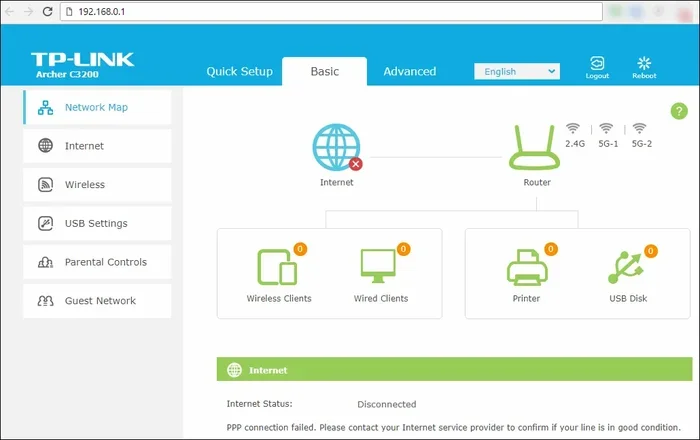
- Type your router’s IP address into the address bar. Most TP-Link routers use 192.168.0.1 or 192.168.1.1. Check the sticker on the bottom of your router to confirm.
- Press Enter. A login page will appear asking for your username and password.
- Enter the default login credentials. For most TP-Link routers, the username is “admin” and the password is also “admin.” Some newer models may have a different default password printed on the router label.
- You are now in! From here, you can navigate all the settings just like you would on a computer.
This browser-based access method gives you the full range of router settings. It is especially useful if you need to change advanced settings like port forwarding or DNS configuration.
Finding Your Router’s IP Address
If the default IP addresses do not work, you can find your router’s IP address through your phone’s settings:
- On Android: Go to Settings > Network & Internet > WiFi > Tap your connected network > Look for “Gateway.”
- On iPhone: Go to Settings > WiFi > Tap the “i” icon next to your network > Look for “Router.”
The number listed as your gateway or router is the IP address you need to type into your browser.
What Settings Can You Manage From Your Phone?
Once you are logged into your TP-Link router, you will have access to a wide range of settings. Here are the most useful ones you can manage right from your phone:
WiFi Name and Password
You can change your WiFi password and network name at any time. This is helpful when you want to add a new guest or update your security. You can also check the WiFi password on your iPhone if you need to share it with someone.
Security Settings
Your router’s security settings control how protected your network is. You can switch between WPA2 and WPA3 encryption, enable or disable WPS, and set up MAC address filtering. These settings help keep unauthorized users out of your network.
Firmware Updates
Keeping your router’s firmware up to date is one of the best things you can do for performance and security. Firmware updates fix bugs, improve speed, and patch security holes. You can check for and install updates directly from the Tether app or browser panel.
For more tips on boosting your connection, you might also want to learn how to increase your WiFi signal through proper router placement and settings.
Connected Devices
The device management section shows you every device currently connected to your router. You can see their names, IP addresses, and how much data they are using. If you spot a device you do not recognize, you can block it right from your phone.
Parental Controls and Guest Networks
Many TP-Link routers let you set up parental controls and guest networks from your phone. You can limit internet access for certain devices, set time restrictions, and create a separate network for guests so they do not have access to your main devices.
Troubleshooting Common Issues
Sometimes things do not go as planned. Here are the most common issues people face when trying to access their TP-Link router from their phone, along with simple fixes.
Can Not Connect to the Router Login Page
If the login page does not load, try these steps:
- Make sure your phone is connected to the TP-Link router’s WiFi network.
- Double-check the IP address you typed. It should be 192.168.0.1 or 192.168.1.1.
- Clear your browser cache and try again.
- Try a different browser if one does not work.
- Restart your router and try again.
Forgot Your Login Password
If you changed your router password and forgot it, you can reset your TP-Link router to factory settings. Look for the small reset button on the back of your router. Press and hold it for about 10 seconds with a paperclip. This will restore all default settings, including the default admin password.
App Does Not Find Your Router
If the TP-Link Tether app does not detect your router, make sure your phone is on the same WiFi network. Also check that your router is powered on and that you are using a compatible TP-Link model. You can also try restarting both your phone and your router.
Slow Response After Logging In
If the router settings page loads slowly, try these fixes:
- Move closer to your router for a stronger signal.
- Restart your router to clear any temporary issues.
- Check if too many devices are connected and using bandwidth.
- Update your router firmware to the latest version.
Tips for Keeping Your Router Secure
Accessing your router from your phone is convenient, but it also means you need to keep your network safe. Here are some quick security tips:
- Change the default admin password. Most routers come with a simple default password that hackers can easily guess. Change it to something strong and unique.
- Use WPA3 encryption. This is the latest and most secure WiFi encryption standard. If your router supports it, enable it right away.
- Keep firmware updated. Updates often include security patches that protect against known vulnerabilities.
- Disable WPS if you do not need it. WPS can be a security risk on older routers.
- Use a strong WiFi password. A long, complex password keeps unauthorized users from joining your network.
For more on network security and optimization, learning about mesh router setups can also help improve your home network coverage and security.
Frequently Asked Questions
Can I access my TP-Link router from my phone without being on the same WiFi network?
No, you need to be connected to your TP-Link router’s WiFi network to access it through the Tether app or browser method. The router and your phone must be on the same local network. However, some TP-Link models support remote access through cloud services, which allows you to manage your router from outside your home network.
Is the TP-Link Tether app free to download?
Yes, the TP-Link Tether app is completely free for both Android and iPhone users. It offers full access to your router’s settings without any subscription fees. You can download it from the Google Play Store or Apple App Store.
What should I do if I forgot my TP-Link router admin password?
If you forgot your admin password, you can reset your router to factory defaults by pressing and holding the reset button on the back for about 10 seconds. This will restore all settings to their original values, including the default admin login. After resetting, you can log in with the default credentials printed on your router.
Can I access my TP-Link router settings from any phone?
Yes, you can access your TP-Link router from any smartphone as long as it is connected to the same WiFi network. Both Android and iPhone users can use the Tether app or browser method. You do not need a specific phone model or operating system version to manage your router settings.
How do I find my TP-Link router’s IP address?
You can find your router’s IP address in your phone’s WiFi settings. On Android, go to your connected WiFi network details and look for “Gateway.” On iPhone, tap the “i” icon next to your WiFi network and find the “Router” field. The number shown there is your router’s IP address, which you type into your browser to access the login page.
Can I update my TP-Link router firmware from my phone?
Yes, firmware updates can be done directly from your phone using the TP-Link Tether app or the browser-based admin panel. The app makes this especially easy with a one-tap update feature. Keeping your firmware current helps maintain security and improves router performance.
Conclusion
Accessing your TP-Link router from your phone is simple, fast, and incredibly useful. Whether you use the TP-Link Tether app or your phone’s web browser, you can manage all your network settings right from your mobile device. You can change passwords, update firmware, check connected devices, and adjust security settings without ever needing a computer.
Remember to keep your router secure by changing default passwords and staying on top of firmware updates. With the steps outlined in this guide, you now have full control over your home network from anywhere in your house. Start exploring your router settings today and take charge of your home WiFi network like a pro.