How Do I Connect Airplay To My Tv And Start Streaming
AirPlay lets you wirelessly stream videos, photos, and music from your Apple device directly to your TV. You can use a Smart TV with built-in AirPlay or an Apple TV box to get started. This guide walks you through every step with simple instructions and practical tips for a smooth setup.
Have you ever wanted to share something from your iPhone or iPad on a bigger screen? Maybe a funny video, vacation photos, or a movie you are watching. AirPlay makes this super easy and it is one of Apple’s best features. In this guide, we will show you exactly how to connect AirPlay to your TV and start streaming in just a few minutes.
Whether you have a fancy Smart TV or an older model, there is a way to get AirPlay working for you. Wireless streaming has become the norm and you do not need any fancy cables to get started. We will walk you through every single step, from checking if your TV is compatible to fixing the most common problems people run into.
The great thing about AirPlay screen mirroring is that it works across the Apple ecosystem. Your iPhone, iPad, and Mac can all use it. You just need a TV or a device that supports the streaming protocol. Let us dive right in and get your TV ready for wireless display magic.
Key Takeaways
- AirPlay is Apple’s wireless streaming technology that mirrors your device screen to your TV.
- You need a compatible Smart TV or an Apple TV to use AirPlay without extra hardware.
- Setting up AirPlay is straightforward and takes just a few minutes on most devices.
- Wi-Fi connection is essential for both your device and your TV to work together.
- Troubleshooting steps can fix most common AirPlay issues like lag or connection drops.
- You can also use AirPlay alternatives if your TV does not support it natively.
📑 Table of Contents
- What Is AirPlay and Why Should You Use It?
- Check If Your TV Supports AirPlay
- How to Connect AirPlay to Your TV Step by Step
- Troubleshooting Common AirPlay Connection Issues
- AirPlay Alternatives If Your TV Does Not Support It
- Tips for the Best AirPlay Streaming Experience
- Can I Make My TV Work with AirPlay Without a Smart TV?
- Frequently Asked Questions
- Conclusion
What Is AirPlay and Why Should You Use It?
AirPlay is Apple’s built-in wireless streaming technology. It lets you send video, photos, music, and your entire screen from your Apple device to another screen like your TV. The media streaming happens over your Wi-Fi network, so you do not need any cables.
Here are some of the best reasons to use AirPlay for TV:
- No cables needed. You can stream from across the room without plugging anything in.
- It works with multiple devices. iPhone, iPad, and Mac all support AirPlay natively.
- High-quality output. AirPlay sends video and audio in great quality over Wi-Fi.
- Easy to use. You do not need any technical skills to get it working.
- It is free. There is no extra cost to use AirPlay if you already have compatible devices.
Many people also use screen sharing to present slideshows, show off vacation photos, or even mirror their phone during gaming. The possibilities are really endless once you know how to set it up.
Check If Your TV Supports AirPlay
Built-In AirPlay on Smart TVs
Most modern Smart TVs come with AirPlay built right in. Apple has partnered with many TV brands to make this possible. You can find AirPlay support on TVs from Samsung, LG, Sony, Vizio, and many others.
To check if your TV has AirPlay compatibility, go to your TV’s settings menu and look for “AirPlay” or “Screen Mirroring.” If you see it, you are good to go. Here is a quick checklist:
- Go to your TV’s Settings menu.
- Look for AirPlay, Screen Mirroring, or Apple AirPlay.
- If the option is there, your TV supports wireless display from Apple devices.
- Make sure your TV and your Apple device are on the same Wi-Fi network.
Using an Apple TV as an AirPlay Receiver
If your TV does not have built-in AirPlay, do not worry. You can buy an Apple TV box or stick. This small device plugs into your TV’s HDMI port and turns any TV into an AirPlay receiver. It is one of the best ways to add wireless streaming to an older TV.
The Apple TV is very affordable and works perfectly with all Apple devices. It also gives you access to apps like Netflix, YouTube, and Disney+. Many people who want to connect their phone to their TV find that an Apple TV is the easiest and most reliable option.
You can also check if you can connect your phone to an HDMI TV using a cable if wireless options are not working for you.
How to Connect AirPlay to Your TV Step by Step
Now for the fun part. Let us get AirPlay streaming set up on your TV. Follow these steps carefully and you will be watching your phone screen on your TV in no time.
Step 1: Connect Both Devices to the Same Wi-Fi
This is the most important step. Your iPhone, iPad, or Mac and your TV must be on the same Wi-Fi network. If they are on different networks, AirPlay will not work.
Go to your TV’s network settings and check which Wi-Fi it is connected to. Then check your iPhone or iPad by going to Settings and tapping on Wi-Fi. Make sure both show the same network name.
Step 2: Open the Control Center on Your Apple Device
On your iPhone or iPad, swipe down from the top-right corner of the screen. This opens the Control Center. On older iPhones with a Home button, swipe up from the bottom of the screen instead.
You will see a row of icons. Look for the Screen Mirroring icon. It looks like two rectangles stacked on top of each other.
Step 3: Select Your TV from the List
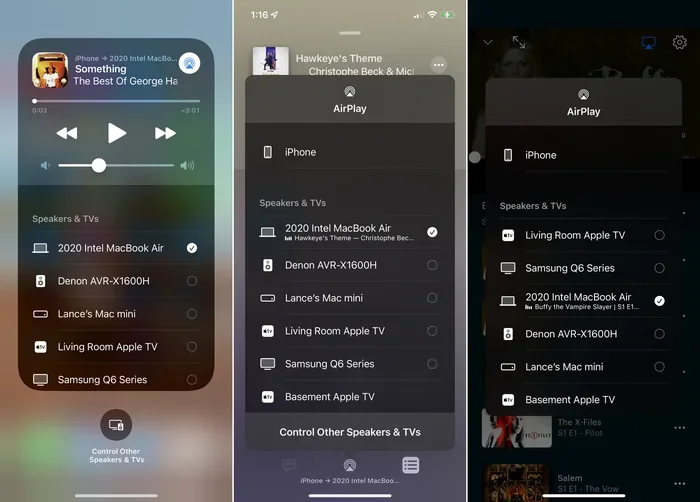
Tap the Screen Mirroring icon. A list of available devices will appear on your screen. Your TV should show up in this list if it supports AirPlay and is on the same Wi-Fi network.
Tap on your TV’s name. You may see a code on your TV screen. Type that code on your iPhone or iPad to confirm the connection. Once you do, your phone screen will appear on your TV.
Step 4: Start Streaming Your Favorite Content
Now that AirPlay is connected, you can do anything on your phone and it will show on your TV. Open Netflix, YouTube, or any app and play a video. It will stream directly to your TV screen.
You can also take photos, browse the web, or play games and everything will show on the big screen. This is especially fun for sharing content with family and friends during gatherings.
Troubleshooting Common AirPlay Connection Issues
Sometimes AirPlay does not work right away. That is totally normal and easy to fix. Here are the most common problems and how to solve them.
AirPlay Is Not Showing My TV in the List
If your TV does not appear when you tap Screen Mirroring, try these fixes:
- Restart both devices. Turn off your TV and your iPhone, then turn them back on.
- Check your Wi-Fi. Make sure both devices are on the same network.
- Turn AirPlay off and on again in your TV’s settings menu.
- Update your TV software. Go to your TV’s settings and check for updates.
- Move closer to your router. A weak Wi-Fi signal can cause connection problems.
AirPlay Is Lagging or Delayed
If your screen mirror is slow or choppy, your Wi-Fi connection might be the culprit. Try these solutions:
- Restart your router. Unplug it for 30 seconds and plug it back in.
- Reduce the number of devices connected to your Wi-Fi while streaming.
- Move your router closer to your TV. Walls and distance can weaken the signal.
- Use a 5 GHz Wi-Fi band if your router supports it. It is faster than 2.4 GHz.
Audio and Video Are Out of Sync
This is a common issue with wireless streaming. The video plays but the sound is off by a second or two. Try switching the audio output on your TV to the right source. You can also try restarting the AirPlay connection by turning Screen Mirroring off and back on.
Some people also find that connecting their phone to their TV using a cable eliminates these issues entirely. If wireless streaming keeps giving you trouble, a simple HDMI cable can be a great backup option.
AirPlay Alternatives If Your TV Does Not Support It
Not every TV supports AirPlay natively. That does not mean you are out of luck. There are several great alternatives that let you stream content from your phone to your TV.
Using a Chromecast Device
A Google Chromecast is a small device that plugs into your TV’s HDMI port. It lets you cast content from your phone to your TV. While it is not Apple’s AirPlay technology, it works well for streaming videos and music.
Using a Streaming Stick or Box
Devices like Roku, Amazon Fire TV Stick, and Apple TV all support wireless streaming from mobile devices. Some of these even have built-in AirPlay support. They are affordable and easy to set up.
If you are looking for other ways to get your phone content on a bigger screen, you might also want to check out whether you can connect your phone to a projector with a USB cable for a different kind of big-screen experience.
Using an HDMI Cable Directly
Sometimes the simplest solution is the best. An HDMI cable connects your phone directly to your TV. You will need the right adapter for your device, but the connection is fast and reliable with no lag or buffering.
You can also use Bluetooth headphones with your Samsung TV if you want a private listening experience while streaming.
Tips for the Best AirPlay Streaming Experience
Want to get the most out of AirPlay on your TV? Here are some expert tips that will make your streaming experience much better.
- Use a strong Wi-Fi network. A good router makes all the difference in streaming quality.
- Keep your devices updated. Software updates often fix bugs and improve AirPlay performance.
- Close apps you are not using. This frees up memory and helps your device run smoother.
- Restart your devices regularly. A quick restart can fix many minor connection issues.
- Use AirPlay for the right content. It works best for streaming videos, photos, and music. For very fast-paced gaming, a wired connection might be better.
- Turn off Bluetooth on your phone if you notice any interference. You can also check if you can use any Bluetooth headphones with your TV for a separate audio experience.
One more thing to keep in mind. AirPlay works best when your phone is fully charged or plugged into power. Streaming uses a lot of battery, especially when you are mirroring your entire screen.
Can I Make My TV Work with AirPlay Without a Smart TV?
Yes, you absolutely can. If you have a regular TV with an HDMI port, you can use an Apple TV or a compatible streaming device to add AirPlay support. You can also look into AirPlay receiver apps that work on some smart TVs and streaming boxes.
The key thing to remember is that your TV needs a way to receive the wireless display signal from your Apple device. An Apple TV does this perfectly. Some third-party devices also support AirPlay, but always check compatibility before buying.
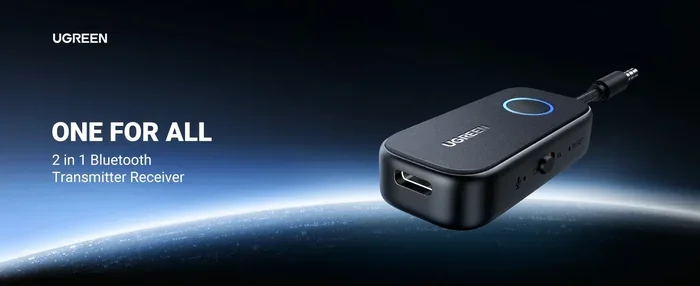
For more tips on connecting devices to your TV, you might want to read about making your TV Bluetooth with an adapter or explore other connectivity options like connecting your iPhone to a USB for wired solutions.
Frequently Asked Questions
Do I need an Apple TV to use AirPlay?
No, you do not need an Apple TV if your TV has built-in AirPlay support. Many modern Smart TVs from Samsung, LG, Sony, and Vizio come with AirPlay already installed. You just need to make sure both your TV and your Apple device are on the same Wi-Fi network.
Can I use AirPlay on a non-Apple TV?
Yes, many non-Apple Smart TVs support AirPlay. Look for the AirPlay or Screen Mirroring option in your TV’s settings. If your TV does not support it, you can use an Apple TV box or a compatible third-party streaming device to add AirPlay functionality.
Why is my AirPlay connection slow or laggy?
A slow AirPlay connection is usually caused by a weak Wi-Fi signal. Try moving your router closer to your TV, restarting your router, or switching to a 5 GHz Wi-Fi band. Also make sure no one else is heavily using your network while you are streaming.
Can I AirPlay from my Mac to my TV?
Yes, you can AirPlay from a Mac to a compatible TV or Apple TV. Click the Screen Mirroring icon in your Mac’s menu bar, select your TV, and your Mac screen will appear on the TV. This is great for presentations or watching movies on a bigger screen.
Does AirPlay work without Wi-Fi?
No, AirPlay requires a Wi-Fi connection. Both your Apple device and your TV must be on the same Wi-Fi network for AirPlay to work. There is no way to use AirPlay over cellular data or without a wireless network.
Can I use AirPlay to stream audio only?
Yes, you can use AirPlay to stream just audio to your TV or compatible speakers. When you play music on your iPhone or iPad, tap the AirPlay icon in the music app and select your TV. You will hear the audio through your TV speakers even if the screen stays on your phone.
Conclusion
Connecting AirPlay to your TV is one of the easiest and most rewarding things you can do with your Apple devices. It opens up a whole new way to enjoy your favorite videos, photos, and music on a bigger screen. Whether you have a brand-new Smart TV or an older model with an Apple TV box, the setup is simple and the results are fantastic.
Remember to keep both devices on the same Wi-Fi network, update your software regularly, and restart your devices if you run into any issues. Wireless streaming is the future and AirPlay leads the way for Apple users everywhere.
Now that you know how to connect AirPlay to your TV and start streaming, you are ready to enjoy your content the way it was meant to be seen. Grab your iPhone, open your favorite app, and let the big screen do the talking. Happy streaming!