How Do I Connect My Iphone To My Kenwood Radio Easily
Connecting your iPhone to your Kenwood radio is simpler than you think. Whether you prefer a USB cable, Bluetooth pairing, or an auxiliary input, this guide covers every method. You will learn the exact steps to get your iPhone music, podcasts, and calls playing through your Kenwood stereo in minutes.
Have you ever wanted to play your iPhone music through your Kenwood radio and did not know where to start? You are not alone. Many car owners and home stereo users face the same challenge every day. The good news is that connecting your device to a Kenwood radio is straightforward once you know the right steps.
This guide will walk you through every connection method available. You will learn about USB cables, Bluetooth pairing, auxiliary inputs, and even HDMI options. By the end, you will have your iPhone playing through your Kenwood radio with zero hassle. Let us get into it.
Key Takeaways
- USB Connection: The most reliable method for charging and audio playback simultaneously.
- Bluetooth Pairing: Offers wireless freedom and hands-free calling with most modern Kenwood radios.
- Auxiliary Input: A simple fallback option that works with nearly every Kenwood model.
- iPhone Compatibility: Kenwood supports both Lightning and USB-C iPhones with the right cable or adapter.
- Troubleshooting: Common connection issues have quick fixes you can try at home.
📑 Table of Contents
- Why Connect Your iPhone to a Kenwood Radio?
- Methods to Connect Your iPhone to Kenwood Radio
- Step-by-Step USB Connection Guide
- Bluetooth Pairing: Detailed Walkthrough
- Kenwood Radio Features That Enhance iPhone Use
- Common Mistakes to Avoid
- Which Connection Method Is Best for You?
- Expert Tips for the Best Experience
- Final Thoughts
Why Connect Your iPhone to a Kenwood Radio?
Your iPhone holds your entire music library, podcast collection, and audiobook stash. Your Kenwood radio is built to deliver high-quality sound. When you combine the two, you get an incredible listening experience. But the benefits go beyond just music.
When you connect your iPhone to your Kenwood radio, you unlock hands-free calling. You can use your car stereo or home system as a speakerphone. This keeps your hands on the wheel or your eyes on your work. You also get better audio quality than your phone speaker can ever provide.
Another big reason is control. Your Kenwood radio lets you browse playlists, adjust volume, and skip tracks from the unit itself. This is much safer and more convenient than fiddling with your phone while driving or working. The integration makes your daily routine smoother and more enjoyable.
Methods to Connect Your iPhone to Kenwood Radio
There are several ways to make this connection work. Each method has its own advantages. Let us explore them one by one so you can pick the best option for your setup.
Method 1: USB Cable Connection
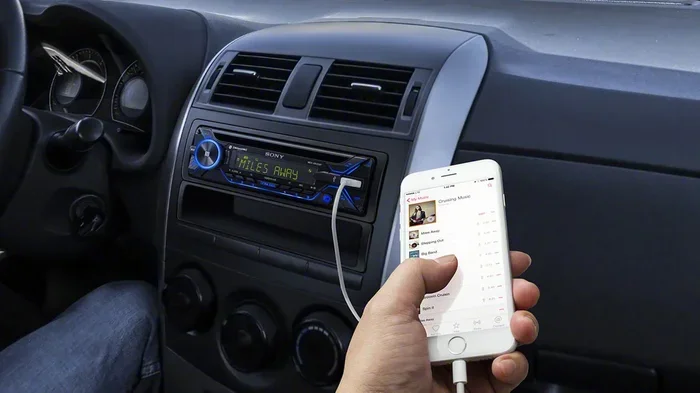
The USB connection is the most popular and reliable way to link your iPhone with a Kenwood radio. Most Kenwood receivers have a USB port on the front or back panel. This port does two things at once. It charges your iPhone and sends audio to the stereo system.
To get started, you need a standard Lightning cable or a USB-C cable depending on your iPhone model. Plug one end into your iPhone and the other into the Kenwood radio. The unit should recognize your device automatically. You will see your iPhone name appear on the Kenwood display.
Once connected, select the USB source on your Kenwood radio. You can now browse your music library, play playlists, and control everything from the radio interface. If you own a newer iPhone with USB-C, check out our guide on connecting your iPhone to USB for additional tips on cable compatibility.
Quick Tip: Use a high-quality cable. Cheap cables sometimes cause connection drops or slow charging. A certified Apple cable or a reputable brand cable works best for stable performance.
Method 2: Bluetooth Wireless Pairing
If you want to ditch the cables, Bluetooth is your best friend. Most Kenwood radios made in the last five years support Bluetooth connectivity. This gives you wireless freedom and a clean dashboard without dangling cables.
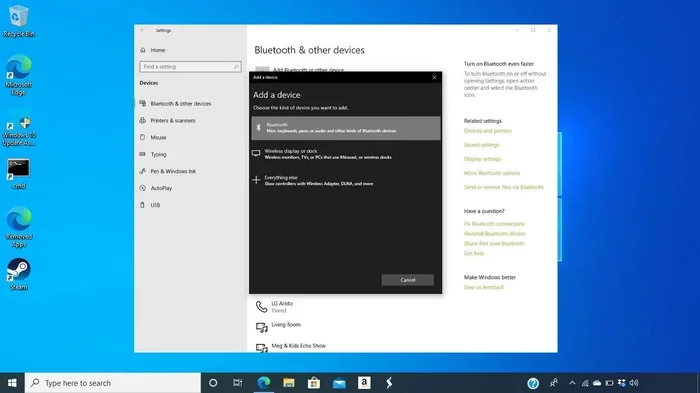
First, turn on Bluetooth on your iPhone. Go to Settings, then Bluetooth, and toggle it on. Next, put your Kenwood radio into Bluetooth pairing mode. On most models, you press the Bluetooth button on the face of the unit. The radio will search for nearby devices.
Your iPhone should appear on the Kenwood display. Tap on it to pair. You may need to confirm a passcode on both devices. Once paired, your iPhone connects automatically every time you get in the car or turn on the radio.
Bluetooth also supports hands-free calling. When someone calls you, the audio routes through your Kenwood speakers. You can answer and hang up using the radio controls. This keeps you safe and focused while on the road. For more on Bluetooth audio connections, our article on listening to devices with Bluetooth headphones covers similar pairing concepts.
Quick Tip: Keep your Kenwood radio firmware updated. Firmware updates often improve Bluetooth range and stability. Check the Kenwood website or your owner’s manual for update instructions.
Method 3: Auxiliary Input (AUX)
The auxiliary input is the oldest method, but it still works great. Nearly every Kenwood radio has an AUX port. It uses a standard 3.5mm headphone cable to send audio from your iPhone to the stereo.
To use this method, plug one end of the cable into your iPhone headphone jack or adapter. Plug the other end into the AUX input on your Kenwood radio. Select the AUX source on the unit. Your iPhone music starts playing through the speakers right away.
The AUX method does not charge your iPhone. It also does not let you browse your library from the Kenwood display. But it is simple, reliable, and works with every iPhone model. If you need a Lightning-to-3.5mm adapter, Apple sells one officially. You can also find quality third-party options at most electronics stores.
Quick Tip: Keep your AUX cable short and coiled. Long cables can pick up interference and static noise. A 3 to 6-foot cable works perfectly for most setups.
Method 4: HDMI Connection (For Kenwood Models with HDMI Input)
Some Kenwood receivers come with HDMI inputs. This method carries both audio and video. If you want to display your iPhone screen on a compatible display, HDMI is the way to go.
You will need a Lightning-to-HDMI or USB-C-to-HDMI adapter. Connect the adapter to your iPhone, then plug an HDMI cable from the adapter into the Kenwood radio. Switch the Kenwood source to HDMI. Your iPhone screen should appear on the connected display.
This method is great for navigation apps, video playback, and presentations. It is less common for everyday music listening but very useful for specific needs. For more on HDMI connections with Apple devices, check out our guide on connecting your iPhone to HDMI.
Step-by-Step USB Connection Guide
The USB method deserves a deeper dive because it is the most versatile option. Here is a detailed walkthrough to make sure you get it right the first time.
Step 1: Locate the USB port on your Kenwood radio. It is usually on the front panel for easy access. Some models hide it behind a flip door or in the rear of the unit.
Step 2: Plug your Lightning or USB-C cable into your iPhone. Make sure the cable is firmly seated in the port.
Step 3: Insert the other end of the cable into the Kenwood USB port. You should hear a click or see a notification on the Kenwood display.
Step 4: Select the USB source on your Kenwood radio. Use the source or mode button on the face panel. The display should now show your iPhone name and music library.
Step 5: Browse your music using the Kenwood controls. You can navigate by artist, album, song, or playlist. Press play and enjoy.
If your Kenwood radio does not recognize your iPhone, try a different cable. Sometimes cables only charge and do not transfer data. A data-capable cable is essential for this connection to work properly.
Troubleshooting USB Connection Issues
Sometimes the USB connection does not work right away. Do not worry. Here are the most common fixes.
- Try a different cable: Faulty cables are the number one cause of connection problems. Swap in a known working cable.
- Restart both devices: Turn off your Kenwood radio and your iPhone. Wait ten seconds and power them back on.
- Check for debris: Inspect the USB port on both devices. Dust or lint can block the connection. Use a toothpick or compressed air to clean it out gently.
- Update your Kenwood firmware: Outdated software can cause compatibility issues. Visit the Kenwood website for the latest updates.
- Reset iPhone settings: Go to Settings, General, Reset, and Reset All Settings. This clears connection glitches without deleting your data.
For more on USB troubleshooting, our article on connecting USB to iPhone covers additional troubleshooting steps that apply to Kenwood radios as well.
Bluetooth Pairing: Detailed Walkthrough
Bluetooth pairing is quick and painless once you know the exact steps. Here is a detailed guide for the most common Kenwood radio models.
Step 1: On your iPhone, open Settings and tap Bluetooth. Toggle it on if it is off.
Step 2: On your Kenwood radio, press the Bluetooth button. The display should show “Pairing” or a Bluetooth symbol blinking.
Step 3: On your iPhone, look for your Kenwood radio under Other Devices. Tap on it.
Step 4: Confirm the pairing code on both devices. The code usually appears as a series of numbers on the Kenwood display.
Step 5: Once paired, the Kenwood radio will show “Connected” and your iPhone name. Select the Bluetooth source on the Kenwood unit.
Your iPhone audio now streams wirelessly to your Kenwood radio. You can control volume, skip tracks, and answer calls from the radio controls.
Managing Multiple Bluetooth Devices
Many Kenwood radios can store multiple Bluetooth pairings. This is handy if you share your car or radio with family members. To add a new device, put the Kenwood radio back into pairing mode and follow the same steps above. The radio will remember all previously paired devices and let you switch between them easily.
Quick Tip: If your Kenwood radio connects to a phone but does not play audio, check the Bluetooth audio profile. It needs to support both A2DP (for music) and HFP (for calls). Most modern iPhones and Kenwood radios handle this automatically.
Kenwood Radio Features That Enhance iPhone Use
Kenwood radios come packed with features that make iPhone integration even better. Understanding these features helps you get the most out of your setup.
iDatalink Maestro Integration
Some Kenwood models support iDatalink Maestro. This system preserves your car’s factory features like steering wheel controls and backup cameras while adding iPhone compatibility. It creates a seamless bridge between your vehicle and your iPhone. Check your Kenwood model’s specifications to see if it supports Maestro.
SiriusXM and Streaming App Support
Many Kenwood receivers work with SiriusXM and popular streaming apps. When your iPhone is connected via USB or Bluetooth, you can control apps like Spotify, Apple Music, and Pandora directly from the Kenwood display. This gives you access to millions of songs and stations without touching your phone.
Built-in Microphone for Calls
Kenwood radios with built-in microphones let you take calls through the stereo system. When your iPhone connects via Bluetooth, the microphone routes your voice clearly. This is especially useful in noisy environments like highways or busy streets.
Common Mistakes to Avoid
Even simple connections can go wrong if you skip a few basics. Here are the most common mistakes people make when connecting their iPhone to a Kenwood radio.
- Using a charge-only cable: These cables power your iPhone but do not transfer data. Always use a data-capable cable for USB connections.
- Forgetting to select the source: Plugging in the cable does not automatically switch the Kenwood radio to the correct input. You must manually select USB, Bluetooth, or AUX.
- Ignoring firmware updates: Old firmware can cause compatibility problems. Keep your Kenwood radio updated for the best iPhone support.
- Overlooking the 3.5mm adapter: If your iPhone has no headphone jack, you need the adapter. Without it, AUX will not work.
- Pairing in a crowded Bluetooth environment: In busy areas with many Bluetooth devices, pairing can fail. Move to a quiet location and try again.
Avoiding these simple mistakes saves you time and frustration. Most connection issues resolve with one of the fixes above.
Which Connection Method Is Best for You?
Every method has its strengths. Here is a quick comparison to help you decide.
| Feature | USB | Bluetooth | AUX | HDMI |
|---|---|---|---|---|
| Audio Quality | Excellent | Very Good | Good | Excellent |
| Charging | Yes | No | No | No |
| Wireless | No | Yes | No | No |
| Video Support | No | No | No | Yes |
| Hands-Free Calling | No | Yes | No | No |
| Ease of Setup | Easy | Easy | Very Easy | Moderate |
For most users, USB or Bluetooth is the best choice. USB gives you charging and the best audio quality. Bluetooth gives you wireless convenience and hands-free calling. AUX is perfect as a backup option. HDMI is ideal if you need video output.
Think about what matters most to you. If you want simplicity, go with Bluetooth. If you want reliability and charging, choose USB. If you just need audio and do not want to fuss with settings, AUX is your friend.
Expert Tips for the Best Experience
Here are some pro tips that make a big difference in your daily use.
- Keep your iPhone updated: iOS updates often improve Bluetooth and USB compatibility with car stereos and receivers.
- Use a cable management solution: A cable clip or organizer keeps your wiring neat and prevents accidental disconnections.
- Set your iPhone to trust the device: When you connect via USB, your iPhone may ask if you trust the Kenwood radio. Always tap Trust for full functionality.
- Disable battery optimization for the Kenwood app: If you use a Kenwood app on your iPhone, battery optimization may interrupt connections. Whitelist the app in your iPhone settings.
- Clean your ports regularly: Dust and debris build up over time. A quick cleaning every few weeks keeps connections strong and reliable.
These small habits add up to a much smoother experience every time you get in the car or turn on your home stereo.
Final Thoughts
Connecting your iPhone to your Kenwood radio opens up a world of convenience and entertainment. You get better sound, hands-free calling, and full control of your music library. The process is easier than most people expect.
Whether you choose USB, Bluetooth, AUX, or HDMI, each method delivers a great experience. Pick the one that fits your lifestyle and setup best. If you run into issues, the troubleshooting steps in this guide will help you solve them quickly.
The key is to start with the simplest method and work your way up. Most users find that USB or Bluetooth covers all their needs perfectly. Once you make the connection, you will wonder how you ever lived without it.
Now that you have all the information you need, go ahead and connect your iPhone to your Kenwood radio. Your music, podcasts, and calls will never sound better. Enjoy the upgrade and happy listening.
Frequently Asked Questions
Can I connect any iPhone model to a Kenwood radio?
Yes, Kenwood radios work with all iPhone models that have a Lightning or USB-C port. Older iPhones with a 30-pin dock connector may need an adapter. Most Kenwood models from the last decade support modern iPhones without any extra accessories.
Why does my Kenwood radio not recognize my iPhone when I plug it in?
This is usually caused by a faulty or charge-only cable. Try a different cable that supports data transfer. Also make sure the USB port on the Kenwood radio is clean and free of debris. Restarting both devices often fixes recognition issues.
Can I charge my iPhone while playing music through the Kenwood radio?
Yes, when you use a USB connection, your iPhone charges while audio plays through the Kenwood stereo. This is one of the biggest advantages of the USB method over Bluetooth or AUX. Just make sure you use a data-capable USB cable.
Does Bluetooth connection drain my iPhone battery faster?
Bluetooth does use some battery power, but modern iPhones handle it efficiently. The battery drain is minimal during normal use. If you are concerned, you can turn off Bluetooth when you are not actively using the connection.
Can I use my Kenwood radio to control Apple Music or Spotify on my iPhone?
Yes, when connected via USB or Bluetooth, you can control playback from the Kenwood radio display. The radio interface lets you browse playlists, skip tracks, and adjust volume without touching your iPhone. Some features may vary depending on your Kenwood model and iOS version.
What should I do if the Bluetooth connection keeps dropping?
First, make sure both devices are within close range. Bluetooth typically works within 30 feet. If the problem persists, delete the pairing on both devices and pair them again. Also check for firmware updates on your Kenwood radio, as these often fix Bluetooth stability issues.
=== CONCLUSION ===
Connecting your iPhone to your Kenwood radio does not have to be complicated. With USB, Bluetooth, AUX, and HDMI options, there is a method for every need and every model. The USB connection gives you reliability and charging. Bluetooth offers wireless freedom and hands-free calling. AUX provides simple plug-and-play convenience. HDMI delivers video and audio together.
Follow the step-by-step guides in this article and you will have your iPhone playing through your Kenwood radio in no time. Keep the troubleshooting tips handy for any issues that come up. And remember to maintain your cables and firmware for the best long-term experience.
Now is the perfect time to make the connection. Your Kenwood radio and your iPhone were made to work together. Enjoy the seamless integration and let your music fill every drive and every room.