How Do I Turn My iPhone Into a Game Controller Guide
Turning your iPhone into a game controller is easier than you think. You can connect your phone to consoles, PCs, and Android devices using Bluetooth, apps, and a few simple steps. This guide covers every method, from MFi controllers to cloud gaming setups. You will learn how to pair your iPhone with Xbox, PlayStation, and Steam. By the end, you will have a full iPhone game controller setup ready to go.
Have you ever wanted to use your iPhone as a game controller? Maybe you are sitting on the couch and do not want to hunt for your Xbox or PlayStation controller. Or perhaps you want to play mobile games with better precision than touch controls allow. Whatever your reason is, turning your iPhone into a game controller is a game changer. It is simple, convenient, and surprisingly powerful.
In this guide, we walk you through every method step by step. You will learn how to pair your phone with consoles, PCs, and even Android devices. We cover the best apps, Bluetooth tips, and setup tricks that make the whole process smooth. Whether you are a casual player or a dedicated gamer, this guide has something for you. Let us dive in and get your iPhone working as a proper mobile gamepad.
Key Takeaways
- Multiple Methods Available: You can turn your iPhone into a game controller using Bluetooth, apps, and cloud gaming platforms.
- MFi Compatibility Matters: Apple’s Made for iPhone program ensures smooth controller pairing with iOS games.
- Works with Consoles and PCs: Your iPhone can double as a gamepad for Xbox, PlayStation, Steam, and Android devices.
- Free and Paid Apps Exist: Many controller apps are free, while others offer premium features for serious gamers.
- Setup Takes Minutes: Most pairing processes are quick and do not require technical expertise.
- Touch Controls Are an Option: Even without extra hardware, your iPhone screen can serve as a gamepad.
- Cloud Gaming Opens New Doors: Services like Xbox Cloud Gaming let you use your iPhone as a full controller.
📑 Table of Contents
- Why Turn Your iPhone Into a Game Controller?
- Method 1: Use Apple MFi Controllers with Your iPhone
- Method 2: Use Your iPhone Screen as a Touch Controller
- Method 3: Connect iPhone to PC or Mac as a Controller
- Method 4: Use iPhone with Xbox and PlayStation Consoles
- Method 5: Use iPhone with Android Devices and Smart TVs
- Common Mistakes to Avoid When Setting Up Your iPhone Controller
- Expert Tips for the Best iPhone Gaming Experience
- The Future of iPhone Gaming and Controllers
- Final Thoughts
Why Turn Your iPhone Into a Game Controller?
You might wonder why anyone would use an iPhone as a controller. The answer is simple. Convenience tops the list. You always have your phone with you. It is lightweight, and it connects wirelessly. You do not need to carry an extra device around.
Another big reason is cost. Buying a separate wireless controller can be expensive. Your iPhone already has the hardware inside. With the right app or setup, it becomes a fully functional gamepad. This saves you money and keeps your gaming setup minimal.
There is also the versatility factor. An iPhone works with many platforms. You can use it with your iPad, Mac, PC, Xbox, PlayStation, and even Android TVs. This makes it one of the most flexible gaming accessories you can own.
The Rise of Mobile Gaming
Mobile gaming has exploded in recent years. Games like Genshin Impact, Fortnite Mobile, and Call of Duty Mobile demand better controls. Touch screens work, but they lack the precision of physical buttons. Using your iPhone as a controller bridges that gap. You get tactile buttons, analog sticks, and a familiar layout. This improves your gameplay and makes mobile iOS gaming much more enjoyable.
Method 1: Use Apple MFi Controllers with Your iPhone
Apple has a program called Made for iPhone, or MFi. This program certifies controllers that work seamlessly with iOS devices. If you already own an MFi controller, you are in luck. The setup is straightforward and fast.
What Is an MFi Controller?
An MFi controller is a Bluetooth gamepad that Apple has approved. It connects directly to your iPhone without extra adapters. Popular MFi controllers include the Xbox Wireless Controller, PlayStation DualShock and DualSense, and the SteelSeries Nimbus+. These controllers are designed to work perfectly with iPhone games.
To connect an MFi controller, follow these steps:
- Turn on your wireless controller and put it in pairing mode.
- Open the Settings app on your iPhone.
- Tap Bluetooth and make sure it is turned on.
- Find your controller in the list of devices.
- Tap the controller name to pair it.
- Wait for the connection to complete.
Once paired, your iPhone recognizes the controller instantly. Most games that support external controllers will detect it automatically. You can now play with full gamepad controls and enjoy a console-like experience on your phone.
Top MFi Controllers to Consider
Not all controllers are created equal. Here are some of the best options for turning your iPhone into a gaming device:
- Xbox Wireless Controller: Works great with iPhone and supports Bluetooth. The layout feels familiar to most gamers.
- PlayStation DualSense: Offers haptic feedback and adaptive triggers. It adds a new level of immersion to your iPhone gaming setup.
- SteelSeries Nimbus+: Designed specifically for iOS. It is lightweight and compact, making it perfect for mobile gaming.
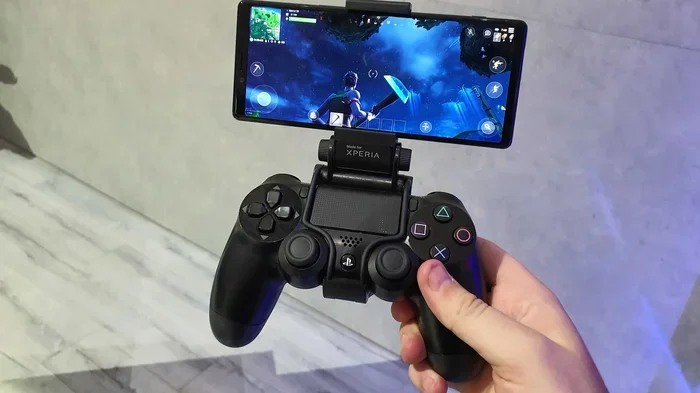
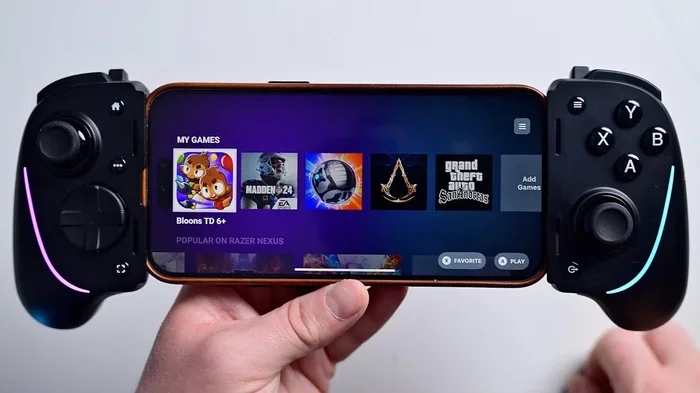
- Backbone One: This controller holds your iPhone in place. It turns your phone into a handheld console with physical buttons.
- Razer Kishi: Plugs directly into the iPhone charging port. It provides low-latency controls and a solid grip.
Method 2: Use Your iPhone Screen as a Touch Controller
Not everyone wants to buy extra hardware. The good news is that your iPhone screen can act as a touch controller for many games. This method works without any extra accessories. You just need the right app or game that supports touch-based input.
How Touch Controls Work
Many mobile games already use touch controls. You tap, swipe, and pinch on the screen to play. But some games let you customize these controls. You can move buttons around the screen to create a layout that feels like a mobile gamepad. This gives you more precision than default touch input.
For games that do not have built-in touch controls, third-party apps come to the rescue. Apps like Octopus and ControllerMate let you map touch inputs to virtual buttons. You create a custom overlay on your screen that mimics a real game controller. This is a great option for games that were not designed with mobile in mind.
Best Games for Touch Control
Some games are built from the ground up for touch input. Here are a few that shine on the iPhone:
- Genshin Impact: Offers a customizable touch layout that works well for most players.
- Fortnite Mobile: Supports both touch and external controllers for flexible gameplay.
- Call of Duty Mobile: Has responsive touch controls and aim assist features.
- Minecraft: Touch controls are intuitive and easy to learn for new players.
- Stardew Valley: Simple tap-based controls make farming a breeze on iPhone.
Method 3: Connect iPhone to PC or Mac as a Controller
Did you know you can use your iPhone as a controller for your computer? This is one of the most useful tricks for game streaming and PC gaming. You can turn your phone into a wireless gamepad for Steam, emulators, and retro games.
Using Apps to Control Your PC
Several apps let you transform your iPhone into a PC controller. The most popular options include:
- Steam Link: This free app lets you stream PC games to your iPhone. You can use your phone as a controller or pair a Bluetooth gamepad for better precision.
- Unified Remote: Turns your iPhone into a universal remote for your computer. It supports mouse, keyboard, and gamepad modes.
- Moga Player: Works with MFi controllers and lets you play PC games on your iPhone through streaming.
- Remobo: Lets you access your desktop from your iPhone and use the screen as an input device.
The setup process is simple. You install the app on both your iPhone and your computer. Make sure both devices are on the same Wi-Fi network. Open the app, follow the pairing instructions, and you are ready to play. This method is perfect for cloud gaming and playing retro games through emulators.
Setting Up Steam Input on iPhone
Steam has a built-in feature called Steam Input. It lets you customize how controllers work with each game. To set it up:
- Open Steam on your computer and go to Settings.
- Navigate to the Controller section.
- Enable Steam Input and choose your iPhone controller type.
- Per-game settings let you remap buttons and adjust sensitivity.
- Save your profile and start gaming.
This setup gives you full control over how your iPhone game controller behaves in each game. You can create different profiles for different titles and switch between them easily.
Method 4: Use iPhone with Xbox and PlayStation Consoles
Can you use your iPhone to play on Xbox or PlayStation? Yes, you can. Both Microsoft and Sony have made strides in mobile-controller compatibility. Your iPhone can serve as a second controller or even a primary one in some cases.
Xbox Cloud Gaming with iPhone
Xbox Cloud Gaming, part of Game Pass Ultimate, lets you play console games on your iPhone. You do not need an Xbox console. You just need a controller and a good internet connection. Here is how it works:
- Subscribe to Xbox Game Pass Ultimate.
- Download the Xbox Game Pass app from the App Store.
- Connect your Bluetooth controller or use the on-screen touch controls.
- Browse the game library and start playing instantly.
The touch controls work, but a physical controller is much better. You can pair your Xbox or PlayStation controller with your iPhone and use it to navigate the cloud gaming library. This gives you a console-quality experience right on your phone.
PlayStation Remote Play on iPhone
PlayStation Remote Play lets you stream your PS4 or PS5 games to your iPhone. You need a PlayStation Network account and a stable internet connection. Once set up, your iPhone becomes a portable screen for your PlayStation games. You can use the on-screen controls or pair a Bluetooth gamepad for a better experience.
Remote Play supports most PS4 and PS5 titles. It is a great way to play your console games while traveling or when the TV is in use. The quality depends on your Wi-Fi speed, but on a good network, the experience is smooth and responsive.
Method 5: Use iPhone with Android Devices and Smart TVs
Your iPhone can also work as a controller for Android devices and smart TVs. This is handy for playing games on your Android TV, NVIDIA Shield, or Fire TV Stick. The process involves a few extra steps but is still very doable.
Connecting to Android TV
To use your iPhone as a controller for Android TV:
- Download a controller app like Unified Remote or DroidJoy on both your iPhone and Android device.
- Make sure both devices are connected to the same Wi-Fi network.
- Open the app on your Android device and put it in server mode.
- Open the app on your iPhone and connect to the Android device.
- Map the controls and start gaming.
This setup works well for retro gaming emulators and casual games. It is not perfect for competitive gaming due to slight input lag, but it is great for fun and relaxed play.
Using iPhone with NVIDIA Shield
The NVIDIA Shield is a popular Android gaming device. It supports many controller types, including MFi controllers. You can pair your iPhone or an MFi controller directly with the Shield. This lets you play PC games streamed to the Shield using your iPhone as the input device.
Common Mistakes to Avoid When Setting Up Your iPhone Controller
Setting up your iPhone as a controller is usually smooth. But some common mistakes can cause frustration. Here are pitfalls to watch out for:
- Forgetting to Enable Bluetooth: Always make sure Bluetooth is turned on before trying to pair. This is the most common oversight.
- Using Incompatible Apps: Not all controller apps work with every game. Check compatibility before downloading.
- Ignoring Firmware Updates: Keep your controller firmware up to date. Outdated firmware can cause pairing issues.
- Weak Wi-Fi for Cloud Gaming: Cloud gaming needs a strong and stable connection. A weak signal leads to lag and poor performance.
- Not Checking Controller Battery: A low battery on your wireless controller causes intermittent disconnects. Charge before long gaming sessions.
- Skipping App Permissions: Some apps need permission to access Bluetooth and location. Grant these permissions for smooth operation.
Quick Tips for a Smooth Setup
Follow these tips to avoid problems and get the best experience:
- Restart your iPhone before pairing a new controller.
- Keep your iPhone and controller close during initial pairing.
- Use the latest version of any controller app.
- Test your setup with a simple game first.
- Create a backup controller profile in case settings get reset.
Expert Tips for the Best iPhone Gaming Experience
Want to get the most out of your iPhone game controller setup? These expert tips will help you level up your gaming experience.
Optimize Your iPhone Settings
Go to Settings and disable Low Power Mode before gaming. Low Power Mode can reduce Bluetooth performance and cause input lag. Also, turn on Do Not Disturb to avoid notifications interrupting your game.
Invest in a Good Stand or Mount
If you use your iPhone as a screen and controller at the same time, a stand helps. It holds your phone at the right angle and keeps it stable. Products like the Backbone One and Razer Kishi combine controller and phone mount in one device. They are worth the investment for serious mobile gamers.
Keep Your Games Updated
Game developers regularly update their titles to improve controller compatibility. Always keep your games up to date through the App Store. This ensures you have the latest fixes and features for controller support.
Use a Controller Case for Travel
If you game on the go, a controller case protects your iPhone and provides physical buttons in one package. These cases are compact and fit easily in a bag. They are perfect for travel or gaming away from home.
The Future of iPhone Gaming and Controllers
The future looks bright for iPhone gaming. Apple continues to improve controller support with every iOS update. Cloud gaming services are growing, and more games are adding native controller compatibility. The line between mobile and console gaming is blurring fast.
Apple Arcade is a great example. It offers hundreds of games optimized for iPhone, many of which support external controllers. As more developers embrace MFi controller standards, the gaming experience on iPhone will only get better.
We can also expect more innovative accessories. Companies are already building controllers that attach directly to the iPhone. These devices turn your phone into a handheld console without any extra steps. The mobile gaming ecosystem is evolving quickly, and iPhone users are at the center of it.
Final Thoughts
Turning your iPhone into a game controller opens up a world of possibilities. You can play on your PC, stream console games, or simply enjoy mobile titles with better controls. The methods in this guide cover everything from Bluetooth pairing to cloud gaming setups. No matter your skill level or budget, there is a solution that works for you.
Start with the method that fits your needs best. Try a touch control app for casual gaming. Invest in an MFi controller for a more serious setup. Explore cloud gaming if you want console-quality titles on your phone. Each approach has its strengths, and all of them turn your iPhone into a powerful game controller.
The best part is that you do not need expensive gear to get started. Your iPhone already has everything it needs. With the right app and a little setup, you are ready to game. So grab your phone, pick a method, and start playing today.
Frequently Asked Questions
Can I use my iPhone as a controller for Xbox?
Yes, you can. The Xbox Wireless Controller connects directly to your iPhone via Bluetooth. You can also use Xbox Cloud Gaming on your iPhone with the Game Pass app. Both methods let you play Xbox games using your phone as a controller or screen.
Do I need a special app to turn my iPhone into a game controller?
It depends on the method. For MFi controllers, no extra app is needed. For PC streaming or touch controls, apps like Steam Link, Octopus, or Unified Remote work well. Most of these apps are free and easy to set up.
Is there any lag when using an iPhone as a controller?
Bluetooth controllers have virtually no lag. Touch controls may have slight input delay compared to physical buttons. Cloud gaming lag depends on your Wi-Fi speed. A strong and stable connection minimizes any delay you might experience.
Can I use my iPhone to control games on my TV?
Yes, you can. Apps like Unified Remote and DroidJoy let you use your iPhone as a controller for Android TV and smart TVs. You need both devices on the same Wi-Fi network. The setup takes just a few minutes.
Are iPhone game controllers compatible with all games?
Most modern games support external controllers, especially those on Apple Arcade and Steam. However, some older or simpler games may only support touch input. Check the game settings to see if controller support is available before purchasing.
What is the best controller for iPhone gaming?
The best controller depends on your needs. The Xbox Wireless Controller offers great all-around performance. The Backbone One and Razer Kishi are perfect for mobile gaming on the go. The PlayStation DualSense provides the most immersive experience with haptic feedback. Choose based on your preferred gaming style and budget.
=== CONCLUSION ===
Turning your iPhone into a game controller is one of the smartest moves any mobile gamer can make. It saves money, reduces clutter, and gives you flexibility across multiple platforms. You have learned how to pair MFi controllers, use touch controls, stream PC games, and even play on Xbox and PlayStation. Each method is simple and effective.
Start experimenting with the methods that appeal to you most. Try a Bluetooth controller for console-style gaming. Test a touch control app for casual play. Explore cloud gaming for access to a massive game library. The beauty of this setup is that you can mix and match methods to fit your lifestyle.
Your iPhone is already a powerful device. With the right setup, it becomes a full-fledged game controller and gaming screen in one. So go ahead, set up your iPhone gaming setup, and enjoy a whole new level of mobile gaming. The controller is already in your pocket.